
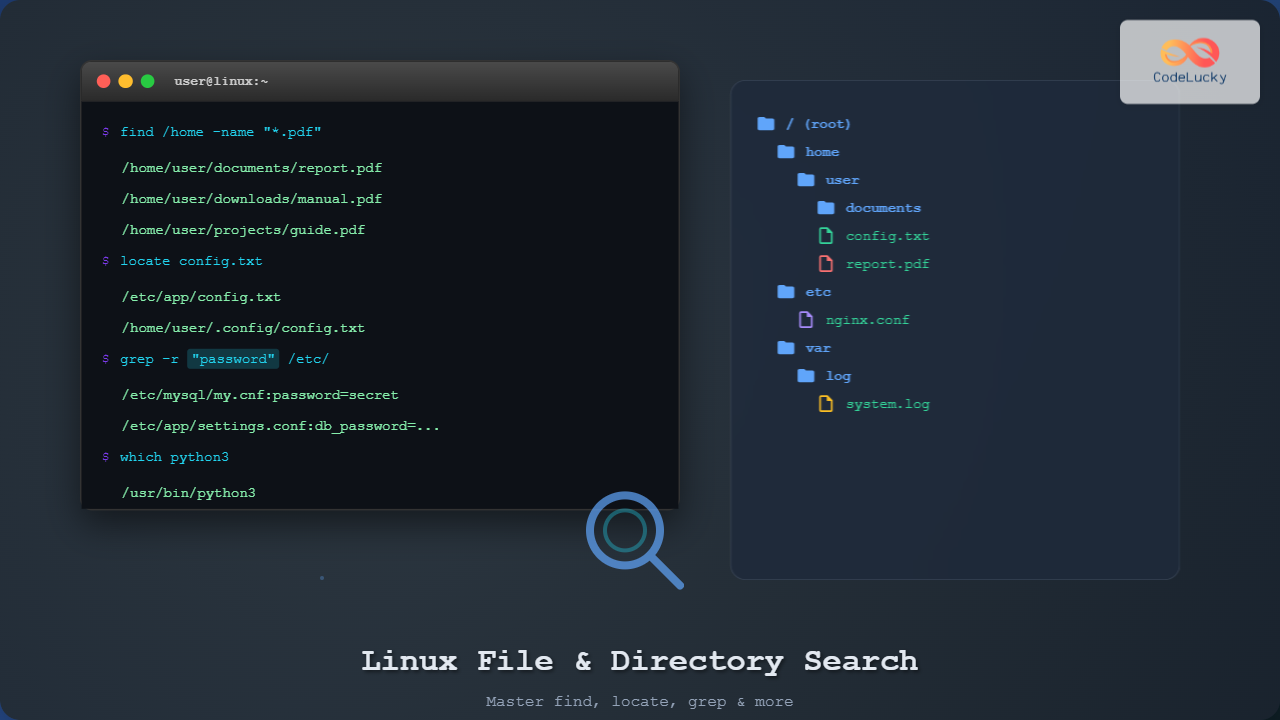
Finding files and directories in Linux systems is a fundamental skill every user should master. Whether you’re a system administrator managing servers or a developer organizing project files, knowing how to efficiently locate files can save you countless hours. This comprehensive guide will teach you multiple methods to find files and directories anywhere in your Linux system.
Understanding Linux File System Structure
Before diving into search commands, it’s essential to understand the Linux file system hierarchy. This knowledge will help you search more effectively.
The Find Command: Your Primary Search Tool
The find command is the most versatile and powerful tool for searching files and directories in Linux. It searches through the file system in real-time, making it always up-to-date but potentially slower for large searches.
Basic Find Syntax
find [path] [expression]Finding Files by Name
The most common use case is searching for files by their exact name or pattern:
# Find exact filename
find /home -name "document.txt"

# Find files with pattern (case-sensitive)
find /home -name "*.pdf"

# Case-insensitive search
find /home -iname "*.PDF"
Example Output:
/home/john/documents/report.pdf
/home/john/downloads/manual.PDF
/home/sarah/work/presentation.pdf
Finding Directories
Use the -type d option to search specifically for directories:
# Find directories by name
find /home -type d -name "projects"

# Find all directories containing "temp"
find / -type d -iname "*temp*" 2>/dev/null
The 2>/dev/null redirects error messages (like permission denied) to nowhere, keeping your output clean.
Advanced Find Options
Search by File Size
# Find files larger than 100MB
find /home -type f -size +100M

# Find files smaller than 1KB
find /home -type f -size -1k

# Find files exactly 500 bytes
find /home -type f -size 500c
Search by Modification Time
# Files modified in last 7 days
find /home -type f -mtime -7

# Files modified more than 30 days ago
find /home -type f -mtime +30

# Files accessed in last 24 hours
find /home -type f -atime -1
Search by File Permissions
# Find files with specific permissions
find /home -type f -perm 644

# Find executable files
find /home -type f -perm /u+x

# Find world-writable files
find /home -type f -perm /o+w
Combining Multiple Criteria

# Find large PDF files modified recently
find /home -name "*.pdf" -size +10M -mtime -30

# Find files that are either .txt OR .log
find /home \( -name "*.txt" -o -name "*.log" \)

# Find files NOT owned by current user
find /home -not -user $(whoami)
Executing Commands on Found Files
The find command becomes even more powerful when combined with actions:
# Delete all .tmp files
find /home -name "*.tmp" -delete

# Copy all .conf files to backup directory
find /etc -name "*.conf" -exec cp {} /backup/ \;

# List detailed information about found files
find /home -name "*.log" -exec ls -lh {} \;
The Locate Command: Fast Database Search
The locate command searches through a pre-built database, making it much faster than find but potentially less current.
Basic Locate Usage
# Find files containing "nginx" in the name
locate nginx

# Case-insensitive search
locate -i NGINX

# Limit results to 10
locate -l 10 "*.conf"
Updating the Locate Database
# Update the database (requires root privileges)
sudo updatedb

# Check when database was last updated
locate --statistics
Using Which and Whereis for Executables
For finding executable programs and their related files, specialized commands are more efficient:
The Which Command
# Find location of executable
which python3
# Output: /usr/bin/python3

# Find all instances in PATH
which -a python
The Whereis Command
# Find binary, source, and manual pages
whereis nginx
# Output: nginx: /usr/sbin/nginx /etc/nginx /usr/share/nginx /usr/share/man/man8/nginx.8.gz

# Find only binaries
whereis -b nginx
Grep for Content-Based Searching
When you need to find files based on their content rather than names, grep is your tool:
Basic Grep Syntax
# Find files containing specific text
grep -r "database_password" /etc/

# Case-insensitive search
grep -ri "error" /var/log/

# Show line numbers
grep -rn "TODO" /home/user/projects/
Advanced Grep Patterns
# Find files with email addresses
grep -r -E "[a-zA-Z0-9._%+-]+@[a-zA-Z0-9.-]+\.[a-zA-Z]{2,}" /home/

# Find files containing IP addresses
grep -r -E "([0-9]{1,3}\.){3}[0-9]{1,3}" /var/log/

# Exclude certain file types
grep -r --exclude="*.log" "password" /etc/
Interactive File Finding with FZF
For a more interactive experience, tools like fzf (fuzzy finder) can enhance your file searching:
# Install fzf (Ubuntu/Debian)
sudo apt install fzf

# Interactive file search
find /home -type f | fzf

# Search and preview files
find /home -type f | fzf --preview 'head -20 {}'
Practical Search Scenarios
Finding Configuration Files
# Find all configuration files
find /etc -name "*.conf" -o -name "*.cfg" -o -name "*.ini"

# Find Apache/Nginx configs specifically
locate -i "*apache*.conf" "*nginx*.conf"
Locating Log Files
# Find all log files
find /var/log -name "*.log" -type f

# Find large log files that might need rotation
find /var/log -name "*.log" -size +100M -exec ls -lh {} \;
Finding Recently Modified Files
# Files modified in the last hour
find /home -type f -mmin -60

# Most recently modified files first
find /home -type f -printf '%T+ %p\n' | sort -r | head -10
Performance Optimization Tips
Limiting Search Scope
Always limit your search to the smallest possible directory tree:
# Bad: Searches entire file system
find / -name "myfile.txt"

# Good: Searches only user directory
find /home/username -name "myfile.txt"

# Better: Searches specific subdirectory
find /home/username/documents -name "myfile.txt"
Using Efficient Options
# Stop after finding first match
find /home -name "config.txt" -quit

# Exclude mounted file systems
find /home -name "*.log" -mount

# Use locate for filename searches when possible
locate myfile.txt
Common Errors and Troubleshooting
Permission Denied Errors
# Suppress permission errors
find / -name "*.conf" 2>/dev/null

# Or run with elevated privileges
sudo find / -name "*.conf"
Handling Special Characters
# Files with spaces in names
find /home -name "my file.txt"
find /home -name "*my file*"

# Files with special characters
find /home -name "file[1-3].txt"
Large File System Searches
For very large file systems, consider these strategies:
# Use locate instead of find when possible
locate pattern

# Limit search depth
find /home -maxdepth 3 -name "*.pdf"

# Search specific file types only
find /home -name "*.pdf" -o -name "*.doc" -o -name "*.txt"
Creating Custom Search Aliases
Create shortcuts for frequently used search patterns:
# Add to ~/.bashrc
alias findpdf='find . -name "*.pdf" -type f'
alias findlarge='find . -size +100M -type f -exec ls -lh {} \;'
alias findrecent='find . -mtime -1 -type f'

# Usage after sourcing bashrc
findpdf
findlarge
findrecent
Advanced Scripting Examples
Combine multiple commands for complex file operations:
#!/bin/bash
# Script to find and organize files by extension

# Find all image files and copy to Images directory
find /home/user -type f \( -name "*.jpg" -o -name "*.png" -o -name "*.gif" \) -exec cp {} /home/user/Images/ \;

# Find duplicate files by size and name
find /home/user -type f -exec stat -f "%N %z" {} \; | sort -k2 -n | uniq -f1 --all-repeated=separate

# Clean up old temporary files
find /tmp -type f -mtime +7 -delete
find /home/user/.cache -type f -mtime +30 -delete
Best Practices Summary
- Start Specific: Always begin searches in the most specific directory possible
- Use Appropriate Tools:
findfor complex criteria,locatefor simple name searches,grepfor content - Handle Permissions: Use
2>/dev/nullto suppress error messages orsudowhen needed - Optimize Performance: Use
-quitfor single results, limit depth with-maxdepth - Test First: Use
-printbefore-deleteor-execto verify results - Update Databases: Run
updatedbregularly for accuratelocateresults
Mastering these file and directory search techniques will significantly improve your Linux productivity. Whether you’re troubleshooting system issues, organizing files, or developing applications, these tools will help you quickly locate exactly what you need in even the most complex file systems.





