
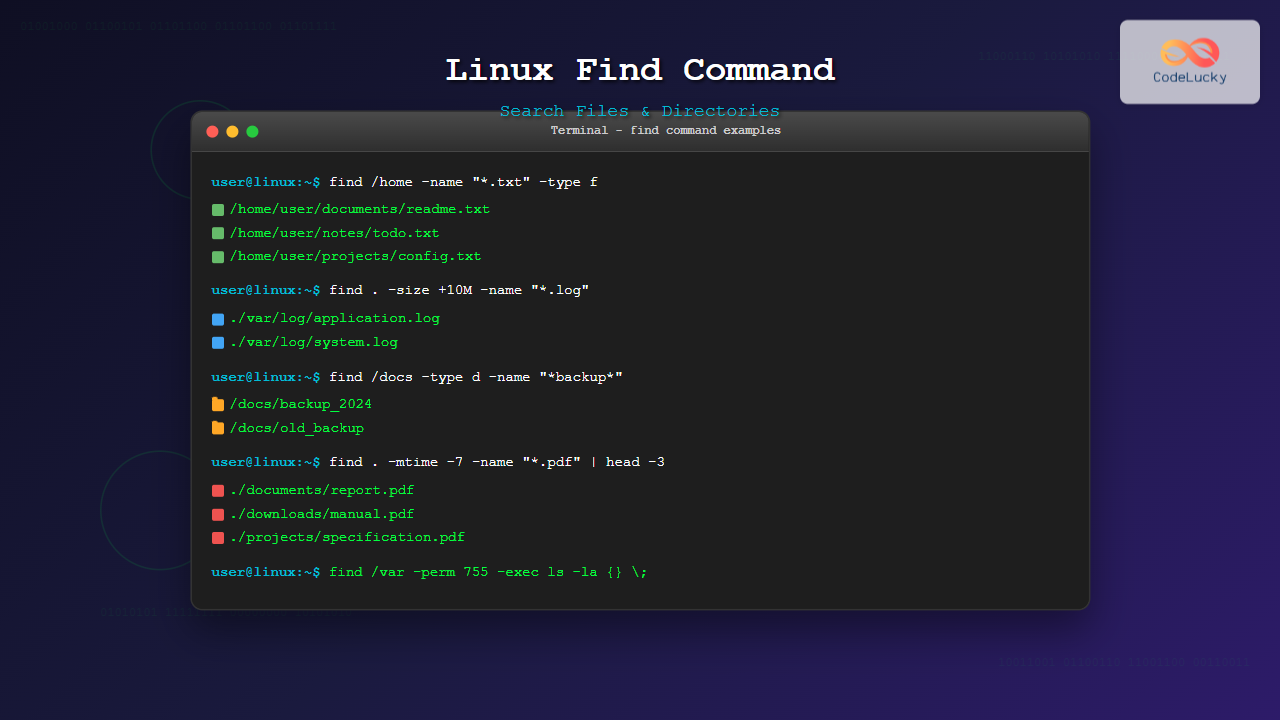
The find command is one of the most powerful and versatile tools in Linux for searching files and directories. Whether you’re a system administrator managing large file systems or a developer looking for specific files in your project, mastering find will significantly boost your productivity.
Basic Syntax and Structure
The basic syntax of the find command follows this pattern:
find [path] [expression] [action]- Path: The starting directory for the search (default is current directory)
- Expression: Criteria for matching files/directories
- Action: What to do with matching results (default is -print)
Finding Files by Name
Exact Name Matching
To find files with an exact name match:
find /home -name "config.txt"This searches for files named exactly “config.txt” in the /home directory and its subdirectories.
Case-Insensitive Name Search
Use -iname for case-insensitive searches:
find /var/log -iname "ERROR.log"This will match “error.log”, “Error.log”, “ERROR.LOG”, etc.
Wildcard Pattern Matching
Find all files with specific extensions:
find /home/user/documents -name "*.pdf"
find . -name "*.jpg" -o -name "*.png" -o -name "*.gif"
The -o operator means “OR”, allowing multiple patterns in a single command.
Partial Name Matching
Search for files containing specific text in their names:
find /opt -name "*backup*"
find . -name "test_*_file.txt"
Finding by File Type
The -type option filters results by file type:
find /etc -type f    # Regular files only
find /var -type d    # Directories only
find /dev -type l    # Symbolic links only
find /tmp -type s    # Socket files
find /proc -type c   # Character devices
find /dev -type b    # Block devices
Size-Based Searches
Finding Large Files
find /home -size +100M    # Files larger than 100MB
find /var/log -size +1G   # Files larger than 1GB
find . -size +500k        # Files larger than 500KB
Finding Small Files
find /tmp -size -1M       # Files smaller than 1MB
find . -size -10k         # Files smaller than 10KB
Exact Size Matching
find /home -size 50M      # Files exactly 50MB
find . -size 0            # Empty files
Size Range Searches
find /var -size +10M -size -100M # Files between 10MB and 100MBTime-Based Searches
Modification Time
find /home -mtime -7      # Modified in last 7 days
find /var/log -mtime +30  # Modified more than 30 days ago
find . -mtime 0           # Modified today
Access Time
find /tmp -atime +10      # Accessed more than 10 days ago
find /home -atime -1      # Accessed in last 24 hours
Change Time
find /etc -ctime -2 # Status changed in last 2 daysMinute-Based Time Searches
find /var/log -mmin -60   # Modified in last 60 minutes
find /tmp -amin +120      # Accessed more than 120 minutes ago
Permission-Based Searches
Exact Permission Match
find /home -perm 755      # Files with exactly 755 permissions
find /var/www -perm 644   # Files with exactly 644 permissions
At Least Permissions
find /usr/bin -perm -755  # Files with at least 755 permissions
find . -perm -u+x         # Files with user execute permission
Any of These Permissions
find /tmp -perm /222      # Files writable by someone
find . -perm /u+w,g+w,o+w # Files writable by user, group, or other
User and Group Ownership
find /home -user john          # Files owned by user 'john'
find /var -group developers    # Files owned by group 'developers'
find /tmp -uid 1001           # Files owned by UID 1001
find . -gid 100               # Files owned by GID 100
Advanced Search Techniques
Combining Multiple Criteria
Use logical operators to combine search criteria:
# AND condition (implicit)
find /home -name "*.log" -size +1M

# OR condition
find . -name "*.txt" -o -name "*.doc"

# NOT condition
find /tmp -not -name "*.tmp"
find . \! -name "*.bak"

# Complex combinations
find /var/log -name "*.log" -size +10M -mtime +7
Using Parentheses for Grouping
find . \( -name "*.jpg" -o -name "*.png" \) -size +1MExecuting Actions on Found Files
Delete Files
find /tmp -name "*.tmp" -delete
find /var/log -name "*.old" -mtime +30 -delete
Execute Commands
# Execute command for each file
find /home -name "*.bak" -exec rm {} \;

# Execute command with multiple files at once
find . -name "*.txt" -exec grep "pattern" {} +

# Interactive execution
find /tmp -name "core.*" -ok rm {} \;
Copy or Move Files
find /home/user -name "*.pdf" -exec cp {} /backup/pdfs/ \;
find . -name "*.old" -exec mv {} /archive/ \;
Performance Optimization
Limiting Search Depth
find /home -maxdepth 2 -name "*.txt"    # Search only 2 levels deep
find . -mindepth 2 -name "*.log"        # Skip first 2 levels
Faster Searches with locate
For frequently accessed files, consider using locate which uses a pre-built database:
locate filename.txt
updatedb  # Update the locate database
Excluding Directories
find /home -path "*/.*" -prune -o -name "*.txt" -print
find . -name ".git" -prune -o -name "*.py" -print
Practical Examples and Use Cases
System Administration Tasks
Find large log files eating disk space:
find /var/log -type f -size +100M -exec ls -lh {} \;Clean up old temporary files:
find /tmp -type f -mtime +7 -deleteFind SUID/SGID files (security audit):
find / -perm -4000 -type f 2>/dev/null    # SUID files
find / -perm -2000 -type f 2>/dev/null    # SGID files
Development Tasks
Find all Python files modified today:
find . -name "*.py" -mtime 0Search for TODO comments in source files:
find . -name "*.js" -exec grep -l "TODO" {} \;Find duplicate filenames:
find . -type f -printf "%f\n" | sort | uniq -dFile Management
Find broken symbolic links:
find /home -type l ! -exec test -e {} \; -printFind files by content type (using file command):
find . -type f -exec file {} \; | grep "PDF document"Regular Expressions with find
Use -regex for more complex pattern matching:
find /var/log -regex ".*\(\.log\|\.txt\)$"
find . -regex ".*/[0-9]+\.jpg$"    # Files like 123.jpg, 456.jpg
Error Handling and Troubleshooting
Suppressing Permission Errors
find /etc -name "*.conf" 2>/dev/nullVerbose Output for Debugging
find /home -name "*.txt" -print0 | xargs -0 ls -laAlternative Tools and When to Use Them
| Tool | Best For | Example |
|---|---|---|
locate |
Quick filename searches | locate nginx.conf |
which |
Finding executables in PATH | which python3 |
whereis |
Finding binaries, sources, manuals | whereis gcc |
fd |
Modern, faster alternative | fd "*.py" |
Best Practices and Tips
- Always test destructive operations first by replacing
-deletewith-print - Use quotes around patterns to prevent shell expansion:
find . -name "*.txt" - Be specific with paths to avoid unnecessary directory traversal
- Consider performance when searching large filesystems – use
-maxdepthwhen possible - Use
-print0withxargs -0for filenames containing spaces - Combine with other commands using pipes for powerful workflows
Common Pitfalls to Avoid
- Forgetting to escape special characters in patterns
- Using wrong logical operators – remember
-ais implicit AND - Not handling spaces in filenames properly
- Running destructive commands without testing
- Searching entire filesystem when a specific directory would suffice
The find command is incredibly powerful and versatile. With practice, it becomes an indispensable tool for file system navigation, system administration, and development tasks. Start with simple searches and gradually incorporate more advanced features as you become comfortable with the basic syntax.
Remember to always test your find commands thoroughly, especially when performing actions like deletion or modification. The combination of find with other Unix tools creates a powerful toolkit for managing files and directories efficiently.
Related Posts
find Command Advanced Linux: Master Complex Search Patterns and Powerful Operations
The find command is one of the most powerful and versatile tools in the Linux arsenal, capable of performing complex...

locate Command in Linux: Fast File Search Using Database Indexing
The locate command is one of Linux's most efficient file search utilities, offering lightning-fast results by leveraging a pre-built database...

locate Command Advanced Linux: Database Search Optimization Techniques
The locate command is one of Linux's most powerful file search utilities, offering lightning-fast file discovery through its pre-built database...

whereis Command Linux: Complete Guide to Locate Binary, Source and Manual Pages
The whereis command is a powerful Linux utility that helps system administrators and developers quickly locate binary executables, source files,...
which Command Linux: Complete Guide to Finding Executable File Locations
The which command is one of the most fundamental utilities in Linux and Unix-like systems, designed to help users locate...
ls Command Advanced Linux: Complete Guide to File Listing Mastery
The ls command is one of the most fundamental and frequently used commands in Linux and Unix-like operating systems. While...

mlocate Command Linux: Complete Guide to Secure File Search and Database Management
The mlocate command is a powerful and secure implementation of the traditional locate utility in Linux systems. Unlike its predecessor,...

ls Command in Linux: Complete Guide to List Files and Directories with Examples
The ls command is one of the most fundamental and frequently used commands in Linux and Unix-like operating systems. It...
grep Command in Linux: Complete Guide to Text Pattern Search and File Operations
The grep command is one of the most powerful and frequently used text processing utilities in Linux and Unix systems....
which Command Linux: Complete Guide to Locating Executable Commands in PATH
The which command is a fundamental Linux utility that helps you locate executable files in your system's PATH environment variable....

updatedb Command Linux: Complete Guide to Update Locate Database
The updatedb command is a crucial system utility in Linux that updates the database used by the locate command for...

file Command Advanced Linux: Master Detailed File Type Analysis and Detection
The file command is one of the most powerful and underutilized utilities in Linux for determining file types and analyzing...





