
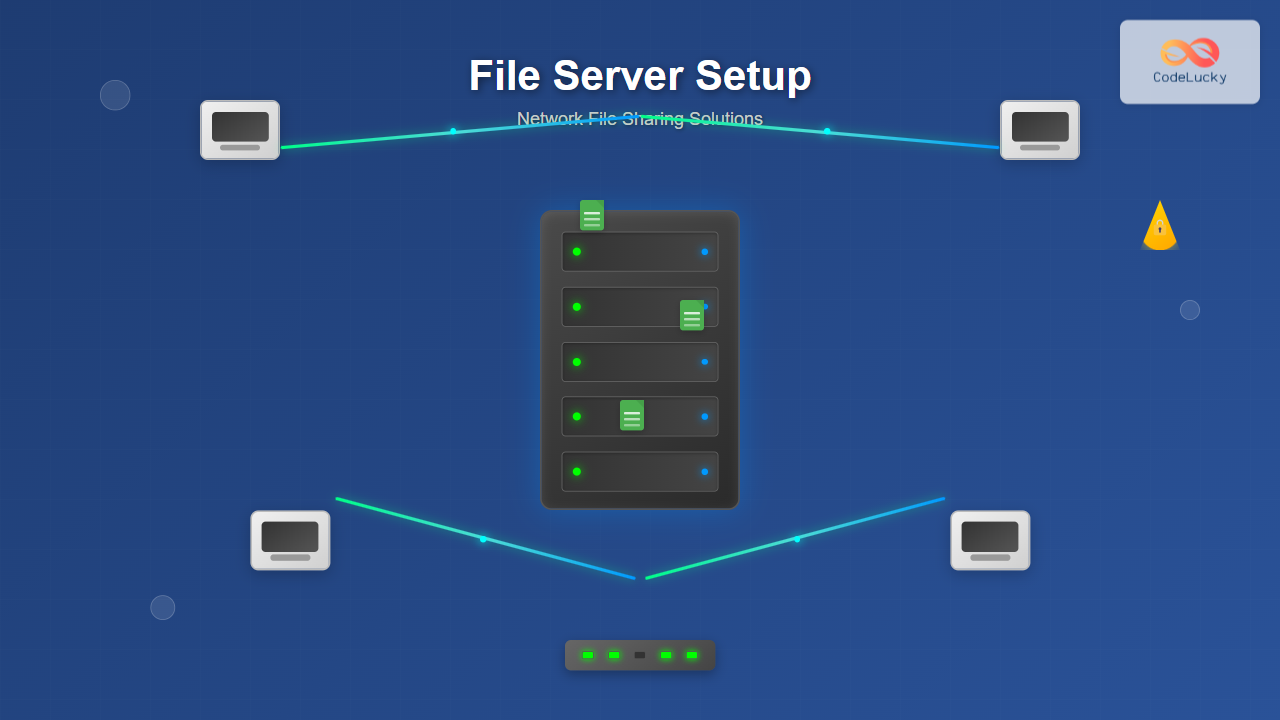
Network file sharing is essential for modern organizations, enabling seamless data access across multiple devices and users. A properly configured file server acts as a centralized storage solution that improves collaboration, data management, and security while reducing hardware costs and administrative overhead.
Understanding File Server Architecture
File servers operate using client-server architecture where the server hosts shared resources and clients access them over a network. The server manages file permissions, handles concurrent access, and maintains data integrity while multiple users perform read/write operations simultaneously.

Common File Sharing Protocols
Server Message Block (SMB/CIFS)
SMB is the primary protocol for Windows-based networks, providing file and printer sharing capabilities. Modern versions include SMB 2.0, 2.1, 3.0, and 3.1.1, each offering improved performance and security features.
Network File System (NFS)
NFS is predominantly used in Unix/Linux environments, offering high performance and scalability for homogeneous networks. It supports both UDP and TCP transport protocols.
File Transfer Protocol (FTP/SFTP)
FTP provides basic file transfer capabilities, while SFTP adds encryption and security features for secure remote file access.
Windows Server File Sharing Setup
Installing File Services Role
Begin by installing the File Services role through Server Manager:
# PowerShell command to install File Services
Install-WindowsFeature -Name File-Services -IncludeManagementTools

# Install additional features
Install-WindowsFeature -Name FS-FileServer, FS-DFS-Namespace, FS-DFS-Replication
Creating Shared Folders
Configure shared folders using the New Share Wizard or PowerShell commands:
# Create a new shared folder
New-SmbShare -Name "CompanyData" -Path "D:\SharedFolders\CompanyData" -FullAccess "Domain\Administrators" -ReadAccess "Domain\Users"

# Set advanced sharing properties
Set-SmbShare -Name "CompanyData" -Description "Company shared data repository" -CachingMode Manual
Configuring NTFS Permissions
Establish proper NTFS permissions to control file access:
# Set NTFS permissions
$acl = Get-Acl "D:\SharedFolders\CompanyData"
$permission = "Domain\Users", "ReadAndExecute", "ContainerInherit,ObjectInherit", "None", "Allow"
$accessRule = New-Object System.Security.AccessControl.FileSystemAccessRule $permission
$acl.SetAccessRule($accessRule)
$acl | Set-Acl "D:\SharedFolders\CompanyData"
Linux Samba File Server Configuration
Installing Samba
Install Samba on Ubuntu/Debian systems:
# Update package repository
sudo apt update

# Install Samba and utilities
sudo apt install samba samba-common-bin smbclient

# Check Samba version
samba --version
Configuring Samba Shares
Edit the Samba configuration file located at /etc/samba/smb.conf:
# Global section
[global]
   workgroup = WORKGROUP
   server string = Company File Server
   security = user
   map to guest = bad user
   dns proxy = no
   log file = /var/log/samba/log.%m
   max log size = 1000

# Shared folder configuration
[CompanyData]
   comment = Company Data Repository
   path = /srv/samba/companydata
   valid users = @smbgroup
   read only = no
   browsable = yes
   create mask = 0664
   directory mask = 0775
Creating Samba Users
Add users to Samba and configure permissions:
# Create system user
sudo useradd -M -d /srv/samba/companydata -s /usr/sbin/nologin -G smbgroup johndoe

# Add user to Samba database
sudo smbpasswd -a johndoe

# Enable the user account
sudo smbpasswd -e johndoe

# Create shared directory with proper permissions
sudo mkdir -p /srv/samba/companydata
sudo chown root:smbgroup /srv/samba/companydata
sudo chmod 775 /srv/samba/companydata
Network File System (NFS) Implementation
NFS Server Configuration
Install and configure NFS server on Linux:
# Install NFS server packages
sudo apt install nfs-kernel-server

# Create NFS export directory
sudo mkdir -p /srv/nfs/share
sudo chown nobody:nogroup /srv/nfs/share
sudo chmod 755 /srv/nfs/share

# Configure exports in /etc/exports
echo "/srv/nfs/share 192.168.1.0/24(rw,sync,no_subtree_check,no_root_squash)" | sudo tee -a /etc/exports

# Apply export configuration
sudo exportfs -a
sudo systemctl restart nfs-kernel-server
NFS Client Mount
Mount NFS shares on client systems:
# Install NFS client utilities
sudo apt install nfs-common

# Create mount point
sudo mkdir -p /mnt/nfs/share

# Mount NFS share
sudo mount -t nfs 192.168.1.100:/srv/nfs/share /mnt/nfs/share

# Add to /etc/fstab for persistent mounting
echo "192.168.1.100:/srv/nfs/share /mnt/nfs/share nfs defaults 0 0" | sudo tee -a /etc/fstab
File Server Security Implementation

Access Control Lists (ACLs)
Implement granular access control using ACLs:
# Set ACL on Linux
setfacl -m u:johndoe:rwx /srv/samba/companydata
setfacl -m g:accounting:r-x /srv/samba/companydata
setfacl -m o::--- /srv/samba/companydata

# View current ACLs
getfacl /srv/samba/companydata
Encryption and Secure Protocols
Enable SMB encryption for data in transit:
# Enable SMB encryption on Windows
Set-SmbServerConfiguration -EncryptData $true -RequireSecuritySignature $true

# Configure SMB3 encryption for specific share
Set-SmbShare -Name "CompanyData" -EncryptData $true
Performance Optimization Strategies
SMB Multichannel Configuration
Enable SMB Multichannel for improved performance:
# Enable SMB Multichannel
Set-SmbServerConfiguration -EnableMultiChannel $true

# Verify multichannel status
Get-SmbServerConfiguration | Select EnableMultiChannel

# Monitor multichannel connections
Get-SmbMultichannelConnection
Caching and Offline Files
Configure client-side caching for improved performance:
# Configure share caching mode
Set-SmbShare -Name "CompanyData" -CachingMode BranchCache

# Available caching modes:
# None - No caching
# Manual - Manual caching
# Documents - Automatic document caching
# Programs - Program and document caching
# BranchCache - BranchCache enabled
Monitoring and Maintenance

Performance Monitoring Scripts
Monitor file server performance using PowerShell:
# Monitor SMB shares performance
Get-Counter "\SMB Server Shares(*)\Current Open File Count"
Get-Counter "\SMB Server Shares(*)\Avg. sec/Read"
Get-Counter "\SMB Server Shares(*)\Avg. sec/Write"

# Monitor system resources
Get-Counter "\Processor(_Total)\% Processor Time"
Get-Counter "\Memory\Available MBytes"
Get-Counter "\PhysicalDisk(_Total)\Avg. Disk Queue Length"
Log Analysis
Analyze Samba logs for troubleshooting:
# Monitor Samba logs
tail -f /var/log/samba/log.smbd

# Search for specific events
grep "authentication" /var/log/samba/log.smbd
grep "ERROR" /var/log/samba/log.smbd

# Analyze connection patterns
awk '/connect/' /var/log/samba/log.smbd | head -20
Backup and Disaster Recovery
Automated Backup Solutions
Implement automated backup strategies:
# Rsync-based backup script
#!/bin/bash
SOURCE="/srv/samba/companydata"
DESTINATION="/backup/fileserver/$(date +%Y%m%d)"
LOG="/var/log/backup.log"

# Create backup directory
mkdir -p "$DESTINATION"

# Perform incremental backup
rsync -avz --progress --delete "$SOURCE/" "$DESTINATION/" >> "$LOG" 2>&1

# Compress old backups
find /backup/fileserver -name "20*" -mtime +7 -exec tar -czf {}.tar.gz {} \; -exec rm -rf {} \;
Troubleshooting Common Issues

Common Error Resolution
Resolve typical file server connectivity issues:
# Test SMB connectivity
smbclient -L //server_ip -U username

# Test NFS connectivity
showmount -e server_ip

# Check service status
systemctl status smbd nmbd
systemctl status nfs-kernel-server

# Restart services if needed
sudo systemctl restart smbd nmbd
sudo systemctl restart nfs-kernel-server
Advanced Configuration Features
Distributed File System (DFS)
Implement DFS for namespace consolidation and replication:
# Install DFS role
Install-WindowsFeature -Name FS-DFS-Namespace, FS-DFS-Replication -IncludeManagementTools

# Create DFS namespace
New-DfsnRoot -TargetPath "\\server01\DFSRoot" -Type DomainV2 -Path "\\domain.com\files"

# Add folder to namespace
New-DfsnFolder -Path "\\domain.com\files\shared" -TargetPath "\\server01\SharedFolders\CompanyData"
File Screening and Quotas
Implement file screening and disk quotas:
# Install FSRM role
Install-WindowsFeature -Name FS-Resource-Manager -IncludeManagementTools

# Create disk quota
New-FsrmQuota -Path "D:\SharedFolders\CompanyData" -Size 10GB -SoftLimit

# Create file screen
New-FsrmFileScreen -Path "D:\SharedFolders\CompanyData" -Template "Block Executable Files"
Proper file server setup requires careful planning of protocols, security measures, and performance optimization. Regular monitoring and maintenance ensure reliable network file sharing that scales with organizational needs while maintaining data integrity and security. The combination of appropriate protocols, robust security implementations, and proactive monitoring creates an efficient file sharing infrastructure that supports collaborative work environments.





