Efficient file renaming is one of the foundational tasks for Linux users working extensively with command line interfaces. Whether managing a few files or thousands, mastering the command line utilities for this purpose can vastly improve productivity. This comprehensive guide explains how to rename files in Linux using the command line, illustrated with clear examples, output visuals, and mermaid diagrams where beneficial.
Why Rename Files Using the Linux Command Line?
Graphical file managers are convenient, but they fall short when batch operations or automation is required. The Linux command line empowers users to perform single or bulk file renaming swiftly, integrate renaming operations into scripts, and handle complex patterns and file naming conventions.
Common Commands for File Renaming in Linux
mv Command: Simple File Renaming
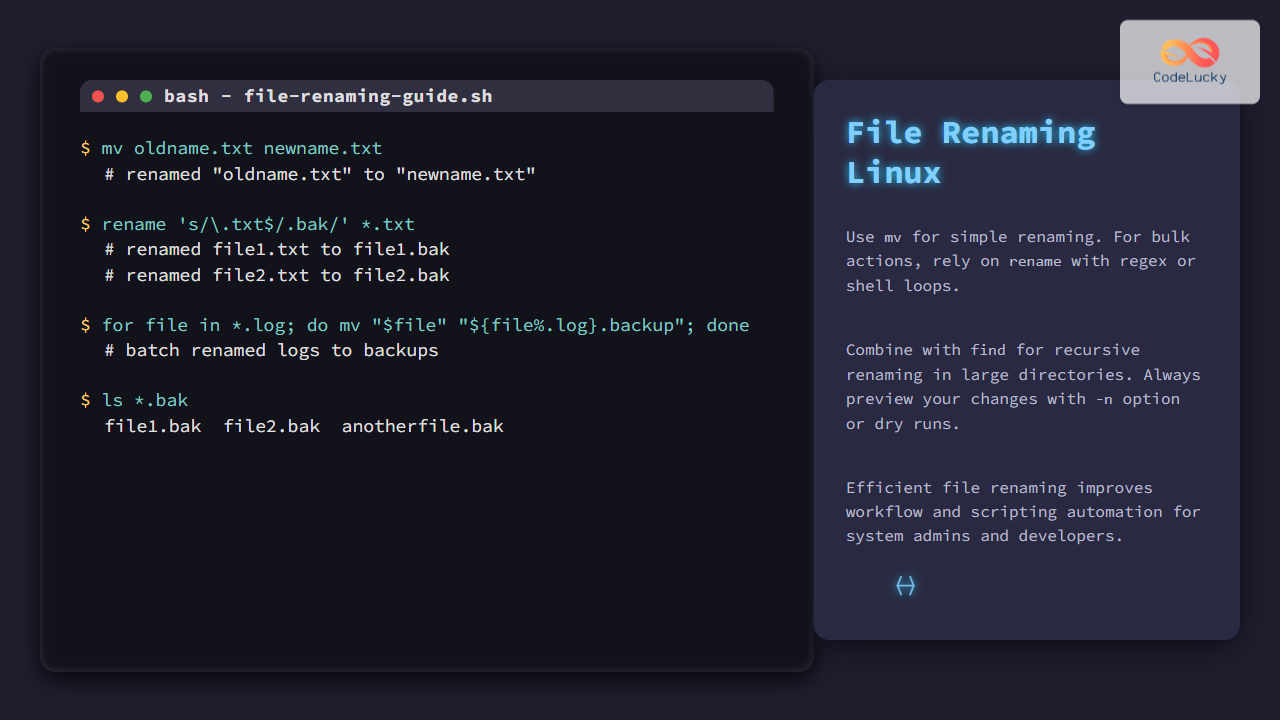
The mv (move) command is the primary Linux tool to rename files. It changes a file’s name or moves it to a new location.
# Rename a file "oldname.txt" to "newname.txt"
mv oldname.txt newname.txt

# Output: No output means success; check by listing files:
ls -l newname.txt
Example output after ls -l newname.txt:
-rw-r--r-- 1 user user 1234 Aug 30 18:00 newname.txt
Batch Renaming Using Shell Loops
For multiple files, a simple for loop combined with mv is effective.
# Rename all ".txt" files to ".bak" extension
for file in *.txt; do
  mv "$file" "${file%.txt}.bak"
done
Explanation: The parameter expansion ${file%.txt} strips the “.txt” extension, appending “.bak” instead.

rename Command: Powerful Batch Renaming
The rename command provides advanced renaming capabilities using Perl regular expressions. Note that there are two major versions:
- Perl-based rename (common in Debian/Ubuntu)
- util-linux rename (common in RedHat/CentOS)
The example below uses the Perl-based rename version, the most versatile and widely used.
# Rename all ".txt" files to ".bak"
rename 's/\.txt$/.bak/' *.txt

# Rename files starting with "temp" to start with "final"
rename 's/^temp/final/' temp*
Explanation: The ‘s/regex/replacement/’ syntax is Perl substitution with regex.
Visual Guide of Perl rename Workflow

Renaming Files Interactively
To avoid mistakes, you can run rename commands with the -n (no-action) option. This simulates changes and shows what files would be renamed.
# Preview changes without renaming
rename -n 's/\.txt$/.bak/' *.txt

# Output example:
# oldname.txt renamed as oldname.bak
# secondfile.txt renamed as secondfile.bak
Advanced Batch Rename: Using find with mv
When files are scattered in multiple directories, find combined with mv or rename is very handy.
# Find all ".log" files and rename to ".backup"
find ./ -type f -name "*.log" -exec rename 's/\.log$/.backup/' {} +

# Or using a loop for complex renaming:
find ./ -type f -name "*.log" | while read file; do
  mv "$file" "${file%.log}.backup"
done
Tips for Safe Renaming
- Backup files before mass renaming to prevent accidental data loss.
- Use
rename -nor run scripts on test directories first. - Quote file names to handle spaces or special characters.
- Leverage shell parameter expansion and regex patterns for flexible renaming strategies.
Example: Rename Multiple Image Files with Timestamp
# Rename all .jpg files with the current date prefix (YYYYMMDD)
for file in *.jpg; do
  mv "$file" "$(date +%Y%m%d)_$file"
done
Output example after running the above (shown by ls):
20250830_photo1.jpg
20250830_holiday.jpg
20250830_event.jpg
Interactive Diagram of Renaming Workflow

Summary
Renaming files in Linux via the command line ranges from simple single-file moves using mv to complex batch renamings with rename and shell scripting. Understanding the nuances of each command and combining tools like find helps manage files efficiently. Always preview renaming operations interactively when possible to secure files from accidental renaming.
With these command line techniques, users can automate tedious file management tasks, maintain naming conventions, and boost productivity on Linux systems.