
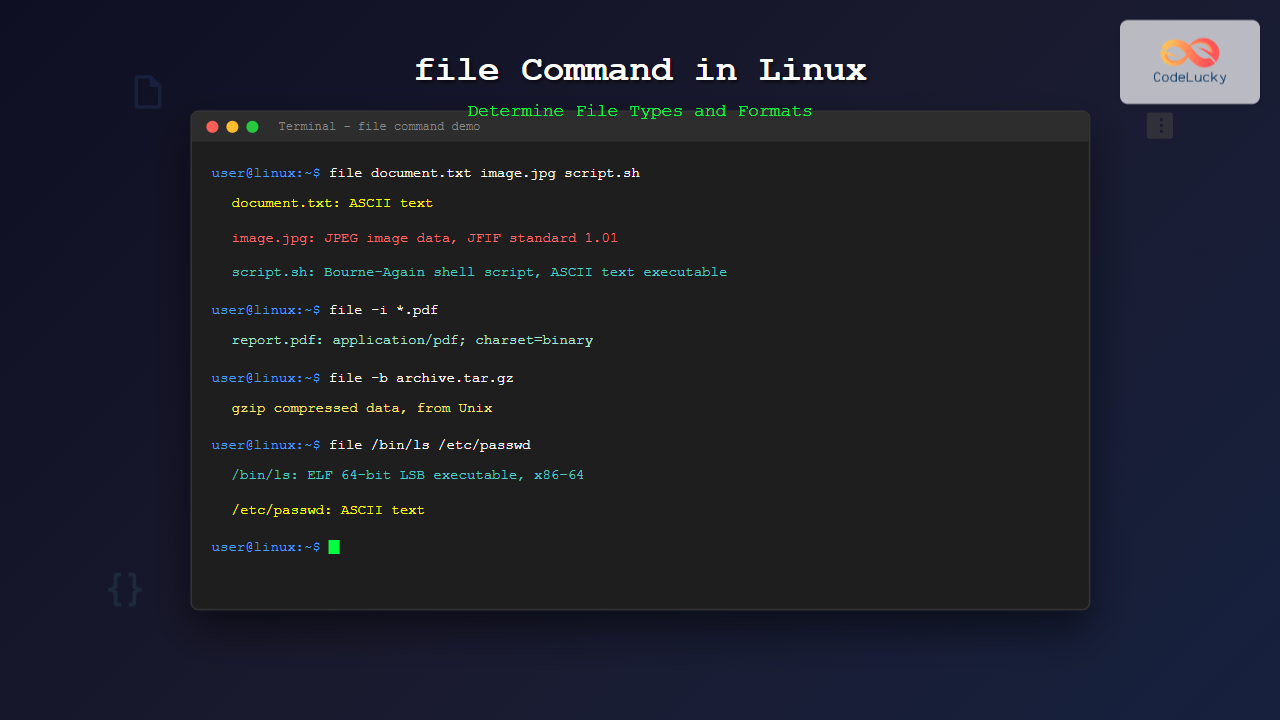
The file command is one of the most essential utilities in Linux for determining file types and formats. Unlike relying on file extensions, which can be misleading or absent, the file command examines the actual content and structure of files to provide accurate type identification.
What is the file Command?
The file command analyzes files and determines their type by examining their content, magic numbers, and internal structure. It doesn’t rely on file extensions but instead reads the file’s header and content to make accurate determinations about what type of data the file contains.
Basic Syntax
file [options] filename(s)Simple Usage Examples
Identifying a Single File
$ file document.txt
document.txt: ASCII text
Checking Multiple Files
$ file image.jpg script.sh data.bin
image.jpg: JPEG image data, JFIF standard 1.01
script.sh: Bourne-Again shell script, ASCII text executable
data.bin: data
Using Wildcards
$ file *.txt
readme.txt: ASCII text
config.txt: ASCII text, with CRLF line terminators
log.txt: UTF-8 Unicode text
Common File Types Identified
Text Files
$ file sample.txt
sample.txt: ASCII text

$ file unicode.txt
unicode.txt: UTF-8 Unicode text

$ file windows.txt
windows.txt: ASCII text, with CRLF line terminators
Image Files
$ file photo.jpg
photo.jpg: JPEG image data, JFIF standard 1.01, resolution (DPI), density 72x72

$ file logo.png
logo.png: PNG image data, 256 x 256, 8-bit/color RGBA, non-interlaced

$ file icon.gif
icon.gif: GIF image data, version 89a, 32 x 32
Executable Files
$ file /bin/ls
/bin/ls: ELF 64-bit LSB shared object, x86-64, version 1 (SYSV), dynamically linked

$ file script.py
script.py: Python script, ASCII text executable

$ file program.exe
program.exe: PE32 executable (console) Intel 80386, for MS Windows
Important Command Options
-b (Brief Mode)
The -b option displays only the file type without the filename:
$ file -b document.pdf
PDF document, version 1.4

$ file document.pdf
document.pdf: PDF document, version 1.4
-i (MIME Type)
Use -i to get MIME type information, useful for web development:
$ file -i image.jpg
image.jpg: image/jpeg; charset=binary

$ file -i script.js
script.js: text/plain; charset=us-ascii
-L (Follow Symbolic Links)
The -L option follows symbolic links to examine the target file:
$ file link_to_script
link_to_script: symbolic link to script.sh

$ file -L link_to_script
link_to_script: Bourne-Again shell script, ASCII text executable
-z (Compressed Files)
Use -z to look inside compressed files:
$ file archive.tar.gz
archive.tar.gz: gzip compressed data

$ file -z archive.tar.gz
archive.tar.gz: POSIX tar archive (gzip compressed data)
Advanced Usage Scenarios
Identifying Files Without Extensions
$ file mysterious_file
mysterious_file: JPEG image data, JFIF standard 1.01

$ file unknown_data
unknown_data: SQLite 3.x database
Checking Directory Contents
$ file /etc/passwd /etc/hosts /etc/fstab
/etc/passwd: ASCII text
/etc/hosts: ASCII text
/etc/fstab: ASCII text
Combining with Other Commands
Find all image files in a directory:
$ find . -type f -exec file {} \; | grep -i image
./photo1.jpg: JPEG image data, JFIF standard 1.01
./logo.png: PNG image data, 200 x 100, 8-bit/color RGBA
./banner.gif: GIF image data, version 89a, 800 x 200
Count files by type:
$ file * | cut -d: -f2 | sort | uniq -c
      3  ASCII text
      2  JPEG image data
      1  PNG image data
      4  directory
Working with Special File Types
Archive Files
$ file backup.tar
backup.tar: POSIX tar archive

$ file data.zip
data.zip: Zip archive data, at least v2.0 to extract

$ file package.rpm
package.rpm: RPM v3.0 bin i386/x86_64
Database Files
$ file database.db
database.db: SQLite 3.x database

$ file data.mdb
data.mdb: Microsoft Access Database
Media Files
$ file music.mp3
music.mp3: Audio file with ID3 version 2.3.0, contains: MPEG ADTS, layer III

$ file video.mp4
video.mp4: ISO Media, MP4 Base Media v1 [ISO 14496-12:2003]
Understanding Magic Numbers
The file command uses magic numbers (file signatures) stored in magic databases to identify file types. These are specific byte sequences at the beginning of files:
$ xxd -l 16 image.jpg
00000000: ffd8 ffe0 0010 4a46 4946 0001 0101 0048  ......JFIF.....H

$ file image.jpg
image.jpg: JPEG image data, JFIF standard 1.01
Practical Use Cases
System Administration
Audit files in system directories:
$ sudo file /etc/* | grep -v "ASCII text" | head -5
/etc/alternatives: directory
/etc/apparmor.d: directory
/etc/apt: directory
/etc/ssl: directory
/etc/init.d: directory
Security Analysis
Identify potentially malicious files:
$ file suspicious_file.txt
suspicious_file.txt: PE32 executable (GUI) Intel 80386, for MS Windows
Web Development
Verify uploaded file types:
$ file -bi uploaded_image.jpg
image/jpeg; charset=binary
Troubleshooting Common Issues
Files Showing as “data”
When file returns “data”, it means the file type couldn’t be determined:
$ file unknown.bin
unknown.bin: data
Try using additional options:
$ file -z unknown.bin  # If it might be compressed
$ file -L unknown.bin  # If it's a symbolic link
Incorrect File Extension Detection
$ file image.txt
image.txt: JPEG image data, JFIF standard 1.01
This shows why the file command is more reliable than trusting extensions.
Performance Considerations
For large directories, use find with -exec efficiently:
# Efficient for many files
$ find /path/to/directory -type f -print0 | xargs -0 file

# Less efficient
$ find /path/to/directory -type f -exec file {} \;
Integration with Shell Scripts
#!/bin/bash

check_file_type() {
    local filename="$1"
    local filetype=$(file -b "$filename")

    case "$filetype" in
        *"ASCII text"*)
            echo "Text file: $filename"
            ;;
        *"JPEG image"*)
            echo "JPEG image: $filename"
            ;;
        *"executable"*)
            echo "Executable: $filename"
            ;;
        *)
            echo "Unknown type: $filename ($filetype)"
            ;;
    esac
}

# Usage
check_file_type "sample.txt"
Best Practices
- Always verify file types before processing, especially in automated scripts
- Use MIME types (
-i) when working with web applications - Combine with other tools like
findandgrepfor powerful file analysis - Don’t rely solely on extensions for file type determination
- Use brief mode (
-b) in scripts for cleaner output parsing
Related Commands
ls -la– List files with detailed informationstat– Display detailed file statisticshexdumporxxd– Examine file content in hexadecimalstrings– Extract readable strings from binary files
The file command is an indispensable tool for Linux system administrators, developers, and power users. Its ability to accurately identify file types regardless of extensions makes it essential for security auditing, system maintenance, and automated file processing tasks.
Related Posts

file Command Advanced Linux: Master Detailed File Type Analysis and Detection
The file command is one of the most powerful and underutilized utilities in Linux for determining file types and analyzing...
hexdump Command Linux: Complete Guide to Display File Contents in Hexadecimal Format
The hexdump command is a powerful Linux utility that displays the contents of files in hexadecimal format, making it an...
type Command Linux: Complete Guide to Display Command Type and Location
The type command is an essential Linux utility that helps you identify the nature and location of commands in your...

stat Command Linux: Complete Guide to Display File and Filesystem Status Information
The stat command is a powerful Linux utility that displays detailed information about files and filesystems. Unlike basic commands like...
strings Command Linux: Extract and Analyze Text from Binary Files
The strings command is a powerful Linux utility that extracts printable character sequences from binary files. Whether you're analyzing executables,...

size Command Linux: Display Section Sizes of Object Files and Executables
The size command is a powerful utility in Linux systems that displays the section sizes of object files, executables, and...
od Command Linux: Complete Guide to Octal Dump File Contents and Binary Analysis
The od (octal dump) command is a powerful Linux utility that displays file contents in various formats including octal, hexadecimal,...
Python File read() Method: Reading File Content
Welcome to the comprehensive guide on Python's read() method for file operations. This powerful function allows you to extract the...

C File Handling: Creating, Writing, and Reading Files
File handling is a crucial aspect of programming in C, allowing developers to interact with external data sources, store information...
grep Command in Linux: Complete Guide to Text Pattern Search and File Operations
The grep command is one of the most powerful and frequently used text processing utilities in Linux and Unix systems....
Python File fileno() Method: Getting File Descriptor
The fileno() method is a powerful tool in Python for working with files at a lower level. It allows you...
readelf Command Linux: Complete Guide to ELF File Analysis and Debugging
The readelf command is an essential tool for Linux developers, system administrators, and security analysts who need to examine Executable...
- What is the file Command?
- Basic Syntax
- Simple Usage Examples
- Common File Types Identified
- Important Command Options
- Advanced Usage Scenarios
- Working with Special File Types
- Understanding Magic Numbers
- Practical Use Cases
- Troubleshooting Common Issues
- Performance Considerations
- Integration with Shell Scripts
- Best Practices
- Related Commands





