
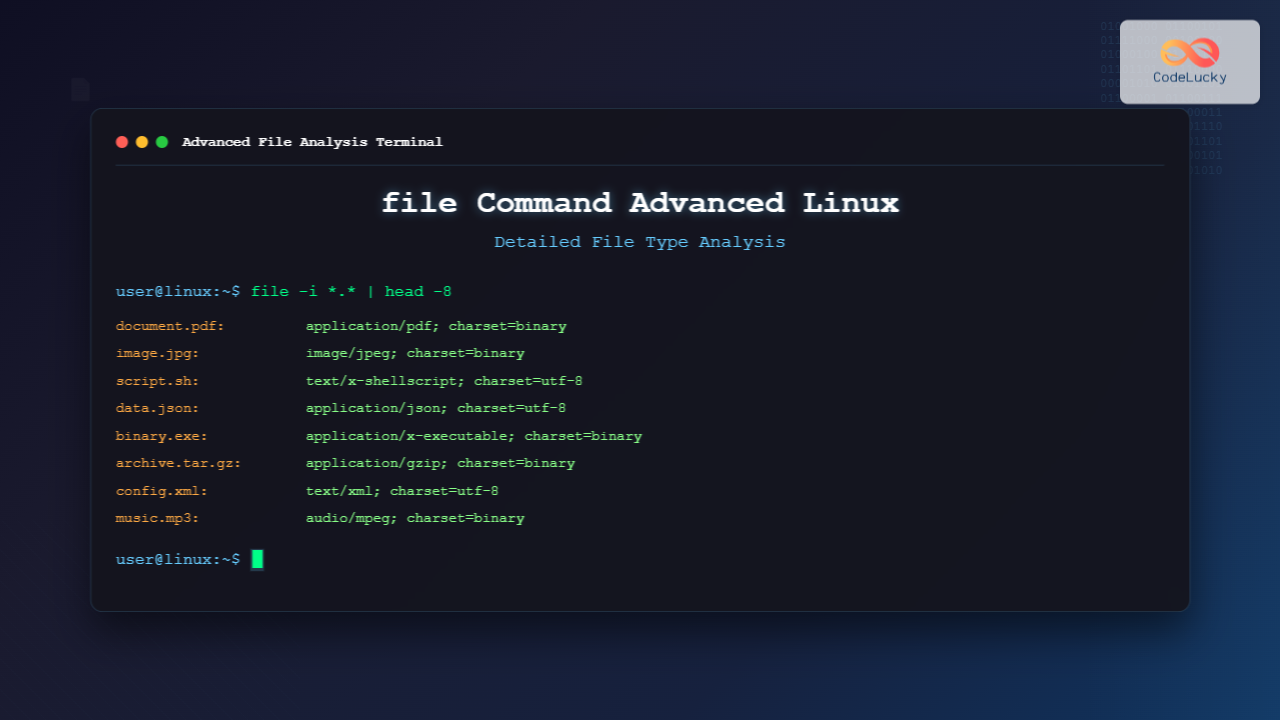
The file command is one of the most powerful and underutilized utilities in Linux for determining file types and analyzing their contents. Unlike relying on file extensions, the file command examines the actual content and structure of files to provide accurate type identification. This comprehensive guide explores advanced usage patterns, options, and practical applications that will elevate your system administration skills.
Understanding the file Command Fundamentals
The file command works by examining file headers, magic numbers, and content patterns stored in a database called the “magic file.” This approach provides reliable file type detection regardless of filename extensions, making it invaluable for security analysis, data recovery, and system maintenance.
Basic Syntax and Core Functionality
file [options] filename(s)Let’s start with basic examples to understand the output format:
$ file document.txt
document.txt: UTF-8 Unicode text

$ file image.jpg
image.jpg: JPEG image data, JFIF standard 1.01, aspect ratio, density 1x1, segment length 16, baseline, precision 8, 3840x2160, frames 3

$ file script.sh
script.sh: Bourne-Again shell script, ASCII text executable
Advanced Options for Detailed Analysis
Verbose Output with -v Flag
The verbose option provides detailed information about the file command’s version and configuration:
$ file -v
file-5.39
magic file from /etc/magic:/usr/share/misc/magic
seccomp support included
MIME Type Detection with -i Flag
For web development and application integration, MIME type detection is crucial:
$ file -i document.pdf
document.pdf: application/pdf; charset=binary

$ file -i audio.mp3
audio.mp3: audio/mpeg; charset=binary

$ file -i webpage.html
webpage.html: text/html; charset=utf-8
Brief Output with -b Flag
The brief flag removes the filename from output, useful for scripting:
$ file -b image.png
PNG image data, 1920 x 1080, 8-bit/color RGBA, non-interlaced

$ file -bi config.json
application/json; charset=utf-8
Analyzing Special File Types
Executable and Binary Analysis
The file command excels at analyzing executable files and providing architectural information:
$ file /bin/ls
/bin/ls: ELF 64-bit LSB shared object, x86-64, version 1 (SYSV), dynamically linked, interpreter /lib64/ld-linux-x86-64.so.2, BuildID[sha1]=4f3d1d0f2a6c5e7b8c9d0e1f2a3b4c5d6e7f8g9h, for GNU/Linux 3.2.0, stripped

$ file program.exe
program.exe: PE32+ executable (console) x86-64, for MS Windows
Archive and Compressed File Detection
$ file backup.tar.gz
backup.tar.gz: gzip compressed data, from Unix, original size modulo 2^32 10485760

$ file data.zip
data.zip: Zip archive data, at least v2.0 to extract

$ file package.deb
package.deb: Debian binary package (format 2.0)
Advanced Techniques and Options
Following Symbolic Links with -L Flag
By default, file analyzes symbolic links themselves. Use -L to follow links:
$ file link.txt
link.txt: symbolic link to /home/user/original.txt

$ file -L link.txt
link.txt: ASCII text
Recursive Directory Analysis with -r Flag
Analyze entire directory structures recursively:
$ file -r project_directory/
project_directory/src/main.c: C source, ASCII text
project_directory/bin/app: ELF 64-bit LSB executable, x86-64
project_directory/docs/README.md: UTF-8 Unicode text
project_directory/config.json: JSON data
Custom Magic Files with -m Flag
Specify custom magic files for specialized detection:
$ file -m /usr/local/share/custom-magic datafile.custom
datafile.custom: Custom Application Data Format v2.1
Practical System Administration Applications
Security and Malware Detection
Use file command for security analysis and detecting potentially malicious files:
$ file suspicious_file
suspicious_file: PE32 executable (GUI) Intel 80386, for MS Windows

$ file -i unknown_binary
unknown_binary: application/x-executable; charset=binary
Data Recovery and Forensics
When file extensions are missing or corrupted, the file command helps identify content:
$ file recovered_data_*
recovered_data_001: JPEG image data, EXIF standard
recovered_data_002: Microsoft Word 2007+
recovered_data_003: SQLite 3.x database
Batch File Analysis Scripts
Create powerful scripts for automated file analysis:
#!/bin/bash
# Analyze all files in directory and categorize by type
for file in *; do
    if [ -f "$file" ]; then
        filetype=$(file -b "$file")
        echo "$file: $filetype"
    fi
done | sort -k2
Performance Optimization and Best Practices
Efficient Large-Scale Analysis
When analyzing thousands of files, optimize performance with these approaches:
# Process multiple files in single command
$ file *.txt *.doc *.pdf

# Use null separator for script processing
$ find /path -type f -print0 | xargs -0 file -b
Error Handling and Edge Cases
Handle special cases and errors gracefully:
$ file /dev/null
/dev/null: character special (1/3)

$ file non_existent_file
non_existent_file: cannot open `non_existent_file' (No such file or directory)

$ file /proc/cpuinfo
/proc/cpuinfo: ASCII text
Integration with Other Linux Commands
Combining with find and grep
Create powerful file analysis pipelines:
# Find all executable files
$ find /usr/bin -type f -exec file {} \; | grep "executable"

# Identify all image files recursively
$ find . -type f -exec file -i {} \; | grep "image/"

# Count files by type
$ file * | cut -d: -f2 | sort | uniq -c
Automated File Classification
#!/bin/bash
# Classify files into directories by type
for file in *; do
    if [ -f "$file" ]; then
        mimetype=$(file -bi "$file" | cut -d';' -f1)
        case $mimetype in
            "image/"*) mkdir -p images && mv "$file" images/ ;;
            "text/"*) mkdir -p documents && mv "$file" documents/ ;;
            "application/pdf") mkdir -p pdfs && mv "$file" pdfs/ ;;
        esac
    fi
done
Troubleshooting and Common Issues
Dealing with Unrecognized File Types
When file returns “data” or generic descriptions, try these approaches:
$ file mysterious_file
mysterious_file: data

# Try with different options
$ file -k mysterious_file  # Continue after first match
$ file -e ascii mysterious_file  # Exclude ASCII text detection
Magic File Database Issues
Verify and update magic file databases:
# Check magic file location
$ file --help | grep magic

# Compile custom magic files
$ file -C -m custom.magic
Advanced Scripting Examples
File Type Statistics Generator
#!/bin/bash
# Generate file type statistics for a directory
echo "File Type Analysis Report"
echo "========================="
file -i $(find . -type f) | \
awk -F': ' '{print $2}' | \
cut -d';' -f1 | \
sort | uniq -c | \
sort -nr | \
head -10
Security Audit Script
#!/bin/bash
# Identify potentially suspicious files
echo "Security Audit: Executable Files Analysis"
find /tmp /var/tmp -type f -executable -exec file {} \; | \
grep -E "(executable|script)" | \
while IFS=': ' read -r filename filetype; do
    echo "ALERT: $filename - $filetype"
    ls -la "$filename"
done
Performance Monitoring and Optimization
Monitor file command performance for large-scale operations:
# Time file analysis operations
$ time file /usr/bin/*

# Profile memory usage
$ /usr/bin/time -v file large_file.bin
Conclusion
The file command is an indispensable tool for Linux system administrators and developers. Its ability to accurately identify file types regardless of extensions makes it crucial for security analysis, data recovery, and automated file processing. By mastering the advanced options and techniques covered in this guide, you’ll be able to leverage the full power of file type analysis in your daily Linux operations.
Whether you’re conducting security audits, recovering corrupted data, or building automated file processing systems, the file command provides the foundation for reliable file type detection and analysis. Practice these examples and incorporate them into your system administration toolkit for more efficient and secure Linux environments.
Related Posts
file Command in Linux: Complete Guide to Determine File Types and Formats
The file command is one of the most essential utilities in Linux for determining file types and formats. Unlike relying...
hexdump Command Linux: Complete Guide to Display File Contents in Hexadecimal Format
The hexdump command is a powerful Linux utility that displays the contents of files in hexadecimal format, making it an...

stat Command Linux: Complete Guide to Display File and Filesystem Status Information
The stat command is a powerful Linux utility that displays detailed information about files and filesystems. Unlike basic commands like...
nm Command Linux: Complete Guide to Display Symbol Tables from Object Files
The nm command is a powerful utility in Linux that displays the symbol table of object files, executables, shared libraries,...
strings Command Linux: Extract and Analyze Text from Binary Files
The strings command is a powerful Linux utility that extracts printable character sequences from binary files. Whether you're analyzing executables,...

size Command Linux: Display Section Sizes of Object Files and Executables
The size command is a powerful utility in Linux systems that displays the section sizes of object files, executables, and...
od Command Linux: Complete Guide to Octal Dump File Contents and Binary Analysis
The od (octal dump) command is a powerful Linux utility that displays file contents in various formats including octal, hexadecimal,...
ls Command Advanced Linux: Complete Guide to File Listing Mastery
The ls command is one of the most fundamental and frequently used commands in Linux and Unix-like operating systems. While...
type Command Linux: Complete Guide to Display Command Type and Location
The type command is an essential Linux utility that helps you identify the nature and location of commands in your...
readelf Command Linux: Complete Guide to ELF File Analysis and Debugging
The readelf command is an essential tool for Linux developers, system administrators, and security analysts who need to examine Executable...
Python File fileno() Method: Getting File Descriptor
The fileno() method is a powerful tool in Python for working with files at a lower level. It allows you...

C File Handling: Creating, Writing, and Reading Files
File handling is a crucial aspect of programming in C, allowing developers to interact with external data sources, store information...





