
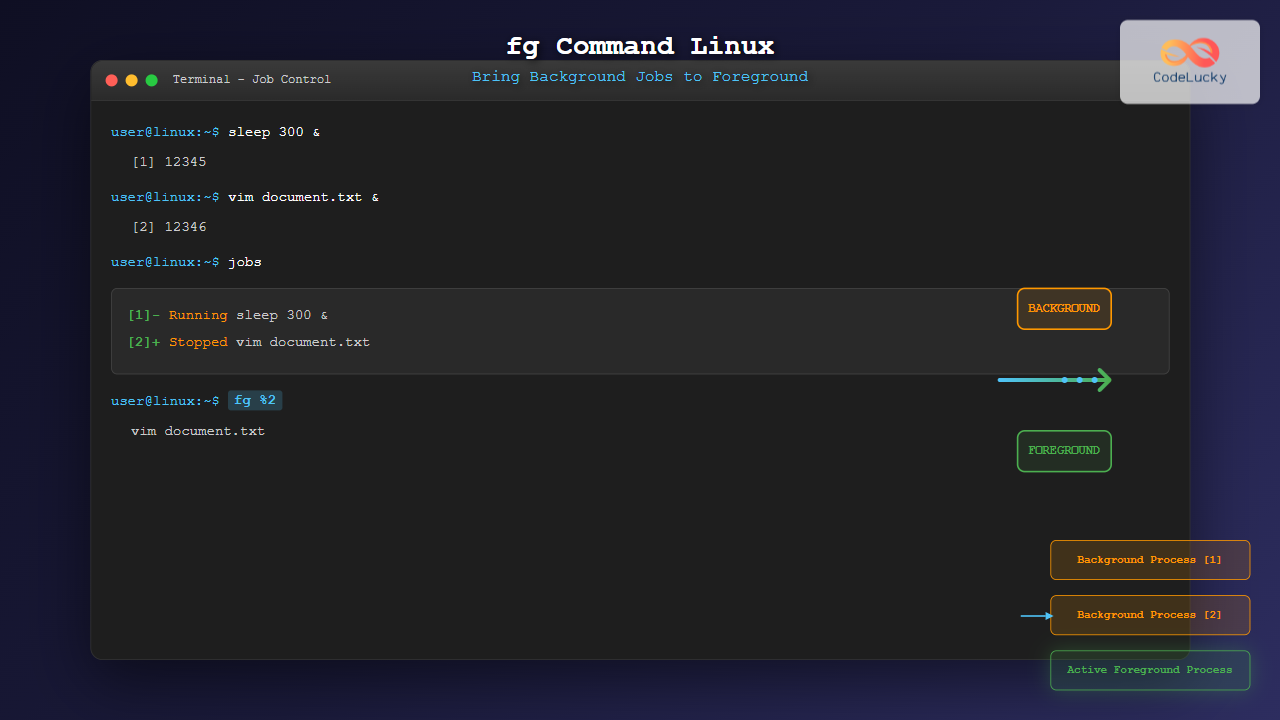
The fg command in Linux is a powerful job control tool that allows you to bring background processes to the foreground. Whether you accidentally sent a process to the background or intentionally started multiple jobs, understanding how to use fg effectively is crucial for efficient terminal management.
What is the fg Command?
The fg (foreground) command is a built-in shell command that moves background jobs to the foreground, making them active and interactive again. It’s part of the job control features in Unix-like operating systems, working hand-in-hand with commands like bg (background) and jobs.
Basic Syntax and Usage
The basic syntax of the fg command is straightforward:
fg [job_spec]Where job_spec can be:
- Job number (preceded by %)
- Process ID
- Job name or partial name
Simple fg Command Example
Let’s start with a basic example. First, we’ll start a long-running process and send it to the background:
$ sleep 100 &
[1] 12345
The output shows job number [1] and process ID 12345. To bring this job to the foreground:
$ fg
sleep 100
The job is now running in the foreground, and you’ll see the command name displayed.
Understanding Job Numbers
When you run processes in the background, the shell assigns them job numbers. You can view active jobs using the jobs command:
$ sleep 200 &
[1] 12346
$ vim myfile.txt &
[2] 12347
$ jobs
[1]-  Running                 sleep 200 &
[2]+  Stopped                 vim myfile.txt
In this output:
[1]-indicates the previous job[2]+indicates the current job- Job states can be Running, Stopped, or Done
Bringing Specific Jobs to Foreground
Using Job Numbers
To bring a specific job to the foreground, use its job number with the % symbol:
$ fg %1
sleep 200
This brings job number 1 to the foreground.
Using Job Names
You can also reference jobs by their command names:
$ fg %vim
vim myfile.txt
Or use partial matching:
$ fg %vi
vim myfile.txt
Advanced fg Command Usage
Working with Multiple Background Jobs
Here’s a practical scenario with multiple background jobs:
$ find / -name "*.log" 2>/dev/null &
[1] 12348
$ ping google.com &
[2] 12349
$ htop &
[3] 12350
$ jobs
[1]   Running                 find / -name "*.log" 2>/dev/null &
[2]-  Running                 ping google.com &
[3]+  Stopped                 htop &
To bring the ping command to foreground:
$ fg %ping
ping google.com
PING google.com (142.250.185.78) 56(84) bytes of data.
64 bytes from bom12s14-in-f14.1e100.net (142.250.185.78): icmp_seq=1 ttl=117 time=23.4 ms
Using Process IDs
You can also use process IDs directly:
$ fg 12348This is particularly useful when dealing with processes started outside the current shell session.
Combining fg with Other Job Control Commands
Ctrl+Z and fg Workflow
A common workflow involves suspending a running process and later bringing it back:
$ vim document.txt
# Press Ctrl+Z to suspend
[1]+  Stopped                 vim document.txt
$ ls -la
# Do other work
$ fg
vim document.txt
Using bg and fg Together
You can move jobs between background and foreground:
$ sleep 300
# Press Ctrl+Z
[1]+  Stopped                 sleep 300
$ bg %1
[1]+ sleep 300 &
$ jobs
[1]+  Running                 sleep 300 &
$ fg %1
sleep 300
Error Handling and Troubleshooting
Common Error Messages
When using fg, you might encounter these errors:
$ fg %5
bash: fg: %5: no such job
This means job number 5 doesn’t exist. Check available jobs with jobs.
$ fg %nonexistent
bash: fg: %nonexistent: no such job
The specified job name doesn’t match any running jobs.
No Jobs Available
$ fg
bash: fg: current: no such job
This occurs when there are no background jobs to bring to the foreground.
Practical Use Cases
Text Editor Management
A common scenario is managing text editors:
$ vim config.txt
# Press Ctrl+Z to suspend and check something
[1]+  Stopped                 vim config.txt
$ cat /var/log/messages | tail -5
# Check log entries
$ fg
vim config.txt
Long-Running Processes
For long-running processes like file transfers or backups:
$ rsync -avz /home/user/ backup@server:/backups/ &
[1] 12351
$ fg %rsync
# Monitor progress and interact with rsync
Development Workflow
In development environments:
$ npm start &
[1] 12352
$ code .
# Edit files
$ fg %npm
# Check server output, restart if needed
Best Practices and Tips
Job Management Strategy
- Use
jobsregularly to track active background processes - Name your processes clearly for easy identification
- Clean up finished jobs periodically
Keyboard Shortcuts
Essential keyboard shortcuts for job control:
Ctrl+Z: Suspend current foreground jobCtrl+C: Terminate current foreground jobCtrl+D: Send EOF signal
Shell-Specific Behavior
The fg command behavior may vary slightly between shells:
# In bash
$ fg %1

# In zsh (similar but with enhanced tab completion)
$ fg %1

# In fish (different syntax)
$ fg %1
Advanced Features and Options
Job Specification Formats
Different ways to specify jobs:
$ fg %1        # Job number 1
$ fg %%        # Current job (same as fg with no arguments)
$ fg %-        # Previous job
$ fg %+        # Current job (explicit)
$ fg %sleep    # Job with command name containing "sleep"
$ fg %?log     # Job with command line containing "log"
Combining with Process Management
Integration with other process management tools:
$ jobs -l
[1]  12353 Running                 find /var -name "*.log" 2>/dev/null &
$ ps aux | grep 12353
user  12353  0.5  0.1  4632  1892 pts/0    S    10:30   0:01 find /var -name *.log
$ fg %1
Security Considerations
When working with background jobs:
- Be aware of processes that might continue running after logout
- Use
nohupfor processes that should survive session termination - Monitor resource usage of background processes
- Clean up processes that are no longer needed
$ nohup long_running_script.sh &
$ disown %1  # Remove from job table but keep running
Troubleshooting Common Issues
Lost Job References
If you lose track of jobs after closing terminals:
$ ps aux | grep username
$ pgrep -u username
$ pkill -TERM -u username processname
Unresponsive Foreground Jobs
When a foreground job becomes unresponsive:
# Try Ctrl+C first
# If that fails, suspend with Ctrl+Z then:
$ kill %1
# Or force kill:
$ kill -9 %1
Integration with Terminal Multiplexers
Using fg with screen or tmux:
# In tmux
$ sleep 100 &
[1] 12354
# Switch panes/windows, come back
$ fg %1

# The job persists across tmux sessions
Conclusion
The fg command is an essential tool for effective terminal job management in Linux. By mastering its usage patterns, understanding job specifications, and combining it with other job control commands, you can significantly improve your command-line productivity. Whether you’re a system administrator managing multiple processes or a developer juggling different tasks, the fg command provides the flexibility and control needed for efficient workflow management.
Remember to practice these concepts in a safe environment and always be mindful of the processes you’re managing. With regular use, job control with fg will become second nature, making you more efficient and confident when working in Linux terminal environments.
Related Posts
bg Command in Linux: Resume Jobs in Background with Examples
The bg command in Linux is a powerful built-in shell command that allows you to resume suspended jobs in the...
jobs Command Linux: Complete Guide to Managing Background Jobs in Terminal
The jobs command is an essential tool for Linux users who need to manage multiple processes running in the background....

bash Command Linux: Start New Shell Sessions and Execute Scripts Efficiently
The bash command is one of the most fundamental tools in Linux systems, serving as both a command-line interpreter and...
nohup Command Linux: Run Commands After Logout and Keep Processes Running
The nohup command is one of the most essential tools for Linux system administrators and developers who need to run...
redirect Command Linux: Complete Input Output Redirection Guide
Linux redirection is a powerful feature that allows you to control where command input comes from and where output goes....
runit Linux: Complete Guide to Unix Init Scheme with Service Supervision
runit is a lightweight, cross-platform Unix init scheme with service supervision that provides a reliable alternative to traditional init systems....

ps Command in Linux: Complete Guide to Process Monitoring and Management
The ps command is one of the most fundamental and powerful tools in Linux for displaying information about running processes....
at Command Linux: Complete Guide to Schedule One-time Tasks with Examples
The at command in Linux is a powerful utility for scheduling one-time tasks to run at specific times in the...
source Command Linux: Execute Scripts and Load Functions Efficiently
The source command in Linux is a powerful built-in shell command that executes commands from a file within the current...
pipe Command Linux: Complete Guide to Connecting Commands with Pipes
The pipe command in Linux is one of the most powerful and fundamental concepts that allows you to connect multiple...
history Command Linux: Complete Guide to View and Manage Your Command History
The history command in Linux is one of the most powerful tools for managing and navigating your command line experience....
parallel Command Linux: Run Commands Concurrently for Maximum Efficiency
The parallel command in Linux is a powerful tool that allows you to execute multiple commands simultaneously, dramatically improving efficiency...





