
The fdisk command is one of the most powerful and essential tools for disk partition management in Linux systems. Whether you’re setting up a new system, adding storage, or managing existing partitions, understanding fdisk is crucial for any Linux administrator or power user.
What is fdisk Command?
The fdisk (format disk) command is a command-line utility that allows you to create, delete, modify, and display disk partitions on Linux systems. It works with MBR (Master Boot Record) and GPT (GUID Partition Table) partition schemes, making it versatile for both legacy and modern systems.
Key Features of fdisk:
- Create and delete partitions
- Change partition types
- Display partition information
- Set bootable flags
- Support for various file systems
- Interactive and non-interactive modes
Basic fdisk Syntax
The basic syntax of the fdisk command is:
fdisk [options] deviceWhere device is typically a disk like /dev/sda, /dev/sdb, etc.
Common Options:
-l– List partition tables-s– Display partition size-u– Change display units-c– Disable DOS compatibility mode-h– Display help information
Viewing Disk Information
List All Available Disks
To see all available disks and their partitions:
sudo fdisk -lSample Output:
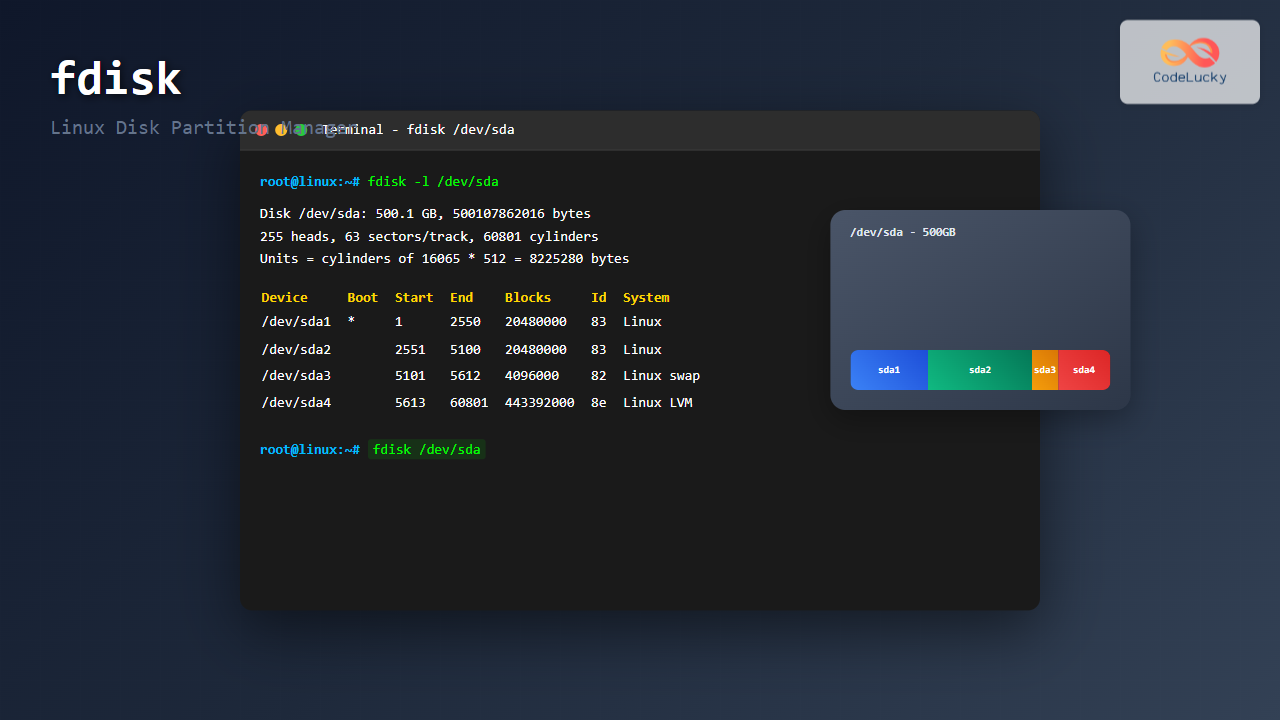
Disk /dev/sda: 500.1 GB, 500107862016 bytes
255 heads, 63 sectors/track, 60801 cylinders
Units = cylinders of 16065 * 512 = 8225280 bytes
Sector size (logical/physical): 512 bytes / 512 bytes
I/O size (minimum/optimal): 512 bytes / 512 bytes
Disk identifier: 0x000c7b8c

   Device Boot      Start         End      Blocks   Id  System
/dev/sda1   *           1          64      512000   83  Linux
/dev/sda2              64       60802   487875584   8e  Linux LVM
View Specific Disk Information
To examine a specific disk:
sudo fdisk -l /dev/sdaCheck Partition Size
To display the size of a specific partition:
sudo fdisk -s /dev/sda1Output:
512000Interactive fdisk Mode
The interactive mode is where fdisk’s real power lies. To enter interactive mode:
sudo fdisk /dev/sdaWelcome Message:
Welcome to fdisk (util-linux 2.31.1).
Changes will remain in memory only, until you decide to write them.
Be careful before using the write command.

Command (m for help):
Essential Interactive Commands
| Command | Description |
|---|---|
m |
Display help menu |
p |
Print partition table |
n |
Create new partition |
d |
Delete partition |
t |
Change partition type |
a |
Toggle bootable flag |
w |
Write changes and exit |
q |
Quit without saving |
Creating Partitions with fdisk
Step-by-Step Partition Creation
Let’s create a new partition on /dev/sdb:
sudo fdisk /dev/sdbStep 1: Check current partition table
Command (m for help): p

Disk /dev/sdb: 10 GB, 10737418240 bytes
255 heads, 63 sectors/track, 1305 cylinders
Units = cylinders of 16065 * 512 = 8225280 bytes

   Device Boot      Start         End      Blocks   Id  System
Step 2: Create new partition
Command (m for help): n
Partition type:
   p   primary (0 primary, 0 extended, 4 free)
   e   extended
Select (default p): p
Partition number (1-4, default 1): 1
First sector (2048-20971519, default 2048):
Using default value 2048
Last sector, +sectors or +size{K,M,G} (2048-20971519, default 20971519): +5G
Step 3: Verify the new partition
Command (m for help): p

Disk /dev/sdb: 10 GB, 10737418240 bytes
255 heads, 63 sectors/track, 1305 cylinders
Units = cylinders of 16065 * 512 = 8225280 bytes

   Device Boot      Start         End      Blocks   Id  System
/dev/sdb1            2048    10487807     5242880   83  Linux
Step 4: Write changes
Command (m for help): w
The partition table has been altered!

Calling ioctl() to re-read partition table.
Syncing disks.
Partition Types and File Systems
Common Partition Type IDs
| ID | Type | Description |
|---|---|---|
| 83 | Linux | Standard Linux partition |
| 82 | Linux swap | Swap partition |
| 8e | Linux LVM | Logical Volume Manager |
| fd | Linux raid | Software RAID partition |
| 07 | HPFS/NTFS | Windows NTFS partition |
| 0b | W95 FAT32 | Windows FAT32 partition |
Changing Partition Type
To change a partition type from Linux to Linux swap:
Command (m for help): t
Selected partition 1
Hex code (type L to list all codes): 82
Changed type of partition 'Linux' to 'Linux swap / Solaris'
Advanced fdisk Operations
Creating Extended and Logical Partitions
For more than 4 partitions on MBR systems, you need extended partitions:
# Create extended partition
Command (m for help): n
Partition type:
   p   primary (3 primary, 0 extended, 1 free)
   e   extended
Select (default e): e
Selected partition 4

# Create logical partition within extended
Command (m for help): n
All primary partitions are in use
Adding logical partition 5
Setting Bootable Flag
To make a partition bootable:
Command (m for help): a
Partition number (1-4): 1
Command (m for help): p

   Device Boot      Start         End      Blocks   Id  System
/dev/sda1   *           1          64      512000   83  Linux
Practical Examples and Use Cases
Example 1: Setting Up a Dual-Boot System
Creating partitions for a Windows/Linux dual-boot setup:
# Partition 1: Windows (100GB)
n → p → 1 → default → +100G → t → 1 → 07

# Partition 2: Linux Root (50GB)
n → p → 2 → default → +50G → t → 2 → 83

# Partition 3: Linux Swap (8GB)
n → p → 3 → default → +8G → t → 3 → 82

# Partition 4: Shared Data (remaining space)
n → p → 4 → default → default → t → 4 → 07
Example 2: Creating LVM Setup
Preparing partitions for LVM (Logical Volume Manager):
# Create LVM partition
Command (m for help): n
Partition type:
   p   primary (0 primary, 0 extended, 4 free)
   e   extended
Select (default p): p
Partition number (1-4, default 1): 1
First sector (2048-41943039, default 2048):
Last sector (2048-41943039, default 41943039):

# Change to LVM type
Command (m for help): t
Selected partition 1
Hex code (type L to list all codes): 8e
Changed type of partition 'Linux' to 'Linux LVM'
Safety and Best Practices
Important Safety Guidelines
- Always backup data before partitioning
- Use ‘q’ to quit without saving if you make mistakes
- Double-check device names to avoid wrong disk operations
- Test in virtual machines first when learning
- Understand the difference between MBR and GPT
Pre-partitioning Checklist
# 1. Identify the correct disk
lsblk
df -h

# 2. Unmount any mounted partitions
sudo umount /dev/sdb1

# 3. Check for any processes using the disk
sudo lsof /dev/sdb*

# 4. Create backup if necessary
sudo dd if=/dev/sdb of=/backup/sdb_backup.img
Troubleshooting Common Issues
Partition Table Corruption
If you encounter partition table errors:
# Create backup of partition table
sudo sfdisk -d /dev/sda > partition_backup.txt

# Restore from backup
sudo sfdisk /dev/sda < partition_backup.txt
Device Busy Error
When fdisk shows “Device is busy”:
# Check mounted filesystems
mount | grep /dev/sda

# Check for swap usage
sudo swapoff -a

# Kill processes using the device
sudo fuser -km /dev/sda1
Partition Not Recognized
Force kernel to re-read partition table:
# For specific device
sudo partprobe /dev/sda

# For all devices
sudo partprobe
Alternative Tools and Modern Approaches
When to Use fdisk vs Other Tools
- fdisk: Traditional MBR partitioning, scripting, basic operations
- gdisk: GPT partitioning, modern systems
- parted: Both MBR and GPT, resize operations
- cfdisk: User-friendly curses interface
Scripting with fdisk
For automated partitioning:
#!/bin/bash
# Automated partitioning script
{
echo n # New partition
echo p # Primary
echo 1 # Partition number
echo   # Default first sector
echo +10G # Size
echo w # Write changes
} | sudo fdisk /dev/sdb
Conclusion
The fdisk command remains an essential tool for Linux system administrators and users who need to manage disk partitions. While newer tools like gdisk and parted offer additional features, fdisk’s simplicity and universal availability make it invaluable for both learning and production environments.
Remember to always exercise caution when working with disk partitions, as incorrect operations can lead to data loss. Practice these commands in safe environments, maintain regular backups, and gradually build your confidence with this powerful partitioning tool.
Whether you’re setting up a new system, expanding storage, or troubleshooting partition issues, mastering fdisk will significantly enhance your Linux administration skills and provide you with the foundation for more advanced storage management techniques.
Related Posts
sfdisk Command Linux: Complete Guide to Scriptable Partition Table Editor
The sfdisk command is a powerful and scriptable partition table editor in Linux that provides advanced functionality for managing disk...
gparted Command Linux: Complete Guide to Graphical Partition Management
The gparted command in Linux provides access to one of the most powerful and user-friendly graphical partition editors available for...
parted Command Linux: Complete Guide to Disk Partition Management
The parted command is a powerful disk partition manipulation program in Linux that allows you to create, resize, move, and...
cfdisk Command Linux: Complete Guide to Curses-based Partition Management
The cfdisk command is a powerful, user-friendly partition table editor for Linux systems that provides a curses-based interface for managing...
gdisk Command Linux: Complete Guide to GPT Partition Table Management
The gdisk command is a powerful GPT (GUID Partition Table) partition editor for Linux systems that provides advanced capabilities for...
sgdisk Command Linux: Complete Guide to Script-Friendly GPT Partition Management
The sgdisk command is a powerful script-friendly alternative to the interactive gdisk utility for managing GPT (GUID Partition Table) partitions...
cgdisk Command Linux: Complete Guide to Curses-Based GPT Partition Management
The cgdisk command is a powerful curses-based GPT (GUID Partition Table) partition editor for Linux systems. Unlike traditional command-line tools,...
mkfs Command Linux: Complete Guide to Creating Filesystems on Partitions
The mkfs command in Linux is a fundamental tool for creating filesystems on disk partitions. Whether you're setting up a...
kpartx Command Linux: Create and Manage Partition Maps with Complete Examples
The kpartx command is a powerful Linux utility that creates device maps from partition tables, enabling you to access partitions...
resize2fs Command Linux: Complete Guide to Resize Ext2/3/4 Filesystems Safely
The resize2fs command is a powerful Linux utility designed to resize ext2, ext3, and ext4 filesystems. Whether you need to...

File System Types: FAT32, NTFS, ext4 and Modern Linux Filesystems Explained
Understanding File Systems: The Foundation of Data Storage A file system is the method and data structure that an operating...
lvm Command Linux: Complete Guide to Logical Volume Manager Operations
The Logical Volume Manager (LVM) is a powerful disk management tool in Linux that provides flexible storage management by abstracting...





