
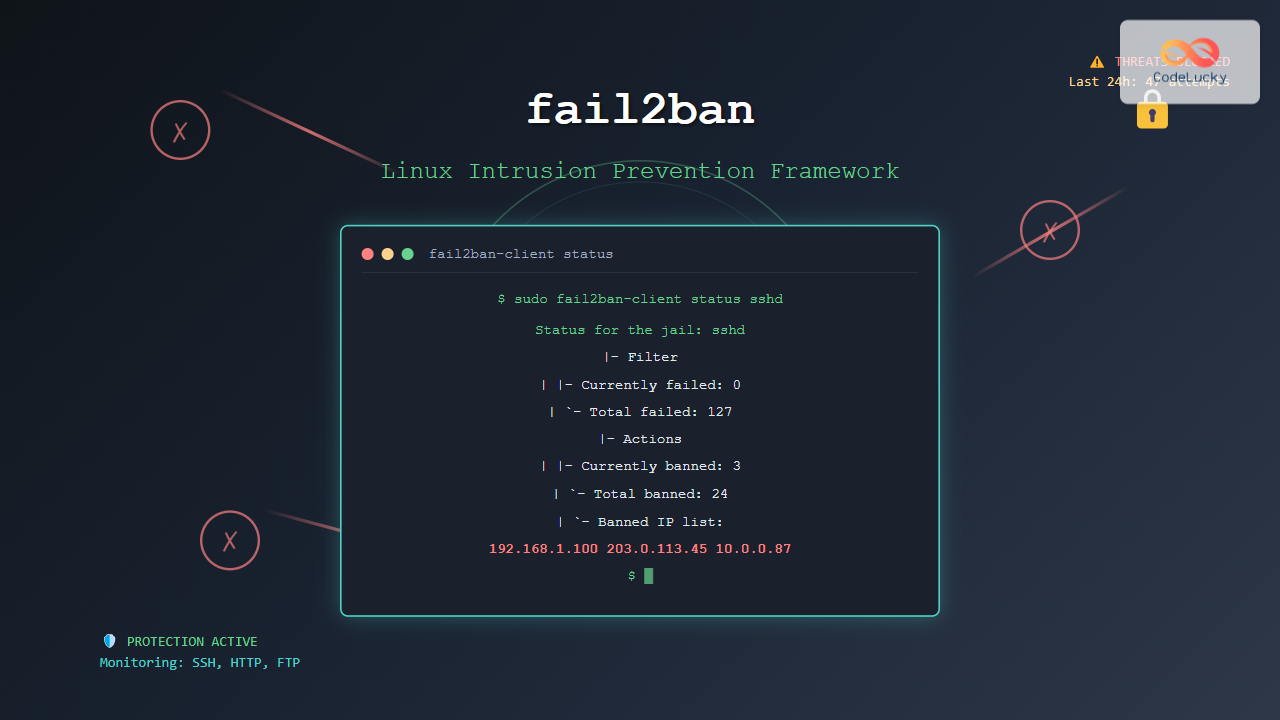
fail2ban is a powerful intrusion prevention framework designed to protect Linux servers from brute force attacks, dictionary attacks, and other malicious network activities. By monitoring log files and automatically updating firewall rules, fail2ban provides an automated defense mechanism that blocks suspicious IP addresses attempting unauthorized access to your system.
What is fail2ban and Why You Need It
fail2ban works by scanning log files for patterns that indicate malicious behavior, such as repeated failed login attempts, and then temporarily or permanently bans the offending IP addresses by adding firewall rules. This proactive approach significantly reduces the attack surface of your Linux server and helps maintain system security.
Key Features of fail2ban
- Real-time log monitoring – Continuously scans system logs for suspicious activities
- Automatic IP blocking – Dynamically updates firewall rules to block malicious IPs
- Configurable filters – Supports custom regex patterns for different services
- Multiple backend support – Works with iptables, firewalld, and other firewall systems
- Email notifications – Sends alerts when bans occur
- Whitelist support – Protects trusted IP addresses from accidental bans
Installing fail2ban on Different Linux Distributions
Ubuntu/Debian Installation
# Update package repository
sudo apt update

# Install fail2ban
sudo apt install fail2ban

# Start and enable fail2ban service
sudo systemctl start fail2ban
sudo systemctl enable fail2ban

# Check service status
sudo systemctl status fail2ban
CentOS/RHEL/Fedora Installation
# Install EPEL repository (for CentOS/RHEL)
sudo yum install epel-release

# Install fail2ban
sudo yum install fail2ban

# For Fedora, use dnf
sudo dnf install fail2ban

# Start and enable service
sudo systemctl start fail2ban
sudo systemctl enable fail2ban
Arch Linux Installation
# Install fail2ban
sudo pacman -S fail2ban

# Start and enable service
sudo systemctl start fail2ban
sudo systemctl enable fail2ban
Understanding fail2ban Configuration Structure
fail2ban uses a hierarchical configuration system with several key components:
Configuration Files Overview
/etc/fail2ban/jail.conf– Main configuration file (should not be edited directly)/etc/fail2ban/jail.local– Local configuration overrides/etc/fail2ban/filter.d/– Directory containing filter definitions/etc/fail2ban/action.d/– Directory containing action definitions/etc/fail2ban/fail2ban.conf– Global fail2ban settings
Creating Local Configuration
# Create local configuration file
sudo cp /etc/fail2ban/jail.conf /etc/fail2ban/jail.local

# Edit local configuration
sudo nano /etc/fail2ban/jail.local
Basic fail2ban Configuration
Default Global Settings
Edit the /etc/fail2ban/jail.local file to configure global settings:
[DEFAULT]
# Ban IP for 1 hour (3600 seconds)
bantime = 3600

# Find failure patterns within 10 minutes
findtime = 600

# Ban after 5 failed attempts
maxretry = 5

# Email notifications
destemail = [email protected]
sender = [email protected]

# Action to take when ban occurs
action = %(action_mwl)s

# Whitelist local networks
ignoreip = 127.0.0.1/8 ::1 192.168.1.0/24
Enabling SSH Protection
Configure SSH jail to protect against brute force attacks:
[sshd]
enabled = true
port = ssh
filter = sshd
logpath = /var/log/auth.log
maxretry = 3
bantime = 3600
findtime = 600
Advanced fail2ban Configuration
Configuring Multiple Services
# Apache/Nginx protection
[apache-auth]
enabled = true
port = http,https
filter = apache-auth
logpath = /var/log/apache2/error.log
maxretry = 3

[nginx-http-auth]
enabled = true
port = http,https
filter = nginx-http-auth
logpath = /var/log/nginx/error.log
maxretry = 3

# FTP protection
[vsftpd]
enabled = true
port = ftp,ftp-data,ftps,ftps-data
filter = vsftpd
logpath = /var/log/vsftpd.log
maxretry = 3

# Mail server protection
[postfix]
enabled = true
port = smtp,465,submission
filter = postfix
logpath = /var/log/mail.log
maxretry = 3
Custom Filter Creation
Create a custom filter for WordPress login protection:
# Create filter file
sudo nano /etc/fail2ban/filter.d/wordpress.conf

# Filter content
[Definition]
failregex = ^<HOST> .* "POST .*wp-login\.php
            ^<HOST> .* "POST .*xmlrpc\.php

ignoreregex =
Configure the WordPress jail:
[wordpress]
enabled = true
port = http,https
filter = wordpress
logpath = /var/log/apache2/access.log
maxretry = 3
bantime = 7200
fail2ban Command Line Usage
Basic Commands
# Check fail2ban status
sudo fail2ban-client status

# Output:
Status
|- Number of jail: 2
`- Jail list: sshd, apache-auth

# Check specific jail status
sudo fail2ban-client status sshd

# Output:
Status for the jail: sshd
|- Filter
|  |- Currently failed: 0
|  |- Total failed: 15
|  `- Journal matches: _SYSTEMD_UNIT=sshd.service + _COMM=sshd
|- Actions
|  |- Currently banned: 1
|  |- Total banned: 3
|  `- Banned IP list: 192.168.1.100
Manual IP Management
# Ban an IP manually
sudo fail2ban-client set sshd banip 192.168.1.50

# Unban an IP
sudo fail2ban-client set sshd unbanip 192.168.1.50

# Get list of banned IPs
sudo fail2ban-client get sshd banned

# Reload configuration
sudo fail2ban-client reload

# Restart specific jail
sudo fail2ban-client restart sshd
Monitoring and Logging
Log File Analysis
# View fail2ban log
sudo tail -f /var/log/fail2ban.log

# Sample output:
2025-08-26 03:15:01,234 fail2ban.actions        [12345]: NOTICE  [sshd] Ban 192.168.1.100
2025-08-26 03:15:01,567 fail2ban.filter         [12345]: INFO    [sshd] Found 192.168.1.100 - 2025-08-26 03:15:01
2025-08-26 03:16:12,890 fail2ban.actions        [12345]: NOTICE  [sshd] Unban 192.168.1.100
Email Notifications Setup
# Configure email actions in jail.local
[DEFAULT]
# Email configuration
destemail = [email protected]
sender = [email protected]
mta = sendmail

# Email action with logs
action = %(action_mwl)s

# Custom email action
action_mwl = %(banaction)s[name=%(__name__)s, port="%(port)s", protocol="%(protocol)s", chain="%(chain)s"]
             %(mta)s-whois-lines[name=%(__name__)s, dest="%(destemail)s", logpath=%(logpath)s, chain="%(chain)s"]
Performance Optimization and Best Practices
Optimizing Log Processing
# Configure log rotation for better performance
sudo nano /etc/logrotate.d/fail2ban

# Content:
/var/log/fail2ban.log {
    weekly
    missingok
    rotate 4
    compress
    delaycompress
    postrotate
        systemctl reload fail2ban
    endscript
}
Database Backend Configuration
# Use database backend for better performance
sudo nano /etc/fail2ban/fail2ban.local

[Definition]
# Database backend
dbfile = /var/lib/fail2ban/fail2ban.sqlite3
dbpurgeage = 86400

# Performance tuning
socket = /var/run/fail2ban/fail2ban.sock
pidfile = /var/run/fail2ban/fail2ban.pid
Integration with Modern Firewall Systems
firewalld Integration
# Configure fail2ban with firewalld
[DEFAULT]
banaction = firewallcmd-ipset
banaction_allports = firewallcmd-allports

# Configure specific jail
[sshd]
enabled = true
port = ssh
filter = sshd
backend = systemd
banaction = firewallcmd-ipset[actiontype=<multiport>]
logpath = /var/log/secure
UFW Integration
# Configure for UFW
[DEFAULT]
banaction = ufw
banaction_allports = ufw-allports

[sshd]
enabled = true
port = ssh
filter = sshd
banaction = ufw[application="OpenSSH"]
logpath = /var/log/auth.log
Troubleshooting Common Issues
Debugging Filter Patterns
# Test filter patterns
sudo fail2ban-regex /var/log/auth.log /etc/fail2ban/filter.d/sshd.conf

# Sample output:
Running tests
=============

Use   failregex filter file : sshd, basedir: /etc/fail2ban
Use         log file : /var/log/auth.log
Use         encoding : UTF-8

Results
=======
Failregex: 15 total
|-  #) [# of hits] regular expression
|   1) [10] ^%(__prefix_line)s(?:error: PAM: )?[aA]uthentication (?:failure|error|failed) for .* from <HOST>( via \S+)?\s*$
|   2) [5] ^%(__prefix_line)s(?:error: )?Received disconnect from <HOST>: 3: .*: Auth fail
Common Configuration Errors
# Check configuration syntax
sudo fail2ban-client -t

# Validate specific jail
sudo fail2ban-client -t -j sshd

# Check log file permissions
ls -la /var/log/auth.log
# Should be readable by fail2ban user
Security Considerations and Hardening
Whitelist Management
# Comprehensive whitelist configuration
[DEFAULT]
ignoreip = 127.0.0.1/8
          ::1
          192.168.0.0/16
          10.0.0.0/8
          172.16.0.0/12
          203.0.113.0/24  # Your office IP range

# Create separate whitelist file
sudo nano /etc/fail2ban/jail.d/00-whitelist.local

[DEFAULT]
ignorecommand = /etc/fail2ban/scripts/whitelist-check.sh <ip>
Rate Limiting Configuration
# Aggressive protection for critical services
[sshd-aggressive]
enabled = true
port = ssh
filter = sshd
logpath = /var/log/auth.log
maxretry = 2
bantime = 86400  # 24 hours
findtime = 300   # 5 minutes
recidive = true

# Recidive jail for repeat offenders
[recidive]
enabled = true
filter = recidive
logpath = /var/log/fail2ban.log
action = %(banaction)s[name=%(__name__)s, port="%(port)s", protocol="%(protocol)s", chain="%(chain)s"]
bantime = 604800  # 1 week
findtime = 86400  # 1 day
maxretry = 5
Monitoring and Maintenance
Regular Maintenance Scripts
#!/bin/bash
# Create maintenance script: /etc/cron.daily/fail2ban-maintenance

# Clean old database entries
sqlite3 /var/lib/fail2ban/fail2ban.sqlite3 "DELETE FROM bans WHERE timeofban < datetime('now', '-30 days');"

# Rotate logs
logrotate -f /etc/logrotate.d/fail2ban

# Generate daily report
fail2ban-client status | mail -s "Daily fail2ban Report" [email protected]

# Make script executable
sudo chmod +x /etc/cron.daily/fail2ban-maintenance
Performance Monitoring
# Monitor fail2ban performance
sudo systemctl status fail2ban --no-pager -l

# Check memory usage
ps aux | grep fail2ban

# Monitor ban statistics
sudo fail2ban-client status | grep -E "Number of jail|Total banned"
fail2ban is an essential security tool for any Linux server administrator. By properly configuring and maintaining fail2ban, you can significantly enhance your server’s security posture and protect against common attack vectors. Regular monitoring, proper configuration, and keeping the system updated are key to maintaining an effective intrusion prevention system.
Remember to test your configuration thoroughly in a development environment before deploying to production, and always maintain proper backups of your configuration files. With fail2ban properly configured, your Linux server will have robust automated protection against various types of network-based attacks.
Related Posts
denyhosts Linux: Complete SSH Brute Force Attack Prevention Guide
SSH brute force attacks are among the most common security threats facing Linux servers today. Attackers continuously attempt to gain...
UFW Advanced Linux: Complete Guide to Advanced Firewall Configuration and Security Management
UFW (Uncomplicated Firewall) serves as Ubuntu's default firewall configuration tool, providing a user-friendly interface to manage iptables rules. While UFW...

iptables Command Linux: Complete Guide to Configure Firewall Rules
The iptables command is one of the most powerful and essential tools for managing firewall rules in Linux systems. As...

samhain Linux: Complete Guide to Host-based Intrusion Detection System
Samhain is a powerful host-based intrusion detection system (HIDS) designed specifically for Linux and Unix-like systems. This comprehensive security tool...
firewalld Linux: Complete Dynamic Firewall Management Guide
firewalld is a powerful, dynamic firewall management tool for Linux systems that provides a flexible and user-friendly interface for managing...
ip6tables Command Linux: Complete Guide to IPv6 Firewall Management and Security
The ip6tables command is the IPv6 counterpart to the popular iptables firewall utility in Linux. As IPv6 adoption continues to...

Intrusion Detection System: Complete Guide to OS-Level Security Monitoring
Understanding Intrusion Detection Systems An Intrusion Detection System (IDS) is a critical security tool that monitors network traffic and system...
portsentry Linux: Complete Guide to Automated Port Scan Attack Detection and Prevention
Port scanning is one of the most common reconnaissance techniques used by attackers to identify vulnerable services on target systems....
iptables Advanced Linux: Complete Guide to Advanced Firewall Rules and Security Configuration
iptables is the most powerful and flexible firewall solution available for Linux systems, offering granular control over network traffic through...

whatsup Linux: Complete Network Monitoring and System Administration Guide
whatsup is a powerful network monitoring and system administration tool for Linux that provides real-time insights into network connectivity, system...

ManageEngine Linux: Complete Network Monitoring Solutions Guide
Network monitoring is crucial for maintaining optimal performance and security in Linux environments. ManageEngine provides powerful network monitoring solutions specifically...

ufw Command Linux: Complete Guide to Uncomplicated Firewall Management
The Uncomplicated Firewall (ufw) is a user-friendly frontend for managing iptables firewall rules in Linux systems. Designed to simplify firewall...





