
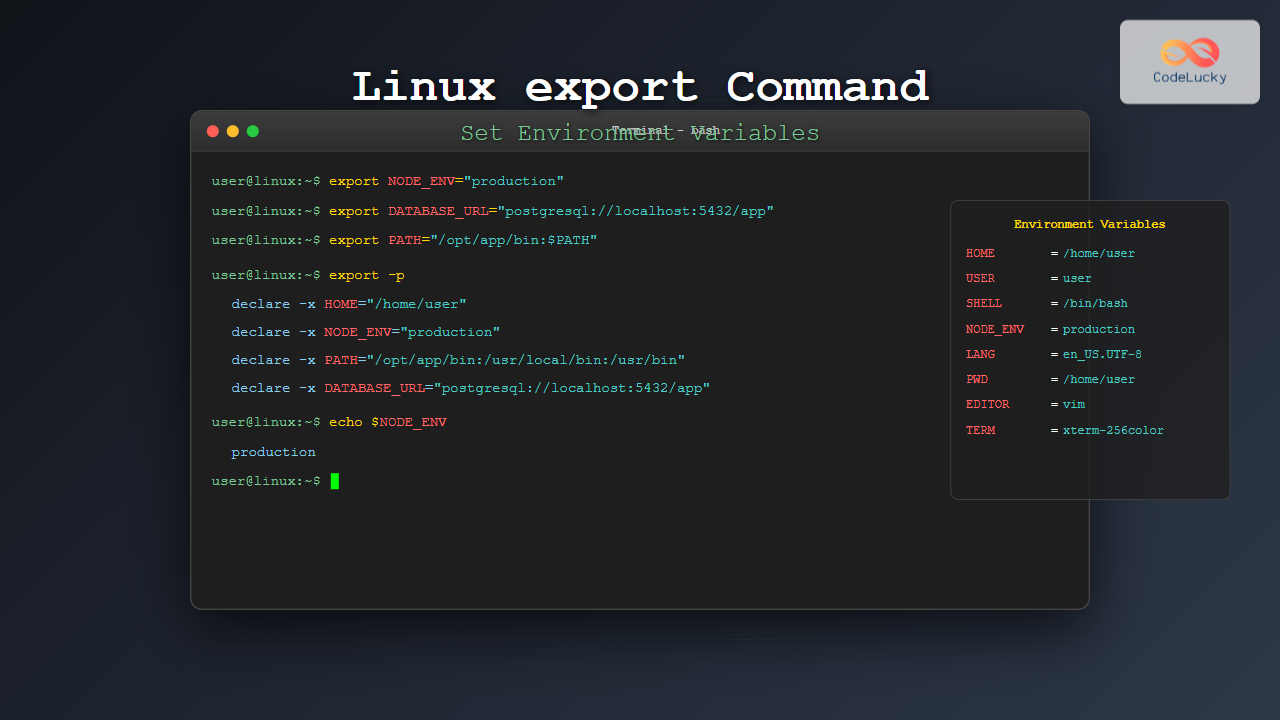
The export command is one of the most fundamental tools in Linux for managing environment variables. Whether you’re a system administrator, developer, or Linux enthusiast, understanding how to properly use the export command is crucial for configuring your system environment, setting up development environments, and automating tasks.
What is the export Command?
The export command in Linux is a built-in shell command that allows you to create, modify, and manage environment variables. These variables are accessible to the current shell session and any child processes spawned from it. Unlike regular shell variables, exported variables are inherited by subshells and external programs.
Key Functions of export Command:
- Set new environment variables
- Modify existing environment variables
- Display all exported variables
- Make shell variables available to child processes
- Configure system and application settings
Basic Syntax and Usage
The basic syntax of the export command follows this pattern:
export [options] [variable_name[=value]]Most Common Usage Patterns:
# Set a new environment variable
export VARIABLE_NAME="value"

# Export an existing shell variable
export VARIABLE_NAME

# Display all exported variables
export

# Display specific variable
export -p VARIABLE_NAME
Setting Environment Variables with export
Creating New Variables
Let’s start with basic examples of creating environment variables:
# Set a simple string variable
export MY_APP_NAME="CodeLucky Application"

# Set a path variable
export MY_APP_PATH="/opt/codelucky/app"

# Set a numeric variable
export MAX_CONNECTIONS=100

# Verify the variable is set
echo $MY_APP_NAME
Expected Output:
CodeLucky ApplicationSetting Multiple Variables
You can set multiple environment variables in a single command or sequentially:
# Multiple variables in separate commands
export DATABASE_HOST="localhost"
export DATABASE_PORT="5432"
export DATABASE_NAME="codelucky_db"

# Verify all variables
echo "Host: $DATABASE_HOST, Port: $DATABASE_PORT, DB: $DATABASE_NAME"
Expected Output:
Host: localhost, Port: 5432, DB: codelucky_dbAdvanced export Command Options
The -p Option
The -p option displays all exported variables in a format that can be reused as shell input:
# Display all exported variables
export -p

# Display specific variable
export -p PATH
Sample Output:
declare -x PATH="/usr/local/sbin:/usr/local/bin:/usr/sbin:/usr/bin:/sbin:/bin"
declare -x HOME="/home/username"
declare -x USER="username"
The -n Option
The -n option removes the export attribute from variables:
# Create and export a variable
export TEST_VAR="Hello World"

# Remove export attribute (variable becomes local)
export -n TEST_VAR

# Verify it's no longer exported
export -p | grep TEST_VAR
Working with PATH Variable
One of the most common uses of export is modifying the PATH variable:
Adding Directories to PATH
# Add a directory to the beginning of PATH
export PATH="/opt/codelucky/bin:$PATH"

# Add a directory to the end of PATH
export PATH="$PATH:/home/user/scripts"

# Add multiple directories
export PATH="/opt/codelucky/bin:/home/user/tools:$PATH"

# Display current PATH
echo $PATH
Creating a Custom PATH
# Backup original PATH
export ORIGINAL_PATH="$PATH"

# Set a custom PATH
export PATH="/usr/local/bin:/usr/bin:/bin"

# Restore original PATH if needed
export PATH="$ORIGINAL_PATH"
Practical Examples and Use Cases
Development Environment Setup
Here’s how to set up a complete development environment using export:
# Java Development Environment
export JAVA_HOME="/usr/lib/jvm/java-11-openjdk"
export PATH="$JAVA_HOME/bin:$PATH"
export CLASSPATH=".:$JAVA_HOME/lib/*"

# Node.js Environment
export NODE_ENV="development"
export NODE_PATH="/usr/local/lib/node_modules"

# Python Environment
export PYTHONPATH="/home/user/python-libs:$PYTHONPATH"
export VIRTUAL_ENV="/home/user/venv"

# Verify all settings
echo "Java Home: $JAVA_HOME"
echo "Node Environment: $NODE_ENV"
echo "Python Path: $PYTHONPATH"
Database Configuration
# Database connection settings
export DB_HOST="192.168.1.100"
export DB_PORT="3306"
export DB_USER="codelucky_user"
export DB_PASSWORD="secure_password"
export DB_NAME="production_db"

# Application settings
export APP_ENV="production"
export LOG_LEVEL="info"
export DEBUG_MODE="false"

# Create a connection string
export DATABASE_URL="mysql://$DB_USER:$DB_PASSWORD@$DB_HOST:$DB_PORT/$DB_NAME"
echo "Database URL: $DATABASE_URL"
Proxy and Network Configuration
# HTTP Proxy settings
export HTTP_PROXY="http://proxy.company.com:8080"
export HTTPS_PROXY="http://proxy.company.com:8080"
export FTP_PROXY="http://proxy.company.com:8080"
export NO_PROXY="localhost,127.0.0.1,.company.com"

# Network timeout settings
export TIMEOUT=30
export RETRIES=3
Making Variables Persistent
By default, exported variables only last for the current shell session. To make them persistent:
User-specific Persistence
Add export commands to shell configuration files:
# For Bash users - add to ~/.bashrc or ~/.bash_profile
echo 'export MY_APP_PATH="/opt/codelucky"' >> ~/.bashrc
echo 'export PATH="$MY_APP_PATH/bin:$PATH"' >> ~/.bashrc

# For Zsh users - add to ~/.zshrc
echo 'export CUSTOM_TOOLS="/home/user/tools"' >> ~/.zshrc

# Reload the configuration
source ~/.bashrc  # or source ~/.zshrc
System-wide Persistence
# Add to /etc/environment (requires sudo)
sudo echo 'SYSTEM_VAR="system_value"' >> /etc/environment

# Add to /etc/profile (requires sudo)
sudo echo 'export GLOBAL_PATH="/opt/shared/bin"' >> /etc/profile
Viewing and Managing Environment Variables
Listing All Variables
# Show all exported variables
export

# Show all variables (exported and local)
set

# Show environment variables only
env

# Search for specific variables
export | grep -i java
env | grep -i path
Checking Variable Existence
# Check if variable exists and has value
if [ -n "$MY_VARIABLE" ]; then
    echo "MY_VARIABLE is set to: $MY_VARIABLE"
else
    echo "MY_VARIABLE is not set"
fi

# Check multiple variables
for var in JAVA_HOME NODE_ENV DATABASE_URL; do
    if [ -n "${!var}" ]; then
        echo "$var = ${!var}"
    else
        echo "$var is not set"
    fi
done
Common Pitfalls and Best Practices
Variable Naming Conventions
# Good practices
export API_KEY="your-api-key"           # Use uppercase
export MAX_RETRY_COUNT=5                # Descriptive names
export LOG_FILE_PATH="/var/log/app.log" # Clear purpose

# Avoid these patterns
export api_key="your-api-key"           # Don't use lowercase
export x="value"                        # Don't use cryptic names
export 123VAR="value"                   # Don't start with numbers
Handling Special Characters
# Properly quote values with spaces or special characters
export MESSAGE="Hello, World! Welcome to CodeLucky."
export COMPLEX_PATH="/path with spaces/and-symbols@#$"
export JSON_CONFIG='{"host":"localhost","port":8080}'

# Use single quotes for literal strings
export REGEX_PATTERN='[0-9]+\.[0-9]+\.[0-9]+'
Security Considerations
# Never export sensitive data in plain text
# Bad practice:
export PASSWORD="my-secret-password"

# Better approach - read from secure file
export PASSWORD=$(cat /secure/path/password.txt)

# Or use environment files
set -a  # automatically export all variables
source /secure/config/.env
set +a  # stop automatic export
Troubleshooting export Command Issues
Variable Not Available in Subshells
# Problem: Variable not accessible in subshell
MY_VAR="test"
bash -c 'echo $MY_VAR'  # This will be empty

# Solution: Export the variable
export MY_VAR="test"
bash -c 'echo $MY_VAR'  # This will show "test"
PATH Not Updated
# Check current PATH
echo $PATH

# Verify the export worked
export PATH="/new/path:$PATH"
echo $PATH

# If PATH seems corrupted, reset it
export PATH="/usr/local/sbin:/usr/local/bin:/usr/sbin:/usr/bin:/sbin:/bin"
Variables Not Persisting
# Check which shell you're using
echo $SHELL

# For Bash
echo 'export MY_PERSISTENT_VAR="value"' >> ~/.bashrc
source ~/.bashrc

# For Zsh
echo 'export MY_PERSISTENT_VAR="value"' >> ~/.zshrc
source ~/.zshrc
Interactive Examples and Testing
Here’s a comprehensive example that demonstrates various export scenarios:
#!/bin/bash
# Comprehensive export demonstration script

echo "=== Export Command Demonstration ==="

# 1. Basic variable export
export DEMO_APP="CodeLucky Demo"
echo "1. Basic export: $DEMO_APP"

# 2. Numeric variable
export MAX_USERS=1000
echo "2. Numeric variable: $MAX_USERS"

# 3. Path manipulation
export ORIGINAL_PATH="$PATH"
export PATH="/tmp/demo:$PATH"
echo "3. Modified PATH (first 50 chars): ${PATH:0:50}..."

# 4. Multiple related variables
export DB_HOST="localhost"
export DB_PORT="5432"
export DB_CONNECTION="postgresql://$DB_HOST:$DB_PORT/demo"
echo "4. Connection string: $DB_CONNECTION"

# 5. Array-like variable (space-separated values)
export SUPPORTED_FORMATS="json xml csv yaml"
echo "5. Supported formats: $SUPPORTED_FORMATS"

# 6. Conditional export
if [ "$USER" = "root" ]; then
    export ADMIN_MODE="true"
else
    export ADMIN_MODE="false"
fi
echo "6. Admin mode: $ADMIN_MODE"

# 7. Display all demo variables
echo -e "\n=== All Demo Variables ==="
export | grep -E "(DEMO_|MAX_|DB_|SUPPORTED_|ADMIN_)"

# 8. Cleanup and restore
export PATH="$ORIGINAL_PATH"
echo -e "\n8. PATH restored"
Advanced Techniques
Dynamic Variable Names
# Create variables dynamically
for env in dev staging prod; do
    export "DATABASE_${env^^}_HOST"="db-${env}.codelucky.com"
    export "DATABASE_${env^^}_PORT"="5432"
done

# Access dynamic variables
echo "Dev DB: ${DATABASE_DEV_HOST}:${DATABASE_DEV_PORT}"
echo "Prod DB: ${DATABASE_PROD_HOST}:${DATABASE_PROD_PORT}"
Conditional Exports
# Export based on conditions
[ -d "/opt/java" ] && export JAVA_HOME="/opt/java"
[ -f "/etc/app/config" ] && export CONFIG_FILE="/etc/app/config"

# Export with fallback values
export LOG_LEVEL="${LOG_LEVEL:-info}"
export MAX_MEMORY="${MAX_MEMORY:-1024m}"
export TIMEOUT="${TIMEOUT:-30}"
Integration with Scripts and Applications
Using export in Shell Scripts
#!/bin/bash
# Application startup script

# Set application environment
export APP_NAME="CodeLucky Server"
export APP_VERSION="2.1.0"
export APP_HOME="/opt/codelucky"
export LOG_DIR="$APP_HOME/logs"

# Create necessary directories
mkdir -p "$LOG_DIR"

# Export runtime configuration
export JAVA_OPTS="-Xmx2g -Xms1g"
export SPRING_PROFILES_ACTIVE="production"

# Start application
echo "Starting $APP_NAME v$APP_VERSION"
java $JAVA_OPTS -jar "$APP_HOME/app.jar"
Conclusion
The export command is an essential tool for Linux users and system administrators. It provides a powerful way to manage environment variables, configure applications, and set up development environments. By mastering the export command, you can:
- Configure system and application settings efficiently
- Set up development environments quickly
- Automate system configuration tasks
- Manage complex application deployments
- Troubleshoot environment-related issues
Remember to follow best practices for variable naming, handle special characters properly, and be cautious with sensitive information. With the examples and techniques covered in this guide, you’ll be well-equipped to use the export command effectively in your Linux environment management tasks.
Whether you’re setting up a simple development environment or managing complex production systems, the export command remains one of the most valuable tools in your Linux command-line arsenal.
Related Posts
env Command Linux: Complete Guide to Display Environment Variables
Environment variables are crucial components of any Linux system, storing configuration data and system information that applications and processes rely...
source Command Linux: Execute Scripts and Load Functions Efficiently
The source command in Linux is a powerful built-in shell command that executes commands from a file within the current...

echo Command in Linux: Complete Guide to Print Text and Variables in Terminal
The echo command is one of the most fundamental and frequently used commands in Linux and Unix-like operating systems. It...

bash Command Linux: Start New Shell Sessions and Execute Scripts Efficiently
The bash command is one of the most fundamental tools in Linux systems, serving as both a command-line interpreter and...

Linux Commands Tutorial: Complete Beginner’s Guide to Terminal Basics
The Linux terminal is a powerful command-line interface that gives you direct control over your operating system. While it might...
set Command Linux: Display and Configure Shell Options for Advanced Terminal Control
The set command is one of the most powerful built-in commands in Linux shells, allowing you to display and modify...
which Command Linux: Complete Guide to Locating Executable Commands in PATH
The which command is a fundamental Linux utility that helps you locate executable files in your system's PATH environment variable....
unset Command Linux: Complete Guide to Remove Variables and Functions Efficiently
The unset command in Linux is a powerful built-in shell utility that allows you to remove variables and functions from...
history Command Linux: Complete Guide to View and Manage Your Command History
The history command in Linux is one of the most powerful tools for managing and navigating your command line experience....
read Command Linux: Complete Guide to Reading User Input in Shell Scripts
The read command is one of the most fundamental tools in Linux shell scripting for creating interactive programs that capture...
python Command Linux: Complete Guide to Running Python Scripts and Interactive Sessions
The python command is one of the most essential tools for developers working with Python on Linux systems. Whether you're...
ruby Command Linux: Complete Guide to Running Ruby Scripts and Programs
The ruby command is a powerful tool for executing Ruby scripts and programs directly from the Linux command line. Whether...
- What is the export Command?
- Basic Syntax and Usage
- Setting Environment Variables with export
- Advanced export Command Options
- Working with PATH Variable
- Practical Examples and Use Cases
- Making Variables Persistent
- Viewing and Managing Environment Variables
- Common Pitfalls and Best Practices
- Troubleshooting export Command Issues
- Interactive Examples and Testing
- Advanced Techniques
- Integration with Scripts and Applications
- Conclusion





