
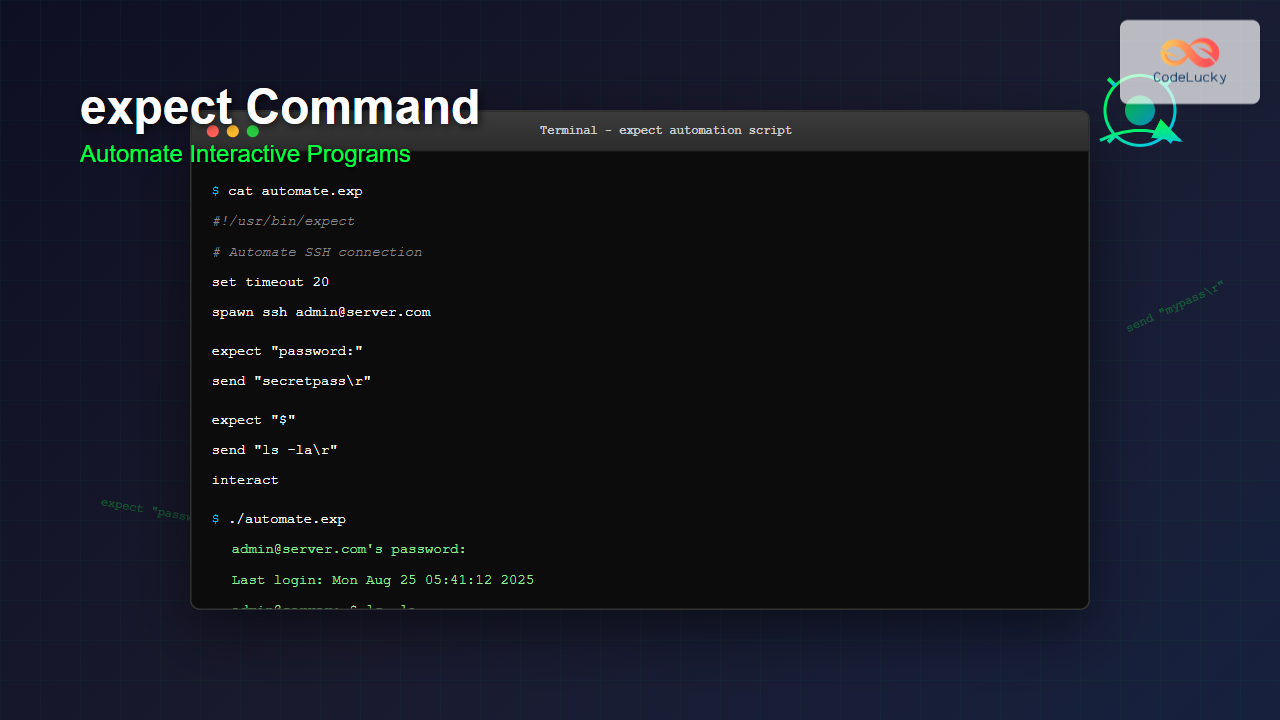
The expect command is a powerful automation tool in Linux that allows you to automate interactive programs that normally require manual input. Whether you’re dealing with SSH connections, FTP transfers, or any program that prompts for user interaction, expect can streamline your workflow by providing automated responses.
What is the expect Command?
The expect command is a scripting language and tool designed specifically for automating interactive applications. It works by “expecting” certain output patterns from programs and responding with predefined inputs. This makes it invaluable for system administrators, developers, and DevOps engineers who need to automate repetitive interactive tasks.
Key Features of expect
- Pattern Matching: Recognizes specific text patterns in program output
- Automated Responses: Sends predefined responses to interactive prompts
- Timeout Handling: Manages scenarios where expected patterns don’t appear
- Script Integration: Can be embedded in shell scripts and other automation tools
- Cross-Platform: Available on various Unix-like systems
Installing expect
Before using expect, you need to install it on your system. Here’s how to install it on different Linux distributions:
Ubuntu/Debian:
sudo apt update
sudo apt install expect
CentOS/RHEL/Fedora:
# For CentOS/RHEL 7 and older
sudo yum install expect

# For CentOS/RHEL 8+ and Fedora
sudo dnf install expect
Arch Linux:
sudo pacman -S expectBasic expect Syntax and Structure
An expect script follows a specific structure with key commands that control the automation flow:
#!/usr/bin/expect

spawn [command]
expect "pattern"
send "response\r"
interact
Core Commands Explained
spawn: Starts a new process that expect will controlexpect: Waits for a specific pattern in the outputsend: Sends text to the spawned processinteract: Hands control back to the userexp_continue: Continues expecting after a matchexit: Terminates the expect script
Simple expect Examples
Example 1: Automating a Basic Interactive Program
Let’s create a simple expect script that automates a program asking for user information:
#!/usr/bin/expect

# Set timeout to 10 seconds
set timeout 10

# Spawn the interactive program
spawn ./user_info.sh

# Expect username prompt and respond
expect "Enter username:"
send "johndoe\r"

# Expect password prompt and respond
expect "Enter password:"
send "secretpass123\r"

# Expect email prompt and respond
expect "Enter email:"
send "[email protected]\r"

# Wait for completion message
expect "User information saved"

# Exit the script
exit
Output:
Enter username: johndoe
Enter password: secretpass123
Enter email: [email protected]
User information saved successfully!
Example 2: Automating SSH Login
One of the most common use cases for expect is automating SSH connections:
#!/usr/bin/expect

set timeout 20
set hostname "192.168.1.100"
set username "admin"
set password "mypassword"

# Start SSH connection
spawn ssh $username@$hostname

# Handle different possible prompts
expect {
    "Are you sure you want to continue connecting" {
        send "yes\r"
        exp_continue
    }
    "password:" {
        send "$password\r"
    }
    timeout {
        puts "Connection timed out"
        exit 1
    }
}

# Wait for shell prompt
expect "$"

# Execute commands
send "ls -la\r"
expect "$"

send "uptime\r"
expect "$"

# Close connection
send "exit\r"
expect eof
Sample Output:
The authenticity of host '192.168.1.100' can't be established.
RSA key fingerprint is SHA256:abc123...
Are you sure you want to continue connecting (yes/no)? yes
[email protected]'s password:
Last login: Mon Aug 25 05:40:12 2025
admin@server:~$ ls -la
total 24
drwxr-xr-x 3 admin admin 4096 Aug 25 05:30 .
drwxr-xr-x 3 root  root  4096 Aug 20 10:15 ..
-rw-r--r-- 1 admin admin  220 Aug 20 10:15 .bash_logout
admin@server:~$ uptime
 05:40:15 up 5 days,  2:30,  1 user,  load average: 0.00, 0.01, 0.05
admin@server:~$ exit
Advanced expect Techniques
Using Variables and Command Line Arguments
You can make your expect scripts more flexible by using variables and accepting command line arguments:
#!/usr/bin/expect

# Check if enough arguments are provided
if {$argc != 3} {
    puts "Usage: $argv0   "
    exit 1
}

# Assign command line arguments to variables
set hostname [lindex $argv 0]
set username [lindex $argv 1]
set password [lindex $argv 2]
set timeout 30

puts "Connecting to $hostname as $username..."

spawn ssh $username@$hostname

expect {
    "Are you sure" {
        send "yes\r"
        exp_continue
    }
    "password:" {
        send "$password\r"
    }
    "Permission denied" {
        puts "Authentication failed!"
        exit 1
    }
    timeout {
        puts "Connection timeout!"
        exit 1
    }
}

expect "$"
puts "Successfully connected!"

# Interactive mode
interact
Handling Multiple Scenarios with Pattern Matching
Complex automation often requires handling multiple possible scenarios:
#!/usr/bin/expect

set timeout 15

spawn ftp ftp.example.com

expect {
    "Name" {
        send "anonymous\r"
        exp_continue
    }
    "Password:" {
        send "[email protected]\r"
    }
    "Login incorrect" {
        puts "Login failed"
        exit 1
    }
    "Connection refused" {
        puts "Cannot connect to server"
        exit 1
    }
    timeout {
        puts "Connection timed out"
        exit 1
    }
}

expect "ftp>"

# Navigate and download
send "cd pub\r"
expect "ftp>"

send "ls *.txt\r"
expect "ftp>"

send "get readme.txt\r"
expect {
    "Transfer complete" {
        puts "File downloaded successfully"
    }
    "No such file" {
        puts "File not found"
    }
}

send "quit\r"
expect eof
Error Handling and Debugging
Setting Debug Mode
For troubleshooting, you can enable debug mode to see what expect is doing:
#!/usr/bin/expect

# Enable debug mode
exp_internal 1

# Your expect script continues here...
set timeout 10
spawn ssh user@server

expect "password:"
send "mypassword\r"
Logging expect Output
You can log all interactions for later review:
#!/usr/bin/expect

# Start logging to file
log_file /tmp/expect_session.log

set timeout 20
spawn telnet example.com 80

expect "Connected"
send "GET / HTTP/1.1\r\nHost: example.com\r\n\r\n"

expect "200 OK"
puts "Received successful HTTP response"

# Close log file
log_file
Real-World Use Cases
Database Connection Automation
Automate database connections and queries:
#!/usr/bin/expect

set timeout 30
set db_host "db.example.com"
set db_user "dbuser"
set db_pass "dbpassword"

spawn mysql -h $db_host -u $db_user -p

expect "Enter password:"
send "$db_pass\r"

expect "mysql>"
send "USE production_db;\r"

expect "mysql>"
send "SELECT COUNT(*) FROM users;\r"

expect "mysql>"
send "SHOW TABLES;\r"

expect "mysql>"
send "EXIT;\r"

expect eof
Automated Software Installation
Automate interactive software installations:
#!/usr/bin/expect

set timeout 300

spawn ./software_installer.run

expect "Do you accept the license agreement? (yes/no)"
send "yes\r"

expect "Enter installation directory:"
send "/opt/myapp\r"

expect "Install documentation? (y/n)"
send "y\r"

expect "Create desktop shortcut? (y/n)"
send "n\r"

expect "Installation complete"
puts "Software installed successfully!"

exit
Best Practices and Tips
Security Considerations
- Avoid hardcoding passwords: Use environment variables or secure vaults
- Set appropriate file permissions:
chmod 700 script.exp - Use encrypted connections: Prefer SSH over telnet
- Log management: Be careful with sensitive information in logs
Performance Optimization
#!/usr/bin/expect

# Set reasonable timeouts
set timeout 30

# Use efficient pattern matching
expect {
    -re "password|Password" {
        send "$password\r"
    }
    -exact "login:" {
        send "$username\r"
    }
}

# Clean up properly
expect eof
exit 0
Making Scripts Robust
#!/usr/bin/expect

proc connect_with_retry {host user pass max_retries} {
    set retry_count 0

    while {$retry_count < $max_retries} {
        set timeout 20

        if {[catch {spawn ssh $user@$host} result]} {
            puts "Spawn failed: $result"
            incr retry_count
            continue
        }

        expect {
            "password:" {
                send "$pass\r"
                expect {
                    "$" {
                        puts "Login successful"
                        return 1
                    }
                    "Permission denied" {
                        puts "Authentication failed, retry $retry_count"
                        incr retry_count
                    }
                }
            }
            timeout {
                puts "Connection timeout, retry $retry_count"
                incr retry_count
            }
        }
    }

    puts "Failed to connect after $max_retries attempts"
    return 0
}

# Usage
if {[connect_with_retry "server.com" "user" "pass" 3]} {
    interact
} else {
    exit 1
}
Integration with Shell Scripts
You can integrate expect scripts within bash scripts for more complex automation:
#!/bin/bash

# Bash script that uses expect
SERVERS=("server1.com" "server2.com" "server3.com")
USERNAME="admin"
PASSWORD="secretpass"

for server in "${SERVERS[@]}"; do
    echo "Connecting to $server..."

    expect << EOF
        set timeout 20
        spawn ssh $USERNAME@$server

        expect {
            "Are you sure" {
                send "yes\r"
                exp_continue
            }
            "password:" {
                send "$PASSWORD\r"
            }
        }

        expect "$"
        send "uptime\r"
        expect "$"

        send "df -h\r"
        expect "$"

        send "exit\r"
        expect eof
EOF

    echo "Finished with $server"
done
Troubleshooting Common Issues
Pattern Matching Problems
- Case sensitivity: Use
-nocaseflag for case-insensitive matching - Regular expressions: Use
-reflag for regex patterns - Exact matching: Use
-exactflag to avoid regex interpretation
# Case-insensitive matching
expect -nocase "password"

# Regular expression matching
expect -re "password|Password|PASSWORD"

# Exact string matching
expect -exact "Enter password:"
Timeout Issues
# Global timeout setting
set timeout 60

# Per-expect timeout
expect {
    timeout 30 "slow_prompt" {
        send "response\r"
    }
    timeout 5 "quick_prompt" {
        send "quick_response\r"
    }
}
Conclusion
The expect command is an invaluable tool for automating interactive programs in Linux environments. From simple password automation to complex multi-server deployments, expect can significantly reduce manual effort and improve consistency in your workflows.
Key takeaways:
- Use
expectto automate any interactive command-line program - Always implement proper error handling and timeouts
- Consider security implications when dealing with passwords
- Test scripts thoroughly before deploying in production
- Combine with other tools for more powerful automation solutions
With the examples and techniques covered in this guide, you’ll be well-equipped to automate your interactive programs and streamline your Linux administration tasks.
Related Posts
read Command Linux: Complete Guide to Reading User Input in Shell Scripts
The read command is one of the most fundamental tools in Linux shell scripting for creating interactive programs that capture...
redirect Command Linux: Complete Input Output Redirection Guide
Linux redirection is a powerful feature that allows you to control where command input comes from and where output goes....
pipe Command Linux: Complete Guide to Connecting Commands with Pipes
The pipe command in Linux is one of the most powerful and fundamental concepts that allows you to connect multiple...

python Command Linux: Complete Guide to Running Python Scripts and Interactive Sessions
The python command is one of the most essential tools for developers working with Python on Linux systems. Whether you're...
stdin stdout stderr Linux: Complete Guide to Standard Streams and Redirection
Linux standard streams form the foundation of command-line communication, enabling programs to receive input and send output in a structured...

w Command Linux: Complete Guide to Monitor Active Users and System Activity
The w command is one of the most essential system monitoring tools in Linux, providing administrators and users with real-time...
dialog Command Linux: Create Interactive Text-Based User Interfaces with Ease
The dialog command in Linux is a powerful utility that enables developers and system administrators to create sophisticated text-based user...
watch Command Linux: Monitor and Execute Commands Repeatedly in Real-Time
The watch command is one of the most powerful utilities in Linux for executing commands repeatedly at regular intervals and...
Python File isatty() Method: Checking if File Stream is Interactive
The isatty() method is a handy tool in Python for determining whether a file stream is connected to an interactive...

echo Command in Linux: Complete Guide to Print Text and Variables in Terminal
The echo command is one of the most fundamental and frequently used commands in Linux and Unix-like operating systems. It...

Ansible Linux: Complete Guide to IT Automation and Configuration Management
Ansible has revolutionized the way IT professionals manage infrastructure, making complex automation tasks simple and efficient. As an agentless automation...
fg Command Linux: Complete Guide to Managing Background and Foreground Jobs
The fg command in Linux is a powerful job control tool that allows you to bring background processes to the...





