What is the Excel ROWS Function?
The ROWS function in Microsoft Excel is a built-in lookup and reference function that returns the number of rows in a specified range or array. This powerful function is essential for dynamic formulas, data analysis, and creating flexible spreadsheet solutions that automatically adjust to changing data sizes.
Whether you’re working with small datasets or massive spreadsheets, the ROWS function provides an efficient way to count rows without manual counting, making your Excel workflows more automated and error-free.
Excel ROWS Function Syntax
The syntax for the ROWS function is straightforward and follows this structure:
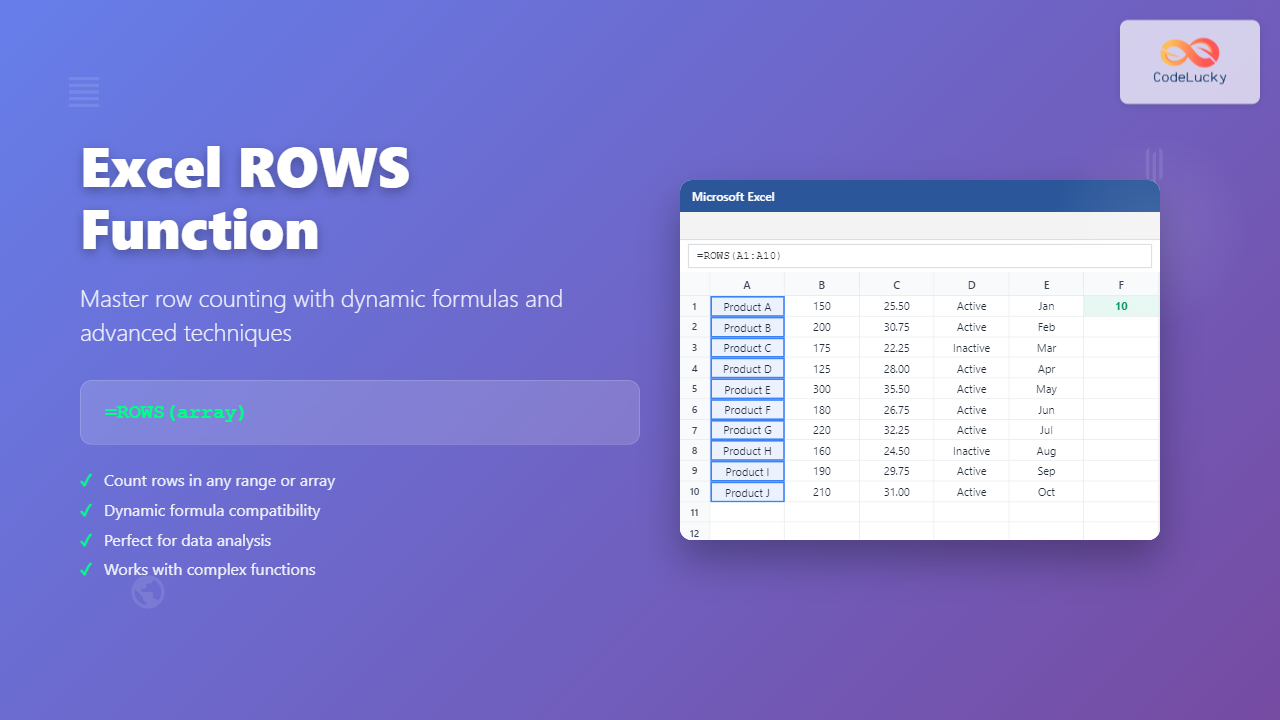
=ROWS(array)Parameters Explained
- array (required): The range, array, or reference for which you want to count the number of rows
The array parameter can be:
- A cell range (e.g., A1:C10)
- An array constant (e.g., {1,2,3;4,5,6})
- A reference to a range
- The result of another function that returns an array
Basic ROWS Function Examples
Example 1: Counting Rows in a Simple Range
To count the number of rows in range A1:A10:
=ROWS(A1:A10)Result: 10 (counts rows 1 through 10)
Example 2: Counting Rows in a Multi-Column Range
For a range spanning multiple columns like B2:E15:
=ROWS(B2:E15)Result: 14 (counts rows 2 through 15, regardless of column width)
Example 3: Using ROWS with Array Constants
You can also use ROWS with array constants:
=ROWS({1,2,3;4,5,6;7,8,9})Result: 3 (the array has 3 rows)
Advanced ROWS Function Applications
Dynamic Range Creation
Combine ROWS with other functions to create dynamic formulas. For example, to create a sequence of numbers based on the row count of your data:
=SEQUENCE(ROWS(A:A))This formula creates a sequence of numbers equal to the total number of rows in column A.
Using ROWS with OFFSET Function
Create dynamic ranges that automatically adjust:
=OFFSET(A1,0,0,ROWS(A:A),1)This returns a range starting from A1 with a height equal to the number of rows containing data in column A.
Conditional Row Counting
Combine ROWS with IF and other logical functions:
=IF(ROWS(A1:A100)>50,"Large Dataset","Small Dataset")This formula checks if your range has more than 50 rows and returns appropriate text.
ROWS vs COLUMNS Function
While ROWS counts the number of rows, Excel also provides the COLUMNS function for counting columns:
| Function | Purpose | Example | Result |
|---|---|---|---|
| ROWS | Counts rows | =ROWS(A1:C10) | 10 |
| COLUMNS | Counts columns | =COLUMNS(A1:C10) | 3 |
Common Use Cases for ROWS Function
1. Creating Dynamic Headers
Use ROWS to create headers that automatically adjust based on data size:
="Total Records: " & ROWS(A2:A1000)2. Array Formula Calculations
In array formulas, ROWS helps determine the size of operations:
=SUM(IF(ROWS(A1:A100)>0,A1:A100*B1:B100,0))3. Data Validation
Validate data entry based on existing row count:
=IF(ROWS(A:A)>1000,"Too many entries","OK")ROWS Function with Other Excel Functions
ROWS + INDEX
Get the last value in a dynamic range:
=INDEX(A:A,ROWS(A:A))ROWS + MATCH
Find relative positions within ranges:
=MATCH(lookup_value,A1:INDEX(A:A,ROWS(A:A)),0)ROWS + INDIRECT
Create flexible range references:
=ROWS(INDIRECT("A1:A" & COUNT(A:A)))Error Handling with ROWS Function
The ROWS function is generally error-resistant, but here are common issues:
Invalid References
If you reference a range that doesn’t exist, ROWS returns a #REF! error. Always ensure your ranges are valid:
=IFERROR(ROWS(A1:A100),"Invalid Range")Empty Arrays
ROWS will still return a count even for empty ranges. Use additional logic if you need to check for actual data:
=IF(COUNTA(A1:A100)>0,ROWS(A1:A100),"No data")Performance Tips for ROWS Function
Avoid Entire Column References
Instead of using entire columns (A:A), use specific ranges when possible:
// Slower
=ROWS(A:A)

// Faster
=ROWS(A1:A1000)
Combine with Volatile Functions Carefully
Be cautious when combining ROWS with volatile functions like NOW() or RAND(), as this can slow down your spreadsheet.
ROWS Function in Array Formulas
The ROWS function is particularly powerful in array formulas and with Excel’s dynamic array features:
Dynamic Array Example
=FILTER(A1:C100,SEQUENCE(ROWS(A1:C100))<=10)This formula filters the first 10 rows of data dynamically.
Spill Range Applications
Use ROWS to work with spill ranges:
=ROWS(SORT(A1:A100)#)Troubleshooting ROWS Function Issues
Common Problems and Solutions
- Unexpected Results: Ensure you're referencing the correct range
- Performance Issues: Limit range sizes and avoid entire column references
- Formula Errors: Use IFERROR to handle potential reference errors
- Dynamic Ranges: Combine with OFFSET or INDIRECT for truly dynamic ranges
Best Practices for Using ROWS Function
- Use specific ranges instead of entire columns when possible
- Combine with error handling functions like IFERROR
- Test with different data sizes to ensure formulas scale properly
- Document complex formulas that use ROWS for future reference
- Consider performance impact in large spreadsheets
Conclusion
The Excel ROWS function is a fundamental tool for anyone working with spreadsheets regularly. Its simplicity makes it accessible to beginners, while its integration capabilities with other Excel functions provide advanced users with powerful automation possibilities.
By mastering the ROWS function, you can create more dynamic, flexible, and maintainable Excel spreadsheets that automatically adapt to changing data requirements. Whether you're building simple counting formulas or complex array calculations, the ROWS function serves as a reliable foundation for your Excel toolkit.
Practice these examples in your own spreadsheets to fully understand how the ROWS function can enhance your Excel productivity and data analysis capabilities.
Related Posts
Excel ROW Function: Complete Guide to Row Number Formula and Syntax
The Excel ROW function is one of the most fundamental yet powerful functions in Microsoft Excel, designed to return the...
Excel COLUMNS Function: Master Column Counting with Practical Examples
The Excel COLUMNS function is a powerful built-in tool that counts the number of columns in a specified range or...
Excel COUNT Function: Complete Guide to Number Counting Formulas
The COUNT function is one of Excel's most fundamental and frequently used statistical functions. Whether you're analyzing sales data, tracking...
Excel COUNTA Function: Complete Guide to Non-Empty Cell Counting
The COUNTA function is one of Excel's most versatile statistical functions, designed specifically to count non-empty cells within a specified...

Excel SEQUENCE Function: Complete Guide to Dynamic Number Sequences
What is the Excel SEQUENCE Function? The Excel SEQUENCE function is a powerful dynamic array function introduced in Excel 365...
Excel INDEX Function: Complete Guide to Array Position Lookup with Practical Examples
The Excel INDEX function is one of the most powerful and versatile lookup functions available in Microsoft Excel. Unlike other...

Excel TABLE Function: Complete Guide to Structured Data Management and Advanced Formulas
What is the Excel TABLE Function? The Excel TABLE function is a powerful feature that converts regular cell ranges into...
Excel COLUMN Function: Complete Guide to Column Number References
The Excel COLUMN function is a fundamental lookup and reference function that returns the column number of a specified cell...
Excel SUM Function: Complete Guide to Addition Formulas and Advanced Techniques
The Excel SUM function is one of the most fundamental and widely-used formulas in Microsoft Excel, designed to add numerical...
Excel DCOUNT Function: Complete Guide to Database Count Commands with Syntax Examples
The Excel DCOUNT function is a powerful database function that counts the number of cells containing numeric values in a...
Excel AVERAGE Function: Complete Guide to Mean Calculation with Syntax Examples
The Excel AVERAGE function is one of the most fundamental and widely-used statistical functions in Microsoft Excel. This powerful function...
Excel AREAS Function: Complete Guide to Count Reference Areas in Formulas
The Excel AREAS function is a powerful reference function that counts the number of areas (separate ranges) within a given...