The Excel REPLACE function is a powerful text manipulation tool that allows you to replace a specific portion of text within a cell with new text. Unlike the SUBSTITUTE function, REPLACE works with character positions, making it ideal for precise text modifications when you know exactly where the replacement should occur.
What is the Excel REPLACE Function?
The REPLACE function in Excel removes a specified number of characters from a text string and replaces them with new characters at a specific position. This function is particularly useful for standardizing data formats, correcting specific portions of text, or updating information at known positions within strings.
REPLACE Function Syntax
The syntax for the Excel REPLACE function is straightforward:
=REPLACE(old_text, start_num, num_chars, new_text)Parameters Explained
- old_text: The original text string where you want to make the replacement
- start_num: The position of the first character you want to replace (starts from 1)
- num_chars: The number of characters to replace from the starting position
- new_text: The new text that will replace the old characters
Basic REPLACE Function Examples
Example 1: Simple Text Replacement
Let’s start with a basic example where we replace part of a product code:
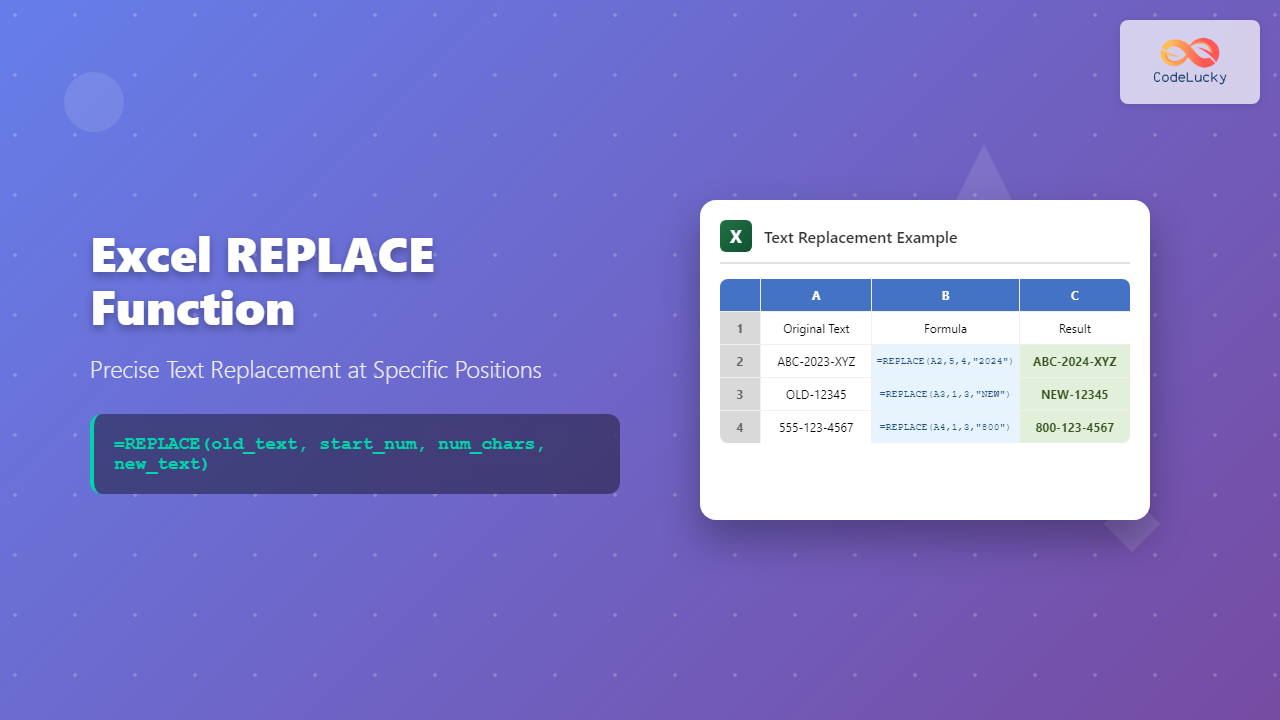
=REPLACE("ABC-2023-XYZ", 5, 4, "2024")This formula:
- Takes the text “ABC-2023-XYZ”
- Starts at position 5 (the “2” in “2023”)
- Replaces 4 characters (“2023”)
- With “2024”
- Result: “ABC-2024-XYZ”
Example 2: Replacing Phone Number Format
=REPLACE("555-123-4567", 1, 3, "800")This changes the area code from “555” to “800”, resulting in “800-123-4567”.
Advanced REPLACE Function Techniques
Using REPLACE with Cell References
In practical scenarios, you’ll typically use cell references instead of hardcoded text:
=REPLACE(A1, 5, 4, "2024")If cell A1 contains “ABC-2023-XYZ”, this formula will produce “ABC-2024-XYZ”.
Dynamic Position Finding
You can combine REPLACE with other functions like FIND or SEARCH to dynamically locate the replacement position:
=REPLACE(A1, FIND("-", A1) + 1, 4, "NEW")This formula finds the first hyphen and replaces the 4 characters immediately following it.
REPLACE vs SUBSTITUTE: Key Differences
Understanding when to use REPLACE versus SUBSTITUTE is crucial:
REPLACE Function
- Works with character positions
- Replaces a specific number of characters at a known location
- Best for structured data with consistent formats
- Cannot specify which occurrence to replace
SUBSTITUTE Function
- Works with actual text patterns
- Finds and replaces specific text strings
- Can specify which occurrence to replace
- Better for unstructured text replacement
Common Use Cases for REPLACE Function
1. Updating Date Formats
Convert date formats by replacing specific portions:
=REPLACE("01/15/2023", 7, 4, "2024")Changes “01/15/2023” to “01/15/2024”.
2. Standardizing Product Codes
Update product codes with new prefixes or suffixes:
=REPLACE("OLD-12345", 1, 3, "NEW")Converts “OLD-12345” to “NEW-12345”.
3. Masking Sensitive Information
Hide portions of sensitive data like social security numbers:
=REPLACE("123-45-6789", 1, 5, "XXX-XX")Results in “XXX-XX-6789”.
Error Handling and Troubleshooting
Common REPLACE Function Errors
#VALUE! Error: Occurs when start_num or num_chars are not numeric values.
Unexpected Results: Check that your start_num position is correct (remember Excel uses 1-based indexing, not 0-based).
Best Practices
- Always verify the character positions before applying REPLACE to large datasets
- Use the LEN function to check text length when determining num_chars
- Test your formula on a few sample cells before applying to entire columns
- Consider using IFERROR to handle potential errors gracefully
Combining REPLACE with Other Functions
REPLACE with LEN Function
Replace text from a specific position to the end of the string:
=REPLACE(A1, 5, LEN(A1)-4, "NEW_END")REPLACE with MID Function
Replace middle portions while preserving the beginning and end:
=REPLACE(A1, 4, 6, MID(B1, 4, 6))Nested REPLACE Functions
Perform multiple replacements in a single formula:
=REPLACE(REPLACE(A1, 1, 3, "NEW"), 8, 3, "END")Performance Considerations
When working with large datasets, consider these performance tips:
- REPLACE is generally faster than complex combinations of LEFT, RIGHT, and MID functions
- Avoid volatile functions within REPLACE formulas when possible
- Consider using Power Query for bulk text transformations in very large datasets
REPLACE Function Limitations
Be aware of these limitations when using the REPLACE function:
- Cannot replace multiple different occurrences in a single operation
- Requires knowing the exact position and length of text to replace
- Limited to replacing contiguous characters only
- Maximum text length constraints apply (32,767 characters)
Real-World Example: Data Standardization
Imagine you have a list of employee IDs in format “EMP-2023-001” and need to update them to “STF-2024-001”. Here’s how you could use REPLACE:
=REPLACE(REPLACE(A1, 1, 3, "STF"), 5, 4, "2024")This formula performs two replacements:
- Replaces “EMP” with “STF” at the beginning
- Replaces “2023” with “2024” in the middle
Conclusion
The Excel REPLACE function is an essential tool for precise text manipulation when you know the exact position and length of the text you want to modify. Its position-based approach makes it perfect for standardizing data formats, updating specific portions of structured text, and performing consistent transformations across datasets.
While REPLACE has limitations compared to more flexible functions like SUBSTITUTE, its precision and efficiency make it invaluable for specific use cases. Master the REPLACE function by practicing with different scenarios and combining it with other Excel functions to create powerful text manipulation solutions.
Remember to always test your REPLACE formulas thoroughly and consider the structure of your data when choosing between REPLACE and other text functions. With practice, you’ll find that REPLACE becomes an indispensable part of your Excel toolkit for data cleaning and standardization tasks.
Related Posts
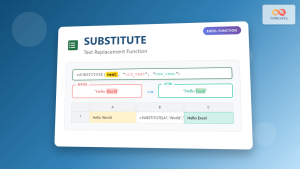
Excel SUBSTITUTE Function: Complete Guide to Text Replacement Formula
The SUBSTITUTE function in Microsoft Excel is a powerful text manipulation tool that allows you to replace specific characters or...
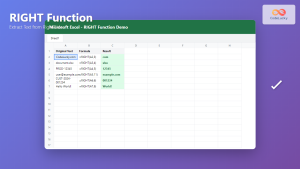
Excel RIGHT Function: Extract Text from Right Side with Examples
The RIGHT function in Excel is a powerful text manipulation tool that extracts a specified number of characters from the...
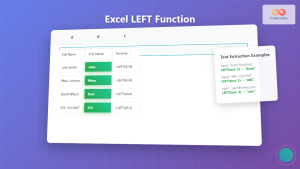
Excel LEFT Function: Complete Guide to Extract Text from Left Side
The Excel LEFT function is one of the most essential text manipulation tools in Microsoft Excel, designed to extract a...

Excel FIND Function: Complete Guide to Text Position Finding in Spreadsheets
The Excel FIND function is a powerful text manipulation tool that helps you locate the position of specific characters or...

Excel UPPER Function: Complete Guide to Converting Text to Uppercase
The Excel UPPER function is an essential text manipulation tool that converts all lowercase letters in a text string to...
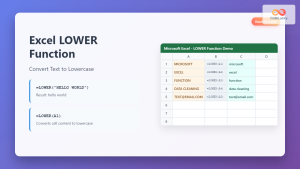
Excel LOWER Function: Convert Text to Lowercase with Syntax Examples
The Excel LOWER function is a powerful text manipulation tool that converts all uppercase letters in a text string to...
Excel VALUE Function: Complete Guide to Text-to-Number Conversion
The Excel VALUE function is a powerful data conversion tool that transforms text strings containing numeric values into actual numbers...
Excel MID Function: Complete Guide to Extract Text from Middle of Strings
The Excel MID function is one of the most powerful text manipulation tools available in Microsoft Excel. This function allows...
Python String replace() Method: Replacing Substrings
The replace() method is a powerful tool in Python's arsenal for manipulating strings. It allows you to substitute occurrences of...
Excel TEXT Function: Complete Guide to Number-to-Text Formatting
The Excel TEXT function is one of the most powerful yet underutilized functions for converting numeric values into formatted text...
MySQL REPLACE Function: Mastering String Substitution
The MySQL REPLACE function is your go-to tool for efficiently substituting substrings within a string. Whether you need to standardize...
Excel CLEAN Function: Remove Non-Printable Characters Complete Guide
Excel's CLEAN function is an essential tool for data cleaning that removes non-printable characters from text strings. Whether you're dealing...