
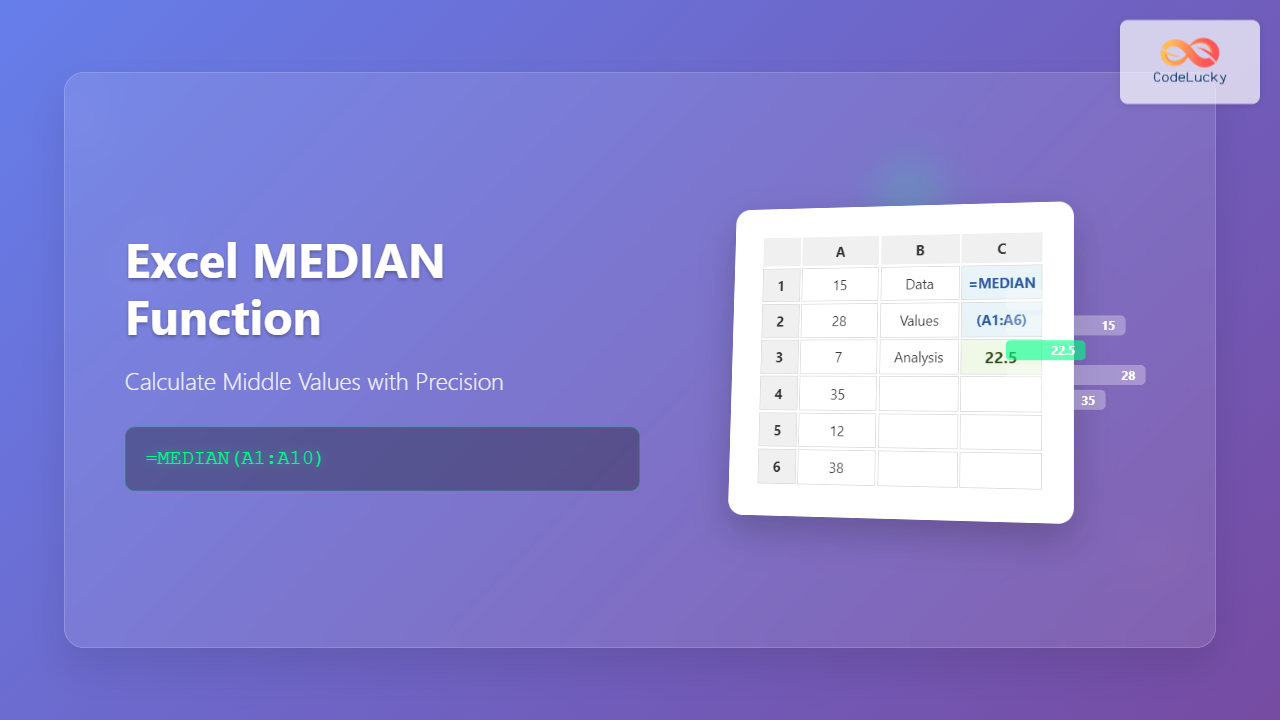
The MEDIAN function in Microsoft Excel is one of the most essential statistical functions for data analysis. It calculates the middle value in a dataset when numbers are arranged in ascending or descending order, providing a robust measure of central tendency that’s less affected by extreme values than the average.
What is the MEDIAN Function?
The MEDIAN function returns the middle value from a set of numbers. When you have an odd number of values, it returns the exact middle value. For an even number of values, it calculates the average of the two middle values. This makes MEDIAN particularly useful for analyzing datasets with outliers or skewed distributions.
MEDIAN Function Syntax
The basic syntax for the MEDIAN function is straightforward:
=MEDIAN(number1, [number2], ...)Parameters:
- number1 (required): The first number, cell reference, or range of cells containing numbers
- number2, … (optional): Additional numbers, cell references, or ranges (up to 255 arguments)
Basic MEDIAN Function Examples
Example 1: Simple Number List
=MEDIAN(5, 3, 8, 1, 9, 2, 7)Result: 5 (the middle value when arranged as 1, 2, 3, 5, 7, 8, 9)
Example 2: Cell Range
=MEDIAN(A1:A10)This calculates the median of all values in cells A1 through A10.
Example 3: Multiple Ranges
=MEDIAN(A1:A5, C1:C5, E1:E5)This finds the median across multiple non-contiguous ranges.
How MEDIAN Handles Different Data Types
Text and Logical Values
The MEDIAN function automatically ignores:
- Text values
- Logical values (TRUE/FALSE)
- Empty cells
Error Values
If any cell in the range contains an error value (like #DIV/0! or #VALUE!), the MEDIAN function will return an error.
Advanced MEDIAN Techniques
Conditional MEDIAN Calculations
While Excel doesn’t have a built-in MEDIAN.IF function, you can create conditional median calculations using array formulas:
=MEDIAN(IF(A1:A10>50, A1:A10))Note: Enter this as an array formula using Ctrl+Shift+Enter in older Excel versions.
MEDIAN with Multiple Criteria
For more complex conditions, combine MEDIAN with multiple IF statements:
=MEDIAN(IF((A1:A10>50)*(B1:B10="Yes"), C1:C10))MEDIAN vs Other Statistical Functions
| Function | Purpose | Best Used When |
|---|---|---|
| MEDIAN | Middle value | Data has outliers or is skewed |
| AVERAGE | Arithmetic mean | Data is normally distributed |
| MODE | Most frequent value | Finding the most common occurrence |
Practical Applications
Sales Data Analysis
Calculate median sales performance to understand typical results without being skewed by exceptionally high or low performers:
=MEDIAN(B2:B50) // Median sales for 49 sales representativesSurvey Response Analysis
Find the median rating from customer satisfaction surveys:
=MEDIAN(D2:D1000) // Median rating from 999 survey responsesFinancial Data
Determine median income or expenses to get a realistic picture of financial data:
=MEDIAN(Income_Range) // Using a named rangeCommon Errors and Troubleshooting
#NUM! Error
This error occurs when all cells in the range are empty or contain text. Ensure your range contains at least one numeric value.
#VALUE! Error
This happens when you directly reference a cell containing text or an error value as an argument (not within a range).
Unexpected Results
If your MEDIAN result seems incorrect:
- Verify your data range includes all intended values
- Check for hidden characters or formatting issues
- Ensure numbers aren’t stored as text
Tips for Effective MEDIAN Usage
1. Use Named Ranges
Create named ranges for frequently analyzed datasets:
=MEDIAN(SalesData)2. Dynamic Ranges
Use OFFSET or INDEX functions to create dynamic ranges that automatically adjust:
=MEDIAN(OFFSET(A1, 0, 0, COUNTA(A:A), 1))3. Combine with Other Functions
Use MEDIAN with ROUND for cleaner results:
=ROUND(MEDIAN(A1:A20), 2)Performance Considerations
When working with large datasets:
- MEDIAN is generally efficient, but avoid using it in array formulas across huge ranges
- Consider using pivot tables for analyzing large datasets with multiple criteria
- Use specific ranges rather than entire columns when possible
Excel Version Compatibility
The MEDIAN function is available in all versions of Excel, including:
- Excel 365
- Excel 2019
- Excel 2016
- Excel 2013
- Excel 2010
- Excel for Mac
- Excel Online
Keyboard Shortcuts and Quick Access
To quickly insert the MEDIAN function:
- Press Alt + = to activate the formula bar
- Start typing “MEDIAN” and press Tab to auto-complete
- Use Ctrl + Shift + A after typing the function name to see the argument list
Best Practices
Data Validation
Always validate your data before applying MEDIAN:
- Remove or handle outliers appropriately
- Ensure consistent data types
- Check for missing values
Documentation
Add comments to complex MEDIAN formulas:
=MEDIAN(A1:A100) // Median of Q1 sales dataError Handling
Use IFERROR to handle potential errors gracefully:
=IFERROR(MEDIAN(A1:A10), "No valid data")Conclusion
The MEDIAN function is an indispensable tool for statistical analysis in Excel. Its ability to provide a representative middle value makes it superior to AVERAGE when dealing with skewed data or outliers. By mastering the techniques and best practices outlined in this guide, you’ll be able to leverage MEDIAN effectively for robust data analysis across various scenarios.
Whether you’re analyzing sales performance, survey results, or financial data, the MEDIAN function provides reliable insights that help you make informed decisions based on your data’s central tendency.
Related Posts
Excel AVERAGE Function: Complete Guide to Mean Calculation with Syntax Examples
The Excel AVERAGE function is one of the most fundamental and widely-used statistical functions in Microsoft Excel. This powerful function...
Excel MAX Function: Complete Guide to Finding Maximum Values in Spreadsheets
The MAX function in Microsoft Excel is one of the most fundamental and widely-used statistical functions that helps you quickly...
Excel MIN Function: Complete Guide to Finding Minimum Values with Formula Examples
The MIN function in Microsoft Excel is one of the most fundamental and frequently used statistical functions for data analysis....

Excel PERCENTILE Function: Complete Guide to Statistical Analysis and Ranking
The Excel PERCENTILE function is a powerful statistical tool that helps you analyze data distribution and identify specific values within...

Excel AVERAGEIF Function: Complete Guide to Conditional Average Formulas
What is the Excel AVERAGEIF Function? The AVERAGEIF function is one of Excel's most powerful statistical tools that calculates the...
Excel ABS Function: Complete Guide to Absolute Value Calculations
The ABS function in Microsoft Excel is one of the most fundamental mathematical functions that converts any number to its...

Excel CEILING Function: Complete Guide to Rounding Up Numbers
The Excel CEILING function is a powerful mathematical tool that rounds numbers up to the nearest specified multiple. Whether you're...
Excel AGGREGATE Function: Complete Guide to Advanced Statistical Calculations
Excel's AGGREGATE function is one of the most powerful and versatile statistical functions available in Microsoft Excel. Unlike traditional statistical...
Excel SUM Function: Complete Guide to Addition Formulas and Advanced Techniques
The Excel SUM function is one of the most fundamental and widely-used formulas in Microsoft Excel, designed to add numerical...

Excel SMALL Function: Find Nth Smallest Value with Easy Formula Examples
The Excel SMALL function is one of the most powerful statistical functions for finding the nth smallest value in a...
Excel MID Function: Complete Guide to Extract Text from Middle of Strings
The Excel MID function is one of the most powerful text manipulation tools available in Microsoft Excel. This function allows...

Excel FLOOR Function: Complete Guide to Floor Rounding with Syntax Examples
The Excel FLOOR function is a powerful mathematical tool that rounds numbers down to the nearest specified multiple. Unlike standard...





