
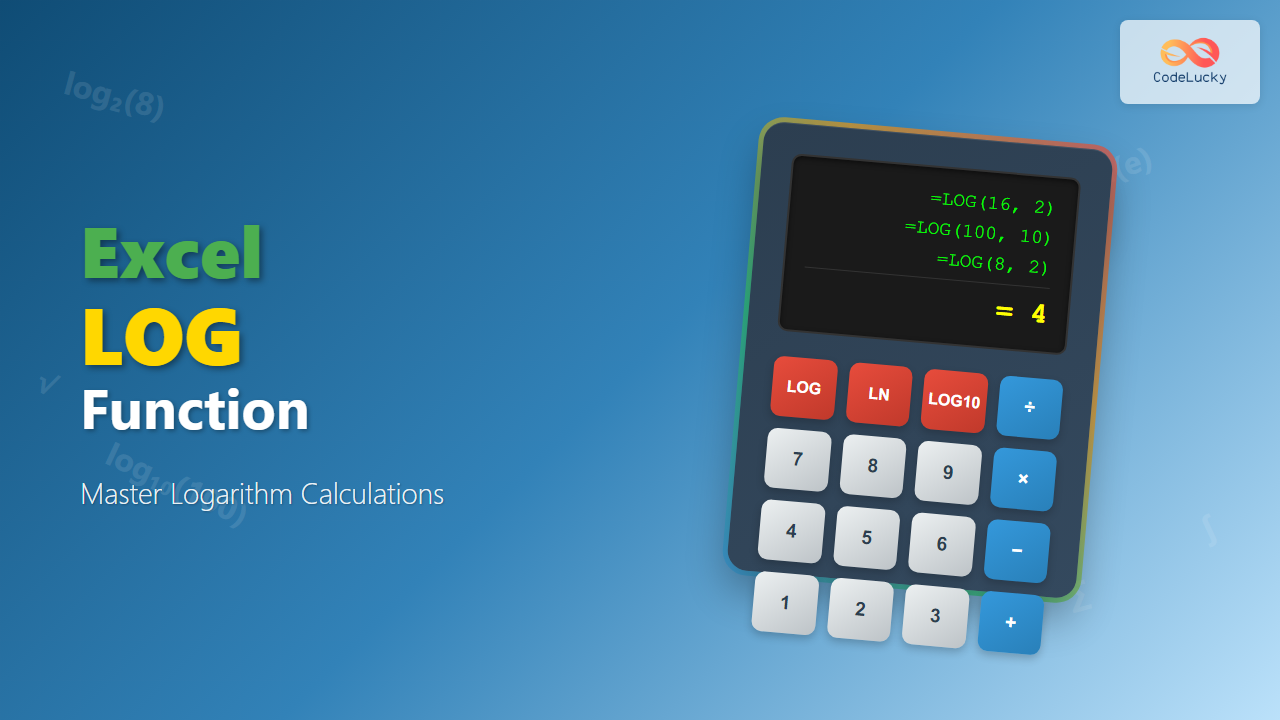
The Excel LOG function is a powerful mathematical tool that calculates logarithms with any specified base. Whether you’re analyzing exponential growth, performing scientific calculations, or working with complex data transformations, understanding the LOG function is essential for effective spreadsheet management.
What is the Excel LOG Function?
The LOG function in Excel calculates the logarithm of a positive number using a specified base. Unlike the natural logarithm (LN) or common logarithm (LOG10), the LOG function allows you to specify any base value, making it incredibly versatile for various mathematical applications.
A logarithm answers the question: “To what power must we raise the base to get this number?” For example, LOG(8,2) equals 3 because 2³ = 8.
LOG Function Syntax
The syntax for the Excel LOG function is straightforward:
=LOG(number, [base])
Parameters Explained:
- number (required): The positive number for which you want to calculate the logarithm. This value must be greater than 0.
- base (optional): The base of the logarithm. If omitted, Excel uses 10 as the default base (common logarithm).
Basic LOG Function Examples
Let’s explore some fundamental examples to understand how the LOG function works:
Example 1: Common Logarithm (Base 10)
=LOG(100)
Result: 2 (because 10² = 100)
Example 2: Binary Logarithm (Base 2)
=LOG(16, 2)
Result: 4 (because 2⁴ = 16)
Example 3: Natural Logarithm Equivalent
=LOG(2.718281828, 2.718281828)
Result: 1 (logarithm of e to base e)
Advanced LOG Function Applications
Scientific Calculations
The LOG function is invaluable in scientific applications. For pH calculations in chemistry:
=LOG(0.001, 10) * -1
This calculates the pH of a solution with hydrogen ion concentration of 0.001 M, resulting in pH 3.
Data Analysis and Scaling
In data analysis, logarithmic transformations help normalize skewed data distributions. For example, if you have exponential growth data in column A, you can create a log-transformed series:
=LOG(A1, 10)
Financial Calculations
Calculate compound annual growth rates using logarithms:
=LOG(ending_value/beginning_value, 1+growth_rate)
Common Mistakes and Troubleshooting
#NUM! Error
This error occurs when:
- The number argument is zero, negative, or non-numeric
- The base is zero, negative, or equal to 1
Solution: Ensure all arguments are positive numbers, and the base is not equal to 1.
#VALUE! Error
This happens when arguments contain text that cannot be converted to numbers.
Solution: Use the ISNUMBER function to validate data before applying LOG:
=IF(ISNUMBER(A1), LOG(A1, 2), "Invalid Input")
LOG Function vs. Related Functions
LOG vs. LN Function
The LN function calculates natural logarithms (base e), while LOG allows custom bases:
=LN(10)equals=LOG(10, EXP(1))- LN is more efficient for natural logarithm calculations
LOG vs. LOG10 Function
LOG10 specifically calculates base-10 logarithms:
=LOG10(100)equals=LOG(100, 10)or=LOG(100)- LOG10 is slightly more efficient for common logarithms
Practical Use Cases
1. Decibel Calculations
Calculate sound intensity in decibels:
=10 * LOG(intensity/reference_intensity, 10)
2. Earthquake Magnitude (Richter Scale)
Determine earthquake magnitude:
=LOG(amplitude/reference_amplitude, 10)
3. Information Theory
Calculate information content in bits:
=LOG(1/probability, 2)
4. Population Growth Analysis
Analyze exponential population growth:
=LOG(current_population/initial_population, growth_factor)
Tips for Effective LOG Function Usage
Data Validation
Always validate input data to prevent errors:
=IF(AND(A1>0, B1>0, B1<>1), LOG(A1, B1), "Error: Invalid Input")
Combining with Other Functions
Use LOG with statistical functions for data analysis:
=AVERAGE(LOG(A1:A10, 10))
Array Formulas
Apply LOG to entire ranges efficiently:
=LOG(A1:A10, 2)
Performance Considerations
When working with large datasets, consider these optimization tips:
- Use specific logarithm functions (LN, LOG10) when possible for better performance
- Avoid nested LOG functions in complex formulas
- Pre-calculate constant bases to improve formula efficiency
Real-World Example: pH Buffer Calculation
Here’s a practical example calculating pH from hydrogen ion concentration:
| H+ Concentration (M) | pH Formula | pH Value |
|---|---|---|
| 0.1 | =−LOG(0.1, 10) | 1 |
| 0.01 | =−LOG(0.01, 10) | 2 |
| 0.001 | =−LOG(0.001, 10) | 3 |
Conclusion
The Excel LOG function is an essential tool for mathematical calculations, scientific analysis, and data transformation. By understanding its syntax, applications, and potential pitfalls, you can leverage logarithmic calculations to solve complex problems efficiently.
Whether you’re working with exponential data, performing scientific calculations, or analyzing growth patterns, the LOG function provides the flexibility and precision needed for accurate results. Remember to validate your input data and choose the appropriate logarithm function for optimal performance.
Master the LOG function, and you’ll have a powerful mathematical tool at your disposal for advanced Excel calculations and data analysis projects.
Related Posts
Excel LN Function: Complete Guide to Natural Logarithm Calculations
The Excel LN function is a powerful mathematical tool that calculates the natural logarithm of a number. Understanding how to...

Excel LOG10 Function: Complete Guide to Base-10 Logarithm Calculations
The Excel LOG10 function is a powerful mathematical tool that calculates the base-10 logarithm of a given number. This function...

Excel POWER Function: Complete Guide to Exponentiation Formula with Examples
What is the Excel POWER Function? The Excel POWER function is a built-in mathematical function that calculates the result of...

JavaScript Math log2() Method: Base 2 Logarithm
JavaScript Math.log2() Method: Base 2 Logarithm The Math.log2() method in JavaScript is a built-in function that returns the base 2...
JavaScript Math log10() Method: Base 10 Logarithm
JavaScript Math.log10(): Understanding Base 10 Logarithms The Math.log10() method in JavaScript is used to calculate the base 10 logarithm of...

Excel EXP Function: Complete Guide to Exponential Calculations
What is the Excel EXP Function? The Excel EXP function is a powerful mathematical function that calculates the exponential value...
Excel LOGEST Function: Complete Guide to Exponential Regression Analysis
What is the Excel LOGEST Function? The LOGEST function in Microsoft Excel is a powerful statistical tool that performs exponential...
Excel BASE Function: Complete Guide to Number Base Conversion
The BASE function in Excel is a powerful mathematical tool that converts decimal numbers into different number bases, making it...

JavaScript Math LN10 Property: Natural Logarithm of 10
JavaScript Math.LN10: The Natural Logarithm of 10 The Math.LN10 property in JavaScript is a static property of the Math object...
Excel DECIMAL Function: Convert Any Base Number to Decimal Instantly
The DECIMAL function in Excel is a powerful mathematical tool that converts numbers from any specified base to decimal (base...
JavaScript Math LN2 Property: Natural Logarithm of 2
Understanding the JavaScript Math.LN2 Property: The Natural Logarithm of 2 In JavaScript, the Math.LN2 property is a constant representing the...
JavaScript Math LOG10E Property: Base 10 Logarithm of e
JavaScript Math.LOG10E: Understanding the Base 10 Logarithm of e In JavaScript, the Math object provides a collection of mathematical constants...





