
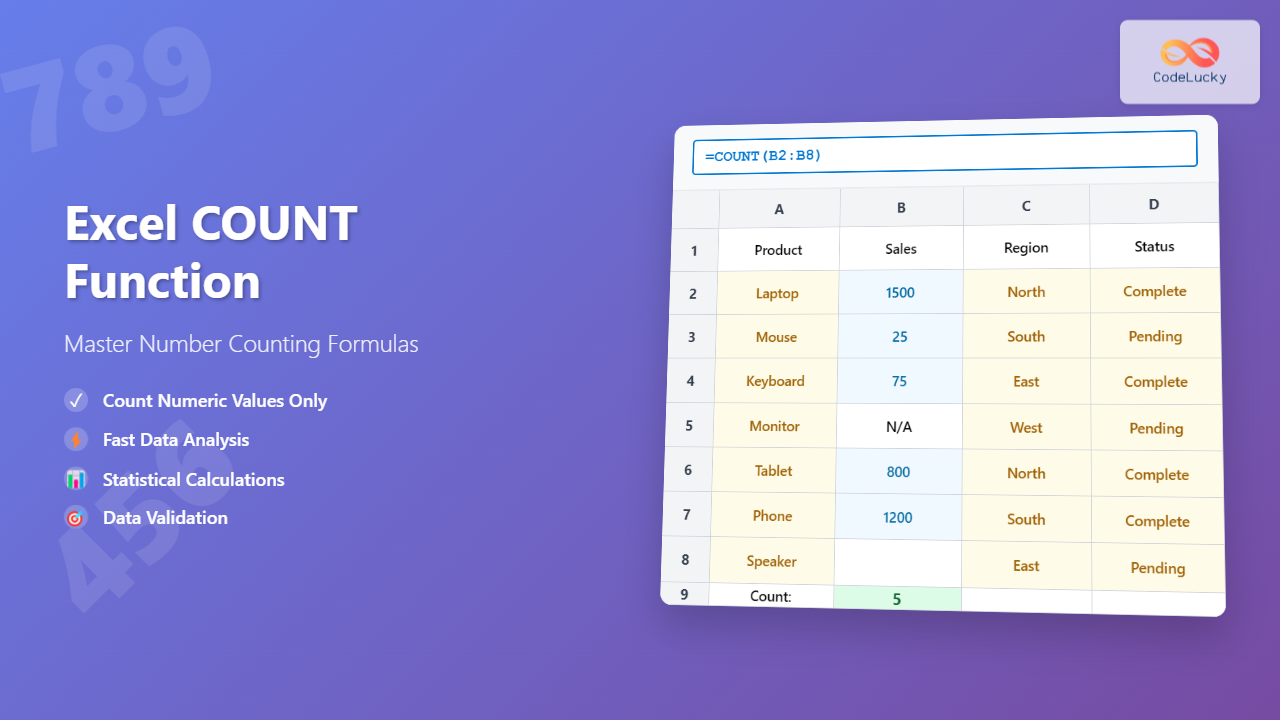
The COUNT function is one of Excel’s most fundamental and frequently used statistical functions. Whether you’re analyzing sales data, tracking inventory, or managing financial records, understanding how to effectively count numbers in your spreadsheets is essential for data analysis and reporting.
What is the Excel COUNT Function?
The COUNT function in Excel counts the number of cells that contain numeric values within a specified range. Unlike other counting functions, COUNT specifically targets cells containing numbers, dates, or numeric expressions, while ignoring text, blank cells, and logical values.
This function becomes invaluable when you need to determine how many data points you have in a dataset, validate data completeness, or perform statistical calculations that require knowing the sample size.
COUNT Function Syntax
The basic syntax for the COUNT function is straightforward:
=COUNT(value1, [value2], ...)
Parameters:
- value1 (required): The first argument that can be a cell reference, range, or direct numeric value
- value2, value3, … (optional): Additional arguments up to a maximum of 255 arguments
Each argument can be:
- A single cell reference (e.g., A1)
- A range of cells (e.g., A1:A10)
- A direct numeric value (e.g., 42)
- An array or array formula
Basic COUNT Function Examples
Simple Range Counting
Let’s start with the most common usage – counting numbers in a continuous range:
=COUNT(A1:A10)
This formula counts all numeric values in cells A1 through A10. If the range contains:
- Numbers: 10, 25, 30
- Text: “Hello”, “World”
- Blank cells: 2 empty cells
The COUNT function will return 3, counting only the numeric values.
Multiple Range Counting
You can count numbers across multiple non-contiguous ranges:
=COUNT(A1:A5, C1:C5, E1:E10)
This formula counts numeric values across three separate ranges simultaneously, providing a total count from all specified areas.
Mixed Arguments
The COUNT function accepts mixed arguments:
=COUNT(A1:A5, 100, B10, 200)
This formula counts numbers in the range A1:A5, adds the direct values 100 and 200 to the count, and includes the value in cell B10 if it’s numeric.
What COUNT Function Counts and Ignores
What COUNT Counts:
- Positive and negative numbers: 42, -15, 3.14
- Dates and times: Excel treats dates as numbers internally
- Percentages: 50% (stored as 0.5)
- Scientific notation: 1.23E+10
- Numbers formatted as text that Excel recognizes as numbers
What COUNT Ignores:
- Text strings: “Hello”, “123abc”
- Blank/empty cells
- Logical values: TRUE, FALSE
- Error values: #N/A, #VALUE!, #DIV/0!
- Text representations of numbers: “123” (when stored as text)
COUNT Function Variations
COUNTA Function
While COUNT only counts numeric values, COUNTA counts all non-empty cells:
=COUNTA(A1:A10)
This function counts cells containing numbers, text, dates, logical values, and error values – essentially any cell that isn’t blank.
COUNTBLANK Function
To count empty cells in a range:
=COUNTBLANK(A1:A10)
This function counts only completely empty cells, not cells containing spaces or empty strings.
COUNTIF Function
For conditional counting based on specific criteria:
=COUNTIF(A1:A10, ">50")
This counts numbers greater than 50 in the specified range.
COUNTIFS Function
For multiple criteria counting:
=COUNTIFS(A1:A10, ">50", B1:B10, "Complete")
This counts rows where column A has values greater than 50 AND column B contains “Complete”.
Advanced COUNT Techniques
Dynamic Range Counting
Use Excel’s dynamic array functions for flexible counting:
=COUNT(OFFSET(A1, 0, 0, COUNTA(A:A), 1))
This formula creates a dynamic range that expands as you add data to column A.
Conditional Counting with Arrays
Combine COUNT with array formulas for complex conditions:
=COUNT(IF(A1:A10>50, A1:A10))
This array formula counts numbers greater than 50. Remember to enter it with Ctrl+Shift+Enter in older Excel versions.
Counting Across Multiple Sheets
Count numbers across multiple worksheets:
=COUNT(Sheet1!A1:A10, Sheet2!A1:A10, Sheet3!A1:A10)
Or use a 3D reference for consecutive sheets:
=COUNT(Sheet1:Sheet3!A1:A10)
Common COUNT Function Use Cases
Data Validation
Verify data completeness by comparing expected vs. actual counts:
=IF(COUNT(A1:A100)=100, "Complete", "Missing Data")
Statistical Analysis
Determine sample sizes for statistical calculations:
=AVERAGE(A1:A100) & " (n=" & COUNT(A1:A100) & ")"
Progress Tracking
Calculate completion percentages:
=(COUNT(A1:A50)/50)*100 & "% Complete"
Troubleshooting COUNT Function Issues
Numbers Stored as Text
If COUNT isn’t recognizing numbers, they might be stored as text. Convert them using:
=COUNT(VALUE(A1:A10))
Or use the Text to Columns feature to convert text numbers to actual numbers.
Hidden Characters
Cells that appear empty might contain spaces or hidden characters. Use TRIM to clean data:
=COUNT(TRIM(A1:A10))
Date and Time Issues
Remember that Excel treats dates and times as numbers. If you want to exclude dates from your count, use COUNTIFS with date criteria:
=COUNTIFS(A1:A10, "<"&DATE(1900,1,1))
Performance Considerations
When working with large datasets:
- Limit range sizes: Use specific ranges instead of entire columns (A:A) when possible
- Avoid volatile functions: Functions like NOW() or RAND() in COUNT arguments can slow calculations
- Use structured references: Excel Tables provide better performance and readability
COUNT vs. Other Counting Functions
| Function | Counts | Best Used For |
|---|---|---|
| COUNT | Numeric values only | Statistical analysis, numeric data validation |
| COUNTA | All non-empty cells | General data completeness checks |
| COUNTBLANK | Empty cells only | Finding missing data points |
| COUNTIF | Cells meeting specific criteria | Conditional counting with single criteria |
| COUNTIFS | Cells meeting multiple criteria | Complex conditional counting |
Best Practices for Using COUNT Function
1. Always Validate Your Data
Before using COUNT, ensure your data is properly formatted. Use Excel's data validation tools to maintain data integrity.
2. Use Named Ranges
Instead of using cell references, create named ranges for better readability:
=COUNT(SalesData)
3. Combine with Other Functions
COUNT works excellently with other statistical functions:
=AVERAGE(A1:A10) & " (Count: " & COUNT(A1:A10) & ")"
4. Document Your Formulas
Add comments to complex COUNT formulas to explain their purpose and logic.
Real-World Example
Let's create a comprehensive example using a sales dataset:
| A | B | C |
|---|---|---|
| Sales Rep | Sales Amount | Region |
| John | 1500 | North |
| Sarah | 2300 | South |
| Mike | East | |
| Lisa | 1800 | West |
Analysis formulas:
- Count of sales records:
=COUNT(B2:B5)returns 3 - Count of all entries:
=COUNTA(A2:A5)returns 4 - Missing sales data:
=COUNTBLANK(B2:B5)returns 1 - Data completeness:
=COUNT(B2:B5)/COUNTA(A2:A5)*100returns 75%
Conclusion
The Excel COUNT function is an essential tool for anyone working with numerical data in spreadsheets. Its simplicity makes it accessible to beginners, while its flexibility allows for sophisticated data analysis when combined with other Excel features.
By mastering the COUNT function and its variations, you'll be better equipped to validate data, perform statistical analysis, and create meaningful reports. Remember to consider data types, use appropriate function variations for different scenarios, and always validate your results to ensure accuracy.
Whether you're analyzing business metrics, tracking project progress, or conducting research, the COUNT function provides the foundation for reliable numeric data analysis in Excel. Practice with different datasets and scenarios to become proficient in leveraging this powerful counting tool.
Related Posts
Excel COUNTA Function: Complete Guide to Non-Empty Cell Counting
The COUNTA function is one of Excel's most versatile statistical functions, designed specifically to count non-empty cells within a specified...
Excel COUNTIF Function: Master Conditional Counting with Advanced Formulas
The Excel COUNTIF function is one of the most powerful and frequently used conditional functions in Microsoft Excel. It allows...
Excel ROWS Function: Complete Guide to Count Rows with Formula Syntax Examples
What is the Excel ROWS Function? The ROWS function in Microsoft Excel is a built-in lookup and reference function that...
Excel DCOUNT Function: Complete Guide to Database Count Commands with Syntax Examples
The Excel DCOUNT function is a powerful database function that counts the number of cells containing numeric values in a...
Excel SUM Function: Complete Guide to Addition Formulas and Advanced Techniques
The Excel SUM function is one of the most fundamental and widely-used formulas in Microsoft Excel, designed to add numerical...
Excel COLUMNS Function: Master Column Counting with Practical Examples
The Excel COLUMNS function is a powerful built-in tool that counts the number of columns in a specified range or...
Excel AGGREGATE Function: Complete Guide to Advanced Statistical Calculations
Excel's AGGREGATE function is one of the most powerful and versatile statistical functions available in Microsoft Excel. Unlike traditional statistical...
MySQL COUNT Function: Mastering Data Counting
The COUNT function in MySQL is your go-to tool for tallying up data, whether you need a simple row count,...
Excel AVERAGE Function: Complete Guide to Mean Calculation with Syntax Examples
The Excel AVERAGE function is one of the most fundamental and widely-used statistical functions in Microsoft Excel. This powerful function...
Excel COUNTBLANK Function: Master Empty Cell Counting with Complete Syntax Guide
The COUNTBLANK function in Excel is an essential statistical tool that counts the number of empty cells within a specified...
Excel COUNTIFS Function: Master Multiple Criteria Counting with Advanced Examples
The COUNTIFS function in Microsoft Excel is a powerful statistical tool that allows you to count cells based on multiple...
Excel MAX Function: Complete Guide to Finding Maximum Values in Spreadsheets
The MAX function in Microsoft Excel is one of the most fundamental and widely-used statistical functions that helps you quickly...
- What is the Excel COUNT Function?
- COUNT Function Syntax
- Basic COUNT Function Examples
- What COUNT Function Counts and Ignores
- COUNT Function Variations
- Advanced COUNT Techniques
- Common COUNT Function Use Cases
- Troubleshooting COUNT Function Issues
- Performance Considerations
- COUNT vs. Other Counting Functions
- Best Practices for Using COUNT Function
- Real-World Example
- Conclusion





