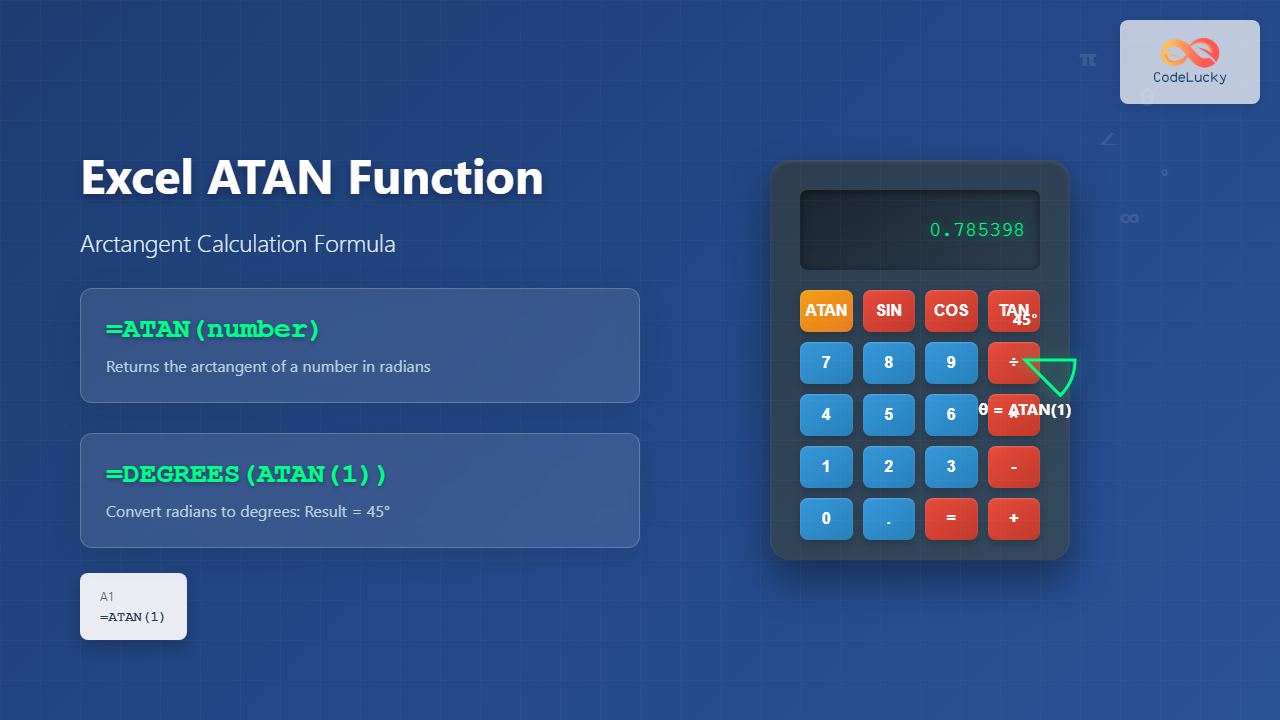
The ATAN function in Excel is a powerful trigonometric tool that calculates the arctangent (inverse tangent) of a given number. This mathematical function returns the angle in radians whose tangent equals the specified value, making it essential for engineering, physics, and mathematical calculations within spreadsheets.
What is the ATAN Function?
The ATAN function computes the arctangent of a number, returning the corresponding angle in radians. Unlike the tangent function which takes an angle and returns a ratio, the arctangent function reverses this process by taking a ratio and returning the corresponding angle.
The mathematical relationship can be expressed as: if tan(θ) = x, then ATAN(x) = θ, where θ is the angle in radians between -π/2 and π/2 (-90° to 90°).
ATAN Function Syntax
The Excel ATAN function follows a simple syntax structure:
=ATAN(number)Parameters:
- number (required): The tangent value for which you want to find the arctangent. This can be any real number, including positive, negative, or zero values.
How ATAN Function Works
The ATAN function operates by calculating the inverse tangent of the input value. The result is always expressed in radians and falls within the range of -π/2 to π/2 (approximately -1.5708 to 1.5708 radians).
Key characteristics of the ATAN function:
- Returns values in radians, not degrees
- Accepts any real number as input
- Output range is limited to -π/2 to π/2
- ATAN(0) always equals 0
- ATAN(1) equals π/4 (45 degrees)
Basic ATAN Function Examples
Let’s explore several practical examples to understand how the ATAN function works in different scenarios:
Example 1: Basic Arctangent Calculation
=ATAN(1)Result: 0.785398 (which equals π/4 radians or 45 degrees)
Example 2: Negative Value Input
=ATAN(-1)Result: -0.785398 (which equals -π/4 radians or -45 degrees)
Example 3: Zero Input
=ATAN(0)Result: 0 (zero radians or 0 degrees)
Example 4: Large Number Input
=ATAN(100)Result: 1.560797 (approaching π/2 radians or 90 degrees)
Converting ATAN Results to Degrees
Since the ATAN function returns results in radians, you’ll often need to convert these values to degrees for practical applications. Excel provides the DEGREES function for this purpose:
=DEGREES(ATAN(1))Result: 45 (degrees)
Alternatively, you can multiply the ATAN result by 180/π:
=ATAN(1)*180/PI()Result: 45 (degrees)
Advanced ATAN Function Applications
Calculating Slope Angles
One common application involves calculating the angle of a slope when you know the rise and run:
=DEGREES(ATAN(rise/run))For example, if you have a rise of 3 units and a run of 4 units:
=DEGREES(ATAN(3/4))Result: 36.87 degrees
Vector Angle Calculations
When working with vectors, you can use ATAN to find the angle of a vector from the x-axis:
=DEGREES(ATAN(y_component/x_component))Engineering Applications
In engineering contexts, ATAN helps calculate angles for structural analysis, mechanical design, and electrical phase calculations:
=ATAN(opposite_side/adjacent_side)ATAN vs ATAN2: Understanding the Difference
While ATAN calculates arctangent for a single value, Excel also provides the ATAN2 function which accepts two arguments (x and y coordinates) and returns the angle from the positive x-axis to the point (x,y).
Key differences:
- ATAN: Range is -π/2 to π/2 (-90° to 90°)
- ATAN2: Range is -π to π (-180° to 180°)
- ATAN: Takes one argument
- ATAN2: Takes two arguments (x_coord, y_coord)
Common ATAN Function Errors and Solutions
#VALUE! Error
This error occurs when the input is not a valid number. Ensure your cell references contain numeric values or valid mathematical expressions.
#NAME? Error
This typically happens when the function name is misspelled. Double-check that you’re using “ATAN” correctly.
Unexpected Results
Remember that ATAN returns radians, not degrees. Always convert to degrees if needed using the DEGREES function.
Practical ATAN Function Scenarios
Construction and Architecture
Calculate roof pitch angles, ramp slopes, and structural member angles:
=DEGREES(ATAN(roof_rise/roof_run))Physics and Engineering
Determine projectile angles, wave phase relationships, and mechanical system orientations:
=ATAN(velocity_y/velocity_x)Financial Modeling
Calculate trend angles in financial data analysis and investment performance metrics:
=DEGREES(ATAN((ending_value-starting_value)/time_period))ATAN Function Tips and Best Practices
- Always consider units: Remember that ATAN returns radians; convert to degrees when necessary
- Handle division by zero: Use IF statements to avoid errors when the denominator might be zero
- Combine with other functions: ATAN works well with SQRT, PI, DEGREES, and other mathematical functions
- Validate inputs: Ensure your data is numeric before applying ATAN
- Use absolute references: When copying formulas, consider using $ symbols for fixed cell references
ATAN Function Limitations
Understanding the limitations of the ATAN function helps prevent calculation errors:
- Output is restricted to -π/2 to π/2 radians
- Cannot distinguish between angles in different quadrants without additional logic
- Requires numeric input only
- May produce precision errors with very large or very small numbers
Conclusion
The Excel ATAN function is an invaluable tool for performing arctangent calculations in spreadsheets. Whether you’re working on engineering projects, mathematical analysis, or data visualization, understanding how to properly implement and utilize the ATAN function will enhance your Excel proficiency and calculation accuracy.
By mastering the syntax, understanding the relationship between radians and degrees, and knowing when to use ATAN versus ATAN2, you’ll be well-equipped to handle complex trigonometric calculations in your Excel worksheets. Remember to always validate your inputs, consider the output units, and combine ATAN with other Excel functions to create powerful mathematical solutions.
Related Posts

Excel TAN Function: Complete Guide to Tangent Calculations and Trigonometry
What is the Excel TAN Function? The TAN function in Microsoft Excel is a powerful trigonometric function that calculates the...

JavaScript Math atan() Method: Arctangent
JavaScript Math.atan(): Understanding the Arctangent The Math.atan() method in JavaScript is a crucial trigonometric function that calculates the arctangent, also...

JavaScript Math atan2() Method: Arctangent of a Quotient
JavaScript Math.atan2() Method: Calculating the Arctangent of a Quotient The Math.atan2() method in JavaScript is a powerful trigonometric function that...

Excel RADIANS Function: Complete Guide to Converting Degrees to Radians
The RADIANS function in Excel is a powerful mathematical tool that converts angle measurements from degrees to radians. This essential...

Excel DEGREES Function: Complete Guide to Converting Radians to Degrees
What is the Excel DEGREES Function? The Excel DEGREES function is a built-in mathematical function that converts angle measurements from...

JavaScript Math.tan(): Calculating Tangent Values
JavaScript Math.tan() Method: Calculating Tangent Values The Math.tan() method in JavaScript is used to calculate the tangent of an angle....
Excel ASIN Function: Complete Guide to Arcsine Calculations with Formula Examples
The ASIN function in Microsoft Excel is a powerful trigonometric tool that calculates the arcsine (inverse sine) of a number....

Excel SIN Function: Complete Guide to Sine Calculations in Spreadsheets
The Excel SIN function is a powerful mathematical tool that calculates the sine of an angle in radians. Whether you're...

Excel ACOS Function: Complete Guide to Arccosine Calculations
The Excel ACOS function is a powerful trigonometric tool that calculates the arccosine (inverse cosine) of a number, returning the...

JavaScript Math asin() Method: Arcsine
JavaScript Math.asin() Method: Calculating Arcsine The Math.asin() method in JavaScript is a crucial tool for performing trigonometric calculations, specifically for...
Excel COS Function: Complete Guide to Cosine Calculations and Trigonometric Formulas
What is the Excel COS Function? The Excel COS function is a built-in mathematical function that calculates the cosine of...

Excel PI Function: Complete Guide to Pi Constant Formula with Examples
The Excel PI function returns the mathematical constant π (pi), approximately equal to 3.14159265358979. This built-in function is essential for...