
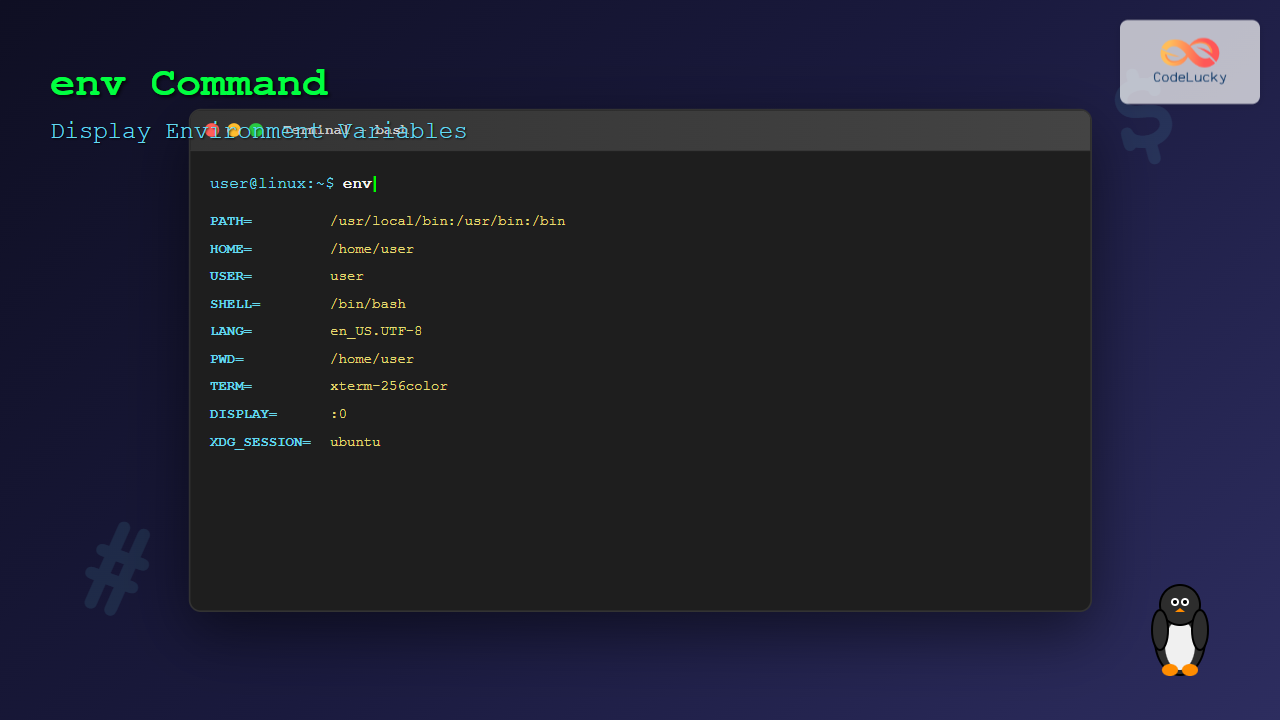
Environment variables are crucial components of any Linux system, storing configuration data and system information that applications and processes rely on. The env command is one of the most fundamental tools for displaying, manipulating, and managing these variables. Whether you’re a system administrator, developer, or Linux enthusiast, understanding the env command is essential for effective system management.
What is the env Command?
The env command (short for “environment”) is a built-in utility in Linux and Unix-like systems that displays the current environment variables or runs a program in a modified environment. It’s part of the GNU Core Utilities package and is available on virtually every Linux distribution.
Environment variables are dynamic values that affect the behavior of running processes. They store information such as system paths, user preferences, and configuration settings that programs need to function properly.
Basic Syntax and Usage
The basic syntax of the env command is straightforward:
env [OPTION]... [-] [NAME=VALUE]... [COMMAND [ARG]...]When used without any arguments, env displays all current environment variables:
$ envThis will output something similar to:
PATH=/usr/local/sbin:/usr/local/bin:/usr/sbin:/usr/bin:/sbin:/bin
HOME=/home/username
USER=username
SHELL=/bin/bash
LANG=en_US.UTF-8
PWD=/home/username
TERM=xterm-256color
XDG_SESSION_TYPE=x11
Common Environment Variables Explained
Let’s examine some of the most important environment variables you’ll encounter:
PATH Variable
The PATH variable contains a colon-separated list of directories where the system looks for executable files:
$ env | grep PATH
PATH=/usr/local/sbin:/usr/local/bin:/usr/sbin:/usr/bin:/sbin:/bin
HOME Variable
Points to the current user’s home directory:
$ env | grep HOME
HOME=/home/username
USER and USERNAME Variables
Store the current username:
$ env | grep USER
USER=username
USERNAME=username
Command Options and Flags
The env command supports several useful options:
-i or –ignore-environment
Starts with an empty environment:
$ env -i
# This displays no output as the environment is cleared
-u or –unset
Removes specific variables from the environment:
$ env -u HOME -u USER env | grep -E "(HOME|USER)"
# These variables won't appear in the output
-0 or –null
Ends each output line with a null character instead of newline:
$ env -0 | head -c 100
PATH=/usr/local/sbin:/usr/local/bin:/usr/sbin:/usr/bin:/sbin:/bin^@HOME=/home/username^@
Practical Examples and Use Cases
Filtering Environment Variables
Use grep to find specific variables:
$ env | grep LANG
LANG=en_US.UTF-8
LANGUAGE=en_US:en
Sorting Environment Variables
Sort variables alphabetically for easier reading:
$ env | sort
DESKTOP_SESSION=ubuntu
GDMSESSION=ubuntu
GTK_MODULES=gail:atk-bridge
HOME=/home/username
LANG=en_US.UTF-8
Counting Environment Variables
Count the total number of environment variables:
$ env | wc -l
47
Running Programs with Modified Environment
One of the most powerful features of env is running programs with custom environment variables:
Setting Temporary Variables
$ env CUSTOM_VAR=hello echo $CUSTOM_VAR
hello
Running Programs with Clean Environment
Start a program with only essential variables:
$ env -i PATH=/bin:/usr/bin HOME=/home/username bashSetting Multiple Variables
$ env VAR1=value1 VAR2=value2 printenv VAR1 VAR2
value1
value2
Advanced Usage Scenarios
Creating Portable Scripts
Use env in shebang lines for portable scripts:
#!/usr/bin/env bash
echo "This script uses env to find bash"
This is more portable than hardcoding #!/bin/bash because it works regardless of where bash is installed.
Debugging Environment Issues
Compare environments between different contexts:
$ env > /tmp/env_before
$ source some_script.sh
$ env > /tmp/env_after
$ diff /tmp/env_before /tmp/env_after
Testing Applications
Test how applications behave with different environment settings:
$ env LANG=fr_FR.UTF-8 date
mer. 25 août 2025 02:22:00 IST
Security Considerations
When working with environment variables, keep these security aspects in mind:
- Sensitive Information: Avoid storing passwords or API keys in environment variables that might be visible to other processes
- Process Visibility: Environment variables can be viewed by other users through the
/procfilesystem - Shell History: Commands with sensitive environment variables may be stored in shell history
Comparing env with Related Commands
env vs printenv
While both display environment variables, they have slight differences:
$ env | wc -l
47
$ printenv | wc -l
47
printenv can display specific variables directly:
$ printenv HOME
/home/username

$ env | grep HOME
HOME=/home/username
env vs set
The set command displays both environment variables and shell variables:
$ set | wc -l
156
$ env | wc -l
47
Troubleshooting Common Issues
Variable Not Found
If a variable doesn’t appear in env output, it might be a shell variable rather than an environment variable:
$ SHELL_VAR=test
$ env | grep SHELL_VAR
# No output

$ export SHELL_VAR=test
$ env | grep SHELL_VAR
SHELL_VAR=test
Path Issues
If commands aren’t found, check the PATH variable:
$ env | grep PATH
PATH=/usr/local/sbin:/usr/local/bin:/usr/sbin:/usr/bin:/sbin:/bin
Best Practices and Tips
- Use descriptive variable names: Choose clear, meaningful names for custom environment variables
- Follow naming conventions: Use uppercase letters and underscores for environment variables
- Document custom variables: Maintain documentation for any custom environment variables your scripts use
- Test in isolated environments: Use
env -ito test how your applications behave with minimal environments - Regular environment audits: Periodically review environment variables to remove unused ones
Integration with Shell Scripts
The env command is particularly useful in shell scripting:
#!/usr/bin/env bash

# Check if required environment variable exists
if env | grep -q "REQUIRED_VAR="; then
    echo "Required variable is set"
else
    echo "Please set REQUIRED_VAR"
    exit 1
fi
Performance Considerations
While env is generally fast, consider these performance tips:
- Use
printenv VARIABLE_NAMEinstead ofenv | grep VARIABLE_NAMEfor single variables - Minimize environment size for better process startup performance
- Use
env -ifor programs that don’t need inherited environment variables
Conclusion
The env command is an indispensable tool for Linux system administration and development. From displaying current environment variables to running programs with customized environments, it provides powerful capabilities for managing system configuration. Understanding how to effectively use env will improve your ability to troubleshoot issues, write portable scripts, and manage complex system environments.
Whether you’re debugging environment-related issues, creating portable shell scripts, or simply exploring your system’s configuration, the env command offers the flexibility and functionality needed for effective Linux system management. Practice with the examples provided, and you’ll soon master this essential command-line tool.
Related Posts
export Command Linux: Complete Guide to Environment Variables Management
The export command is one of the most fundamental tools in Linux for managing environment variables. Whether you're a system...
set Command Linux: Display and Configure Shell Options for Advanced Terminal Control
The set command is one of the most powerful built-in commands in Linux shells, allowing you to display and modify...
which Command Linux: Complete Guide to Locating Executable Commands in PATH
The which command is a fundamental Linux utility that helps you locate executable files in your system's PATH environment variable....
type Command Linux: Complete Guide to Display Command Type and Location
The type command is an essential Linux utility that helps you identify the nature and location of commands in your...
which Command Linux: Complete Guide to Finding Executable File Locations
The which command is one of the most fundamental utilities in Linux and Unix-like systems, designed to help users locate...

echo Command in Linux: Complete Guide to Print Text and Variables in Terminal
The echo command is one of the most fundamental and frequently used commands in Linux and Unix-like operating systems. It...
unset Command Linux: Complete Guide to Remove Variables and Functions Efficiently
The unset command in Linux is a powerful built-in shell utility that allows you to remove variables and functions from...
read Command Linux: Complete Guide to Reading User Input in Shell Scripts
The read command is one of the most fundamental tools in Linux shell scripting for creating interactive programs that capture...

bash Command Linux: Start New Shell Sessions and Execute Scripts Efficiently
The bash command is one of the most fundamental tools in Linux systems, serving as both a command-line interpreter and...
python Command Linux: Complete Guide to Running Python Scripts and Interactive Sessions
The python command is one of the most essential tools for developers working with Python on Linux systems. Whether you're...
source Command Linux: Execute Scripts and Load Functions Efficiently
The source command in Linux is a powerful built-in shell command that executes commands from a file within the current...
who Command in Linux: Complete Guide to Display Logged in Users
The who command is one of the most fundamental system administration tools in Linux, designed to display information about currently...





