
Email migration is a critical process that involves transferring email accounts, messages, contacts, and settings from one email system to another. Whether you’re switching email providers, upgrading to a new email server, or consolidating multiple accounts, proper email migration ensures zero data loss and minimal downtime.
Understanding Email Migration Types
Email migration can occur in several scenarios, each requiring different approaches and considerations:

Email Protocols and Migration Considerations
Understanding email protocols is essential for successful migration. Different protocols affect how emails are stored and accessed:
IMAP vs POP3 Migration
| Feature | IMAP | POP3 |
|---|---|---|
| Email Storage | Server-side storage | Local device storage |
| Multi-device Access | Synchronized across devices | Single device access |
| Migration Complexity | Easier server-to-server migration | Requires local backup first |
| Folder Structure | Preserves folder hierarchy | Usually single inbox migration |
| Bandwidth Usage | Ongoing synchronization | One-time download |
Pre-Migration Planning and Assessment
Successful email migration requires thorough planning and assessment of your current email environment:
Data Inventory Checklist
- Email Volume: Count total emails, attachments, and storage size
- Folder Structure: Document custom folders and organization
- Contact Lists: Identify address books and distribution lists
- Calendar Events: Note recurring meetings and appointments
- Email Rules: Document filters, forwards, and auto-replies
- Signatures: Save custom email signatures
- Security Settings: Note encryption and authentication requirements

Gmail to Outlook Migration
One of the most common migration scenarios involves moving from Gmail to Microsoft Outlook. Here’s a detailed step-by-step process:
Method 1: Using Outlook’s Built-in Import Tool
Step 1: Enable IMAP in Gmail
- Log into Gmail and go to Settings (gear icon)
- Click “Forwarding and POP/IMAP” tab
- Enable IMAP access
- Save changes
Step 2: Configure Outlook to Connect to Gmail
Gmail IMAP Settings:
- Incoming server: imap.gmail.com
- Port: 993
- Encryption: SSL/TLS
- Outgoing server: smtp.gmail.com
- Port: 587
- Encryption: STARTTLS
Step 3: Create PST Export from Gmail
- In Outlook, go to File > Open & Export > Import/Export
- Select “Export to a file” and choose “Outlook Data File (.pst)”
- Select the Gmail account folder
- Include subfolders and save to desired location
Step 4: Import to New Outlook Account
- Set up your new email account in Outlook
- Go to File > Open & Export > Import/Export
- Select “Import from another program or file”
- Choose “Outlook Data File (.pst)”
- Browse to your exported PST file
- Select import options and destination folder
Method 2: Using Google Takeout for Complete Export
For comprehensive data export including emails, contacts, and calendar:
- Visit
takeout.google.com - Select “Mail” and other services needed
- Choose export format (MBOX for emails)
- Select delivery method and file size
- Create export and download files
- Import MBOX files using Outlook import tools or third-party converters
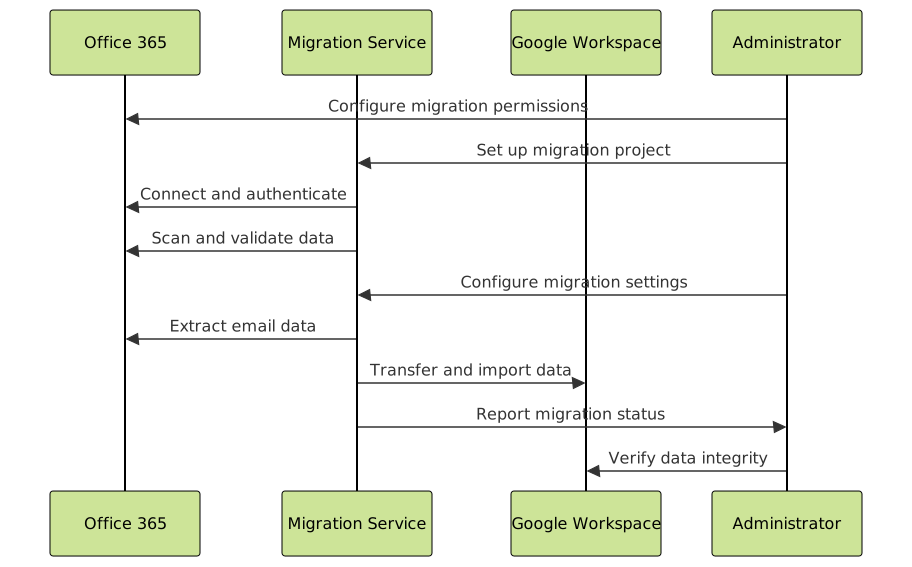
Office 365 to Google Workspace Migration
Enterprise-level migrations require more sophisticated approaches:
Using Google Workspace Migration Tools
Data Migration Service (DMS) Setup:
# Example PowerShell commands for Office 365 preparation
Connect-ExchangeOnline -UserPrincipalName [email protected]

# Export mailbox to PST
New-MailboxExportRequest -Mailbox "[email protected]" -FilePath "\\server\exports\user.pst"

# Check export status
Get-MailboxExportRequest | Get-MailboxExportRequestStatistics
IMAP to IMAP Migration Using Tools
For server-to-server migrations, specialized tools provide the most reliable results:
Using imapsync (Linux/Unix)
# Install imapsync
sudo apt-get install imapsync

# Basic migration command
imapsync \
  --host1 source.mail.server.com --user1 [email protected] --password1 'sourcepass' \
  --host2 dest.mail.server.com --user2 [email protected] --password2 'destpass' \
  --ssl1 --ssl2 \
  --exclude 'Junk|Spam|Trash' \
  --dry

# Remove --dry flag for actual migration
imapsync \
  --host1 source.mail.server.com --user1 [email protected] --password1 'sourcepass' \
  --host2 dest.mail.server.com --user2 [email protected] --password2 'destpass' \
  --ssl1 --ssl2 \
  --exclude 'Junk|Spam|Trash'
Advanced imapsync Options
# Migration with folder mapping
imapsync \
  --host1 old.server.com --user1 [email protected] --password1 'pass1' \
  --host2 new.server.com --user2 [email protected] --password2 'pass2' \
  --ssl1 --ssl2 \
  --regextrans2 's/INBOX.Sent/INBOX.Sent Items/' \
  --regextrans2 's/INBOX.Drafts/INBOX.Draft/' \
  --delete2 \
  --expunge1 --expunge2
Desktop Client Email Migration
Migrating between desktop email clients requires exporting and importing data files:
Thunderbird to Outlook Migration
Export from Thunderbird:
- Install ImportExportTools NG add-on
- Right-click mailbox folders
- Select “ImportExportTools NG” > “Export folder”
- Choose EML format for individual messages or MBOX for entire folders
Import to Outlook:
- Use a third-party converter (EML to PST) or
- Set up IMAP connection to original server in Outlook
- Allow Outlook to sync all folders
- Create local PST file and move messages
Outlook to Apple Mail Migration
Using Native Mac Migration Assistant:
- Export Outlook data to PST file on Windows
- Transfer PST file to Mac
- Use third-party PST converter for Mac or
- Set up original email account in Apple Mail via IMAP
- Allow full synchronization
- Configure offline storage for local access
Bulk Migration Strategies for Organizations
Large-scale migrations require careful orchestration and specialized approaches:

PowerShell Script for Bulk Office 365 Migration
# Bulk migration script example
$csvPath = "C:\Migration\users.csv"
$users = Import-Csv $csvPath

Connect-ExchangeOnline

foreach ($user in $users) {
    try {
        # Create migration batch
        New-MigrationBatch -Name "Batch_$($user.Name)" `
                          -SourceEndpoint $sourceEndpoint `
                          -TargetDeliveryDomain $targetDomain `
                          -CSVData ([System.IO.File]::ReadAllBytes($csvPath)) `
                          -NotificationEmails $adminEmail

        # Start migration
        Start-MigrationBatch -Identity "Batch_$($user.Name)"

        Write-Host "Migration started for $($user.EmailAddress)" -ForegroundColor Green
    }
    catch {
        Write-Host "Error migrating $($user.EmailAddress): $($_.Exception.Message)" -ForegroundColor Red
    }
}

# Monitor migration status
Get-MigrationBatch | Get-MigrationBatchStatistics | Format-Table Name, Status, TotalMailboxes, CompletedMailboxes
Data Integrity and Verification
Ensuring complete and accurate data transfer is crucial for successful email migration:
Pre-Migration Verification
- Email Count Verification: Document exact email counts per folder
- Attachment Integrity: Verify attachment sizes and formats
- Date Range Validation: Ensure complete date coverage
- Folder Structure Mapping: Document source and destination folder names
Post-Migration Testing Script
import imaplib
import email
from collections import defaultdict

def verify_migration(source_config, dest_config):
    """Verify email migration completeness"""

    # Connect to source and destination
    source = imaplib.IMAP4_SSL(source_config['host'])
    source.login(source_config['user'], source_config['pass'])

    dest = imaplib.IMAP4_SSL(dest_config['host'])
    dest.login(dest_config['user'], dest_config['pass'])

    # Get folder lists
    source_folders = [folder.decode().split(' "/" ')[-1] for folder in source.list()[1]]
    dest_folders = [folder.decode().split(' "/" ')[-1] for folder in dest.list()[1]]

    verification_results = {
        'total_emails_source': 0,
        'total_emails_dest': 0,
        'folder_comparison': {},
        'missing_folders': [],
        'errors': []
    }

    # Compare each folder
    for folder in source_folders:
        try:
            # Source folder stats
            source.select(folder)
            source_count = int(source.search(None, 'ALL')[1][0].split()[-1]) if source.search(None, 'ALL')[1][0] else 0
            verification_results['total_emails_source'] += source_count

            # Destination folder stats
            if folder in dest_folders:
                dest.select(folder)
                dest_count = int(dest.search(None, 'ALL')[1][0].split()[-1]) if dest.search(None, 'ALL')[1][0] else 0
                verification_results['total_emails_dest'] += dest_count

                verification_results['folder_comparison'][folder] = {
                    'source_count': source_count,
                    'dest_count': dest_count,
                    'match': source_count == dest_count
                }
            else:
                verification_results['missing_folders'].append(folder)

        except Exception as e:
            verification_results['errors'].append(f"Error processing folder {folder}: {str(e)}")

    source.logout()
    dest.logout()

    return verification_results

# Example usage
source_config = {
    'host': 'imap.gmail.com',
    'user': '[email protected]',
    'pass': 'app_password'
}

dest_config = {
    'host': 'outlook.office365.com',
    'user': '[email protected]',
    'pass': 'password'
}

results = verify_migration(source_config, dest_config)
print(f"Migration Verification Results:")
print(f"Source emails: {results['total_emails_source']}")
print(f"Destination emails: {results['total_emails_dest']}")
print(f"Success rate: {(results['total_emails_dest']/results['total_emails_source']*100):.1f}%")
Troubleshooting Common Migration Issues
Email migration can encounter various challenges that require specific solutions:
Authentication and Connection Problems
| Issue | Symptoms | Solution |
|---|---|---|
| App Password Required | Login failures with correct credentials | Generate app-specific passwords for Gmail, Yahoo |
| Two-Factor Authentication | Authentication errors | Configure app passwords or OAuth tokens |
| IMAP Not Enabled | Connection refused errors | Enable IMAP access in email provider settings |
| Firewall Blocking | Timeout errors | Configure firewall rules for IMAP/SMTP ports |
| SSL Certificate Issues | SSL handshake failures | Update certificates or use alternative SSL settings |
Data Format and Compatibility Issues
- Character Encoding: Use UTF-8 encoding for international characters
- Attachment Size Limits: Split large attachments or use alternative transfer methods
- Folder Name Restrictions: Rename folders with special characters
- Date Format Differences: Ensure proper date/time zone conversion
- Email Format Conversion: Handle EML to PST or MBOX conversions properly
Performance Optimization
# Optimize imapsync performance
imapsync \
  --host1 source.com --user1 [email protected] --password1 'pass1' \
  --host2 dest.com --user2 [email protected] --password2 'pass2' \
  --ssl1 --ssl2 \
  --split1 100 --split2 100 \
  --fastio1 --fastio2 \
  --buffersize 8192000 \
  --useheader 'Message-ID' \
  --skipsize --allowdups \
  --maxbytespersecond 10000000
Security Considerations During Migration
Email migration involves sensitive data that requires proper security measures:
Data Protection Best Practices
- Encryption in Transit: Use SSL/TLS for all connections
- Secure Authentication: Implement app passwords and OAuth where possible
- Access Control: Limit migration tool access to authorized personnel
- Data Retention: Define policies for temporary migration files
- Audit Trails: Maintain logs of all migration activities
- Backup Strategy: Create full backups before starting migration
Compliance and Legal Considerations
Organizations must consider regulatory requirements during email migration:
- GDPR Compliance: Ensure proper data handling for EU residents
- HIPAA Requirements: Healthcare organizations need encrypted migration
- Legal Hold: Preserve emails under litigation hold
- Retention Policies: Maintain required email retention periods
- Cross-Border Transfers: Consider data sovereignty laws
Post-Migration Optimization and Cleanup
After successful migration, several optimization steps ensure optimal performance:
Account Configuration Checklist
- Email Signatures: Recreate personalized email signatures
- Auto-Forward Rules: Set up email forwarding from old accounts
- Distribution Lists: Rebuild contact groups and mailing lists
- Calendar Integration: Sync calendar events and recurring meetings
- Mobile Device Setup: Configure new email accounts on mobile devices
- Archive Organization: Set up proper folder structures and rules
Performance Monitoring
# Monitor email server performance post-migration
# Check IMAP connection times
time echo "logout" | openssl s_client -connect imap.server.com:993 -quiet

# Monitor disk usage for email storage
du -sh /var/mail/*
df -h /var/mail

# Check email queue status
mailq | wc -l

# Monitor server logs for errors
tail -f /var/log/mail.log | grep -i error
Migration Tools and Software Comparison
Various tools are available for different migration scenarios:
| Tool | Best For | Platform | Cost | Key Features |
|---|---|---|---|---|
| imapsync | IMAP to IMAP migrations | Linux/Unix | Free | Command-line, highly customizable |
| Microsoft GSME | Google to Office 365 | Windows | Free | Official Microsoft tool |
| Google Workspace Migration | Office 365 to Google | Web-based | Free | Official Google tool |
| BitTitan MigrationWiz | Enterprise migrations | Cloud | Paid | User-friendly interface, extensive support |
| Aid4Mail | Forensic-grade migrations | Windows | Paid | Data integrity, legal compliance |
Creating Migration Documentation
Proper documentation ensures repeatable processes and knowledge transfer:
Essential Documentation Elements
- Migration Plan: Detailed timeline and responsibilities
- Technical Specifications: Server settings, protocols, and configurations
- User Guides: Step-by-step instructions for end users
- Troubleshooting Guide: Common issues and solutions
- Rollback Procedures: Emergency reversal steps
- Verification Reports: Data integrity confirmation
Future-Proofing Your Email System
Consider these factors to minimize future migration needs:
- Standard Protocols: Choose systems supporting IMAP/SMTP standards
- Data Portability: Ensure easy export capabilities
- Cloud Integration: Consider cloud-based solutions for flexibility
- Backup Strategies: Implement regular, accessible backups
- Scalability Planning: Choose systems that grow with your needs
Email migration, while complex, becomes manageable with proper planning, the right tools, and thorough testing. Whether you’re handling a simple personal account transfer or managing an enterprise-wide migration, following these guidelines ensures data integrity, minimizes downtime, and provides a smooth transition to your new email system. Remember to always maintain backups, test thoroughly, and have rollback procedures ready before beginning any migration process.





