In today’s digital world, switching your email provider can be necessary for a variety of reasons — better features, improved security, cost-effectiveness, or organizational changes. However, migrating emails can seem like a daunting task. This article provides a detailed, step-by-step guide on how to migrate your email account from one provider to another with minimal downtime and data loss. Whether you are moving from Gmail to Outlook, Yahoo to Zoho Mail, or any other service, these best practices and examples will help ensure a smooth transition.
Why Email Migration is Important
Email migration ensures continuity in communication, retains historical data, and aligns your tools with your evolving needs. Without careful migration, you risk losing important emails, contacts, or calendar events that can affect your workflow.
Planning Your Email Migration
Before starting the migration, consider these preparation steps:
- Backup: Create a full backup of your current emails, contacts, and calendars.
- Inventory: List all email accounts, aliases, and data sets to migrate.
- Check Compatibility: Verify supported migration protocols—IMAP, POP3, Exchange Active Sync, or proprietary APIs—are available on both provider platforms.
- Inform Users: If migrating business accounts, communicate planned downtime or actions needed.
- Create a Timeline: Structure migration tasks in phases—preparation, transfer, testing, and final switchover.
Step 1: Understand Email Protocols
Most email migration processes rely on protocols that synchronize mail between servers. The two most common are:
- IMAP (Internet Message Access Protocol): Synchronizes emails across devices and servers, preserving folder structures.
- POP3 (Post Office Protocol): Downloads emails to a local device, often removing them from the server.
For migration, IMAP is preferred because it maintains message status and folder hierarchy.

Step 2: Choose Your Migration Method
Common email migration methods include:
- Manual Migration: Using email clients like Outlook or Thunderbird to export and import mailboxes.
- Automated Tools: Many providers or third-party apps offer dedicated migration utilities (e.g., Google Workspace Migration Tool, Microsoft’s Exchange Migration).
- IMAP Sync Scripts: Command-line tools (e.g., imapsync) that automate syncing between servers.
Step 3: Manual Migration Example Using Outlook
This example shows moving emails from Gmail to Outlook manually:
- Go to Gmail settings → Forwarding and POP/IMAP → Enable IMAP.
- In Outlook, add your Gmail account via IMAP.
- Allow Outlook to synchronize all Gmail folders.
- Export the mailbox to a PST file (File → Open & Export → Import/Export → Export to a file → Outlook Data File (.pst)).
- Add your new email account (e.g., Outlook.com or Exchange) to Outlook.
- Import the PST file into the new account (Import/Export → Import from another program or file → Outlook Data File (.pst)).
This brings emails from Gmail into your new provider while preserving folder structures.
Step 4: Using an Automated Migration Tool
For larger migrations, consider example using Google Workspace Migration Tool:
- Log in to Google Admin Console.
- Navigate to Data Migration.
- Select Email as the data type and enter the source provider credentials and IMAP server details.
- Specify users, start migration, and monitor progress.
Step 5: Handle Contacts and Calendars
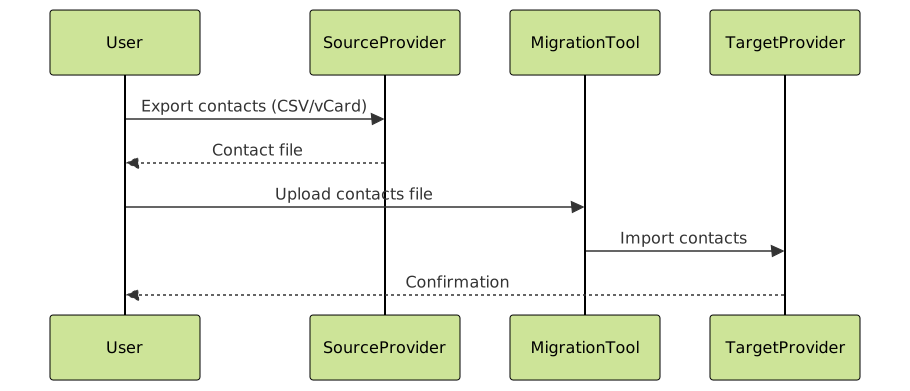
Emails are just one part; contacts and calendars usually require separate export/import steps.
- Export contacts from the source provider as CSV or vCard files, then import to the target.
- Export calendars as iCal (.ics) files and import similarly.
Step 6: Test and Finalize Migration
- Confirm the migrated emails, folders, contacts, and calendars are correctly accessible at the new provider.
- Check syncing on multiple devices.
- Update DNS MX records to point email traffic to the new provider (critical for business emails).
- Monitor mail flow and user feedback for issues.
Common Challenges & How to Overcome Them
- Data Loss: Always back up and verify data integrity before and after migration.
- Downtime: Schedule migrations during off-hours and use staged migration techniques.
- Configuration Errors: Double-check IMAP/SMTP settings and DNS records.
- Large Mailbox Size: Use incremental migration to transfer emails in batches.
Interactive Example: IMAP Folder Sync Concept
Below is a simple conceptual Mermaid diagram showing folder sync between source and destination IMAP servers to help understand the flow:

Final Words
Email migration can seem intimidating, but by following these structured steps and leveraging available tools, users and organizations can securely and efficiently move their email infrastructure from one provider to another. Always test thoroughly, keep backups, and communicate with end users to ensure a smooth transition.