
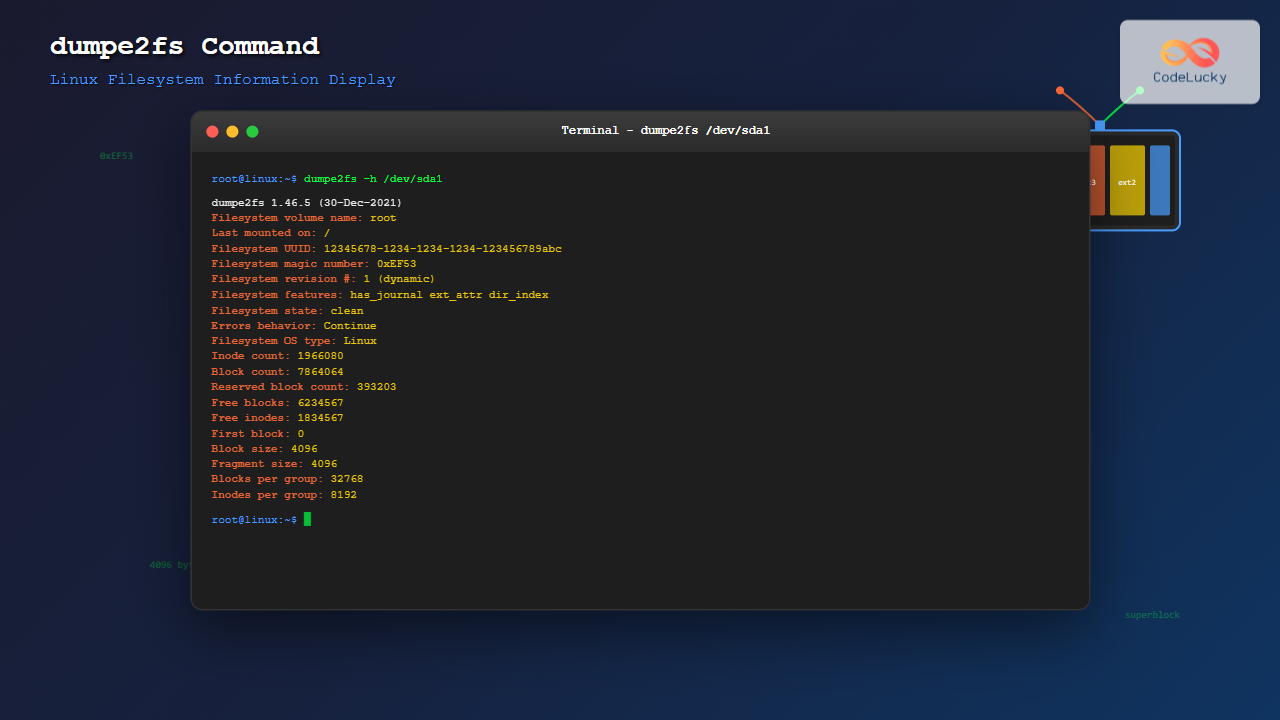
The dumpe2fs command is a powerful Linux utility that displays detailed information about ext2, ext3, and ext4 filesystems. This essential tool provides system administrators and users with comprehensive insights into filesystem structure, superblock information, block group details, and various filesystem parameters.
What is dumpe2fs Command?
The dumpe2fs command stands for “dump ext2 filesystem” and is part of the e2fsprogs package. It reads and displays the superblock and block group information from ext2, ext3, and ext4 filesystems without mounting them. This makes it invaluable for troubleshooting filesystem issues and understanding filesystem structure.
Basic Syntax
dumpe2fs [options] deviceWhere device is the filesystem device (e.g., /dev/sda1, /dev/hda2) you want to examine.
Common dumpe2fs Options
| Option | Description |
|---|---|
-h |
Display only superblock information |
-b |
Print bad blocks list |
-f |
Force dumpe2fs to display filesystem information even if errors are detected |
-i |
Display filesystem data from image file |
-x |
Print detailed group information in hexadecimal format |
Basic Usage Examples
Display Complete Filesystem Information
sudo dumpe2fs /dev/sda1Sample Output:
dumpe2fs 1.46.5 (30-Dec-2021)
Filesystem volume name:   root
Last mounted on:          /
Filesystem UUID:          12345678-1234-1234-1234-123456789abc
Filesystem magic number:  0xEF53
Filesystem revision #:    1 (dynamic)
Filesystem features:      has_journal ext_attr resize_inode dir_index filetype needs_recovery extent 64bit flex_bg sparse_super large_file huge_file dir_nlink extra_isize metadata_csum
Filesystem flags:         signed_directory_hash
Default mount options:    user_xattr acl
Filesystem state:         clean
Errors behavior:          Continue
Filesystem OS type:       Linux
Inode count:              1966080
Block count:              7864064
Reserved block count:     393203
Free blocks:              6234567
Free inodes:              1834567
First block:              0
Block size:               4096
Fragment size:            4096
Group descriptor size:    64
Reserved GDT blocks:      1024
Blocks per group:         32768
Fragments per group:      32768
Inodes per group:         8192
Inode blocks per group:   512
Display Only Superblock Information
sudo dumpe2fs -h /dev/sda1This command provides a condensed view showing only the superblock information, which is useful for quick filesystem overview.
Understanding dumpe2fs Output
Superblock Information
The superblock contains critical filesystem metadata:
- Filesystem volume name: The label assigned to the filesystem
- UUID: Unique identifier for the filesystem
- Filesystem magic number: Always 0xEF53 for ext2/3/4
- Block size: Size of each block (typically 4096 bytes)
- Inode count: Total number of inodes
- Block count: Total number of blocks
- Free blocks/inodes: Available space information
Block Group Information
Each block group contains detailed information about data distribution:
Group 0: (Blocks 0-32767)
  Primary superblock at 0, Group descriptors at 1-1
  Reserved GDT blocks at 2-1025
  Block bitmap at 1026 (+1026), Inode bitmap at 1042 (+1042)
  Inode table at 1058-1569 (+1058)
  24598 free blocks, 8181 free inodes, 2 directories
  Free blocks: 8170-32767
  Free inodes: 12-8192
Practical Use Cases
Check Filesystem Health
sudo dumpe2fs /dev/sda1 | grep "Filesystem state"This command quickly shows if the filesystem is clean or has errors.
Monitor Disk Usage
sudo dumpe2fs -h /dev/sda1 | grep -E "(Free blocks|Free inodes)"Sample Output:
Free blocks:              6234567
Free inodes:              1834567
Check Filesystem Features
sudo dumpe2fs -h /dev/sda1 | grep "Filesystem features"This shows which features are enabled on the filesystem, such as journaling, extended attributes, or 64-bit support.
Advanced Examples
Display Bad Blocks Information
sudo dumpe2fs -b /dev/sda1This command lists any bad blocks recorded in the filesystem. If no bad blocks exist, the output will be minimal.
Force Display Despite Errors
sudo dumpe2fs -f /dev/sda1Use this when the filesystem has errors but you still need to examine its structure.
Examine Specific Block Groups
sudo dumpe2fs /dev/sda1 | grep "Group [0-5]:"This filters output to show information for the first six block groups only.
Combining dumpe2fs with Other Commands
Calculate Filesystem Usage Percentage
sudo dumpe2fs -h /dev/sda1 | awk '/^Block count:/ {total=$3} /^Free blocks:/ {free=$3} END {usage=((total-free)/total)*100; printf "Usage: %.2f%%\n", usage}'Monitor Journal Information (ext3/ext4)
sudo dumpe2fs -h /dev/sda1 | grep -i journalSample Output:
Filesystem features:      has_journal
Journal backup:           inode blocks
Troubleshooting with dumpe2fs
Detecting Filesystem Corruption
Look for these warning signs in dumpe2fs output:
- Filesystem state showing “not clean”
- High number of bad blocks
- Inconsistent block/inode counts
- Error messages in the output
Verifying Filesystem Parameters
sudo dumpe2fs -h /dev/sda1 | grep -E "(Block size|Inode size|Blocks per group)"This helps verify that filesystem parameters match expected values.
Security and Permission Considerations
The dumpe2fs command typically requires root privileges to access raw device files. Always use sudo when examining system partitions:
sudo dumpe2fs /dev/sda1  # Correct
dumpe2fs /dev/sda1       # May fail with permission denied
Performance Impact
The dumpe2fs command has minimal performance impact as it only reads filesystem metadata. It doesn’t scan file contents or perform intensive I/O operations, making it safe to use on production systems.
Error Messages and Solutions
Common Error: “Bad magic number”
dumpe2fs: Bad magic number in super-block while trying to open /dev/sda1Solution: This indicates the device doesn’t contain an ext2/3/4 filesystem. Verify the correct device path and filesystem type.
Common Error: “Permission denied”
dumpe2fs: Permission denied while trying to open /dev/sda1Solution: Use sudo to run the command with root privileges.
Best Practices
- Always use
sudowhen examining system partitions - Use the
-hoption for quick filesystem overview - Combine with
grepto filter specific information - Regular monitoring of filesystem health using dumpe2fs
- Document filesystem parameters before making changes
Alternative Commands
While dumpe2fs is specific to ext2/3/4 filesystems, consider these alternatives for other filesystem types:
xfs_infofor XFS filesystemsbtrfs filesystem showfor Btrfstune2fs -lfor similar ext2/3/4 information
Conclusion
The dumpe2fs command is an indispensable tool for Linux system administrators working with ext2, ext3, and ext4 filesystems. It provides detailed insights into filesystem structure, health, and configuration without requiring the filesystem to be mounted. Regular use of dumpe2fs helps maintain filesystem health, troubleshoot issues, and understand storage utilization patterns.
Whether you’re diagnosing filesystem problems, monitoring disk usage, or simply learning about Linux filesystem internals, mastering dumpe2fs will enhance your system administration capabilities and help ensure optimal filesystem performance.
Related Posts

e2fsck Command Linux: Complete Guide to Check and Repair Ext2/3/4 Filesystems
The e2fsck command is a critical system administration tool in Linux designed to check and repair Ext2, Ext3, and Ext4...
debugfs Command Linux: Complete Guide to Debug Ext2/3/4 Filesystems
The debugfs command is a powerful interactive filesystem debugger for ext2, ext3, and ext4 filesystems in Linux. It provides low-level...

tune2fs Command Linux: Complete Guide to Ext2/3/4 Filesystem Tuning
The tune2fs command is a powerful Linux utility that allows system administrators to modify and tune various parameters of ext2,...
xfs_info Command Linux: Complete Guide to Display XFS Filesystem Information
The xfs_info command is a powerful utility in Linux systems that provides comprehensive information about XFS filesystems. This command is...
resize2fs Command Linux: Complete Guide to Resize Ext2/3/4 Filesystems Safely
The resize2fs command is a powerful Linux utility designed to resize ext2, ext3, and ext4 filesystems. Whether you need to...

File System Types: FAT32, NTFS, ext4 and Modern Linux Filesystems Explained
Understanding File Systems: The Foundation of Data Storage A file system is the method and data structure that an operating...

stat Command Linux: Complete Guide to Display File and Filesystem Status Information
The stat command is a powerful Linux utility that displays detailed information about files and filesystems. Unlike basic commands like...
lsblk Command Linux: Complete Guide to List and Manage Block Devices
The lsblk command is an essential Linux utility that displays information about block devices in a tree-like format. Whether you're...

xfs_repair Command Linux: Complete Guide to Fix and Repair XFS Filesystems
The xfs_repair command is a powerful utility in Linux designed specifically for checking and repairing XFS filesystems. As XFS is...

blkid Command Linux: Complete Guide to Display Block Device Information
The blkid command is an essential Linux utility that displays information about block devices, including file system types, UUIDs, labels,...
xfs_check Command Linux: Complete Guide to XFS Filesystem Consistency Verification
The xfs_check command is a crucial system administration tool in Linux for verifying the consistency and integrity of XFS filesystems....

fsck Command Linux: Complete Guide to Filesystem Check and Repair
The fsck (file system check) command is one of the most crucial system administration tools in Linux, designed to check...





