
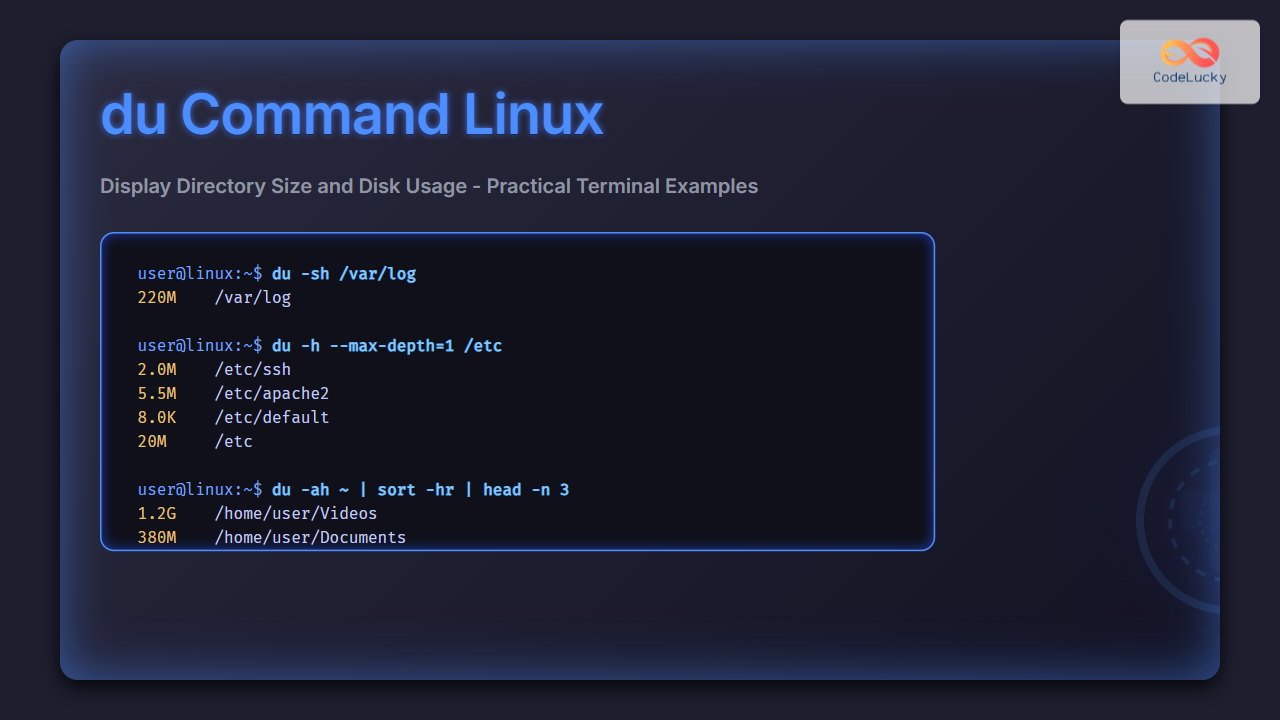
The du (disk usage) command in Linux is a powerful tool that allows users to measure directory size, analyze disk usage, and manage storage effectively. Whether you are troubleshooting storage shortages or simply want to analyze large files taking up unnecessary space, du is one of the most essential Linux commands for system administrators and developers alike.
What is the du Command in Linux?
The du command stands for Disk Usage. It estimates and displays the amount of disk space files and directories occupy. Unlike df, which shows overall filesystem space, du drills down into specific directories and files to reveal precise usage details.
Basic Syntax
du [options] [file...]
If no path is provided, du defaults to the current directory.
Commonly Used Options with du
-h: Human-readable output (e.g., KB, MB, GB).-s: Show only the total size of a directory.-a: Include both files and directories in the output.-c: Display a grand total at the end.-d N: Limit the depth of directories displayed.--max-depth=N: Equivalent to-d N, useful for controlling directory levels.--apparent-size: Show the space a file appears to take, not actual disk blocks.
Practical Examples of du Command
1. Checking Disk Usage of Current Directory
du -hOutput Example:
4.0K    ./scripts
36M     ./logs
120M    ./backups
160M    .
This shows how much space each subdirectory in the current path consumes, followed by the total.
2. Showing Only the Total Size of a Directory
du -sh /var/logOutput Example:
220M /var/log
Perfect when you only need the size of an entire directory.
3. Getting Disk Usage for All Files and Directories
du -ah /home/usernameOutput Example:
32K   /home/username/file1.txt
4.0K  /home/username/.bashrc
95M   /home/username/Videos
96M   /home/username
This displays every file’s size along with directory sizes.
4. Displaying a Grand Total
du -ch /varOutput Example:
120K   /var/tmp
150M   /var/www
2.0G   /var/lib
2.15G  total
5. Limiting Directory Depth
du -h --max-depth=1 /etcOutput Example:
2.0M   /etc/ssh
5.5M   /etc/apache2
8.0K   /etc/default
20M    /etc
This shows only one level of subdirectories instead of every nested folder.
6. Sorting Disk Usage by Size
du alone doesn’t sort, so we can pipe it with sort:
du -h --max-depth=1 | sort -hrOutput Example:
500M   ./backups
120M   ./logs
4.0K   ./scripts
620M   .
This helps quickly identify which directories consume the most storage.
7. Finding the Largest Directories
Combine du with head to list only the top results:
du -h --max-depth=1 /home | sort -hr | head -n 5This efficiently reveals the top 5 space-consuming directories under /home.
Interactive Tip: Monitor Disk Usage Growth
For admins tracking disk usage frequently, wrap du within a watch command:
watch -n 10 'du -sh /var/log'This displays updated disk usage every 10 seconds – extremely useful for monitoring log growth in real-time.
du vs df Command in Linux
| Command | Purpose | Example |
|---|---|---|
du |
Shows disk usage of individual files/directories | du -sh /etc |
df |
Shows overall filesystem usage | df -h |
Use du when investigating specific folder/file sizes, and df when you need filesystem-level insights.
Best Practices for Using du Command
- Always use
-hfor easier readability. - Combine
duwithsortto identify storage hogs quickly. - Limit directory depth with
--max-depthto avoid overwhelming outputs. - Use
-cto get precise totals useful in reports.
Conclusion
The du command is a must-know for Linux system administrators, DevOps engineers, and even developers who want fine control over their storage. With its ability to measure and summarize disk usage, combined with sorting and filtering, du helps to quickly identify large directories and optimize disk space usage effectively.
By mastering du with practical options like -h, -s, and --max-depth, you’ll always stay on top of disk space management in Linux environments.
Related Posts
df Command in Linux: Complete Guide to Check Disk Space Usage
The df command is one of the most essential tools in a Linux system administrator's toolkit. Standing for "disk free,"...

stat Command Linux: Complete Guide to Display File and Filesystem Status Information
The stat command is a powerful Linux utility that displays detailed information about files and filesystems. Unlike basic commands like...
quota Command Linux: Complete Guide to Display and Manage Disk Usage Quotas
The quota command is an essential Linux system administration tool that displays disk usage and quota information for users and...

size Command Linux: Display Section Sizes of Object Files and Executables
The size command is a powerful utility in Linux systems that displays the section sizes of object files, executables, and...

ls Command in Linux: Complete Guide to List Files and Directories with Examples
The ls command is one of the most fundamental and frequently used commands in Linux and Unix-like operating systems. It...

free Command in Linux: Monitor Memory Usage and Swap Space Efficiently
The free command is one of the most essential utilities in Linux for monitoring system memory usage and swap space....
repquota Command Linux: Complete Guide to Disk Quota Reporting and Management
The repquota command is an essential Linux system administration tool used to report disk quota usage for users and groups...
rm Command in Linux: Complete Guide to Delete Files and Directories Safely
The rm command is one of the most powerful and potentially dangerous commands in Linux. It stands for "remove" and...
quotacheck Command Linux: Check Filesystem Quotas Explained with Examples
In Linux system administration, maintaining and monitoring disk usage is critical. Without proper checks, uncontrolled disk consumption can lead to...
ls Command Advanced Linux: Complete Guide to File Listing Mastery
The ls command is one of the most fundamental and frequently used commands in Linux and Unix-like operating systems. While...
quotaon Command Linux: Enable and Manage Disk Quotas Effectively
The quotaon command is a powerful Linux utility that enables disk quota enforcement on file systems. It allows system administrators...
find Command Linux: Ultimate Guide to Search Files and Directories by Name, Size, and Attributes
The find command is one of the most powerful and versatile tools in Linux for searching files and directories. Whether...





