Introduction to Docker and Container-Based Hosting
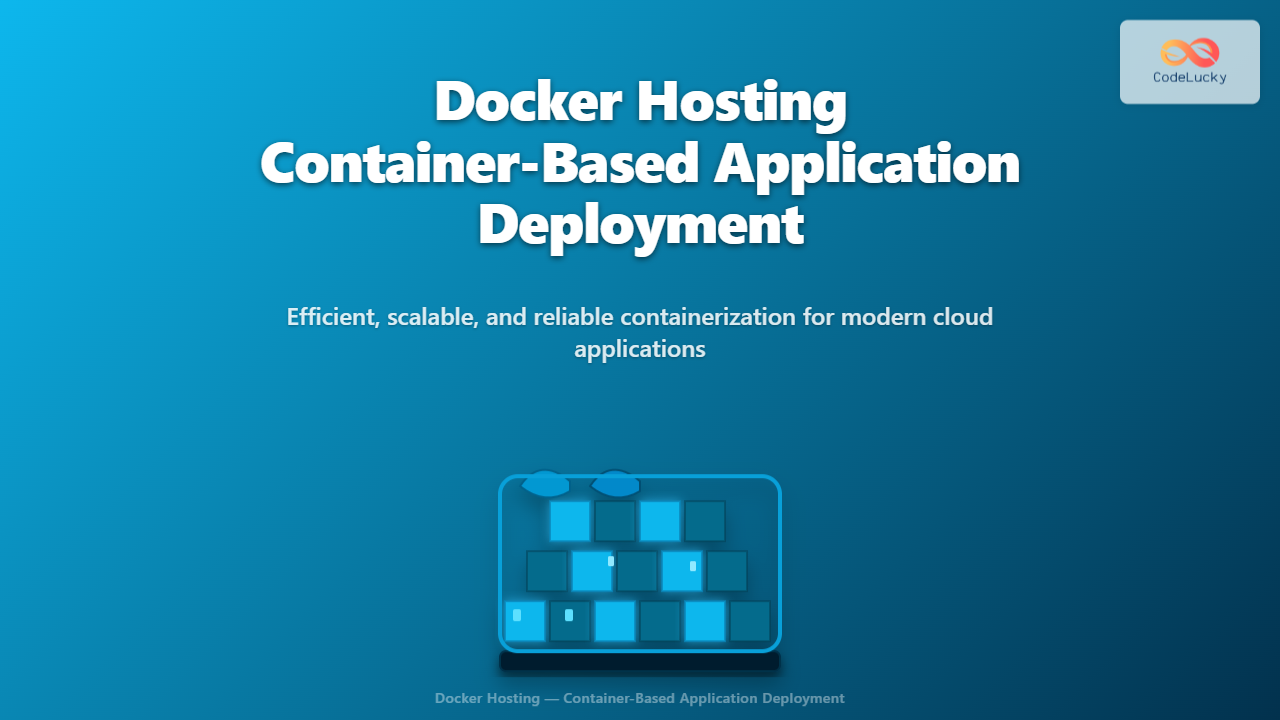
Docker has revolutionized how modern applications are built, shipped, and deployed. Docker hosting leverages containerization technology to ensure applications run consistently across environments. Containers encapsulate an application and its dependencies, making deployments fast, scalable, and efficient. This article will deep dive into Docker hosting, explore container-based application deployment, and provide practical examples with visual aids to guide you step-by-step.

What is Docker Hosting?
Docker hosting refers to deploying Docker containers on servers or cloud infrastructure to run applications. Unlike traditional VM hosting, Docker containers share the host OS kernel but run isolated user spaces, making them lightweight and fast. Hosting can be on private servers, cloud providers (AWS, Azure, GCP), or container platforms like Kubernetes.
Core Components of Docker Hosting
- Dockerfile: Script defining how to build a Docker image including app code, environment, libraries.
- Docker Image: Immutable snapshot to instantiate containers.
- Docker Container: Runtime instance of an image, isolated and ephemeral.
- Docker Host: The physical or virtual server running the Docker Engine, managing containers.
- Docker Registry: Storage for Docker images, public (Docker Hub) or private registries.

Step-by-Step Guide to Docker Hosting and Deployment
1. Creating a Dockerfile
The Dockerfile defines your application’s environment. Here’s a simple example deploying a Node.js app:
FROM node:18-alpine
WORKDIR /app
COPY package.json ./
RUN npm install
COPY . .
EXPOSE 3000
CMD ["node", "server.js"]
This Dockerfile starts from an official Node image, installs dependencies, copies app code, exposes port 3000, and runs the server.
2. Building and Running Your Docker Image Locally
docker build -t my-node-app .
docker run -p 3000:3000 my-node-app
You can visit http://localhost:3000 to see your running app inside a container.
Visual Output Example: If your Node.js server shows “Hello World” on its main page, this confirms your containerized app works locally.
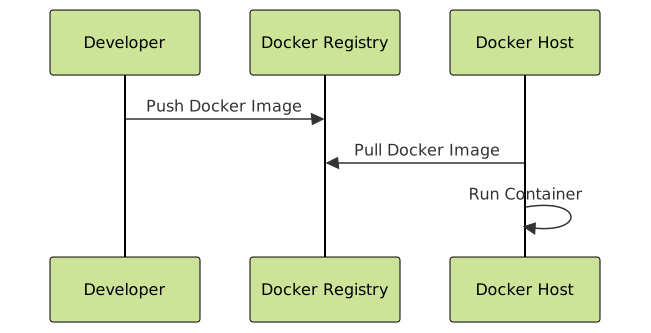
3. Pushing Docker Image to Registry
After testing locally, push your image to a registry (e.g., Docker Hub):
docker tag my-node-app username/my-node-app:latest
docker push username/my-node-app:latest
4. Hosting on a Server
On your Docker host (could be a cloud VM), pull and run your container:
docker pull username/my-node-app:latest
docker run -d -p 80:3000 username/my-node-app:latest
Access your app through the server IP on port 80, serving the Node.js app containerized via Docker.
Benefits of Docker Hosting for Applications
- Portability: Containers run identically on any environment.
- Scalability: Easily scale containers horizontally in clusters.
- Resource Efficiency: Lightweight compared to virtual machines.
- Consistency: Avoid “works on my machine” problems.
- Isolation: Each container runs independently, reducing conflicts.
Advanced: Orchestrating Docker Hosting with Docker Compose
Docker Compose allows managing multi-container applications with YAML files. Example deploying a web app and database:
version: '3.8'
services:
  web:
    image: username/my-node-app:latest
    ports:
      - "80:3000"
    depends_on:
      - db
  db:
    image: mysql:8.0
    environment:
      MYSQL_ROOT_PASSWORD: example
Run with docker-compose up -d to start both containers together.

Interactive Example: Live Output with Docker CLI
Run the following commands on your local machine with Docker installed to get hands-on experience:
docker run -d -p 8080:80 nginx— runs an NGINX server on port 8080.- Visit
http://localhost:8080to see the default NGINX landing page served from a container. - Stop the container with
docker psto get container ID, thendocker stop <CONTAINER_ID>.
Security Considerations in Docker Hosting
- Always use minimal base images to reduce attack surface.
- Regularly update images to patch vulnerabilities.
- Run containers with least privileges using user namespaces.
- Monitor your Docker hosts and containers with security tools continuously.
Conclusion
Docker hosting enables modern, efficient, and scalable application deployment through containerization. By building Dockerfiles, creating images, and deploying containers on hosts or cloud, developers can simplify delivery pipelines and ensure application consistency. Using Docker Compose helps manage multi-container apps seamlessly, while adopting security best practices protects production environments. With this guide, one can confidently start deploying containerized applications using Docker today.