
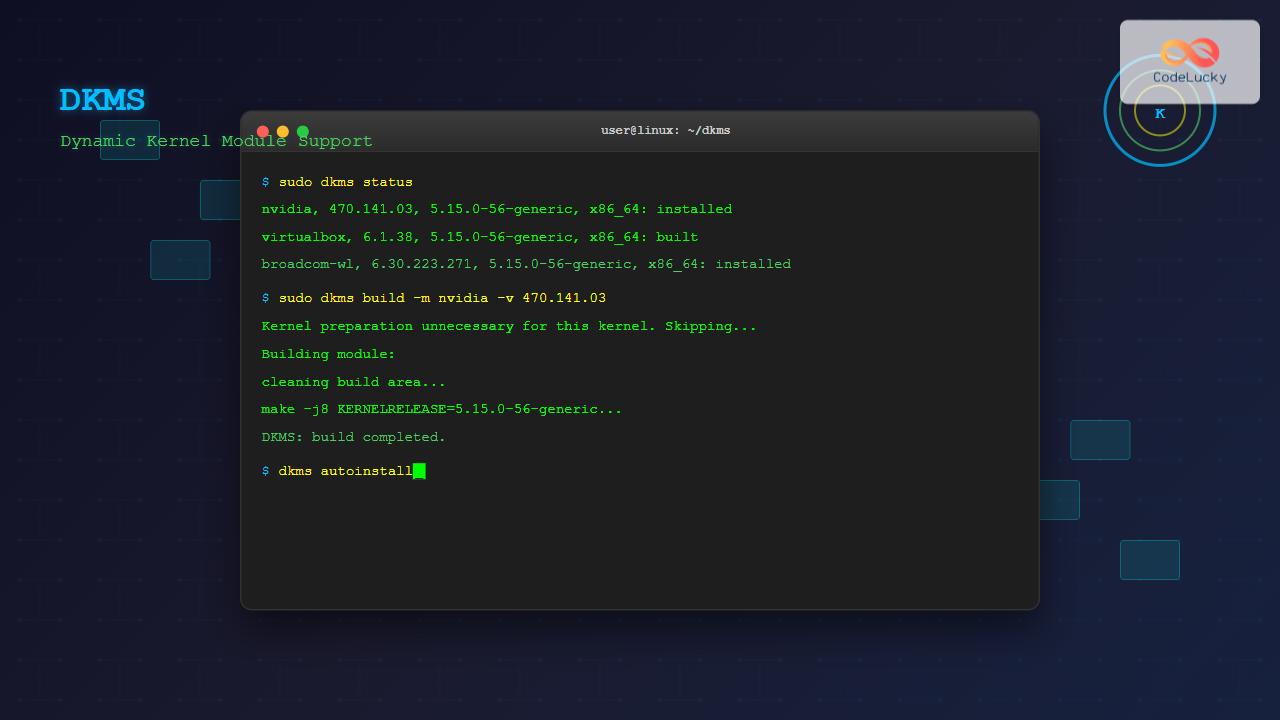
Dynamic Kernel Module Support (DKMS) is a powerful framework that automatically rebuilds kernel modules when you install a new kernel version. The dkms command is essential for managing third-party drivers and kernel modules that aren’t included in the mainline Linux kernel.
What is DKMS?
DKMS stands for Dynamic Kernel Module Support, a framework designed to automatically rebuild kernel modules whenever you upgrade your kernel. This eliminates the need to manually recompile drivers after each kernel update, making system maintenance much more efficient.
Key benefits of DKMS include:
- Automatic module rebuilding on kernel updates
- Version tracking and rollback capabilities
- Simplified third-party driver management
- Consistent module installation across different kernel versions
Installing DKMS
Before using the dkms command, you need to install the DKMS package on your system.
Ubuntu/Debian Systems
sudo apt update
sudo apt install dkms
Red Hat/CentOS/Fedora Systems
# For RHEL/CentOS
sudo yum install dkms

# For Fedora
sudo dnf install dkms
Arch Linux
sudo pacman -S dkmsDKMS Command Syntax
The basic syntax for the dkms command is:
dkms [action] [module/version] [options]Where:
- action: The operation to perform (add, build, install, remove, etc.)
- module/version: The module name and version
- options: Additional parameters for the specific action
Essential DKMS Commands
1. Adding a Module to DKMS
To add a module to DKMS for management:
sudo dkms add -m module_name -v version_numberExample:
sudo dkms add -m nvidia -v 470.141.03Expected output:
Creating symlink /var/lib/dkms/nvidia/470.141.03/source ->
                 /usr/src/nvidia-470.141.03
DKMS: add completed.
2. Building a Module
After adding a module, you need to build it for your current kernel:
sudo dkms build -m module_name -v version_numberExample:
sudo dkms build -m nvidia -v 470.141.03Sample output:
Kernel preparation unnecessary for this kernel. Skipping...
Building module:
cleaning build area...
make -j8 KERNELRELEASE=5.15.0-56-generic...
cleaning build area...
DKMS: build completed.
3. Installing a Module
To install a built module into the kernel:
sudo dkms install -m module_name -v version_numberExample:
sudo dkms install -m nvidia -v 470.141.03Output example:
nvidia:
Running module version sanity check.
 - Original module
   - No original module exists within this kernel
 - Installation
   - Installing to /lib/modules/5.15.0-56-generic/updates/dkms/
depmod...
DKMS: install completed.
4. Listing DKMS Modules
To view all modules managed by DKMS:
dkms statusSample output:
nvidia, 470.141.03, 5.15.0-56-generic, x86_64: installed
virtualbox, 6.1.38, 5.15.0-56-generic, x86_64: built
broadcom-wl, 6.30.223.271, 5.15.0-56-generic, x86_64: installed
5. Removing a Module
To uninstall a DKMS module:
sudo dkms remove -m module_name -v version_number --allExample:
sudo dkms remove -m nvidia -v 470.141.03 --allOutput:
-------- Uninstall Beginning --------
Module: nvidia
Version: 470.141.03
Kernel: 5.15.0-56-generic (x86_64)
-------------------------------------

Status: Before uninstall, this module version was ACTIVE on this kernel.
nvidia:
 - Uninstallation
   - Deleting from: /lib/modules/5.15.0-56-generic/updates/dkms/
 - Original module
   - No original module was found for this module on this kernel.

depmod...
DKMS: uninstall completed.
-------------------------------------
Deleting module version: 470.141.03
completely from the DKMS tree.
-------------------------------------
Done.
Advanced DKMS Operations
Building for Specific Kernels
You can build modules for specific kernel versions:
sudo dkms build -m module_name -v version_number -k kernel_versionExample:
sudo dkms build -m nvidia -v 470.141.03 -k 5.15.0-58-genericAutoinstall Feature
To automatically install a module for all future kernels:
sudo dkms autoinstallThis command builds and installs all DKMS modules for the current kernel.
Creating Module Archives
You can create binary archives of built modules:
sudo dkms mkbmdeb -m module_name -v version_numberThis creates a .deb package (on Debian-based systems) containing the compiled module.
DKMS Configuration Files
DKMS uses configuration files to define how modules should be built. The main configuration file is dkms.conf, typically located in the module’s source directory.
Example dkms.conf:
PACKAGE_NAME="example-driver"
PACKAGE_VERSION="1.0.0"
BUILT_MODULE_NAME[0]="example"
DEST_MODULE_LOCATION[0]="/kernel/drivers/misc"
AUTOINSTALL="yes"
Troubleshooting DKMS Issues
Common Problems and Solutions
Module Build Failures
If a module fails to build, check the build log:
sudo dkms status -vLook for detailed error messages in:
/var/lib/dkms/module_name/version/build/make.logMissing Dependencies
Ensure you have the necessary development packages:
# Ubuntu/Debian
sudo apt install build-essential linux-headers-$(uname -r)

# RHEL/CentOS
sudo yum groupinstall "Development Tools"
sudo yum install kernel-devel
Kernel Headers Not Found
Install kernel headers for your current kernel:
# Check current kernel version
uname -r

# Install matching headers
sudo apt install linux-headers-$(uname -r)
Debugging DKMS Operations
Enable verbose output for detailed information:
sudo dkms build -m module_name -v version_number --verboseDKMS Best Practices
Module Version Management
- Always use specific version numbers when adding modules
- Keep track of module versions for different kernel releases
- Test modules thoroughly before deploying in production
Backup and Recovery
- Create module archives before major system updates
- Keep source code backups for custom modules
- Document module dependencies and configurations
Performance Considerations
- Use parallel compilation when possible (
make -j$(nproc)) - Remove unused modules to reduce rebuild times
- Consider using precompiled modules for common drivers
DKMS Integration with Package Managers
Many third-party drivers integrate seamlessly with DKMS through package managers:
Installing NVIDIA Drivers with DKMS
sudo apt install nvidia-driver-470-dkmsThis automatically handles DKMS registration and module building.
VirtualBox Integration
sudo apt install virtualbox-dkmsVirtualBox kernel modules are automatically managed through DKMS.
Monitoring DKMS Operations
You can monitor DKMS operations through system logs:
# View DKMS-related log entries
journalctl | grep -i dkms

# Monitor real-time DKMS activities
sudo journalctl -f | grep -i dkms
Security Considerations
When working with DKMS modules:
- Only install modules from trusted sources
- Verify module signatures when available
- Be cautious with modules that require kernel modifications
- Keep modules updated to patch security vulnerabilities
Conclusion
The dkms command is an essential tool for Linux system administrators and users who need to manage kernel modules dynamically. It simplifies the process of maintaining third-party drivers across kernel updates and provides a robust framework for module version control.
By understanding the core DKMS commands and best practices outlined in this guide, you can effectively manage kernel modules, troubleshoot issues, and maintain system stability while keeping your drivers up to date. Whether you’re managing NVIDIA graphics drivers, VirtualBox modules, or custom hardware drivers, DKMS provides the flexibility and automation needed for modern Linux systems.
Remember to always test DKMS operations in a safe environment before applying them to production systems, and maintain proper backups of your module configurations and source code.
Related Posts
modprobe Command Linux: Complete Guide to Load and Manage Kernel Modules
The modprobe command is one of the most powerful tools in Linux system administration for managing kernel modules. Whether you're...
depmod Command Linux: Complete Guide to Generate Module Dependencies
The depmod command is a critical system administration tool in Linux that generates module dependency maps for the kernel. This...
insmod Command Linux: Complete Guide to Insert Kernel Modules
The insmod command is a fundamental Linux utility that allows system administrators and developers to insert kernel modules into the...
udev Command Linux: Complete Guide to Dynamic Device Management
The udev (userspace device manager) is a crucial component of modern Linux systems that handles dynamic device management. Unlike traditional...
lsmod Command Linux: Complete Guide to Listing Kernel Modules
The lsmod command is an essential Linux utility that displays information about currently loaded kernel modules in your system. Understanding...
dmesg Command Linux: Complete Guide to Display and Analyze Kernel Messages
The dmesg command is one of the most powerful diagnostic tools in Linux, providing administrators and users with direct access...
rmmod Command Linux: Complete Guide to Remove Kernel Modules Safely
The rmmod command is a fundamental Linux utility for removing loadable kernel modules from the running kernel. Understanding how to...

mdev Command Linux: Complete Guide to Minimal Device Manager Configuration
The mdev command is a lightweight device manager for Linux systems, particularly popular in embedded environments and minimal distributions. As...

Device Drivers in Operating System: Complete Guide to Hardware Abstraction Layer
Device drivers serve as the critical bridge between your operating system and hardware components, forming what's known as the Hardware...

hotplug Linux: Complete Guide to Hardware Hotplug Event Handling and Management
Hardware hotplug functionality in Linux enables the dynamic addition and removal of hardware components without requiring system restarts. This powerful...

Hybrid Kernel: Complete Guide to Combining Micro and Monolithic Kernel Architectures
A hybrid kernel represents an evolutionary approach in operating system design that strategically combines elements from both microkernel and monolithic...
devtmpfs Linux: Complete Guide to Device Temporary Filesystem Management
The devtmpfs (Device Temporary Filesystem) is a crucial component of modern Linux systems that revolutionizes how device nodes are managed...





