
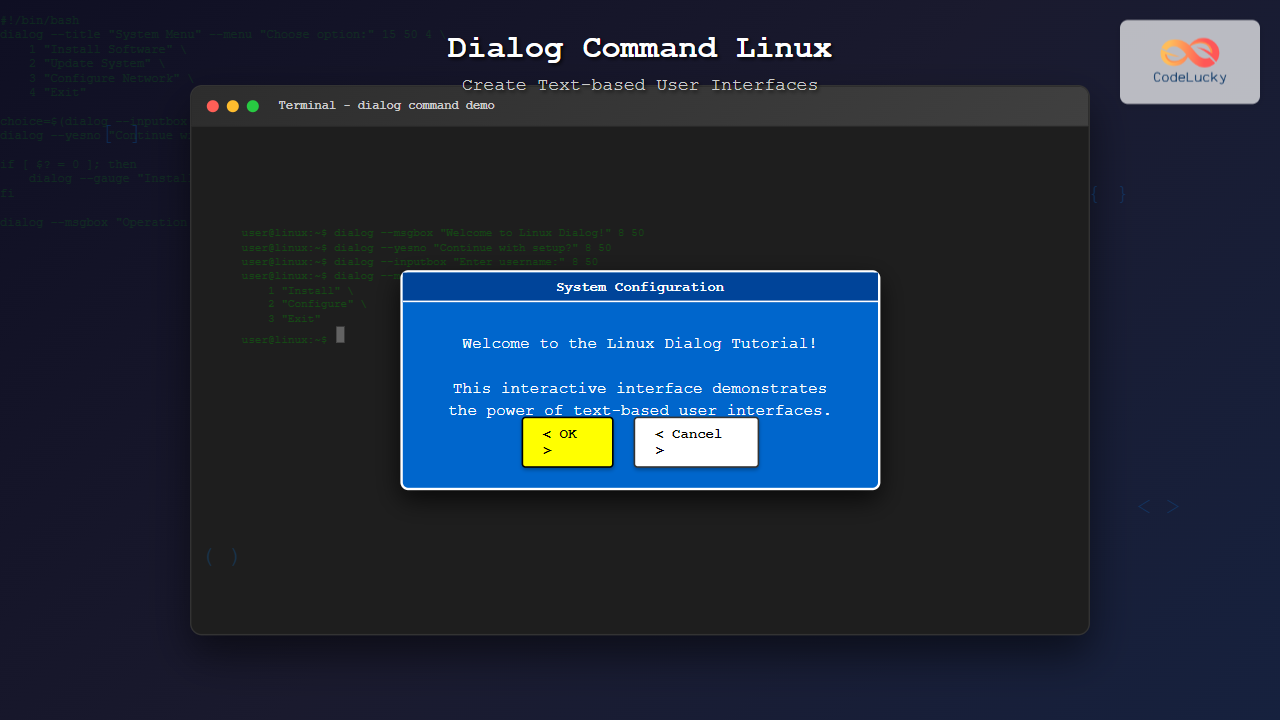
The dialog command in Linux is a powerful utility that enables developers and system administrators to create sophisticated text-based user interfaces (TUI) for shell scripts. Unlike simple command-line prompts, dialog provides interactive widgets like message boxes, input fields, menus, and progress bars that make scripts more user-friendly and professional.
What is the dialog Command?
The dialog command is a utility that displays dialog boxes from shell scripts. It creates ncurses-based widgets that allow users to interact with scripts through a graphical-like interface within the terminal. This makes complex scripts more accessible to end users who might not be comfortable with command-line interfaces.
Key Features of dialog Command:
- Interactive text-based user interfaces
- Multiple widget types (message boxes, input fields, menus, etc.)
- Customizable appearance and behavior
- Exit codes for script decision making
- Support for various screen sizes
Installation
Most Linux distributions include dialog by default. If it’s not installed, you can install it using your package manager:
# Ubuntu/Debian
sudo apt-get install dialog

# CentOS/RHEL/Fedora
sudo yum install dialog
# or
sudo dnf install dialog

# Arch Linux
sudo pacman -S dialog
Basic Syntax
The basic syntax of the dialog command is:
dialog [options] --widget-type "text" height width [widget-specific-options]Common Parameters:
- height: Height of the dialog box in lines
- width: Width of the dialog box in characters
- text: The message or title to display
Essential Dialog Widgets
1. Message Box (–msgbox)
The simplest dialog widget displays a message with an OK button:
dialog --msgbox "Welcome to CodeLucky.com! This is a simple message box." 8 50Visual Output:
┌─────────────────────────────────────────────────┐
│ Welcome to CodeLucky.com! This is a simple     │
│ message box.                                    │
│                                                 │
│                    <OK>                         │
└─────────────────────────────────────────────────┘
2. Yes/No Dialog (–yesno)
Creates a dialog with Yes and No buttons:
dialog --yesno "Do you want to continue with the installation?" 8 50

# Check the exit code
if [ $? = 0 ]; then
    echo "User selected Yes"
else
    echo "User selected No"
fi
Visual Output:
┌─────────────────────────────────────────────────┐
│ Do you want to continue with the installation?  │
│                                                 │
│              <Yes>      <No>                    │
└─────────────────────────────────────────────────┘
3. Input Box (–inputbox)
Allows users to enter text input:
result=$(dialog --inputbox "Enter your name:" 8 50 3>&1 1>&2 2>&3 3>&-)
echo "Hello, $result!"
Visual Output:
┌─────────────────────────────────────────────────┐
│ Enter your name:                                │
│ ┌─────────────────────────────────────────────┐ │
│ │                                             │ │
│ └─────────────────────────────────────────────┘ │
│              <OK>       <Cancel>               │
└─────────────────────────────────────────────────┘
4. Menu Selection (–menu)
Creates a menu with selectable options:
choice=$(dialog --menu "Select an option:" 15 50 4 \
    1 "Install Software" \
    2 "Update System" \
    3 "Configure Network" \
    4 "Exit" 3>&1 1>&2 2>&3 3>&-)

case $choice in
    1) echo "Installing software..." ;;
    2) echo "Updating system..." ;;
    3) echo "Configuring network..." ;;
    4) echo "Exiting..." ;;
esac
Visual Output:
┌─────────────────────────────────────────────────┐
│ Select an option:                               │
│ ┌─────────────────────────────────────────────┐ │
│ │    1  Install Software                      │ │
│ │    2  Update System                         │ │
│ │    3  Configure Network                     │ │
│ │    4  Exit                                  │ │
│ └─────────────────────────────────────────────┘ │
│              <OK>       <Cancel>               │
└─────────────────────────────────────────────────┘
5. Checklist (–checklist)
Allows multiple selections with checkboxes:
selections=$(dialog --checklist "Choose packages to install:" 15 60 4 \
    1 "Apache Web Server" off \
    2 "MySQL Database" on \
    3 "PHP Language" on \
    4 "Node.js Runtime" off 3>&1 1>&2 2>&3 3>&-)

echo "Selected packages: $selections"
Visual Output:
┌──────────────────────────────────────────────────────┐
│ Choose packages to install:                          │
│ ┌──────────────────────────────────────────────────┐ │
│ │ [ ] 1  Apache Web Server                         │ │
│ │ [X] 2  MySQL Database                            │ │
│ │ [X] 3  PHP Language                              │ │
│ │ [ ] 4  Node.js Runtime                           │ │
│ └──────────────────────────────────────────────────┘ │
│              <OK>       <Cancel>                     │
└──────────────────────────────────────────────────────┘
6. Progress Bar (–gauge)
Displays a progress indicator:
#!/bin/bash
(
for i in {1..100}; do
    echo $i
    echo "XXX"
    echo "Processing step $i of 100..."
    echo "XXX"
    sleep 0.1
done
) | dialog --gauge "Please wait while processing..." 8 50 0
Visual Output:
┌─────────────────────────────────────────────────┐
│ Please wait while processing...                 │
│ ███████████████████░░░░░░░░░░░░░░░░░░░░░  45%    │
│ Processing step 45 of 100...                   │
└─────────────────────────────────────────────────┘
Advanced Options and Customization
Common Options
--title "Title": Sets the dialog title--backtitle "Background Title": Sets background title--clear: Clears screen on exit--sleep N: Delays for N seconds after displaying--begin Y X: Positions dialog at coordinates
Styling Options
# Custom colors and appearance
dialog --backtitle "System Configuration" \
       --title "Network Setup" \
       --clear \
       --msgbox "Network configuration completed successfully!" 8 50
Practical Examples
Example 1: System Information Script
#!/bin/bash

# System Information Display
dialog --backtitle "CodeLucky System Info" \
       --title "System Information" \
       --msgbox "Hostname: $(hostname)\nUptime: $(uptime -p)\nKernel: $(uname -r)\nMemory: $(free -h | grep Mem | awk '{print $3"/"$2}')" 12 60
Example 2: File Management Menu
#!/bin/bash

while true; do
    choice=$(dialog --backtitle "File Manager" \
                   --title "Main Menu" \
                   --menu "Choose an action:" 15 50 5 \
                   1 "List Files" \
                   2 "Create Directory" \
                   3 "Delete File" \
                   4 "Copy File" \
                   5 "Exit" 3>&1 1>&2 2>&3 3>&-)

    case $choice in
        1)
            files=$(ls -la)
            dialog --textbox <(echo "$files") 20 80
            ;;
        2)
            dirname=$(dialog --inputbox "Enter directory name:" 8 50 3>&1 1>&2 2>&3 3>&-)
            if [ $? = 0 ]; then
                mkdir "$dirname" 2>/dev/null && \
                dialog --msgbox "Directory '$dirname' created successfully!" 8 50 || \
                dialog --msgbox "Error creating directory!" 8 50
            fi
            ;;
        5|"")
            break
            ;;
    esac
done

clear
Example 3: Configuration Wizard
#!/bin/bash

# Configuration Wizard
config_file="/tmp/app_config"

# Welcome message
dialog --title "Configuration Wizard" \
       --msgbox "Welcome to the Application Configuration Wizard!\n\nThis wizard will help you set up your application." 10 60

# Get username
username=$(dialog --inputbox "Enter username:" 8 50 3>&1 1>&2 2>&3 3>&-)
[ $? != 0 ] && exit 1

# Get email
email=$(dialog --inputbox "Enter email address:" 8 50 3>&1 1>&2 2>&3 3>&-)
[ $? != 0 ] && exit 1

# Select theme
theme=$(dialog --radiolist "Choose a theme:" 12 50 3 \
              "dark" "Dark Theme" on \
              "light" "Light Theme" off \
              "auto" "Auto Theme" off 3>&1 1>&2 2>&3 3>&-)
[ $? != 0 ] && exit 1

# Select features
features=$(dialog --checklist "Enable features:" 12 60 4 \
                 "notifications" "Push Notifications" on \
                 "analytics" "Usage Analytics" off \
                 "backup" "Auto Backup" on \
                 "sync" "Cloud Sync" off 3>&1 1>&2 2>&3 3>&-)

# Save configuration
cat > "$config_file" << EOF
username=$username
email=$email
theme=$theme
features=$features
EOF

# Confirmation
dialog --title "Configuration Complete" \
       --msgbox "Configuration saved successfully!\n\nUsername: $username\nEmail: $email\nTheme: $theme\nFeatures: $features" 12 60
Exit Codes and Error Handling
Dialog widgets return specific exit codes that help determine user actions:
- 0: OK button pressed
- 1: Cancel button pressed or ESC key
- 2: Help button pressed
- 3: Extra button pressed
- 255: Error occurred
dialog --yesno "Continue with operation?" 8 50
exit_code=$?

case $exit_code in
    0) echo "User confirmed" ;;
    1) echo "User cancelled" ;;
    255) echo "Error occurred" ;;
esac
Best Practices and Tips
1. Proper Output Redirection
Use proper file descriptor redirection to capture dialog output:
# Correct way to capture input
result=$(dialog --inputbox "Enter value:" 8 50 3>&1 1>&2 2>&3 3>&-)
2. Screen Size Considerations
Make dialogs responsive to different terminal sizes:
# Get terminal size
height=$(tput lines)
width=$(tput cols)

# Use proportional sizing
dialog_height=$((height * 60 / 100))
dialog_width=$((width * 80 / 100))
3. Error Handling
Always check exit codes and handle user cancellation:
if ! result=$(dialog --inputbox "Enter name:" 8 50 3>&1 1>&2 2>&3 3>&-); then
    echo "Operation cancelled by user"
    exit 1
fi
4. Cleanup
Clear the screen after dialog operations:
# At the end of your script
clear
Alternative Dialog Utilities
Whiptail
A lightweight alternative to dialog with similar functionality:
whiptail --msgbox "Hello from whiptail!" 8 50Zenity
For GUI environments, zenity provides similar functionality with GTK widgets:
zenity --info --text="Hello from zenity!"Troubleshooting Common Issues
Display Problems
- Garbled output: Check terminal type with
echo $TERM - Size issues: Ensure terminal supports the specified dimensions
- Color problems: Verify terminal color support
Script Integration
- Output capture fails: Use proper file descriptor redirection
- Exit codes ignored: Always check
$?after dialog commands - Screen corruption: Use
--clearoption orclearcommand
Conclusion
The dialog command is an invaluable tool for creating user-friendly shell scripts in Linux. By providing interactive text-based interfaces, it bridges the gap between complex command-line operations and user accessibility. Whether you’re building system administration tools, installation scripts, or configuration wizards, dialog helps create professional-looking interfaces that enhance user experience.
Master these dialog techniques to transform your shell scripts from simple command-line tools into interactive applications that users will appreciate. Remember to handle exit codes properly, consider different screen sizes, and always provide clear feedback to users.
Start experimenting with these examples and incorporate dialog into your next shell scripting project to see the immediate improvement in user interaction and script professionalism.
Related Posts
yad Command Linux: Complete Guide to Yet Another Dialog Tool for Interactive Scripts
The yad (Yet Another Dialog) command is a powerful GUI dialog tool for Linux that allows you to create interactive...
zenity Command Linux: Complete Guide to Create GTK Dialog Boxes
The zenity command is a powerful Linux utility that allows you to create GTK dialog boxes from shell scripts and...

Linux Commands Tutorial: Complete Beginner’s Guide to Terminal Basics
The Linux terminal is a powerful command-line interface that gives you direct control over your operating system. While it might...
read Command Linux: Complete Guide to Reading User Input in Shell Scripts
The read command is one of the most fundamental tools in Linux shell scripting for creating interactive programs that capture...
python Command Linux: Complete Guide to Running Python Scripts and Interactive Sessions
The python command is one of the most essential tools for developers working with Python on Linux systems. Whether you're...
HTML Dialogs: Create Interactive Modal Windows with the <dialog> Tag
HTML <dialog> Tag The <dialog> tag in HTML is used to create interactive dialog boxes or modal windows. These dialogs...

echo Command in Linux: Complete Guide to Print Text and Variables in Terminal
The echo command is one of the most fundamental and frequently used commands in Linux and Unix-like operating systems. It...
HTML Dialog show() Method: Showing Dialog
Understanding the HTML Dialog show() Method The HTML <dialog> element is used to create dialog boxes or other interactive components,...

bash Command Linux: Start New Shell Sessions and Execute Scripts Efficiently
The bash command is one of the most fundamental tools in Linux systems, serving as both a command-line interpreter and...

HTML DOM Dialog Object: Accessing Dialog Elements
HTML DOM Dialog Object: A Comprehensive Guide to Accessing Dialog Elements The HTML DOM Dialog object represents the <dialog> element...
JavaScript Window prompt() Method: Displaying Prompt Box
JavaScript Window prompt() Method: Displaying Prompt Boxes for User Input The window.prompt() method in JavaScript is used to display a...
set Command Linux: Display and Configure Shell Options for Advanced Terminal Control
The set command is one of the most powerful built-in commands in Linux shells, allowing you to display and modify...





