
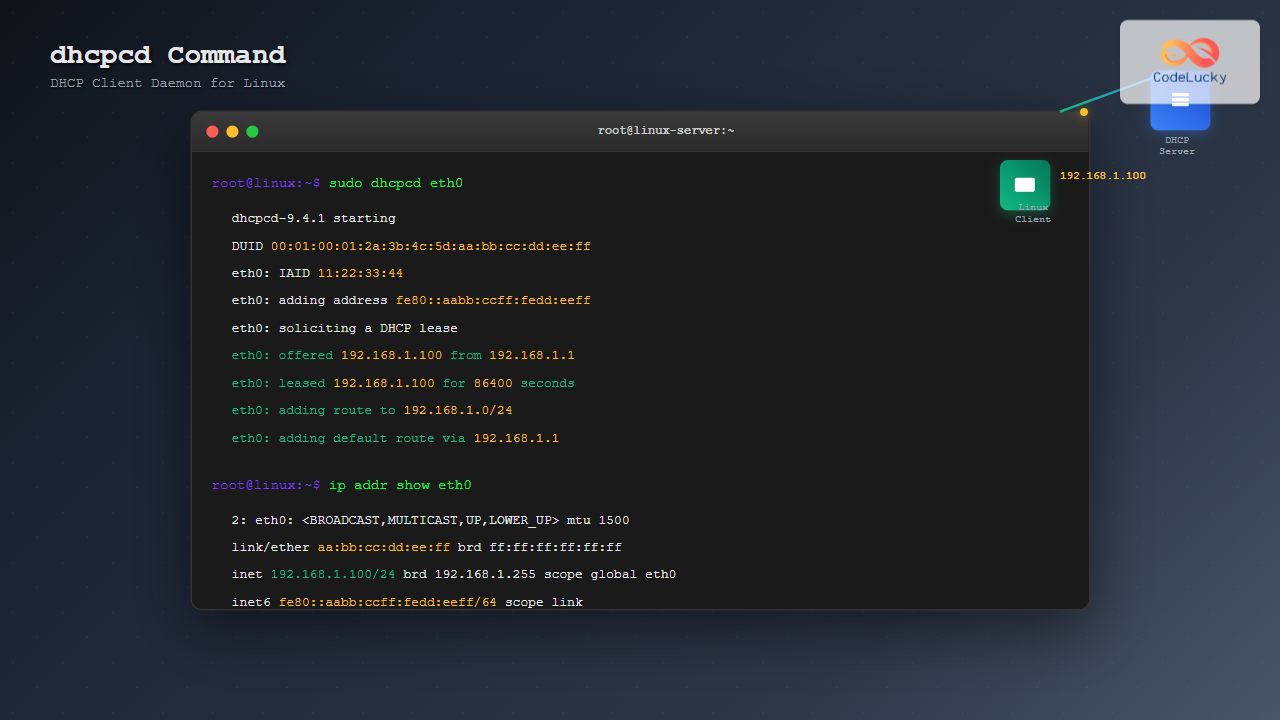
The dhcpcd (DHCP Client Daemon) is a powerful network configuration tool in Linux that automatically obtains IP addresses and network settings from DHCP servers. This comprehensive guide covers everything you need to know about using dhcpcd effectively for network management.
What is dhcpcd?
dhcpcd is a DHCP (Dynamic Host Configuration Protocol) client daemon that automatically configures network interfaces by requesting IP addresses, subnet masks, gateways, and DNS servers from DHCP servers. Unlike other DHCP clients, dhcpcd is designed to be lightweight, fast, and suitable for both desktop and server environments.
Key Features of dhcpcd
- Automatic IP Configuration: Requests and configures IP addresses automatically
- Static Fallback: Can use static IP when DHCP fails
- IPv4 and IPv6 Support: Handles both protocol versions
- Hook Scripts: Executes custom scripts on network events
- Link Detection: Monitors network cable connections
- Roaming Support: Manages connections across different networks
Installing dhcpcd
Most Linux distributions include dhcpcd by default, but if it’s not installed, you can add it using your package manager:
Ubuntu/Debian Installation
sudo apt update
sudo apt install dhcpcd5
CentOS/RHEL/Fedora Installation
# For CentOS/RHEL
sudo yum install dhcpcd

# For Fedora
sudo dnf install dhcpcd
Arch Linux Installation
sudo pacman -S dhcpcdBasic dhcpcd Syntax and Options
The basic syntax for dhcpcd is:
dhcpcd [OPTIONS] [INTERFACE]Common Options
| Option | Description |
|---|---|
-b |
Run in background (daemon mode) |
-d |
Run in debug mode |
-k |
Kill existing dhcpcd process |
-n |
Don’t run in background |
-q |
Quiet mode |
-r |
Release IP address and exit |
-s |
Use static IP if DHCP fails |
-t |
Set timeout for DHCP requests |
Basic dhcpcd Commands
1. Starting dhcpcd on an Interface
To start dhcpcd on a specific network interface:
sudo dhcpcd eth0Sample Output:
dhcpcd-9.4.1 starting
DUID 00:01:00:01:2a:3b:4c:5d:aa:bb:cc:dd:ee:ff
eth0: IAID 11:22:33:44
eth0: adding address fe80::aabb:ccff:fedd:eeff
eth0: soliciting an IPv6 router
eth0: soliciting a DHCP lease
eth0: offered 192.168.1.100 from 192.168.1.1
eth0: leased 192.168.1.100 for 86400 seconds
eth0: adding route to 192.168.1.0/24
eth0: adding default route via 192.168.1.1
2. Running dhcpcd in Background
To run dhcpcd as a daemon:
sudo dhcpcd -b eth03. Stopping dhcpcd
To stop dhcpcd on an interface:
sudo dhcpcd -k eth04. Releasing IP Address
To release the current IP address and exit:
sudo dhcpcd -r eth0Sample Output:
dhcpcd-9.4.1 starting
eth0: removing interface
eth0: deleting route to 192.168.1.0/24
eth0: deleting default route via 192.168.1.1
eth0: released lease for 192.168.1.100
Advanced dhcpcd Usage
1. Debug Mode
Run dhcpcd in debug mode to troubleshoot network issues:
sudo dhcpcd -d eth0Sample Debug Output:
dhcpcd-9.4.1 starting
loaded configuration `/etc/dhcpcd.conf`
eth0: waiting for carrier
eth0: carrier acquired
eth0: IAID 11:22:33:44
eth0: adding address fe80::aabb:ccff:fedd:eeff
eth0: starting DHCP
eth0: broadcasting DHCP_DISCOVER
eth0: received DHCP_OFFER from 192.168.1.1
eth0: broadcasting DHCP_REQUEST for 192.168.1.100
eth0: received DHCP_ACK from 192.168.1.1
eth0: leased 192.168.1.100 for 86400 seconds
2. Setting Custom Timeout
Set a custom timeout for DHCP requests:
sudo dhcpcd -t 30 eth03. Working with Multiple Interfaces
Start dhcpcd on all available interfaces:
sudo dhcpcdOr specify multiple interfaces:
sudo dhcpcd eth0 wlan0dhcpcd Configuration File
The main configuration file for dhcpcd is located at /etc/dhcpcd.conf. This file allows you to customize dhcpcd behavior globally or per interface.
Basic Configuration Example
# Global configuration
option rapid_commit
option domain_name_servers, domain_name, domain_search, host_name
option classless_static_routes
option interface_mtu
require dhcp_server_identifier
slaac private

# Interface-specific configuration
interface eth0
static ip_address=192.168.1.100/24
static routers=192.168.1.1
static domain_name_servers=8.8.8.8 8.8.4.4

# Fallback configuration
profile static_eth0
static ip_address=192.168.1.100/24
static routers=192.168.1.1
static domain_name_servers=192.168.1.1

interface eth0
fallback static_eth0
Configuration Options Explained
- option rapid_commit: Enables rapid commit for faster DHCP
- static ip_address: Sets a static IP address
- static routers: Defines the default gateway
- static domain_name_servers: Sets DNS servers
- fallback: Defines fallback configuration if DHCP fails
- slaac private: Enables privacy extensions for IPv6
Managing dhcpcd Service
Using systemctl (SystemD)
On systems using SystemD, you can manage dhcpcd as a service:
# Start dhcpcd service
sudo systemctl start dhcpcd

# Enable dhcpcd to start at boot
sudo systemctl enable dhcpcd

# Check dhcpcd status
sudo systemctl status dhcpcd

# Stop dhcpcd service
sudo systemctl stop dhcpcd

# Restart dhcpcd service
sudo systemctl restart dhcpcd
Sample Status Output:
● dhcpcd.service - dhcpcd on all interfaces
   Loaded: loaded (/lib/systemd/system/dhcpcd.service; enabled; vendor preset: enabled)
   Active: active (running) since Tue 2025-08-26 02:35:00 IST; 5min ago
     Docs: man:dhcpcd(8)
 Main PID: 1234 (dhcpcd)
   Status: "Bound to 192.168.1.100"
    Tasks: 1 (limit: 4915)
   Memory: 2.1M
   CGroup: /system.slice/dhcpcd.service
           └─1234 /sbin/dhcpcd -q
Per-Interface Service Management
You can also manage dhcpcd per interface:
# Start dhcpcd on specific interface
sudo systemctl start dhcpcd@eth0

# Enable dhcpcd on specific interface
sudo systemctl enable dhcpcd@eth0
Troubleshooting dhcpcd Issues
1. Check Interface Status
First, verify your network interface is up and has a link:
ip link show eth0Sample Output:
2: eth0: <BROADCAST,MULTICAST,UP,LOWER_UP> mtu 1500 qdisc pfifo_fast state UP mode DEFAULT group default qlen 1000
    link/ether aa:bb:cc:dd:ee:ff brd ff:ff:ff:ff:ff:ff
2. Check for Conflicting Network Managers
Ensure other network managers aren’t conflicting with dhcpcd:
# Check NetworkManager status
sudo systemctl status NetworkManager

# Check systemd-networkd status
sudo systemctl status systemd-networkd
3. View dhcpcd Logs
Check system logs for dhcpcd messages:
# View recent dhcpcd logs
sudo journalctl -u dhcpcd -n 50

# Follow dhcpcd logs in real-time
sudo journalctl -u dhcpcd -f
4. Test DHCP Server Connectivity
Use dhcpcd in test mode to check DHCP server response:
sudo dhcpcd -T eth0Sample Test Output:
dhcpcd-9.4.1 starting
eth0: IAID 11:22:33:44
eth0: broadcasting DHCP_DISCOVER
eth0: received DHCP_OFFER from 192.168.1.1
        offered IP: 192.168.1.100
        server ID: 192.168.1.1
        lease time: 86400 seconds
        subnet mask: 255.255.255.0
        broadcast: 192.168.1.255
        router: 192.168.1.1
        domain name server: 192.168.1.1
dhcpcd Hook Scripts
dhcpcd can execute custom scripts when network events occur. Hook scripts are located in /lib/dhcpcd/dhcpcd-hooks/ and /etc/dhcpcd/dhcpcd-hooks/.
Creating a Custom Hook Script
Create a custom hook script to execute commands when an IP is acquired:
sudo nano /etc/dhcpcd/dhcpcd-hooks/99-customSample Hook Script:
#!/bin/bash

# Custom dhcpcd hook script
case "$reason" in
    BOUND|INFORM|REBIND|REBOOT)
        echo "$(date): IP address $new_ip_address acquired on $interface" >> /var/log/dhcpcd-custom.log
        ;;
    RELEASE|EXPIRE|FAIL|STOP)
        echo "$(date): IP address released on $interface" >> /var/log/dhcpcd-custom.log
        ;;
esac
Make the script executable:
sudo chmod +x /etc/dhcpcd/dhcpcd-hooks/99-customCommon dhcpcd Use Cases
1. Laptop/Mobile Device Configuration
For laptops that connect to different networks:
# Configuration for roaming
interface wlan0
env force_hostname=YES
hostname mylaptop

# Quick connection timeout
timeout 10

# Use Google DNS as fallback
profile static_wlan0
static domain_name_servers=8.8.8.8 8.8.4.4

interface wlan0
fallback static_wlan0
2. Server with Static Fallback
For servers that prefer DHCP but need static fallback:
# Server configuration
interface eth0
# Try DHCP first
static ip_address=192.168.1.10/24
static routers=192.168.1.1
static domain_name_servers=192.168.1.1 8.8.8.8

# Static fallback profile
profile static_server
static ip_address=192.168.1.10/24
static routers=192.168.1.1
static domain_name_servers=192.168.1.1

interface eth0
fallback static_server
3. IoT Device Configuration
For IoT devices with minimal requirements:
# Minimal configuration
noarp
noipv4ll
option domain_name_servers
timeout 30
reboot 60
Performance Optimization
1. Fast Boot Configuration
To speed up boot times, configure dhcpcd for faster startup:
# Fast boot options
option rapid_commit
noarp
background
timeout 10
2. Reducing Network Chatter
Minimize unnecessary network traffic:
# Reduce network requests
option domain_name_servers, domain_name, host_name
noarp
noipv4ll
Security Considerations
1. DHCP Security Best Practices
- Vendor Class Filtering: Use vendor class identifiers for device identification
- Static Reservations: Use MAC-based reservations for critical devices
- Network Monitoring: Monitor DHCP logs for unusual activity
2. dhcpcd Security Configuration
# Security-focused configuration
require dhcp_server_identifier
noarp
option interface_mtu
vendorclassid "MyCompany-Device-v1.0"
Comparing dhcpcd with Other DHCP Clients
| Feature | dhcpcd | dhclient | NetworkManager |
|---|---|---|---|
| IPv6 Support | Excellent | Good | Excellent |
| Hook Scripts | Yes | Yes | Limited |
| Static Fallback | Built-in | Manual | GUI-based |
| Resource Usage | Low | Medium | Higher |
| Configuration | Simple | Complex | GUI/Simple |
Best Practices and Tips
1. Configuration Management
- Always backup
/etc/dhcpcd.confbefore making changes - Use interface-specific configurations for different network requirements
- Test configurations in debug mode before deploying
- Document custom hook scripts and their purposes
2. Monitoring and Maintenance
- Regularly check dhcpcd logs for errors or unusual behavior
- Monitor lease renewal times and adjust if necessary
- Keep dhcpcd updated to the latest version
- Test failover scenarios periodically
3. Network Integration
- Coordinate with network administrators for DHCP scope planning
- Use consistent hostname and vendor class identifiers
- Plan for network changes and migrations
- Document network dependencies and requirements
Conclusion
The dhcpcd command is a powerful and flexible DHCP client that provides robust network configuration capabilities for Linux systems. From basic automatic IP assignment to advanced static fallback configurations, dhcpcd offers the tools needed for reliable network connectivity.
Whether you’re managing a single desktop system or multiple servers, understanding dhcpcd’s features, configuration options, and troubleshooting techniques will help you maintain stable and efficient network connections. The combination of automatic configuration, static fallback capabilities, and extensive customization options makes dhcpcd an excellent choice for both simple and complex networking scenarios.
By following the examples and best practices outlined in this guide, you’ll be well-equipped to implement and maintain dhcpcd configurations that meet your specific networking requirements while ensuring reliable connectivity across diverse network environments.
Related Posts
dhclient Command Linux: Complete Guide to Dynamic Host Configuration Protocol Client
The dhclient command is a powerful Linux utility that serves as a Dynamic Host Configuration Protocol (DHCP) client. It automatically...
systemd-networkd Linux: Complete Network Configuration Manager Guide
systemd-networkd is a powerful system daemon that manages network configurations on Linux systems. As part of the systemd ecosystem, it...
ip Command Linux: Complete Guide to Advanced Network Configuration and Management
The ip command is one of the most powerful and versatile networking tools in Linux, serving as the modern replacement...
NetworkManager Linux: Complete Guide to Network Management Service
NetworkManager is a powerful network management service that provides automatic network detection and configuration for Linux systems. It simplifies network...
nmcli Command Linux: Complete Guide to NetworkManager Command Line Tool
The nmcli (NetworkManager Command Line Interface) is a powerful command-line tool that allows you to control NetworkManager and configure network...
hostapd Linux: Complete Guide to IEEE 802.11 AP and Authentication Server Setup
hostapd (Host Access Point Daemon) is a powerful user-space daemon that enables Linux systems to function as IEEE 802.11 access...
nmtui Command Linux: Complete Guide to NetworkManager Text User Interface
The nmtui (NetworkManager Text User Interface) command is a powerful, menu-driven tool that provides an intuitive way to configure network...

whatsup Linux: Complete Network Monitoring and System Administration Guide
whatsup is a powerful network monitoring and system administration tool for Linux that provides real-time insights into network connectivity, system...
net-snmp Linux: Complete Guide to SNMP Implementation and Management
Simple Network Management Protocol (SNMP) is a cornerstone of network management, and net-snmp is the most widely used open-source implementation...
SNMP Command Linux: Complete Guide to Simple Network Management Protocol Configuration and Usage
Introduction to SNMP Command in Linux Simple Network Management Protocol (SNMP) is a fundamental protocol used for monitoring and managing...
intermapper Linux: Complete Network Monitoring and Mapping Guide
What is InterMapper for Linux? InterMapper is a powerful network monitoring and mapping tool that provides real-time visibility into network...
ifconfig Command Linux: Complete Guide to Network Interface Configuration (Deprecated)
The ifconfig (interface configuration) command has been a cornerstone of Linux network administration for decades. While officially deprecated in favor...
- What is dhcpcd?
- Installing dhcpcd
- Basic dhcpcd Syntax and Options
- Basic dhcpcd Commands
- Advanced dhcpcd Usage
- dhcpcd Configuration File
- Managing dhcpcd Service
- Troubleshooting dhcpcd Issues
- dhcpcd Hook Scripts
- Common dhcpcd Use Cases
- Performance Optimization
- Security Considerations
- Comparing dhcpcd with Other DHCP Clients
- Best Practices and Tips
- Conclusion





