Introduction to DHCP
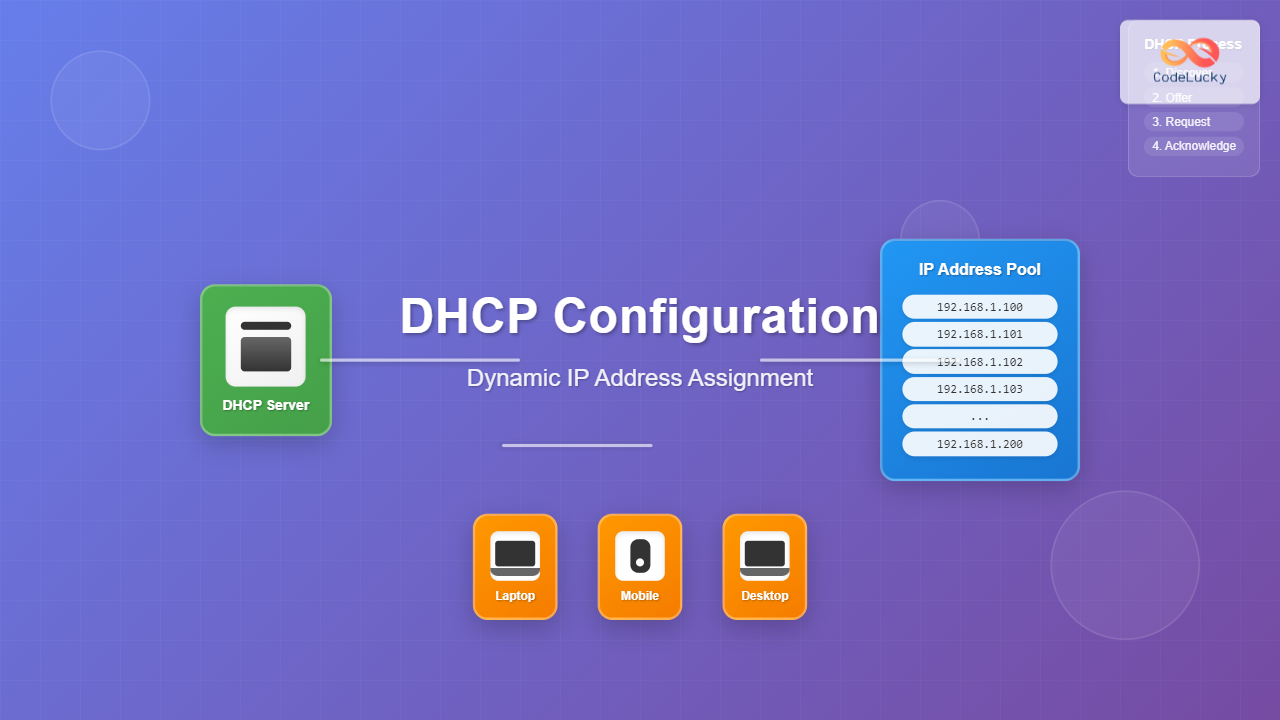
Dynamic Host Configuration Protocol (DHCP) is a network service that automatically assigns IP addresses and other network configuration parameters to devices on a network. Instead of manually configuring each device with a static IP address, DHCP enables automatic assignment, making network management significantly more efficient and reducing configuration errors.
DHCP operates on a client-server model where a DHCP server maintains a pool of available IP addresses and leases them to client devices for a specified period. This dynamic allocation ensures optimal IP address utilization and simplifies network administration in environments ranging from small home networks to large enterprise infrastructures.
How DHCP Works
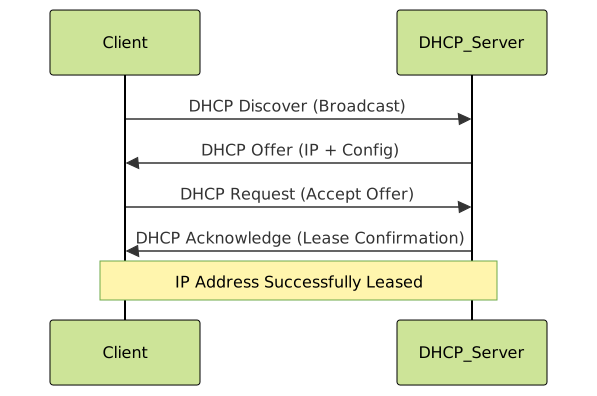
The DHCP process follows a four-step communication sequence known as DORA (Discover, Offer, Request, Acknowledge). Understanding this process is crucial for effective DHCP configuration and troubleshooting.
DHCP Message Types
- DHCP Discover: Client broadcasts request for IP configuration
- DHCP Offer: Server responds with available IP address and configuration
- DHCP Request: Client formally requests the offered configuration
- DHCP Acknowledge: Server confirms lease and provides final configuration
- DHCP Release: Client voluntarily releases IP address
- DHCP Decline: Client rejects offered IP address
DHCP Server Configuration
Configuring a DHCP server involves defining IP address pools, lease durations, and network parameters. Here’s how to set up DHCP on different operating systems:
Linux DHCP Server Configuration
On Linux systems, the ISC DHCP server (dhcpd) is commonly used. First, install the DHCP server package:
sudo apt-get update
sudo apt-get install isc-dhcp-server
Configure the DHCP server by editing the main configuration file:
sudo nano /etc/dhcp/dhcpd.confBasic DHCP configuration example:
# Global DHCP configuration
default-lease-time 600;
max-lease-time 7200;
authoritative;

# Subnet declaration
subnet 192.168.1.0 netmask 255.255.255.0 {
    range 192.168.1.100 192.168.1.200;
    option routers 192.168.1.1;
    option domain-name-servers 8.8.8.8, 8.8.4.4;
    option domain-name "example.local";
    option broadcast-address 192.168.1.255;
}
Windows DHCP Server Configuration
Windows Server includes DHCP as a server role. Install and configure through Server Manager:
- Open Server Manager and select “Add Roles and Features”
- Choose “DHCP Server” role
- Complete the installation wizard
- Configure DHCP scope through DHCP Management Console
PowerShell configuration example:
# Create DHCP scope
Add-DhcpServerv4Scope -Name "Office Network" -StartRange 192.168.1.100 -EndRange 192.168.1.200 -SubnetMask 255.255.255.0

# Configure scope options
Set-DhcpServerv4OptionValue -ScopeId 192.168.1.0 -Router 192.168.1.1 -DnsServer 8.8.8.8,8.8.4.4
DHCP Configuration Parameters

Essential DHCP Options
| Option Code | Parameter | Description | Example Value |
|---|---|---|---|
| 1 | Subnet Mask | Network subnet mask | 255.255.255.0 |
| 3 | Router | Default gateway | 192.168.1.1 |
| 6 | DNS Servers | Domain name servers | 8.8.8.8, 1.1.1.1 |
| 15 | Domain Name | DNS domain name | company.local |
| 42 | NTP Servers | Time synchronization | pool.ntp.org |
Advanced DHCP Configuration
DHCP Reservations
Reservations ensure specific devices always receive the same IP address based on their MAC address. This is useful for servers, printers, and network devices.
Linux configuration:
host printer {
    hardware ethernet 00:1B:44:11:3A:B7;
    fixed-address 192.168.1.50;
}
Windows PowerShell:
Add-DhcpServerv4Reservation -ScopeId 192.168.1.0 -IPAddress 192.168.1.50 -ClientId "00-1B-44-11-3A-B7" -Description "Network Printer"DHCP Relay Configuration
DHCP relay agents forward DHCP requests across network segments, enabling centralized DHCP servers to serve multiple subnets.

Cisco router DHCP relay configuration:
interface GigabitEthernet0/1
 ip helper-address 192.168.1.10
DHCP Client Configuration
Linux DHCP Client
Most Linux distributions use dhclient or NetworkManager for DHCP client functionality. Manual configuration example:
# Request IP address from DHCP server
sudo dhclient eth0

# Release current DHCP lease
sudo dhclient -r eth0

# View current lease information
cat /var/lib/dhcp/dhclient.leases
Network interface configuration (/etc/network/interfaces):
auto eth0
iface eth0 inet dhcp
Windows DHCP Client
Windows automatically uses DHCP by default. Manual configuration through Command Prompt:
# Enable DHCP on interface
netsh interface ip set address "Local Area Connection" dhcp

# Renew DHCP lease
ipconfig /renew

# Release DHCP lease
ipconfig /release

# Display DHCP configuration
ipconfig /all
DHCP Security Considerations

Common DHCP Security Threats
- Rogue DHCP Servers: Unauthorized servers providing malicious configuration
- DHCP Exhaustion: Depleting available IP addresses through excessive requests
- Man-in-the-Middle: Intercepting DHCP communications for network reconnaissance
- DHCP Spoofing: Impersonating legitimate DHCP servers
Security Best Practices
Implement DHCP snooping on managed switches:
# Enable DHCP snooping globally
ip dhcp snooping

# Configure trusted interfaces
interface GigabitEthernet0/1
 ip dhcp snooping trust

# Enable on specific VLANs
ip dhcp snooping vlan 10,20,30
Troubleshooting DHCP Issues
Common DHCP Problems
| Issue | Symptoms | Solution |
|---|---|---|
| No IP Address Assignment | Client shows APIPA address (169.254.x.x) | Check server connectivity, scope availability |
| Incorrect Gateway | No internet access despite IP assignment | Verify router option configuration |
| DNS Resolution Failure | IP connectivity but no name resolution | Check DNS server options |
| Lease Expiration Issues | Intermittent connectivity loss | Adjust lease times, check renewal process |
DHCP Diagnostic Commands
Linux diagnostics:
# Check DHCP server status
sudo systemctl status isc-dhcp-server

# View DHCP server logs
sudo tail -f /var/log/syslog | grep dhcpd

# Test DHCP server response
sudo nmap --script dhcp-discover -e eth0
Windows diagnostics:
# Display detailed IP configuration
ipconfig /all

# Show DHCP class information
ipconfig /showclassid *

# Test network connectivity
ping 192.168.1.1
nslookup google.com
DHCP Performance Optimization
Lease Time Optimization
Balancing lease duration affects both performance and IP address availability:
- Short leases (1-4 hours): Better for high-mobility environments
- Medium leases (8-24 hours): Balanced approach for most networks
- Long leases (7+ days): Suitable for stable environments
Load Balancing and Redundancy
Configure multiple DHCP servers for high availability:
# Primary DHCP server configuration
subnet 192.168.1.0 netmask 255.255.255.0 {
    range 192.168.1.100 192.168.1.150;
    # Primary serves lower half of range
}

# Secondary DHCP server configuration
subnet 192.168.1.0 netmask 255.255.255.0 {
    range 192.168.1.151 192.168.1.200;
    # Secondary serves upper half of range
}
Monitoring and Maintenance
DHCP Monitoring Tools
Regular monitoring ensures optimal DHCP performance:
# Monitor active leases
sudo dhcp-lease-list

# Check DHCP pool utilization
grep "lease" /var/lib/dhcp/dhcpd.leases | wc -l

# Real-time DHCP traffic monitoring
sudo tcpdump -i eth0 port 67 or port 68
Maintenance Tasks
- Regular backup: Backup DHCP configuration and lease databases
- Log rotation: Manage DHCP server log files to prevent disk space issues
- Scope analysis: Monitor IP address utilization trends
- Security updates: Keep DHCP server software current
Conclusion
Proper DHCP configuration is essential for efficient network management and seamless connectivity. By understanding the DHCP process, implementing appropriate security measures, and maintaining optimal configurations, network administrators can ensure reliable and secure dynamic IP address assignment.
Key takeaways include configuring appropriate lease times for your environment, implementing security best practices like DHCP snooping, setting up redundancy for high availability, and establishing regular monitoring procedures. With these fundamentals in place, DHCP will provide the foundation for scalable and manageable network infrastructure.
Regular maintenance, monitoring, and troubleshooting skills ensure that DHCP services continue to operate effectively as network requirements evolve. Whether managing a small office network or enterprise infrastructure, these DHCP configuration principles provide the groundwork for successful network administration.