
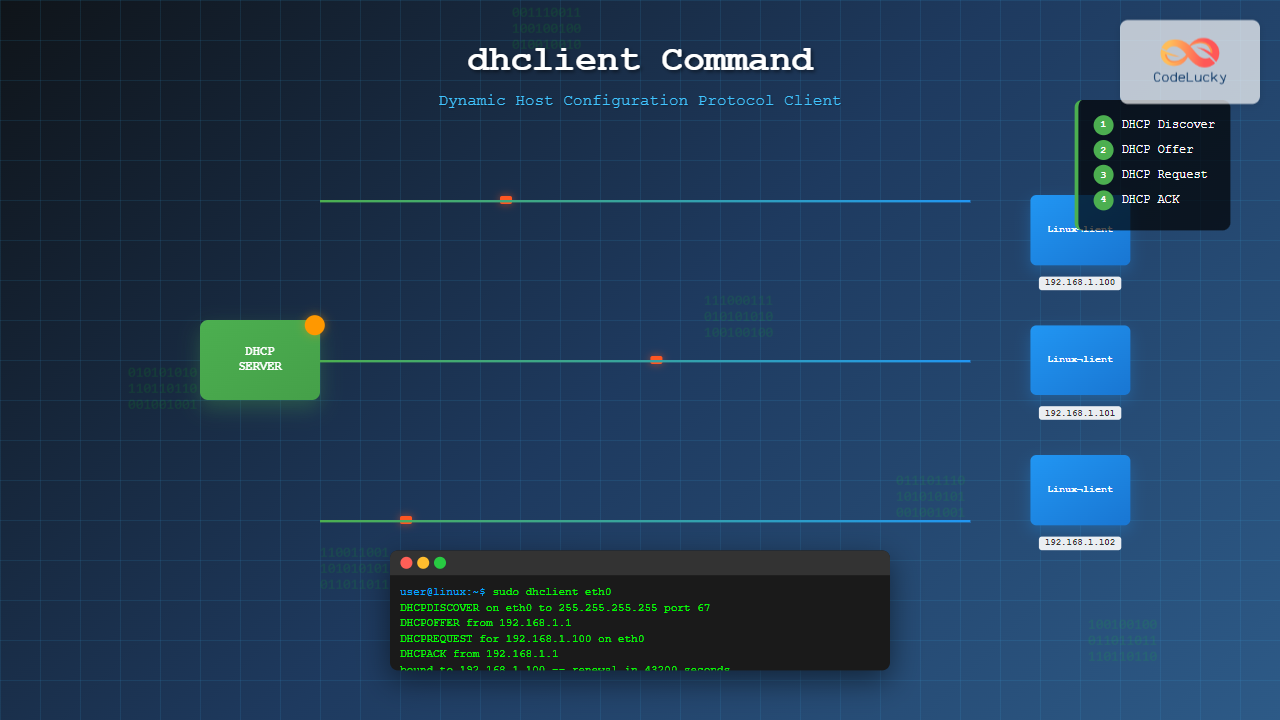
The dhclient command is a powerful Linux utility that serves as a Dynamic Host Configuration Protocol (DHCP) client. It automatically obtains network configuration parameters such as IP addresses, subnet masks, default gateways, and DNS servers from a DHCP server. This essential tool eliminates the need for manual network configuration and ensures seamless network connectivity across different environments.
What is dhclient?
dhclient is the Internet Systems Consortium (ISC) DHCP client implementation for Linux and Unix-like systems. It communicates with DHCP servers to automatically configure network interfaces, making it an indispensable tool for system administrators and network engineers. The command handles the entire DHCP lease process, including discovery, offer, request, and acknowledgment phases.
Key Features
- Automatic IP Configuration: Obtains IP addresses dynamically from DHCP servers
- Lease Management: Handles lease renewal and release operations
- Multiple Interface Support: Can manage multiple network interfaces simultaneously
- Fallback Support: Uses previously obtained configurations when DHCP servers are unavailable
- Customizable Options: Supports custom DHCP options and scripts
Installation
Most Linux distributions include dhclient by default. If not installed, use your distribution’s package manager:
Ubuntu/Debian
sudo apt update
sudo apt install isc-dhcp-client
CentOS/RHEL/Fedora
# For CentOS/RHEL 7 and older
sudo yum install dhcp-client

# For CentOS/RHEL 8+ and Fedora
sudo dnf install dhcp-client
Arch Linux
sudo pacman -S dhcpBasic Syntax
The general syntax for the dhclient command is:
dhclient [OPTIONS] [INTERFACE]Common Options
| Option | Description |
|---|---|
-v |
Enable verbose mode for detailed output |
-d |
Run in foreground (debugging mode) |
-r |
Release current lease and exit |
-x |
Stop the running dhclient process |
-4 |
Use IPv4 only |
-6 |
Use IPv6 only |
-cf |
Specify configuration file |
-lf |
Specify lease file |
Practical Examples
Example 1: Basic DHCP Configuration
To obtain an IP address for the default network interface:
sudo dhclientExpected Output:
Internet Systems Consortium DHCP Client 4.4.1
Copyright 2004-2018 Internet Systems Consortium.
All rights reserved.
For info, please visit https://www.isc.org/software/dhcp/

Listening on LPF/eth0/00:0c:29:xx:xx:xx
Sending on   LPF/eth0/00:0c:29:xx:xx:xx
Sending on   Socket/fallback
DHCPDISCOVER on eth0 to 255.255.255.255 port 67 interval 3
DHCPOFFER from 192.168.1.1
DHCPREQUEST for 192.168.1.100 on eth0 to 255.255.255.255 port 67
DHCPACK from 192.168.1.1
bound to 192.168.1.100 -- renewal in 43200 seconds.
Example 2: Configure Specific Interface
To configure a specific network interface (e.g., eth0):
sudo dhclient eth0Verification:
ip addr show eth0Expected Output:
2: eth0: <BROADCAST,MULTICAST,UP,LOWER_UP> mtu 1500 qdisc pfifo_fast state UP group default qlen 1000
    link/ether 00:0c:29:xx:xx:xx brd ff:ff:ff:ff:ff:ff
    inet 192.168.1.100/24 brd 192.168.1.255 scope global dynamic eth0
       valid_lft 86400sec preferred_lft 86400sec
Example 3: Verbose Mode for Troubleshooting
Using verbose mode to see detailed DHCP communication:
sudo dhclient -v eth0Expected Output:
Internet Systems Consortium DHCP Client 4.4.1
Copyright 2004-2018 Internet Systems Consortium.
All rights reserved.
For info, please visit https://www.isc.org/software/dhcp/

Listening on LPF/eth0/00:0c:29:xx:xx:xx
Sending on   LPF/eth0/00:0c:29:xx:xx:xx
Sending on   Socket/fallback
DHCPDISCOVER on eth0 to 255.255.255.255 port 67 interval 8
DHCPOFFER from 192.168.1.1
DHCPREQUEST for 192.168.1.100 on eth0 to 255.255.255.255 port 67
DHCPACK from 192.168.1.1
bound to 192.168.1.100 -- renewal in 43200 seconds.
Example 4: Release Current Lease
To release the current DHCP lease:
sudo dhclient -r eth0Verification:
ip addr show eth0Expected Output (no IP assigned):
2: eth0: <BROADCAST,MULTICAST,UP,LOWER_UP> mtu 1500 qdisc pfifo_fast state UP group default qlen 1000
    link/ether 00:0c:29:xx:xx:xx brd ff:ff:ff:ff:ff:ff
Example 5: Run in Debug Mode
For detailed debugging information:
sudo dhclient -d -v eth0This runs dhclient in the foreground with verbose output, useful for troubleshooting DHCP issues.
Configuration Files
Main Configuration File
The primary configuration file is typically located at /etc/dhcp/dhclient.conf. Here’s a sample configuration:
# Sample dhclient.conf
timeout 60;
retry 60;

# Request specific options from DHCP server
request subnet-mask, broadcast-address, time-offset, routers,
        domain-name, domain-name-servers, domain-search, host-name,
        dhcp6.name-servers, dhcp6.domain-search, dhcp6.fqdn, dhcp6.sntp-servers,
        netbios-name-servers, netbios-scope, interface-mtu,
        rfc3442-classless-static-routes, ntp-servers;

# Prepend domain name servers
prepend domain-name-servers 8.8.8.8, 8.8.4.4;
Lease File
DHCP lease information is stored in /var/lib/dhcp/dhclient.leases:
cat /var/lib/dhcp/dhclient.leasesSample Output:
lease {
  interface "eth0";
  fixed-address 192.168.1.100;
  option subnet-mask 255.255.255.0;
  option routers 192.168.1.1;
  option dhcp-lease-time 86400;
  option dhcp-message-type 5;
  option domain-name-servers 192.168.1.1;
  option dhcp-server-identifier 192.168.1.1;
  renew 2 2025/08/27 14:37:00;
  rebind 3 2025/08/28 02:37:00;
  expire 3 2025/08/28 08:37:00;
}
Advanced Usage
Custom Configuration File
Use a custom configuration file:
sudo dhclient -cf /path/to/custom-dhclient.conf eth0Custom Lease File
Specify a custom lease file location:
sudo dhclient -lf /path/to/custom-lease-file eth0IPv6 Configuration
Configure IPv6 addressing:
sudo dhclient -6 eth0Multiple Interfaces
Configure multiple interfaces simultaneously:
sudo dhclient eth0 eth1 wlan0Troubleshooting Common Issues
Issue 1: No DHCP Server Response
Symptoms: dhclient hangs or times out
Diagnosis:
sudo dhclient -v -d eth0Solutions:
- Check network cable connections
- Verify DHCP server is running and accessible
- Check firewall settings
- Ensure network interface is up:
sudo ip link set eth0 up
Issue 2: Lease Conflicts
Symptoms: IP address conflicts or connectivity issues
Solution:
# Release current lease
sudo dhclient -r eth0

# Remove old lease file
sudo rm /var/lib/dhcp/dhclient.leases

# Request new lease
sudo dhclient eth0
Issue 3: DNS Resolution Problems
Check DNS servers received:
cat /etc/resolv.confForce DNS update:
sudo dhclient -r eth0 && sudo dhclient eth0Integration with Network Managers
systemd-networkd
For systems using systemd-networkd, create a network configuration file:
# /etc/systemd/network/20-wired.network
[Match]
Name=eth0

[Network]
DHCP=yes
NetworkManager
Check if NetworkManager is managing the interface:
nmcli device statusIf NetworkManager controls the interface, use nmcli instead of direct dhclient commands.
Security Considerations
DHCP Snooping
In enterprise environments, be aware of DHCP snooping which prevents rogue DHCP servers. Ensure your client connects to authorized DHCP servers only.
Option 82 (Relay Agent Information)
Some networks use DHCP Option 82 for additional security. Configure dhclient to handle these scenarios:
# In dhclient.conf
send dhcp-client-identifier "unique-client-id";
Performance Optimization
Timeout Settings
Adjust timeout values for faster network configuration:
# In dhclient.conf
timeout 30;
retry 3;
Background Operation
For production systems, ensure dhclient runs in background mode (default behavior) to avoid blocking system startup.
Monitoring and Logging
View DHCP Logs
Check system logs for DHCP-related messages:
# For systemd systems
journalctl -u dhclient

# For syslog systems
grep dhclient /var/log/syslog
Real-time Monitoring
Monitor DHCP lease renewals:
sudo tail -f /var/log/syslog | grep dhclientBest Practices
- Use Verbose Mode: Always use
-vflag when troubleshooting network issues - Backup Lease Files: Regularly backup dhclient lease files for network documentation
- Monitor Lease Times: Keep track of DHCP lease durations to predict renewal times
- Script Integration: Use dhclient hooks for custom network configuration scripts
- IPv6 Readiness: Configure both IPv4 and IPv6 DHCP clients for future-proofing
Conclusion
The dhclient command is an essential tool for Linux network administration, providing robust and flexible DHCP client functionality. Whether you’re configuring a single workstation or managing enterprise networks, understanding dhclient’s capabilities and options ensures reliable network connectivity. Regular practice with different scenarios and proper configuration management will make you proficient in handling dynamic network configurations across various Linux environments.
By mastering dhclient, you gain control over one of the most fundamental aspects of Linux networking, enabling efficient and automated network configuration management that scales from personal computers to large enterprise deployments.
Related Posts
dhcpcd Command Linux: Complete Guide to DHCP Client Daemon Management
The dhcpcd (DHCP Client Daemon) is a powerful network configuration tool in Linux that automatically obtains IP addresses and network...
systemd-networkd Linux: Complete Network Configuration Manager Guide
systemd-networkd is a powerful system daemon that manages network configurations on Linux systems. As part of the systemd ecosystem, it...
ip Command Linux: Complete Guide to Advanced Network Configuration and Management
The ip command is one of the most powerful and versatile networking tools in Linux, serving as the modern replacement...
nmcli Command Linux: Complete Guide to NetworkManager Command Line Tool
The nmcli (NetworkManager Command Line Interface) is a powerful command-line tool that allows you to control NetworkManager and configure network...
NetworkManager Linux: Complete Guide to Network Management Service
NetworkManager is a powerful network management service that provides automatic network detection and configuration for Linux systems. It simplifies network...
SNMP Command Linux: Complete Guide to Simple Network Management Protocol Configuration and Usage
Introduction to SNMP Command in Linux Simple Network Management Protocol (SNMP) is a fundamental protocol used for monitoring and managing...
intermapper Linux: Complete Network Monitoring and Mapping Guide
What is InterMapper for Linux? InterMapper is a powerful network monitoring and mapping tool that provides real-time visibility into network...

whatsup Linux: Complete Network Monitoring and System Administration Guide
whatsup is a powerful network monitoring and system administration tool for Linux that provides real-time insights into network connectivity, system...
net-snmp Linux: Complete Guide to SNMP Implementation and Management
Simple Network Management Protocol (SNMP) is a cornerstone of network management, and net-snmp is the most widely used open-source implementation...
ifconfig Command Linux: Complete Guide to Network Interface Configuration (Deprecated)
The ifconfig (interface configuration) command has been a cornerstone of Linux network administration for decades. While officially deprecated in favor...
nmtui Command Linux: Complete Guide to NetworkManager Text User Interface
The nmtui (NetworkManager Text User Interface) command is a powerful, menu-driven tool that provides an intuitive way to configure network...

iptraf Command Linux: Complete Interactive Network Monitoring Guide
The iptraf command is a powerful console-based network monitoring utility for Linux systems that provides real-time IP LAN monitoring capabilities....





