
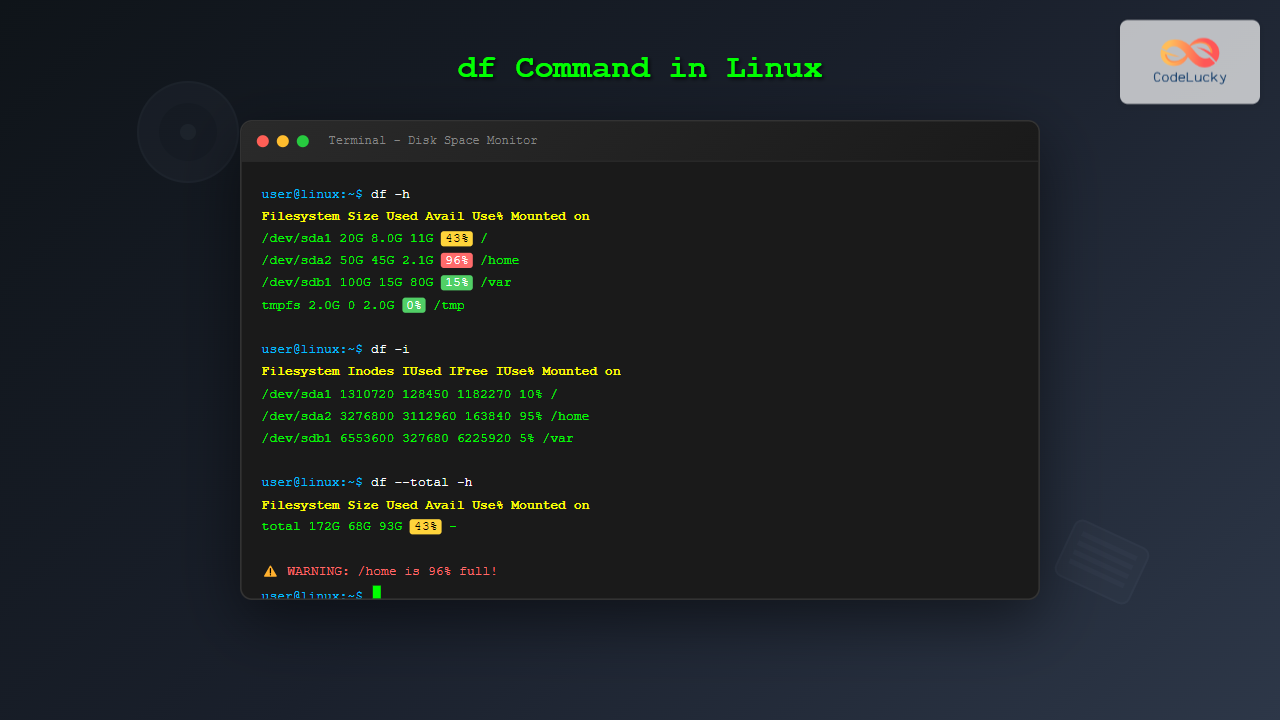
The df command is one of the most essential tools in a Linux system administrator’s toolkit. Standing for “disk free,” this powerful utility provides crucial information about filesystem disk space usage across your system. Whether you’re monitoring server resources or troubleshooting storage issues, understanding the df command is fundamental for effective Linux system management.
What is the df Command?
The df command displays information about the amount of disk space used and available on filesystems. It shows statistics for mounted filesystems, including total space, used space, available space, and the percentage of space used. This information is vital for preventing disk space exhaustion and maintaining system health.
Basic Syntax
The basic syntax of the df command is straightforward:
df [OPTION]... [FILE]...When used without any options or arguments, df displays information for all currently mounted filesystems:
$ df
Filesystem     1K-blocks    Used Available Use% Mounted on
/dev/sda1       20971520 8388608  11534336  43% /
tmpfs            1048576       0   1048576   0% /dev/shm
/dev/sda2       10485760 2097152   7864320  22% /home
/dev/sdb1       52428800 5242880  44371200  11% /var/log
Understanding df Output
Let’s break down each column in the df output:
- Filesystem: The device name or filesystem identifier
- 1K-blocks: Total size in 1K blocks (kilobytes)
- Used: Amount of space currently used
- Available: Amount of free space remaining
- Use%: Percentage of total space currently used
- Mounted on: The mount point where the filesystem is accessible
Most Useful df Command Options
Human-Readable Format (-h)
The -h option displays sizes in human-readable format using units like K, M, G for kilobytes, megabytes, and gigabytes:
$ df -h
Filesystem      Size  Used Avail Use% Mounted on
/dev/sda1        20G  8.0G   11G  43% /
tmpfs           1.0G     0  1.0G   0% /dev/shm
/dev/sda2        10G  2.0G  7.5G  22% /home
/dev/sdb1        50G  5.0G   43G  11% /var/log
Display Filesystem Type (-T)
Use -T to show the filesystem type for each mounted filesystem:
$ df -hT
Filesystem     Type      Size  Used Avail Use% Mounted on
/dev/sda1      ext4       20G  8.0G   11G  43% /
tmpfs          tmpfs     1.0G     0  1.0G   0% /dev/shm
/dev/sda2      ext4       10G  2.0G  7.5G  22% /home
/dev/sdb1      xfs        50G  5.0G   43G  11% /var/log
Show Inodes (-i)
The -i option displays inode information instead of block usage:
$ df -i
Filesystem      Inodes   IUsed   IFree IUse% Mounted on
/dev/sda1      1310720  128450 1182270   10% /
tmpfs           262144       1  262143    1% /dev/shm
/dev/sda2       655360   32768  622592    5% /home
/dev/sdb1      3276800  163840 3112960    5% /var/log
Exclude Filesystem Types (-x)
Exclude specific filesystem types from the output:
$ df -hx tmpfs -x devtmpfs
Filesystem      Size  Used Avail Use% Mounted on
/dev/sda1        20G  8.0G   11G  43% /
/dev/sda2        10G  2.0G  7.5G  22% /home
/dev/sdb1        50G  5.0G   43G  11% /var/log
Include Specific Filesystem Types (-t)
Display only specific filesystem types:
$ df -ht ext4
Filesystem      Size  Used Avail Use% Mounted on
/dev/sda1        20G  8.0G   11G  43% /
/dev/sda2        10G  2.0G  7.5G  22% /home
Advanced df Command Examples
Check Specific Directory or File
To check disk usage for a specific directory or file:
$ df -h /home
Filesystem      Size  Used Avail Use% Mounted on
/dev/sda2        10G  2.0G  7.5G  22% /home

$ df -h /var/log/messages
Filesystem      Size  Used Avail Use% Mounted on
/dev/sdb1        50G  5.0G   43G  11% /var/log
Display Total Summary (–total)
Add a total line showing the sum of all filesystems:
$ df -h --total
Filesystem      Size  Used Avail Use% Mounted on
/dev/sda1        20G  8.0G   11G  43% /
tmpfs           1.0G     0  1.0G   0% /dev/shm
/dev/sda2        10G  2.0G  7.5G  22% /home
/dev/sdb1        50G  5.0G   43G  11% /var/log
total            81G   15G   62G  20% -
Local Filesystems Only (-l)
Display only local filesystems, excluding network-mounted ones:
$ df -hl
Filesystem      Size  Used Avail Use% Mounted on
/dev/sda1        20G  8.0G   11G  43% /
/dev/sda2        10G  2.0G  7.5G  22% /home
/dev/sdb1        50G  5.0G   43G  11% /var/log
Practical Use Cases
System Monitoring Script
Create a simple monitoring script to check disk usage:
#!/bin/bash
echo "=== Disk Usage Report ==="
echo "Date: $(date)"
echo
df -h | grep -E '^/dev/' | while read filesystem size used avail percent mounted; do
    usage=$(echo $percent | sed 's/%//')
    if [ $usage -gt 80 ]; then
        echo "WARNING: $mounted is ${percent} full"
    else
        echo "OK: $mounted is ${percent} full"
    fi
done
Find Large Filesystems
Identify filesystems larger than a specific size:
$ df -h | awk '$2 ~ /G$/ && $2+0 > 10 {print $0}'Sort by Usage Percentage
Sort filesystems by usage percentage:
$ df -h | tail -n +2 | sort -k5 -hrCommon df Command Combinations
Comprehensive System Overview
For a complete system overview, combine multiple options:
$ df -hT --total | column -t
Filesystem  Type   Size  Used  Avail  Use%  Mounted  on
/dev/sda1   ext4   20G   8.0G  11G    43%   /
tmpfs       tmpfs  1.0G  0     1.0G   0%    /dev/shm
/dev/sda2   ext4   10G   2.0G  7.5G   22%   /home
/dev/sdb1   xfs    50G   5.0G  43G    11%   /var/log
total       -      81G   15G   62G    20%   -
Watch Disk Usage in Real-Time
Monitor disk usage continuously using the watch command:
$ watch -n 5 'df -h'Troubleshooting with df
Disk Full Issues
When encountering “No space left on device” errors:
- Check overall disk usage:
df -h - Check inode usage:
df -i - Identify the problematic filesystem
- Use
ducommand to find large directories
Hidden Disk Usage
Sometimes df shows available space, but you can’t write files. This might be due to:
- Reserved space for root user (typically 5% on ext filesystems)
- Open deleted files still consuming space
- Inode exhaustion
df vs Other Disk Utilities
| Command | Purpose | Best Used For |
|---|---|---|
| df | Shows filesystem disk space usage | Overall system disk monitoring |
| du | Shows directory space usage | Finding large directories/files |
| lsblk | Lists block devices | Understanding disk partitions |
| fdisk | Manages disk partitions | Partitioning and disk management |
Best Practices
Regular Monitoring
- Set up automated monitoring for filesystems approaching 80% usage
- Create alerts for critical filesystems at 90% usage
- Include df output in system health reports
Scripting Tips
- Use
df -Pfor consistent output format in scripts - Parse the output carefully when creating automated systems
- Always handle edge cases like unmounted filesystems
Performance Considerations
The df command is generally fast, but consider these factors:
- Network filesystems may cause delays
- Very large filesystems might take longer to query
- Use local filesystem options (-l) when appropriate
Conclusion
The df command is an indispensable tool for Linux system administration. From basic disk space monitoring to complex system health scripts, mastering df helps ensure your systems run smoothly and avoid storage-related issues. Regular use of df, combined with other system monitoring tools, forms the foundation of proactive system management.
By understanding the various options and use cases presented in this guide, you’ll be well-equipped to monitor disk usage effectively, troubleshoot storage issues, and maintain healthy Linux systems. Remember to incorporate df into your regular system maintenance routines and automated monitoring solutions for optimal results.
Related Posts
du Command Linux: Display Directory Size and Disk Usage Explained with Examples
The du (disk usage) command in Linux is a powerful tool that allows users to measure directory size, analyze disk...

stat Command Linux: Complete Guide to Display File and Filesystem Status Information
The stat command is a powerful Linux utility that displays detailed information about files and filesystems. Unlike basic commands like...
quota Command Linux: Complete Guide to Display and Manage Disk Usage Quotas
The quota command is an essential Linux system administration tool that displays disk usage and quota information for users and...
quotacheck Command Linux: Check Filesystem Quotas Explained with Examples
In Linux system administration, maintaining and monitoring disk usage is critical. Without proper checks, uncontrolled disk consumption can lead to...
repquota Command Linux: Complete Guide to Disk Quota Reporting and Management
The repquota command is an essential Linux system administration tool used to report disk quota usage for users and groups...

free Command in Linux: Monitor Memory Usage and Swap Space Efficiently
The free command is one of the most essential utilities in Linux for monitoring system memory usage and swap space....
xfs_info Command Linux: Complete Guide to Display XFS Filesystem Information
The xfs_info command is a powerful utility in Linux systems that provides comprehensive information about XFS filesystems. This command is...
quotaon Command Linux: Enable and Manage Disk Quotas Effectively
The quotaon command is a powerful Linux utility that enables disk quota enforcement on file systems. It allows system administrators...
pvdisplay Command Linux: Complete Guide to Physical Volume Information Display
The pvdisplay command is an essential tool in Linux for displaying detailed information about Physical Volumes (PVs) in Logical Volume...

size Command Linux: Display Section Sizes of Object Files and Executables
The size command is a powerful utility in Linux systems that displays the section sizes of object files, executables, and...
lsof Command Linux: Complete Guide to List Open Files and Running Processes
The lsof command (List Open Files) is one of the most powerful and versatile utilities in Linux systems. It provides...
rm Command in Linux: Complete Guide to Delete Files and Directories Safely
The rm command is one of the most powerful and potentially dangerous commands in Linux. It stands for "remove" and...





