
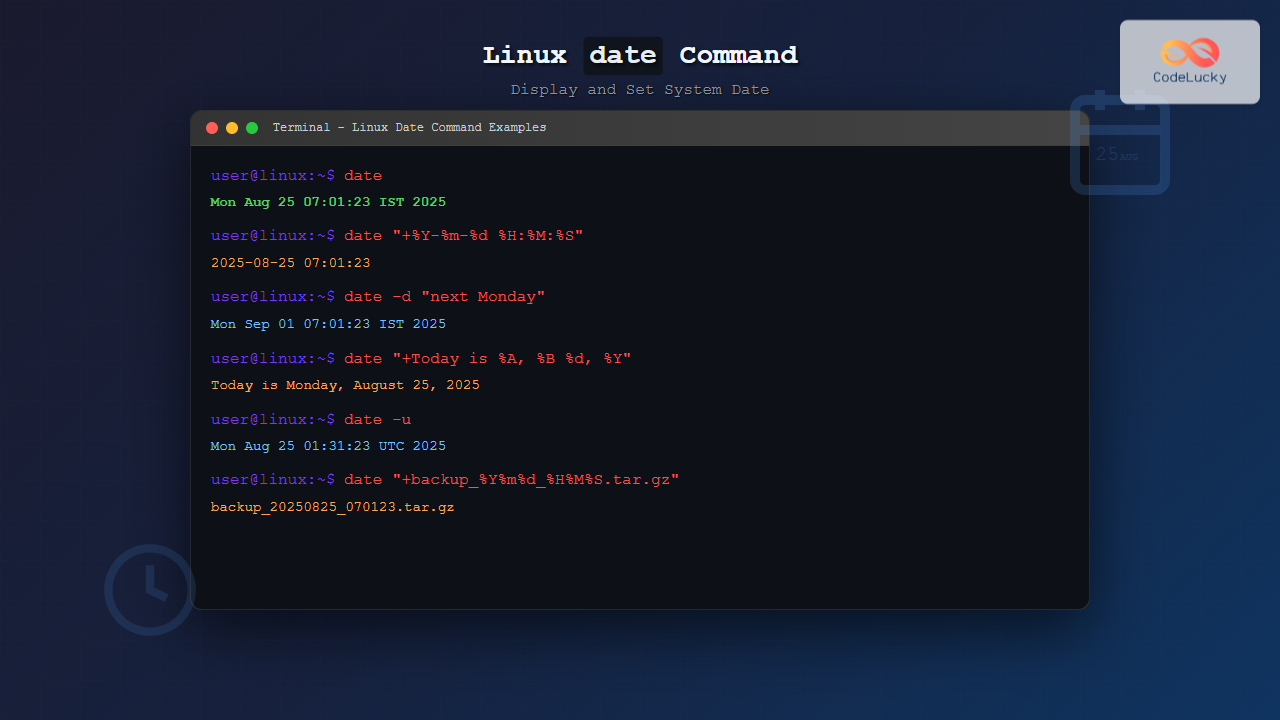
The date command is one of the most fundamental utilities in Linux systems, allowing users to display and manipulate system date and time information. Whether you’re a system administrator managing servers or a developer working with timestamps, understanding the date command is essential for effective Linux system management.
Basic Syntax of the date Command
The basic syntax of the date command follows this structure:
date [OPTION]... [+FORMAT]
date [-u|--utc|--universal] [MMDDhhmm[[CC]YY][.ss]]
Let’s start with the most basic usage – displaying the current date and time:
$ date
Mon Aug 25 07:01:23 IST 2025
Common date Command Options
Display Current Date and Time
The simplest form of the date command shows the current system date and time:
$ date
Mon Aug 25 07:01:23 IST 2025
Display UTC Time
To display time in Coordinated Universal Time (UTC), use the -u or --utc option:
$ date -u
Mon Aug 25 01:31:23 UTC 2025

$ date --utc
Mon Aug 25 01:31:23 UTC 2025
Display Date in ISO 8601 Format
For standardized date formatting, use the -I option:
$ date -I
2025-08-25

$ date -Ihours
2025-08-25T07+05:30

$ date -Iminutes
2025-08-25T07:01+05:30

$ date -Iseconds
2025-08-25T07:01:23+05:30
Date Formatting with Format Specifiers
The real power of the date command lies in its extensive formatting options. You can customize the output using format specifiers preceded by the + sign.
Year Format Specifiers
| Specifier | Description | Example Output |
|---|---|---|
| %Y | Four-digit year | 2025 |
| %y | Two-digit year | 25 |
| %C | Century (year/100) | 20 |
$ date "+Year: %Y, Short: %y, Century: %C"
Year: 2025, Short: 25, Century: 20
Month Format Specifiers
| Specifier | Description | Example Output |
|---|---|---|
| %B | Full month name | August |
| %b | Abbreviated month name | Aug |
| %m | Month number (01-12) | 08 |
$ date "+Month: %B (%b) - %m"
Month: August (Aug) - 08
Day Format Specifiers
| Specifier | Description | Example Output |
|---|---|---|
| %A | Full weekday name | Monday |
| %a | Abbreviated weekday name | Mon |
| %d | Day of month (01-31) | 25 |
| %e | Day of month (1-31) | 25 |
| %j | Day of year (001-366) | 237 |
| %u | Day of week (1-7, Monday=1) | 1 |
| %w | Day of week (0-6, Sunday=0) | 1 |
$ date "+Today is %A, %B %d, %Y (Day %j of the year)"
Today is Monday, August 25, 2025 (Day 237 of the year)
Time Format Specifiers
| Specifier | Description | Example Output |
|---|---|---|
| %H | Hour (00-23) | 07 |
| %I | Hour (01-12) | 07 |
| %M | Minute (00-59) | 01 |
| %S | Second (00-60) | 23 |
| %p | AM/PM | AM |
| %T | Time (HH:MM:SS) | 07:01:23 |
| %R | Time (HH:MM) | 07:01 |
$ date "+Current time: %I:%M:%S %p (24h: %T)"
Current time: 07:01:23 AM (24h: 07:01:23)
Practical Date Formatting Examples
Common Date Formats
# US Format (MM/DD/YYYY)
$ date "+%m/%d/%Y"
08/25/2025

# European Format (DD/MM/YYYY)
$ date "+%d/%m/%Y"
25/08/2025

# ISO Format (YYYY-MM-DD)
$ date "+%Y-%m-%d"
2025-08-25

# Long Format
$ date "+%A, %B %d, %Y"
Monday, August 25, 2025

# Timestamp Format
$ date "+%Y-%m-%d %H:%M:%S"
2025-08-25 07:01:23
Creating Custom Formats
# File naming format
$ date "+backup_%Y%m%d_%H%M%S.tar.gz"
backup_20250825_070123.tar.gz

# Log format
$ date "+[%Y-%m-%d %H:%M:%S]"
[2025-08-25 07:01:23]

# Human readable format
$ date "+It's %I:%M %p on %A, the %d of %B, %Y"
It's 07:01 AM on Monday, the 25 of August, 2025
Working with Different Time Zones
The date command can display time in different time zones using the TZ environment variable:
# Display time in different time zones
$ TZ=UTC date
Mon Aug 25 01:31:23 UTC 2025

$ TZ=America/New_York date
Sun Aug 24 21:31:23 EDT 2025

$ TZ=Europe/London date
Mon Aug 25 02:31:23 BST 2025

$ TZ=Asia/Tokyo date
Mon Aug 25 10:31:23 JST 2025
Setting System Date and Time
Note: Setting the system date requires root privileges. Use sudo when necessary.
Setting Date Using String Format
# Set date and time (MMDDhhmm[[CC]YY][.ss])
$ sudo date 082507302025
Mon Aug 25 07:30:00 IST 2025

# Set only time (hhmmss)
$ sudo date 073000
Mon Aug 25 07:30:00 IST 2025
Setting Date Using -s Option
# Set specific date and time
$ sudo date -s "2025-08-25 07:30:00"
Mon Aug 25 07:30:00 IST 2025

# Set only date
$ sudo date -s "2025-08-25"
Mon Aug 25 00:00:00 IST 2025

# Set only time
$ sudo date -s "07:30:00"
Mon Aug 25 07:30:00 IST 2025

# Natural language (varies by system)
$ sudo date -s "next Monday"
$ sudo date -s "2 hours ago"
Getting Date from File Timestamp
You can display the modification time of a file using the -r option:
$ date -r /etc/passwd
Sun Aug 17 14:22:31 IST 2025

$ date -r /var/log/syslog "+Last modified: %Y-%m-%d at %H:%M"
Last modified: 2025-08-25 at 06:45
Date Arithmetic and Calculations
Adding and Subtracting Time
# Add days
$ date -d "today + 5 days"
Sat Aug 30 07:01:23 IST 2025

$ date -d "+5 days" "+%Y-%m-%d"
2025-08-30

# Subtract days
$ date -d "today - 10 days"
Tue Aug 15 07:01:23 IST 2025

# Add hours and minutes
$ date -d "now + 3 hours 30 minutes"
Mon Aug 25 10:31:23 IST 2025

# Complex calculations
$ date -d "next Monday + 2 weeks - 1 day"
Sun Sep 7 07:01:23 IST 2025
Working with Specific Dates
# Get day of week for specific date
$ date -d "2025-12-25" "+%A"
Thursday

# Calculate days until specific date
$ echo $(( ($(date -d "2025-12-31" +%s) - $(date +%s)) / 86400 ))
128

# Find last day of current month
$ date -d "$(date +%Y-%m-01) + 1 month - 1 day"
Sun Aug 31 00:00:00 IST 2025
Epoch Time and Timestamps
Unix Timestamp (Epoch Time)
# Get current Unix timestamp
$ date +%s
1724551283

# Convert timestamp to readable date
$ date -d "@1724551283"
Mon Aug 25 07:01:23 IST 2025

# Get timestamp with nanoseconds
$ date +%s.%N
1724551283.456789123
Practical Use Cases and Scripts
Log File Naming
#!/bin/bash
# Create log file with timestamp
LOG_FILE="/var/log/app_$(date +%Y%m%d_%H%M%S).log"
echo "Application started" > "$LOG_FILE"
echo "Log file created: $LOG_FILE"
Backup Script with Date
#!/bin/bash
# Backup with timestamp
BACKUP_DIR="/backup"
DATE_STAMP=$(date +%Y%m%d_%H%M%S)
tar -czf "${BACKUP_DIR}/backup_${DATE_STAMP}.tar.gz" /home/user/documents
Time-based Conditional Logic
#!/bin/bash
# Different actions based on time
HOUR=$(date +%H)

if [ $HOUR -lt 12 ]; then
    echo "Good morning! Current time: $(date +%I:%M %p)"
elif [ $HOUR -lt 18 ]; then
    echo "Good afternoon! Current time: $(date +%I:%M %p)"
else
    echo "Good evening! Current time: $(date +%I:%M %p)"
fi
Common date Command Flags and Options
| Option | Description |
|---|---|
| -d, –date=STRING | Display time described by STRING |
| -f, –file=DATEFILE | Process dates from DATEFILE |
| -I, –iso-8601 | Output date in ISO 8601 format |
| -r, –reference=FILE | Display last modification time of FILE |
| -R, –rfc-2822 | Output date in RFC 2822 format |
| -s, –set=STRING | Set time described by STRING |
| -u, –utc | Print or set UTC time |
| –help | Display help and exit |
| –version | Output version information |
Troubleshooting Common Issues
Permission Denied When Setting Date
If you encounter permission errors when setting the date, ensure you have root privileges:
$ date -s "2025-08-25 07:30:00"
date: cannot set date: Operation not permitted

# Solution: Use sudo
$ sudo date -s "2025-08-25 07:30:00"
Mon Aug 25 07:30:00 IST 2025
Invalid Date Format Errors
$ date -d "invalid date"
date: invalid date 'invalid date'

# Use proper format
$ date -d "2025-08-25"
Mon Aug 25 00:00:00 IST 2025
Best Practices
- Always use UTC for servers: When managing servers across time zones, work with UTC to avoid confusion.
- Consistent formatting: Use consistent date formats in scripts and logs for easier parsing.
- Backup before setting: Always note the current date before changing system time.
- Use NTP: For production systems, use Network Time Protocol (NTP) instead of manually setting time.
- Quote complex formats: Always quote format strings containing spaces or special characters.
Integration with Other Commands
The date command works well with other Linux utilities:
# With find command
$ find /var/log -name "*.log" -newermt "$(date -d '1 week ago')"

# With touch command
$ touch -d "$(date -d 'yesterday')" oldfile.txt

# With at command
$ echo "echo 'Reminder!' | mail [email protected]" | at $(date -d 'tomorrow 9am' +%m%d%H%M%Y)
Conclusion
The Linux date command is an incredibly versatile tool that goes far beyond simply displaying the current date and time. From formatting output for logs and scripts to performing date arithmetic and setting system time, mastering the date command is essential for effective Linux system administration and scripting.
Whether you’re creating timestamped backups, parsing log files, or building time-aware applications, the examples and techniques covered in this guide provide a solid foundation for working with dates and times in Linux environments. Practice these commands and incorporate them into your daily workflows to become more efficient with Linux system management.
Related Posts
timedatectl Command Linux: Complete Guide to System Time and Date Management
The timedatectl command is a powerful utility in modern Linux distributions that provides a unified interface for managing system time,...
ntpdate Command Linux: Complete Guide to Network Time Synchronization (Deprecated Tool)
The ntpdate command was once a cornerstone tool for Linux system administrators to synchronize system time with Network Time Protocol...
cal Command Linux: Display and Manage Calendars in Terminal
The cal command is one of Linux's most straightforward yet powerful utilities for displaying calendar information directly in your terminal....

MySQL DATE_FORMAT Function: Mastering Date Output
The DATE_FORMAT function in MySQL is your go-to tool for displaying dates and times in the precise format you need....
locale Command Linux: Complete Guide to Display System Locale Information
The locale command is an essential Linux utility that displays and manages locale-specific information on your system. Locales define how...

Java Date: Working with Dates and Times
Java provides robust support for working with dates and times, offering developers powerful tools to handle various temporal operations. Whether...

PHP Date and Time: Working with Temporal Data
In the world of web development, handling dates and times is a crucial skill. PHP offers a robust set of...

MySQL ADDDATE Function: Mastering Date Manipulation
The ADDDATE function in MySQL is your go-to tool for manipulating dates by adding specific intervals. Whether you're calculating deadlines,...

MySQL Date Functions: Master Date Manipulation
Date and time are crucial aspects of almost every database application. Whether you are scheduling events, tracking user activity, or...

MySQL NOW Function: Get Current Timestamp with Precision
The NOW() function in MySQL is your go-to tool for capturing the current date and time. It's essential for tracking...
MySQL CURDATE Function: Get Today’s Date
The CURDATE() function in MySQL is your go-to tool for quickly retrieving the current date. Whether you're logging transactions, creating...
timedatectl Advanced Linux: Complete Time and Date Management Guide
The timedatectl command is a powerful Linux utility that provides comprehensive control over system time and date settings. As part...





