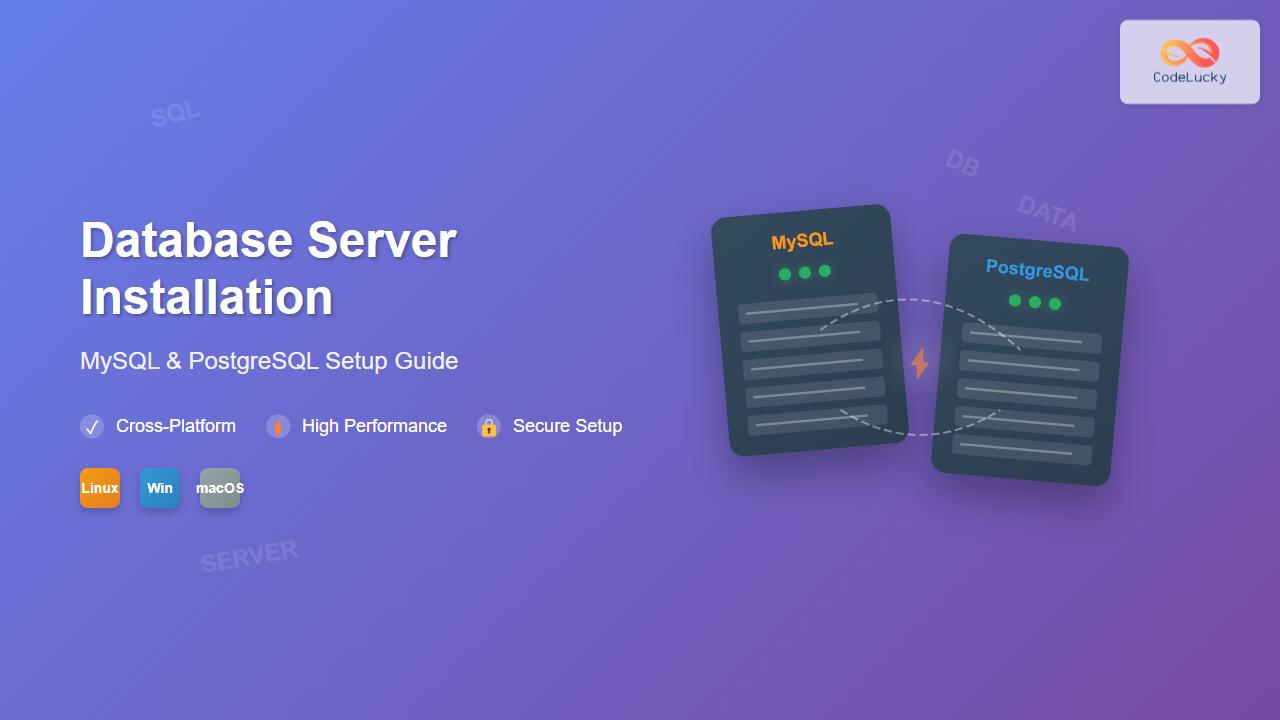
Database servers form the backbone of modern applications, storing and managing critical data efficiently. MySQL and PostgreSQL stand as the most popular open-source relational database management systems, each offering unique advantages for different use cases. This comprehensive guide walks you through installing both database servers across major operating systems.
Understanding Database Server Architecture

A database server operates as a multi-layered system where client applications connect through specific drivers, sending SQL queries that get parsed, optimized, and executed against stored data files. The storage engine handles data retrieval, caching, and transaction management.
MySQL vs PostgreSQL: Key Differences
| Feature | MySQL | PostgreSQL |
|---|---|---|
| ACID Compliance | InnoDB engine only | Full ACID compliance |
| Storage Engines | Multiple (InnoDB, MyISAM, Memory) | Single extensible engine |
| Data Types | Standard SQL types | Rich data types (JSON, Arrays, UUID) |
| Performance | Faster for simple queries | Better for complex operations |
| Replication | Master-slave, Master-master | Streaming, logical replication |
System Requirements
Hardware Requirements
- RAM: Minimum 512MB, recommended 2GB+
- Storage: 200MB for installation, additional space for data
- CPU: Any modern processor (x86_64 recommended)
- Network: TCP/IP stack for remote connections
Software Prerequisites
- Linux: glibc 2.12+, kernel 2.6+
- Windows: Windows 10/Server 2016+
- macOS: macOS 10.14+
MySQL Installation
Linux Installation (Ubuntu/Debian)
Update your package repository and install MySQL server:
sudo apt update
sudo apt install mysql-server mysql-client

# Verify installation
mysql --version
Expected Output:
mysql Ver 8.0.35-0ubuntu0.22.04.1 for Linux on x86_64Run the security installation script:
sudo mysql_secure_installationThis interactive script will:
- Set root password
- Remove anonymous users
- Disable remote root login
- Remove test database
Linux Installation (CentOS/RHEL)
# Install MySQL repository
wget https://dev.mysql.com/get/mysql80-community-release-el8-1.noarch.rpm
sudo rpm -Uvh mysql80-community-release-el8-1.noarch.rpm

# Install MySQL server
sudo yum install mysql-community-server

# Start and enable MySQL service
sudo systemctl start mysqld
sudo systemctl enable mysqld

# Get temporary root password
sudo grep 'temporary password' /var/log/mysqld.log
Windows Installation
Download MySQL Installer from the official website and follow these steps:
- Run
mysql-installer-community-8.0.xx.x.msi - Choose “Server only” or “Full” installation
- Select MySQL Server 8.0.x
- Configure server with these settings:
- Config Type: Development Computer
- Connectivity: TCP/IP, Port 3306
- Authentication: Use Strong Password Encryption
- Set root password and create additional users if needed
- Configure Windows Service to start automatically
macOS Installation
Using Homebrew (recommended):
# Install Homebrew if not already installed
/bin/bash -c "$(curl -fsSL https://raw.githubusercontent.com/Homebrew/install/HEAD/install.sh)"

# Install MySQL
brew install mysql

# Start MySQL service
brew services start mysql

# Secure installation
mysql_secure_installation
Alternative DMG installation:
- Download MySQL Community Server DMG
- Double-click the installer package
- Follow installation wizard
- Note the temporary root password displayed
- Start MySQL from System Preferences
PostgreSQL Installation
Linux Installation (Ubuntu/Debian)
# Install PostgreSQL server and client
sudo apt update
sudo apt install postgresql postgresql-contrib

# Verify installation
psql --version
Expected Output:
psql (PostgreSQL) 14.9 (Ubuntu 14.9-0ubuntu0.22.04.1)Switch to postgres user and access database:
# Switch to postgres system user
sudo -i -u postgres

# Access PostgreSQL prompt
psql

# Create a new database user
CREATE USER myuser WITH PASSWORD 'mypassword';
CREATE DATABASE mydatabase OWNER myuser;
Linux Installation (CentOS/RHEL)
# Install PostgreSQL repository
sudo yum install -y https://download.postgresql.org/pub/repos/yum/reporpms/EL-8-x86_64/pgdg-redhat-repo-latest.noarch.rpm

# Install PostgreSQL 15
sudo yum install -y postgresql15-server postgresql15

# Initialize database
sudo /usr/pgsql-15/bin/postgresql-15-setup initdb

# Start and enable service
sudo systemctl enable postgresql-15
sudo systemctl start postgresql-15
Windows Installation
- Download PostgreSQL installer from EnterpriseDB
- Run
postgresql-15.x-x-windows-x64.exe - Installation wizard configuration:
- Installation Directory: C:\Program Files\PostgreSQL\15
- Data Directory: C:\Program Files\PostgreSQL\15\data
- Port: 5432
- Locale: Default locale
- Set password for postgres superuser
- Install Stack Builder for additional tools (optional)
macOS Installation
Using Homebrew:
# Install PostgreSQL
brew install postgresql@15

# Start PostgreSQL service
brew services start postgresql@15

# Create initial database
initdb /usr/local/var/postgres
Using Postgres.app (GUI alternative):
- Download Postgres.app
- Drag to Applications folder
- Launch and click “Initialize”
- Access via built-in psql or external tools
Database Server Configuration

MySQL Configuration
Key configuration file locations:
- Linux:
/etc/mysql/mysql.conf.d/mysqld.cnf - Windows:
C:\ProgramData\MySQL\MySQL Server 8.0\my.ini - macOS:
/usr/local/etc/my.cnf
Essential configuration parameters:
[mysqld]
# Basic settings
port = 3306
bind-address = 127.0.0.1
max_connections = 151
max_allowed_packet = 64M

# InnoDB settings
innodb_buffer_pool_size = 1G
innodb_log_file_size = 256M
innodb_flush_log_at_trx_commit = 2

# Security settings
skip-show-database
local-infile = 0

# Logging
general_log = 1
general_log_file = /var/log/mysql/mysql.log
slow_query_log = 1
slow_query_log_file = /var/log/mysql/slow.log
long_query_time = 2
PostgreSQL Configuration
Key configuration files:
- postgresql.conf: Main configuration
- pg_hba.conf: Authentication settings
- pg_ident.conf: User mapping
Important postgresql.conf settings:
# Connection settings
listen_addresses = 'localhost'
port = 5432
max_connections = 100

# Memory settings
shared_buffers = 256MB
effective_cache_size = 1GB
work_mem = 4MB
maintenance_work_mem = 64MB

# Logging
log_destination = 'stderr'
logging_collector = on
log_directory = 'log'
log_filename = 'postgresql-%Y-%m-%d_%H%M%S.log'
log_statement = 'mod'
log_min_duration_statement = 1000

# Security
ssl = on
password_encryption = scram-sha-256
Basic Database Operations
MySQL Commands
-- Connect to MySQL
mysql -u root -p

-- Create database and user
CREATE DATABASE ecommerce_db;
CREATE USER 'app_user'@'localhost' IDENTIFIED BY 'secure_password';
GRANT ALL PRIVILEGES ON ecommerce_db.* TO 'app_user'@'localhost';
FLUSH PRIVILEGES;

-- Show databases and tables
SHOW DATABASES;
USE ecommerce_db;
SHOW TABLES;

-- Create sample table
CREATE TABLE products (
    id INT AUTO_INCREMENT PRIMARY KEY,
    name VARCHAR(255) NOT NULL,
    price DECIMAL(10,2),
    created_at TIMESTAMP DEFAULT CURRENT_TIMESTAMP
);
PostgreSQL Commands
-- Connect to PostgreSQL
psql -U postgres

-- Create database and user
CREATE DATABASE ecommerce_db;
CREATE USER app_user WITH PASSWORD 'secure_password';
GRANT ALL PRIVILEGES ON DATABASE ecommerce_db TO app_user;

-- List databases and connect
\l
\c ecommerce_db

-- Create sample table with advanced features
CREATE TABLE products (
    id SERIAL PRIMARY KEY,
    name VARCHAR(255) NOT NULL,
    price DECIMAL(10,2),
    metadata JSONB,
    tags TEXT[],
    created_at TIMESTAMP DEFAULT CURRENT_TIMESTAMP
);

-- Create index on JSON field
CREATE INDEX idx_products_metadata ON products USING GIN (metadata);
Security Best Practices

MySQL Security Hardening
-- Remove anonymous users
DELETE FROM mysql.user WHERE User='';

-- Remove remote root access
DELETE FROM mysql.user WHERE User='root' AND Host NOT IN ('localhost', '127.0.0.1', '::1');

-- Remove test database
DROP DATABASE IF EXISTS test;
DELETE FROM mysql.db WHERE Db='test' OR Db='test\\_%';

-- Create application user with limited privileges
CREATE USER 'app_readonly'@'localhost' IDENTIFIED BY 'complex_password';
GRANT SELECT ON myapp.* TO 'app_readonly'@'localhost';

-- Enable SSL
ALTER USER 'app_user'@'localhost' REQUIRE SSL;
FLUSH PRIVILEGES;
PostgreSQL Security Configuration
Update pg_hba.conf for secure authentication:
# TYPE  DATABASE        USER            ADDRESS                 METHOD

# Local connections
local   all             postgres                                peer
local   all             all                                     md5

# IPv4 local connections
host    all             all             127.0.0.1/32            scram-sha-256

# IPv6 local connections
host    all             all             ::1/128                 scram-sha-256

# Remote connections (if needed)
hostssl myapp           app_user        192.168.1.0/24          scram-sha-256
Performance Optimization
MySQL Performance Tuning
-- Enable query cache (MySQL 5.7 and earlier)
SET GLOBAL query_cache_size = 67108864;
SET GLOBAL query_cache_type = ON;

-- Optimize InnoDB settings
SET GLOBAL innodb_buffer_pool_size = 2147483648;  -- 2GB
SET GLOBAL innodb_log_buffer_size = 16777216;     -- 16MB

-- Monitor slow queries
SHOW VARIABLES LIKE 'slow_query_log%';
SHOW GLOBAL STATUS LIKE 'Slow_queries';
PostgreSQL Performance Tuning
-- Update statistics
ANALYZE;

-- Check database performance
SELECT schemaname, tablename, attname, n_distinct, correlation
FROM pg_stats
WHERE schemaname = 'public'
ORDER BY tablename, attname;

-- Monitor active connections
SELECT count(*), state
FROM pg_stat_activity
GROUP BY state;

-- Vacuum and analyze regularly
VACUUM ANALYZE products;
Backup and Recovery

MySQL Backup Commands
# Full database backup
mysqldump -u root -p --all-databases > full_backup.sql

# Single database backup with compression
mysqldump -u root -p ecommerce_db | gzip > ecommerce_backup.sql.gz

# Backup with binary logs for point-in-time recovery
mysqldump -u root -p --single-transaction --flush-logs --master-data=2 ecommerce_db > ecommerce_pit.sql

# Restore database
mysql -u root -p ecommerce_db < ecommerce_backup.sql
PostgreSQL Backup Commands
# Full cluster backup
pg_dumpall -U postgres > full_cluster_backup.sql

# Single database backup
pg_dump -U postgres -d ecommerce_db > ecommerce_backup.sql

# Custom format backup (compressed)
pg_dump -U postgres -d ecommerce_db -Fc > ecommerce_backup.dump

# Restore from custom format
pg_restore -U postgres -d ecommerce_db ecommerce_backup.dump

# Continuous archiving setup (postgresql.conf)
# archive_mode = on
# archive_command = 'cp %p /backup/archive/%f'
Monitoring and Maintenance
MySQL Monitoring Queries
-- Check server status
SHOW GLOBAL STATUS LIKE 'Threads_connected';
SHOW GLOBAL STATUS LIKE 'Questions';
SHOW GLOBAL STATUS LIKE 'Uptime';

-- Monitor InnoDB metrics
SHOW ENGINE INNODB STATUS\G

-- Check table sizes
SELECT table_schema AS "Database",
       table_name AS "Table",
       ROUND(((data_length + index_length) / 1024 / 1024), 2) AS "Size (MB)"
FROM information_schema.TABLES
WHERE table_schema = 'ecommerce_db'
ORDER BY (data_length + index_length) DESC;
PostgreSQL Monitoring Queries
-- Database activity
SELECT datname, numbackends, xact_commit, xact_rollback, blks_read, blks_hit
FROM pg_stat_database
WHERE datname = 'ecommerce_db';

-- Table statistics
SELECT schemaname, tablename, seq_scan, seq_tup_read, idx_scan, idx_tup_fetch
FROM pg_stat_user_tables
ORDER BY seq_scan DESC;

-- Connection information
SELECT count(*) as active_connections, state
FROM pg_stat_activity
WHERE state = 'active'
GROUP BY state;
Troubleshooting Common Issues
MySQL Common Problems
Connection Issues:
- Check if MySQL service is running:
systemctl status mysql - Verify port 3306 is not blocked:
netstat -tlnp | grep 3306 - Check bind-address in configuration file
Performance Issues:
- Enable slow query log to identify bottlenecks
- Check InnoDB buffer pool usage
- Analyze table structure and indexes
PostgreSQL Common Problems
Authentication Issues:
- Verify pg_hba.conf authentication methods
- Check user privileges:
\duin psql - Ensure database exists:
\l
Performance Issues:
- Run VACUUM ANALYZE regularly
- Check for long-running queries
- Monitor connection limits
Conclusion
Successfully installing and configuring MySQL and PostgreSQL database servers requires careful attention to security, performance, and maintenance considerations. MySQL excels in web applications with high read loads, while PostgreSQL offers advanced features for complex applications requiring ACID compliance and rich data types.
Regular maintenance including backups, monitoring, and security updates ensures your database servers remain reliable and performant. Whether choosing MySQL for its simplicity and speed or PostgreSQL for its advanced features and standards compliance, both databases provide robust foundations for modern applications when properly configured and maintained.
Remember to regularly update your database servers, monitor performance metrics, and implement comprehensive backup strategies to protect your valuable data assets.