
Website performance is crucial for user experience and SEO rankings. One of the most effective ways to improve loading times is through CSS purging – the process of removing unused CSS code from your stylesheets. This comprehensive guide will show you how to implement CSS purging techniques that can reduce your CSS file size by up to 90%.
What is CSS Purging?
CSS purging is the automated process of analyzing your HTML templates and JavaScript files to identify which CSS selectors are actually being used, then removing all unused styles from your final CSS bundle. This technique is essential for modern web development, especially when using CSS frameworks like Bootstrap or Tailwind CSS.
Why CSS Purging Matters for Performance
Unused CSS creates several performance issues:
- Increased file sizes: Larger CSS files take longer to download
- Slower parsing: Browsers must parse all CSS rules, even unused ones
- Render blocking: CSS blocks page rendering until fully loaded
- Cache inefficiency: Larger files use more cache space
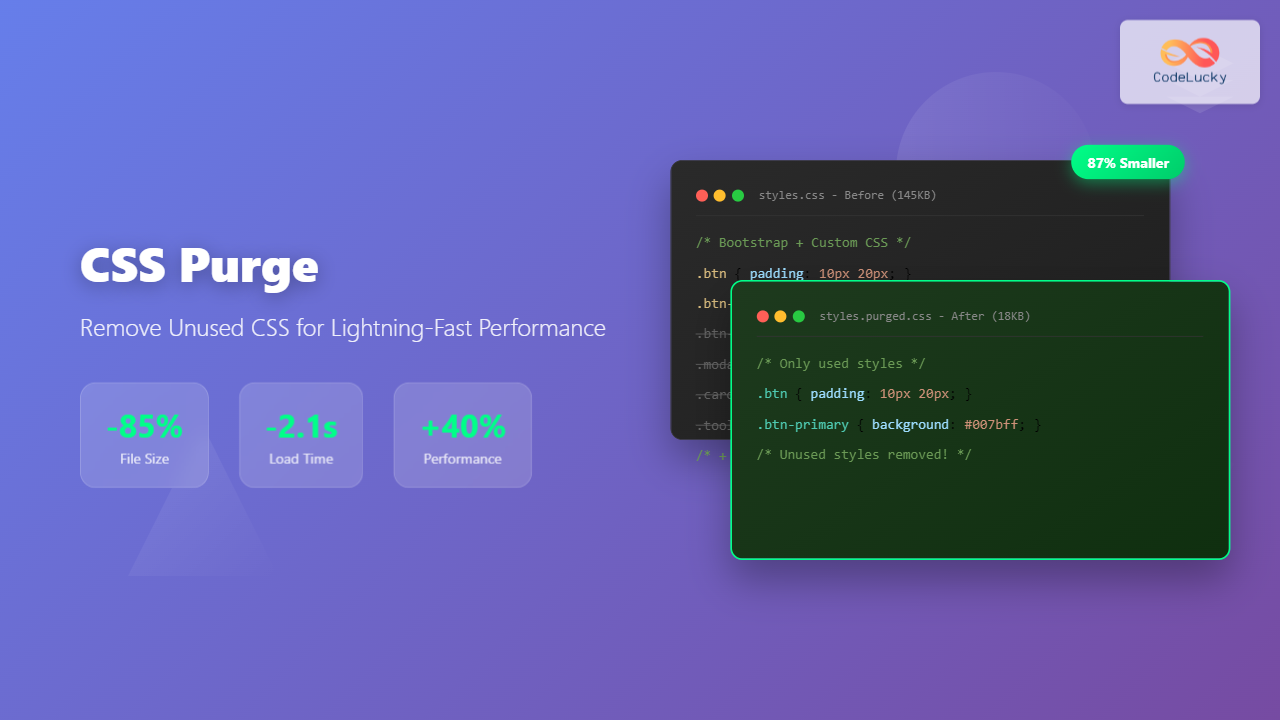
Performance Impact Example
• Bootstrap CSS: 150KB
• Custom CSS: 45KB
• Total: 195KB
After CSS Purging:
• Purged CSS: 28KB
• Reduction: 85.6%
• Load time improvement: 2.3 seconds
Popular CSS Purging Tools
1. PurgeCSS
PurgeCSS is the most popular and flexible CSS purging tool. It works by analyzing your content files and removing unused CSS selectors.
Installation and Basic Setup
npm install –save-dev @fullhuman/postcss-purgecss
# Or install globally
npm install -g purgecss
PurgeCSS Configuration Example
module.exports = {
content: [
‘./src/**/*.html’,
‘./src/**/*.js’,
‘./src/**/*.vue’
],
css: [‘./src/css/**/*.css’],
output: ‘./dist/css/’,
safelist: [
‘.btn’,
‘.modal’,
/^carousel-/
] };
2. UnCSS
UnCSS is another powerful tool that uses PhantomJS to render your pages and determine which CSS is actually used.
const uncss = require(‘uncss’);
uncss([‘http://localhost:3000’], {
stylesheets: [‘css/bootstrap.css’, ‘css/main.css’],
ignore: [‘.fade’, ‘.collapse’]
}, function(error, output) {
// Save purged CSS
console.log(output);
});
3. Critical CSS Tools
Critical CSS extraction is another optimization technique that works alongside purging:
const critical = require(‘critical’);
critical.generate({
inline: true,
base: ‘dist/’,
src: ‘index.html’,
dest: ‘index-critical.html’,
width: 1300,
height: 900
});
CSS Purging with Build Tools
Webpack Integration
const PurgeCSSPlugin = require(‘purgecss-webpack-plugin’);
const glob = require(‘glob’);
const path = require(‘path’);
module.exports = {
plugins: [
new PurgeCSSPlugin({
paths: glob.sync(`${path.join(__dirname, ‘src’)}/**/*`, { nodir: true }),
only: [‘bundle’, ‘vendor’]
})
]
};
PostCSS Integration
module.exports = {
plugins: [
require(‘@fullhuman/postcss-purgecss’)({
content: [‘./src/**/*.html’, ‘./src/**/*.js’],
defaultExtractor: content => content.match(/[\w-/:]+(?) || [] })
] };
Interactive CSS Purging Demo
Before Purging (Original CSS)
.btn { padding: 10px 20px; }
.btn-primary { background: #007bff; }
.btn-secondary { background: #6c757d; }
.modal { display: none; }
.carousel { position: relative; }
/* + 2000 more unused rules… */
After Purging (Optimized CSS)
.btn { padding: 10px 20px; }
.btn-primary { background: #007bff; }
/* Modal and carousel removed – not used! */
Advanced CSS Purging Techniques
Safelisting Dynamic Classes
Some CSS classes are added dynamically via JavaScript and might be removed incorrectly. Use safelisting to protect them:
safelist: [
‘active’,
‘show’,
‘fade’,
/^js-/,
/^carousel-item/,
{
pattern: /^btn-/,
variants: [‘hover’, ‘focus’] }
]
Custom Extractors for Frameworks
extractors: [
{
extractor: class {
static extract(content) {
return content.match(/[A-Za-z0-9_-]+/g) || [];
}
},
extensions: [‘html’, ‘js’, ‘jsx’, ‘vue’] }
]
CSS Purging Best Practices
⚠️ Common Pitfalls to Avoid
- Not testing thoroughly after purging
- Forgetting to safelist dynamic classes
- Running purge on development builds
- Not handling third-party library classes
1. Testing Strategy
Always test your website thoroughly after implementing CSS purging:
- Automated testing: Use tools like Puppeteer to screenshot pages
- Cross-browser testing: Verify appearance across different browsers
- Interactive elements: Test dropdowns, modals, and animations
- Responsive design: Check all breakpoints and device sizes
2. Performance Monitoring
Key Metrics to Track
-85%
Average reduction
-2.1s
Faster FCP
+40%
Improvement
3. Automated Workflows
“scripts”: {
“build”: “npm run build:css && npm run purge:css”,
“build:css”: “sass src/scss:dist/css”,
“purge:css”: “purgecss –config purgecss.config.js”,
“test:visual”: “backstop test”
}
Framework-Specific CSS Purging
Tailwind CSS Purging
Tailwind CSS has built-in purging capabilities that are essential for production builds:
module.exports = {
content: [
‘./pages/**/*.{js,ts,jsx,tsx}’,
‘./components/**/*.{js,ts,jsx,tsx}’
],
safelist: [
‘bg-red-500’,
‘text-3xl’,
{
pattern: /bg-(red|green|blue)-(100|200|300)/
}
] };
Bootstrap Purging
{
content: [‘./src/**/*.html’],
css: [‘./node_modules/bootstrap/dist/css/bootstrap.css’],
safelist: [
/^btn/,
/^modal/,
/^carousel/,
‘show’,
‘active’,
‘fade’
] }
Troubleshooting CSS Purging Issues
Common Problems and Solutions
🔧 Missing Styles After Purging
Problem: Important styles are being removed incorrectly.
Solution: Add the classes to your safelist or adjust your content patterns.
🔧 JavaScript-Generated Classes
Problem: Dynamically added classes are being purged.
Solution: Use safelist patterns or include JS files in content analysis.
Debugging Tips
{
verbose: true,
rejected: true,
stdout: true
}
Conclusion
CSS purging is a powerful optimization technique that can dramatically improve your website’s performance. By removing unused CSS, you can achieve:
- Significantly smaller file sizes (often 80-90% reduction)
- Faster page load times and better Core Web Vitals
- Improved user experience and SEO rankings
- More efficient caching and bandwidth usage
Start with tools like PurgeCSS or built-in framework solutions, implement proper testing procedures, and gradually optimize your purging configuration. Remember to always test thoroughly and safelist any dynamically generated classes to avoid breaking your site’s functionality.
Begin with a simple PurgeCSS setup and measure the performance improvements. Your users (and Google) will thank you for the faster loading times!
Related Posts
CSS Compression: Complete Guide to Minification and Gzip Optimization for Faster Websites
Website performance is crucial for user experience and SEO rankings. One of the most effective ways to improve loading times...
CSS Refactoring: Complete Guide to Modernizing Legacy Stylesheets
Legacy CSS codebases can become a significant burden on development teams, slowing down feature delivery and creating maintenance nightmares. CSS...

CSS Caching: Complete Guide to Browser Cache and CDN Optimization Strategies
CSS caching is a fundamental performance optimization technique that dramatically reduces page load times and improves user experience. By implementing...

CSS Graceful Degradation: Essential Fallback Strategies for Modern Web Development
CSS graceful degradation is a fundamental web development strategy that ensures your website remains functional and accessible across all browsers,...
CSS Performance Metrics: Complete Guide to CLS, FCP, LCP Optimization
Website performance directly impacts user experience, search rankings, and conversion rates. CSS plays a crucial role in three critical performance...
CSS Loading Strategies: Complete Guide to Render-Blocking and Non-Blocking Performance Optimization
CSS loading strategies are fundamental to web performance optimization, directly impacting user experience and search engine rankings. Understanding how different...
CSSStyleDeclaration removeProperty() Method: Removing CSS Properties
CSSStyleDeclaration removeProperty() Method: Removing CSS Properties The removeProperty() method of the CSSStyleDeclaration interface is a powerful tool for dynamically removing...

HTML Styles: Mastering Inline, Internal, and External CSS
Introduction Have you ever looked at a website and wondered how all the elements are so beautifully arranged and styled?...

CSS Reset vs Normalize: Complete Guide to Default Style Standardization
Every web browser comes with its own set of default styles, creating inconsistencies across different platforms. CSS Reset and Normalize.css...
CSS File Organization: Master Folder Structure and Import Strategies for Scalable Projects
Managing CSS files in large projects can quickly become overwhelming without proper organization. Professional developers rely on structured approaches to...
CSS Syntax: Complete Guide to Rules, Selectors, Properties and Values
CSS (Cascading Style Sheets) is the cornerstone of web design, transforming plain HTML into visually stunning websites. Understanding CSS syntax...
CSS Critical Path: Complete Guide to Above-Fold Optimization and Performance
The critical rendering path represents the sequence of steps browsers take to convert HTML, CSS, and JavaScript into pixels on...





