
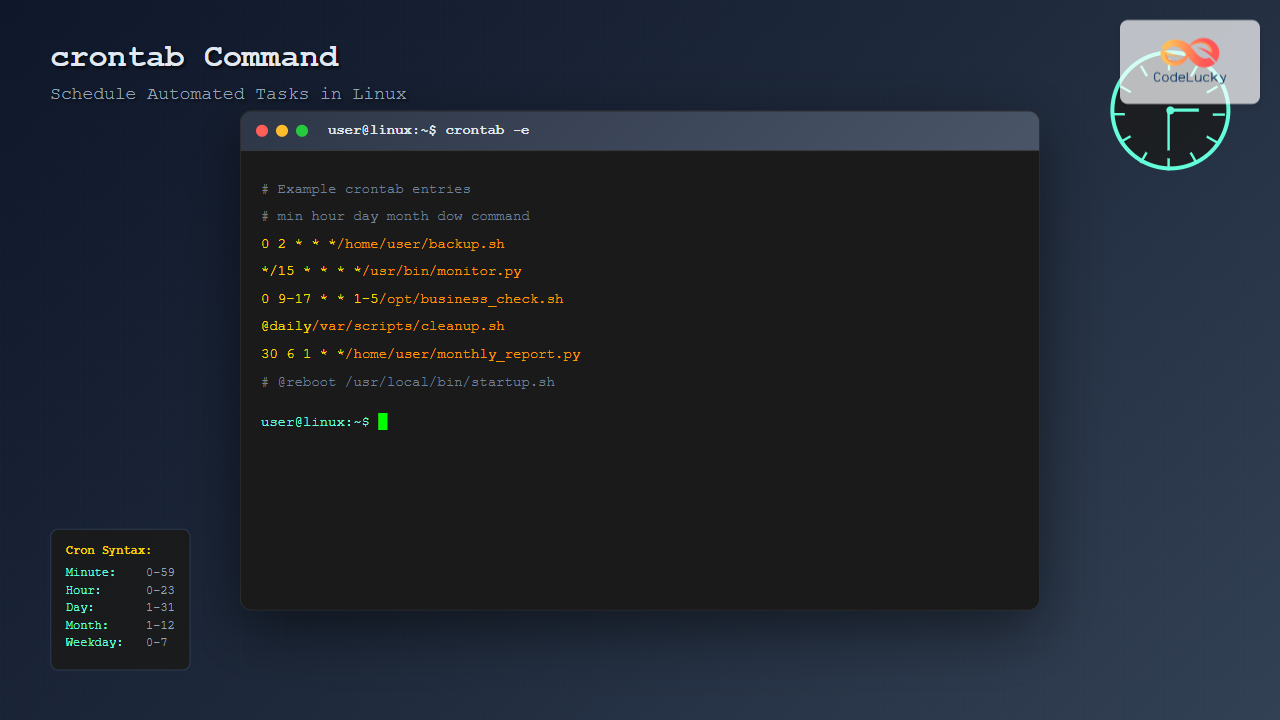
The crontab command is one of the most powerful tools in Linux for scheduling automated tasks. Whether you need to run backups, send reports, or perform system maintenance, crontab enables you to schedule these tasks to run at specific times without manual intervention.
What is crontab?
Crontab (cron table) is a time-based job scheduler in Unix-like operating systems. It allows users to schedule jobs (commands or scripts) to run automatically at specified times and dates. The cron daemon (crond) runs continuously in the background and executes these scheduled tasks.
Understanding Cron Syntax
The crontab syntax consists of six fields separated by spaces:
* * * * * command-to-execute
| | | | |
| | | | +-- Day of week (0-7, Sunday = 0 or 7)
| | | +---- Month (1-12)
| | +------ Day of month (1-31)
| +-------- Hour (0-23)
+---------- Minute (0-59)
Special Characters in Crontab
| Character | Description | Example |
|---|---|---|
| * | Matches any value | * * * * * (every minute) |
| , | List separator | 1,15 * * * * (1st and 15th minute) |
| – | Range of values | 1-5 * * * * (minutes 1 through 5) |
| / | Step values | */5 * * * * (every 5 minutes) |
| @ | Special strings | @daily, @weekly, @monthly |
Basic crontab Commands
Viewing Current Crontab
To display your current crontab entries:
crontab -lIf no crontab exists, you’ll see:
no crontab for usernameEditing Crontab
To edit your crontab file:
crontab -eThis opens your default text editor (usually vi/vim or nano) with your crontab file.
Removing Crontab
To remove all crontab entries:
crontab -rWarning: This removes the entire crontab file without confirmation.
Installing from File
To install crontab entries from a file:
crontab filenamePractical Examples
1. Daily Backup Script
Run a backup script every day at 2:30 AM:
30 2 * * * /home/user/scripts/backup.sh2. Weekly System Update
Update the system every Sunday at 3:00 AM:
0 3 * * 0 sudo apt update && sudo apt upgrade -y3. Hourly Log Rotation
Rotate logs every hour:
0 * * * * /usr/sbin/logrotate /etc/logrotate.conf4. Monthly Cleanup
Clean temporary files on the first day of each month:
0 0 1 * * find /tmp -type f -atime +7 -delete5. Business Hours Monitoring
Run monitoring script every 15 minutes during business hours (9 AM to 5 PM, Monday to Friday):
*/15 9-17 * * 1-5 /home/user/scripts/monitor.shUsing Special Time Strings
Crontab supports special time strings for common scheduling patterns:
@yearly   # Run once a year (0 0 1 1 *)
@monthly  # Run once a month (0 0 1 * *)
@weekly   # Run once a week (0 0 * * 0)
@daily    # Run once a day (0 0 * * *)
@hourly   # Run once an hour (0 * * * *)
@reboot   # Run at startup
Example with Special Strings
@daily /home/user/scripts/daily_report.sh
@weekly /home/user/scripts/weekly_cleanup.sh
@reboot /home/user/scripts/startup.sh
Managing User Crontabs
Root User Operations
As root, you can manage other users’ crontabs:
# View another user's crontab
crontab -u username -l

# Edit another user's crontab
crontab -u username -e

# Remove another user's crontab
crontab -u username -r
System-wide Crontabs
System-wide crontab files are located in:
/etc/crontab– Main system crontab/etc/cron.d/– Additional system cron files/etc/cron.daily/– Daily scripts/etc/cron.weekly/– Weekly scripts/etc/cron.monthly/– Monthly scripts
Environment Variables in Crontab
Crontab runs with a minimal environment. You can set environment variables at the beginning of your crontab file:
SHELL=/bin/bash
PATH=/usr/local/sbin:/usr/local/bin:/sbin:/bin:/usr/sbin:/usr/bin
[email protected]
HOME=/home/user

# Your cron jobs here
0 2 * * * /home/user/scripts/backup.sh
Logging and Output Handling
Redirecting Output
By default, cron sends output via email. You can redirect output:
# Redirect to a log file
0 2 * * * /home/user/scripts/backup.sh >> /var/log/backup.log 2>&1

# Discard output
0 2 * * * /home/user/scripts/backup.sh > /dev/null 2>&1

# Send only errors to email
0 2 * * * /home/user/scripts/backup.sh > /dev/null
Checking Cron Logs
View cron logs to troubleshoot issues:
# On most systems
tail -f /var/log/cron

# On Ubuntu/Debian
tail -f /var/log/syslog | grep CRON

# Using journalctl (systemd systems)
journalctl -u cron
Common Troubleshooting
1. Jobs Not Running
Check cron daemon status:
# SystemD systems
systemctl status cron

# SysV systems
service cron status
Verify crontab syntax:
# Test your cron expression
crontab -l | head -1  # Check first line for syntax errors
2. Path Issues
Always use absolute paths in cron jobs:
# Wrong
0 2 * * * backup.sh

# Correct
0 2 * * * /home/user/scripts/backup.sh
3. Permission Problems
Ensure scripts have execute permissions:
chmod +x /home/user/scripts/backup.shSecurity Considerations
Crontab Access Control
Control who can use crontab with these files:
/etc/cron.allow– Users listed can use crontab/etc/cron.deny– Users listed cannot use crontab
Best Security Practices
- Use specific paths instead of relying on PATH
- Validate input in scripts called by cron
- Run jobs with minimum required privileges
- Regularly audit crontab entries
- Use appropriate file permissions on scripts
Advanced Crontab Techniques
Conditional Execution
Run jobs only if certain conditions are met:
# Run backup only if directory exists
0 2 * * * [ -d /backup ] && /home/user/scripts/backup.sh

# Run with lock file to prevent overlapping
0 2 * * * flock -n /tmp/backup.lock /home/user/scripts/backup.sh
Random Delays
Add random delays to prevent system overload:
# Sleep for random time (0-300 seconds) before execution
0 2 * * * sleep $((RANDOM \% 300)); /home/user/scripts/backup.sh
Monitoring Cron Job Execution
Create a wrapper script to monitor job execution:
#!/bin/bash
# cron_wrapper.sh
SCRIPT="$1"
LOGFILE="/var/log/cron_jobs.log"

echo "$(date): Starting $SCRIPT" >> $LOGFILE
$SCRIPT
EXIT_CODE=$?
echo "$(date): Finished $SCRIPT with exit code $EXIT_CODE" >> $LOGFILE
exit $EXIT_CODE
Interactive Crontab Generator
Here’s a simple method to generate crontab entries:
# For every 5 minutes:
*/5 * * * * command

# For specific times (e.g., 8:30 AM daily):
30 8 * * * command

# For multiple specific times:
0 8,12,18 * * * command

# For weekdays only:
0 9 * * 1-5 command

# For last day of month (approximation):
0 0 28-31 * * [ $(date -d tomorrow +\%d) -eq 1 ] && command
Performance and Resource Management
Preventing Overlapping Jobs
Use file locking to prevent multiple instances:
0 * * * * flock -n /tmp/myjob.lock -c '/path/to/myjob.sh'Resource-Intensive Jobs
Use nice and ionice for resource management:
# Lower CPU priority
0 2 * * * nice -n 19 /path/to/cpu-intensive-script.sh

# Lower I/O priority
0 2 * * * ionice -c 3 /path/to/io-intensive-script.sh

# Combined
0 2 * * * nice -n 19 ionice -c 3 /path/to/heavy-script.sh
Conclusion
The crontab command is an essential tool for Linux system administrators and developers. By mastering its syntax and understanding best practices, you can automate routine tasks, improve system efficiency, and ensure critical operations run reliably. Remember to always test your cron jobs, monitor their execution, and implement proper error handling and logging.
Start with simple schedules and gradually implement more complex automation as you become comfortable with crontab’s capabilities. Regular maintenance and monitoring of your scheduled tasks will ensure your automated systems run smoothly and efficiently.
Related Posts

PHP CRON Jobs: Scheduling Automated Tasks
In the world of web development, automation is key to efficiency and productivity. One powerful tool in a PHP developer's...
at Command Linux: Complete Guide to Schedule One-time Tasks with Examples
The at command in Linux is a powerful utility for scheduling one-time tasks to run at specific times in the...

MySQL Events: Schedule Tasks Like a Pro
Imagine having a diligent assistant that automatically performs repetitive tasks in your MySQL database, freeing you to focus on more...
jobs Command Linux: Complete Guide to Managing Background Jobs in Terminal
The jobs command is an essential tool for Linux users who need to manage multiple processes running in the background....
watch Command Linux: Monitor and Execute Commands Repeatedly in Real-Time
The watch command is one of the most powerful utilities in Linux for executing commands repeatedly at regular intervals and...
sleep Command Linux: Complete Guide to Delay Execution in Scripts and Terminal
The sleep command is one of the most fundamental utilities in Linux and Unix-like systems, designed to pause execution for...
bg Command in Linux: Resume Jobs in Background with Examples
The bg command in Linux is a powerful built-in shell command that allows you to resume suspended jobs in the...
Completely Fair Scheduler: Linux CFS Algorithm Deep Dive
The Linux Completely Fair Scheduler (CFS) revolutionized process scheduling in the Linux kernel when it was introduced in version 2.6.23....
uptime Command Linux: Complete Guide to System Uptime and Load Average Monitoring
The uptime command is one of the most fundamental system monitoring tools in Linux, providing essential information about how long...
Real-time Scheduling: Hard and Soft Real-time Systems in Operating Systems
Real-time scheduling is a critical component of operating systems that manage tasks with strict timing requirements. Unlike traditional scheduling systems...
service Command Linux: Complete Guide to Managing System Services
The service command is a fundamental tool in Linux system administration that allows you to manage system services and daemons...
chrony Linux: Complete Guide to NTP Client and Server Configuration
Network Time Protocol (NTP) synchronization is crucial for maintaining accurate time across Linux systems. chrony is a modern, versatile NTP...





