
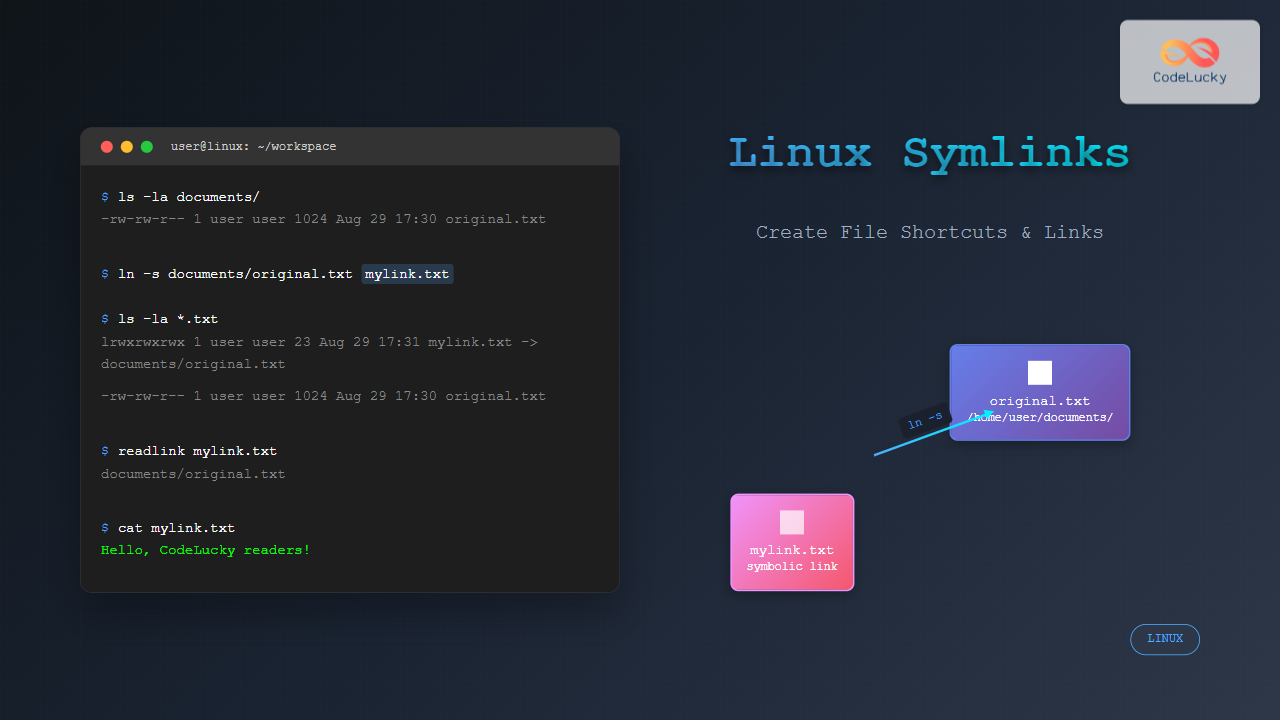
Symbolic links, commonly known as symlinks, are powerful file system features in Linux that create shortcuts to files and directories. Think of them as advanced aliases that point to the actual location of a file or folder, enabling efficient file organization and management without duplicating data.
In this comprehensive guide, you’ll learn everything about creating and managing symlinks in Linux, from basic syntax to advanced use cases and troubleshooting techniques.
What is a Symbolic Link?
A symbolic link is a special type of file that contains a reference to another file or directory. Unlike copying a file, which creates a duplicate consuming additional storage space, a symlink simply points to the original file’s location.

Types of Links in Linux
Linux supports two types of links:
- Symbolic Links (Soft Links): Point to the pathname of another file
- Hard Links: Point directly to the inode of another file
Basic Symlink Creation Syntax
The ln command with the -s flag creates symbolic links:
ln -s [TARGET] [LINK_NAME]Where:
TARGET: The original file or directory pathLINK_NAME: The name of the symbolic link to create
Creating Symlinks: Step-by-Step Examples
Example 1: Basic File Symlink
Let’s create a symbolic link to a text file:
# Create a sample file
echo "Hello, CodeLucky readers!" > /home/user/documents/original.txt

# Create a symbolic link
ln -s /home/user/documents/original.txt mylink.txt

# Verify the symlink
ls -la mylink.txt
Output:
lrwxrwxrwx 1 user user 32 Aug 29 17:30 mylink.txt -> /home/user/documents/original.txtNotice the l at the beginning indicating it’s a link, and the arrow -> showing the target.
Example 2: Directory Symlink
# Create a directory with some files
mkdir /home/user/projects
echo "Project file" > /home/user/projects/readme.txt

# Create a symlink to the directory
ln -s /home/user/projects workspace

# Navigate using the symlink
cd workspace
ls -la
Output:
total 12
drwxrwxr-x 2 user user 4096 Aug 29 17:35 .
drwxrwxr-x 8 user user 4096 Aug 29 17:35 ..
-rw-rw-r-- 1 user user   13 Aug 29 17:35 readme.txt
Example 3: Relative vs Absolute Paths

# Absolute path symlink
ln -s /home/user/documents/file.txt /home/user/projects/absolute_link

# Relative path symlink
cd /home/user/projects
ln -s ../documents/file.txt relative_link
Advanced Symlink Operations
Creating Multiple Symlinks
# Create multiple symlinks to files in a directory
for file in /home/user/documents/*.txt; do
    ln -s "$file" "$(basename "$file" .txt)_link.txt"
done
Force Overwriting Existing Symlinks
# Use -f flag to force overwrite
ln -sf /new/target/path existing_symlink
Interactive Symlink Creation
# Use -i flag for interactive mode
ln -si /target/file link_name
Working with Symlinks
Identifying Symlinks

# List all files showing symlinks
ls -la

# Find all symlinks in current directory
find . -type l

# Show symlink targets
readlink symlink_name

# Show canonical path (resolve all symlinks)
readlink -f symlink_name
Following Symlink Chains
# Create a chain of symlinks
echo "Original content" > original.txt
ln -s original.txt link1.txt
ln -s link1.txt link2.txt
ln -s link2.txt final_link.txt

# Trace the chain
readlink -f final_link.txt
Output:
/home/user/original.txtPractical Use Cases
1. Configuration File Management
# Link configuration files to a central location
ln -s /home/user/dotfiles/.bashrc ~/.bashrc
ln -s /home/user/dotfiles/.vimrc ~/.vimrc
2. Version Management
# Point to current version
ln -s /opt/software/v2.1.0 /opt/software/current

# Update to new version
ln -sf /opt/software/v2.2.0 /opt/software/current
3. Web Server Document Root
# Link web content to different locations
sudo ln -s /home/user/website /var/www/html/mysite
Hard Links vs Symbolic Links

| Feature | Symbolic Link | Hard Link |
|---|---|---|
| Cross filesystem | ✅ Yes | ❌ No |
| Works with directories | ✅ Yes | ❌ No (usually) |
| Broken when original deleted | ✅ Yes | ❌ No |
| File size | Small (path length) | Same as original |
| Permissions | Link permissions | Shared permissions |
Common Issues and Troubleshooting
Broken Symlinks
# Find broken symlinks
find . -type l -exec test ! -e {} \; -print

# Remove broken symlinks
find . -type l -exec test ! -e {} \; -delete
Permission Issues
# Check symlink permissions
ls -la symlink_name

# Permissions apply to the target, not the symlink itself
chmod 755 symlink_name  # This changes the target file permissions
Circular References

# Avoid creating circular references
# This would create an infinite loop:
# ln -s link1 link2
# ln -s link2 link1

# Check for circular references
readlink -f suspicious_link
Best Practices
- Use absolute paths for symlinks that need to work from any location
- Use relative paths for portable symlinks within a project structure
- Document symlinks in your project README files
- Regular cleanup to remove broken symlinks
- Test symlinks after creating them using
readlinkorls -la
Removing Symlinks
# Remove a symlink (this does NOT delete the target)
rm symlink_name

# Or use unlink command
unlink symlink_name

# Remove symlink to directory (don't add trailing slash)
rm directory_symlink
# NOT: rm directory_symlink/  # This would try to delete contents
Scripting with Symlinks
Here’s a practical script for batch symlink creation:
#!/bin/bash
# Script to create symlinks for dotfiles

DOTFILES_DIR="$HOME/dotfiles"
CONFIG_DIR="$HOME/.config"

# Array of config files to link
configs=(
    "bashrc:.bashrc"
    "vimrc:.vimrc"
    "gitconfig:.gitconfig"
)

for config in "${configs[@]}"; do
    source_file="${config%%:*}"
    target_link="${config##*:}"

    if [[ -f "$DOTFILES_DIR/$source_file" ]]; then
        ln -sf "$DOTFILES_DIR/$source_file" "$HOME/$target_link"
        echo "✅ Linked $source_file to $target_link"
    else
        echo "❌ Source file $source_file not found"
    fi
done
Conclusion
Symbolic links are essential tools for efficient Linux file system management. They enable you to create flexible, organized structures without duplicating data. Whether you’re managing configuration files, creating shortcuts, or organizing complex directory structures, mastering symlinks will significantly improve your Linux workflow.
Remember to always use absolute paths when the symlink needs to work from different directories, and prefer relative paths for portable project structures. Regular maintenance to identify and clean up broken symlinks will keep your system organized and functional.
With these techniques and best practices, you’re now equipped to leverage the full power of symbolic links in your Linux environment. Start experimenting with symlinks in a safe directory to build confidence before applying them to critical system configurations.





