
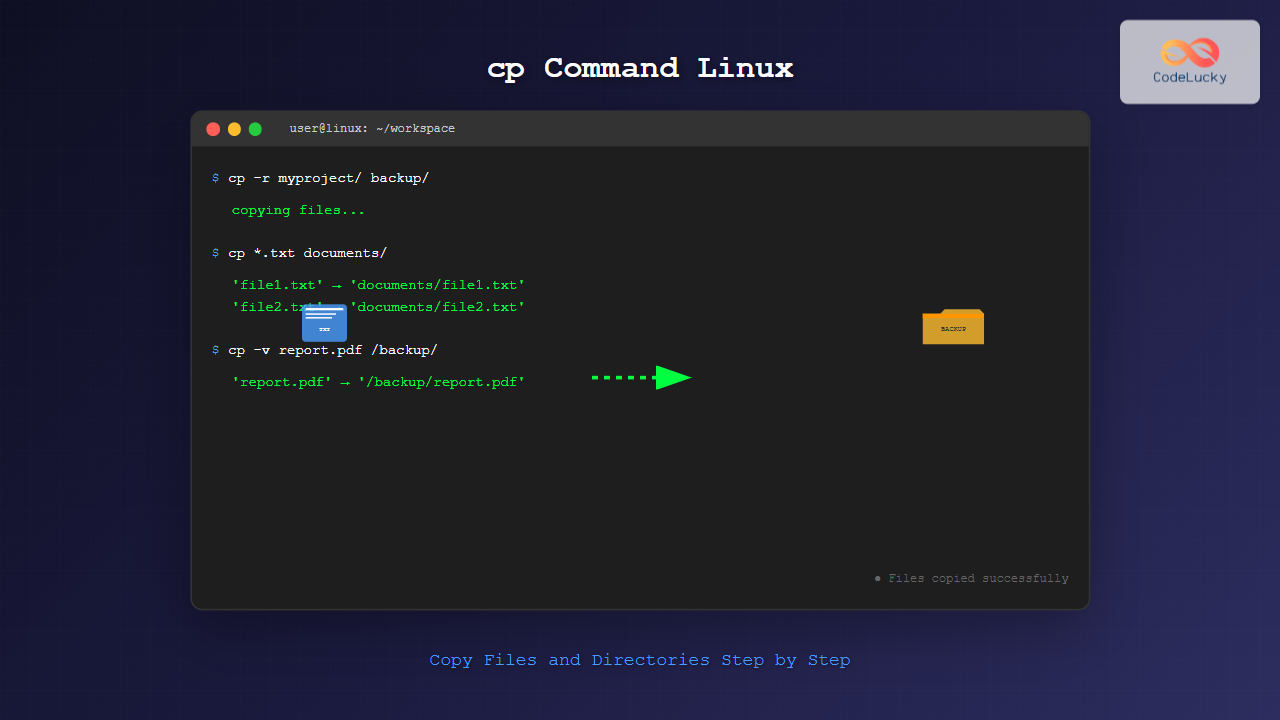
The cp command is one of the most fundamental and frequently used commands in Linux systems. It allows you to copy files and directories from one location to another, making it an essential tool for file management, backup operations, and system administration tasks.
What is the cp Command?
The cp command stands for “copy” and is used to duplicate files and directories in Linux and Unix-like operating systems. It creates an exact replica of the source file or directory at the specified destination while preserving the original file unless explicitly overwritten.
Basic Syntax of cp Command
The general syntax of the cp command follows this pattern:
cp [OPTIONS] SOURCE DESTINATIONWhere:
- OPTIONS: Various flags that modify the behavior of the command
- SOURCE: The file or directory you want to copy
- DESTINATION: The target location where you want to copy the file or directory
Simple File Copying Examples
Copy a Single File
The most basic use of the cp command is copying a single file:
cp file1.txt file2.txtThis command creates a copy of file1.txt named file2.txt in the same directory.
Example Output:
$ ls -la
-rw-r--r-- 1 user user 1024 Aug 24 15:30 file1.txt

$ cp file1.txt file2.txt

$ ls -la
-rw-r--r-- 1 user user 1024 Aug 24 15:30 file1.txt
-rw-r--r-- 1 user user 1024 Aug 24 15:35 file2.txt
Copy File to Different Directory
To copy a file to a different directory:
cp document.pdf /home/user/Documents/This copies document.pdf to the Documents directory.
Copy File with New Name to Different Location
cp report.txt /home/user/backup/report_backup.txtCopying Multiple Files
You can copy multiple files at once by specifying multiple source files before the destination:
cp file1.txt file2.txt file3.txt /home/user/backup/Using wildcards to copy multiple files:
cp *.txt /home/user/documents/
cp *.jpg *.png /home/user/images/
Example with wildcard:
$ ls -la *.txt
-rw-r--r-- 1 user user  512 Aug 24 15:30 file1.txt
-rw-r--r-- 1 user user  256 Aug 24 15:31 file2.txt
-rw-r--r-- 1 user user  128 Aug 24 15:32 file3.txt

$ cp *.txt backup/

$ ls -la backup/
-rw-r--r-- 1 user user  512 Aug 24 15:35 file1.txt
-rw-r--r-- 1 user user  256 Aug 24 15:35 file2.txt
-rw-r--r-- 1 user user  128 Aug 24 15:35 file3.txt
Important cp Command Options
-r or -R (Recursive)
To copy directories and their contents recursively:
cp -r source_directory/ destination_directory/Example:
$ tree myproject/
myproject/
├── src/
│   ├── main.py
│   └── utils.py
└── docs/
    └── readme.txt

$ cp -r myproject/ myproject_backup/

$ tree myproject_backup/
myproject_backup/
├── src/
│   ├── main.py
│   └── utils.py
└── docs/
    └── readme.txt
-i (Interactive)
Prompts before overwriting existing files:
cp -i file1.txt file2.txtExample output:
$ cp -i file1.txt existing_file.txt
cp: overwrite 'existing_file.txt'? y
-v (Verbose)
Shows what files are being copied:
cp -v file1.txt file2.txt backup/Example output:
$ cp -v *.txt backup/
'file1.txt' -> 'backup/file1.txt'
'file2.txt' -> 'backup/file2.txt'
'file3.txt' -> 'backup/file3.txt'
-u (Update)
Only copies files that are newer than the destination or don’t exist in the destination:
cp -u source.txt destination.txt-p (Preserve)
Preserves file attributes like timestamps, ownership, and permissions:
cp -p important_file.txt backup_file.txtExample comparison:
$ ls -la important_file.txt
-rw-r--r-- 1 user user 1024 Aug 20 10:30 important_file.txt

$ cp important_file.txt copy1.txt
$ cp -p important_file.txt copy2.txt

$ ls -la copy*.txt
-rw-r--r-- 1 user user 1024 Aug 24 15:40 copy1.txt
-rw-r--r-- 1 user user 1024 Aug 20 10:30 copy2.txt
-n (No Clobber)
Prevents overwriting existing files:
cp -n file1.txt existing_file.txt-f (Force)
Forces copying by removing existing destination files if necessary:
cp -f file1.txt readonly_file.txtAdvanced cp Command Examples
Combining Multiple Options
You can combine multiple options for more sophisticated copying operations:
cp -riv source_directory/ destination_directory/This command copies recursively (-r), interactively (-i), and verbosely (-v).
Copying with Backup Creation
Create backups of existing files before overwriting:
cp --backup=numbered file1.txt existing_file.txtExample output:
$ ls -la
-rw-r--r-- 1 user user  256 Aug 24 15:30 existing_file.txt
-rw-r--r-- 1 user user  512 Aug 24 15:35 file1.txt

$ cp --backup=numbered file1.txt existing_file.txt

$ ls -la
-rw-r--r-- 1 user user  512 Aug 24 15:40 existing_file.txt
-rw-r--r-- 1 user user  256 Aug 24 15:30 existing_file.txt.~1~
-rw-r--r-- 1 user user  512 Aug 24 15:35 file1.txt
Copying Symbolic Links
Handle symbolic links with specific options:
# Copy the link itself (not the target)
cp -d symbolic_link new_link

# Follow links and copy the target
cp -L symbolic_link copy_of_target
Practical Use Cases
System Backup Script
#!/bin/bash
# Backup important configuration files
cp -p /etc/fstab /backup/fstab.backup
cp -p /etc/passwd /backup/passwd.backup
cp -rp /home/user/.config/ /backup/user_config/
Project Development
# Create a development branch copy
cp -r /var/www/production/ /var/www/development/

# Backup before major changes
cp -rp project/ project_$(date +%Y%m%d_%H%M%S)/
Log File Management
# Archive current logs
cp /var/log/application.log /var/log/archive/application_$(date +%Y%m%d).log
Common Errors and Troubleshooting
Permission Denied
If you encounter permission errors:
$ cp file.txt /root/
cp: cannot create regular file '/root/file.txt': Permission denied
Solution: Use sudo or check file permissions:
sudo cp file.txt /root/Directory Not Empty
When copying to existing directories:
$ cp -r source/ destination/
cp: cannot overwrite non-directory 'destination/' with directory 'source/'
Solution: Specify the correct destination path:
cp -r source/ destination/source/Disk Space Issues
Check available space before large copy operations:
df -h /destination/path/
cp -r large_directory/ /destination/path/
Performance Tips and Best Practices
Efficient Large File Copying
For large files or directories, consider using:
# Show progress for large operations
cp -rv large_directory/ destination/ | pv -l > /dev/null

# Use rsync for better performance with large datasets
rsync -av --progress source/ destination/
Safe Copying Practices
- Always use -i for interactive mode when overwriting might occur
- Use -v for verbose output to track the copying process
- Test with a small subset before copying large amounts of data
- Verify disk space before starting large copy operations
- Use absolute paths to avoid confusion about locations
Automation and Scripting
When using cp in scripts, include error checking:
#!/bin/bash
if cp -r source/ backup/; then
    echo "Backup completed successfully"
else
    echo "Backup failed!" >&2
    exit 1
fi
Alternative Commands
While cp is excellent for basic copying, consider these alternatives for specific use cases:
- rsync: Better for network copying and synchronization
- scp: For copying files over SSH
- mv: For moving (cutting and pasting) instead of copying
- dd: For low-level copying and disk cloning
Conclusion
The cp command is an indispensable tool for Linux users, offering powerful and flexible file and directory copying capabilities. By mastering its various options and understanding common use cases, you can efficiently manage files, create backups, and automate system administration tasks.
Remember to always test your cp commands with non-critical data first, especially when using options like -f or when working with important system files. The combination of proper option usage and good practices will make your file management tasks both safe and efficient.
Whether you’re a system administrator managing servers, a developer organizing project files, or a casual user maintaining personal documents, the cp command provides the reliability and flexibility needed for effective file management in Linux environments.
Related Posts
mv Command in Linux: Complete Guide to Moving and Renaming Files
The mv command is one of the most fundamental and frequently used commands in Linux systems. Whether you're a system...

tar Command in Linux: Complete Archive and Extract Files Tutorial with Examples
The tar command is one of the most essential utilities in Linux for creating archives and extracting files. Originally designed...
source Command Linux: Execute Scripts and Load Functions Efficiently
The source command in Linux is a powerful built-in shell command that executes commands from a file within the current...
dd Command Linux: Complete Guide to Low-Level File Operations and Disk Cloning
The dd command is one of the most powerful yet dangerous utilities in Linux, often referred to as "disk destroyer"...
make Command Linux: Complete Guide to Building Programs from Source Code
The make command is one of the most essential tools in Linux for building and compiling software from source code....
gcc Command Linux: Complete Guide to Compiling C Programs with Examples
The gcc (GNU Compiler Collection) is one of the most essential tools for C programmers working on Linux systems. This...
mkdir Command Linux: Complete Guide to Creating Directories and Subdirectories
The mkdir command is one of the most fundamental and frequently used commands in Linux for creating directories. Whether you're...

MySQL Insert Into Select: Copying Data with Ease
The INSERT INTO SELECT statement in MySQL is a powerful tool for copying data between tables. Whether you need to...
rm Command in Linux: Complete Guide to Delete Files and Directories Safely
The rm command is one of the most powerful and potentially dangerous commands in Linux. It stands for "remove" and...

ar Command Linux: Complete Guide to Archive File Management
The ar command in Linux is a powerful archiving utility primarily used for creating and managing archive files, especially static...

chown Command Linux: Master File and Directory Ownership Management
The chown command is one of the most fundamental tools in Linux system administration, allowing users to change file and...

rsync Command Linux: Complete Guide to Sync Files and Directories Efficiently
The rsync command is one of the most powerful and versatile file synchronization utilities available in Linux systems. Whether you're...





