
Introduction
Counting the number of files within a directory in Linux is a common task for system administrators, developers, and Linux enthusiasts. Whether managing disk usage, scripting automated tasks, or auditing file systems, knowing how to quickly and accurately count files using the command line is invaluable. This guide provides a detailed, SEO-friendly tutorial on multiple methods to count files in Linux directories using command line tools with clear examples and visual aids.
Why Count Files in a Directory?
- Monitor directory size and content growth
- Automate reports and scripts that depend on file quantities
- Perform system administration and auditing
- Debug issues during development
Prerequisites
To follow this article, you need:
- A Linux distribution or terminal emulator
- Basic knowledge of using the Linux shell (Bash)
- Access to run commands in the desired directory
Basic Command: Using ls with wc
The simplest way to count files is to list files with ls and pipe it to wc -l which counts the number of lines:
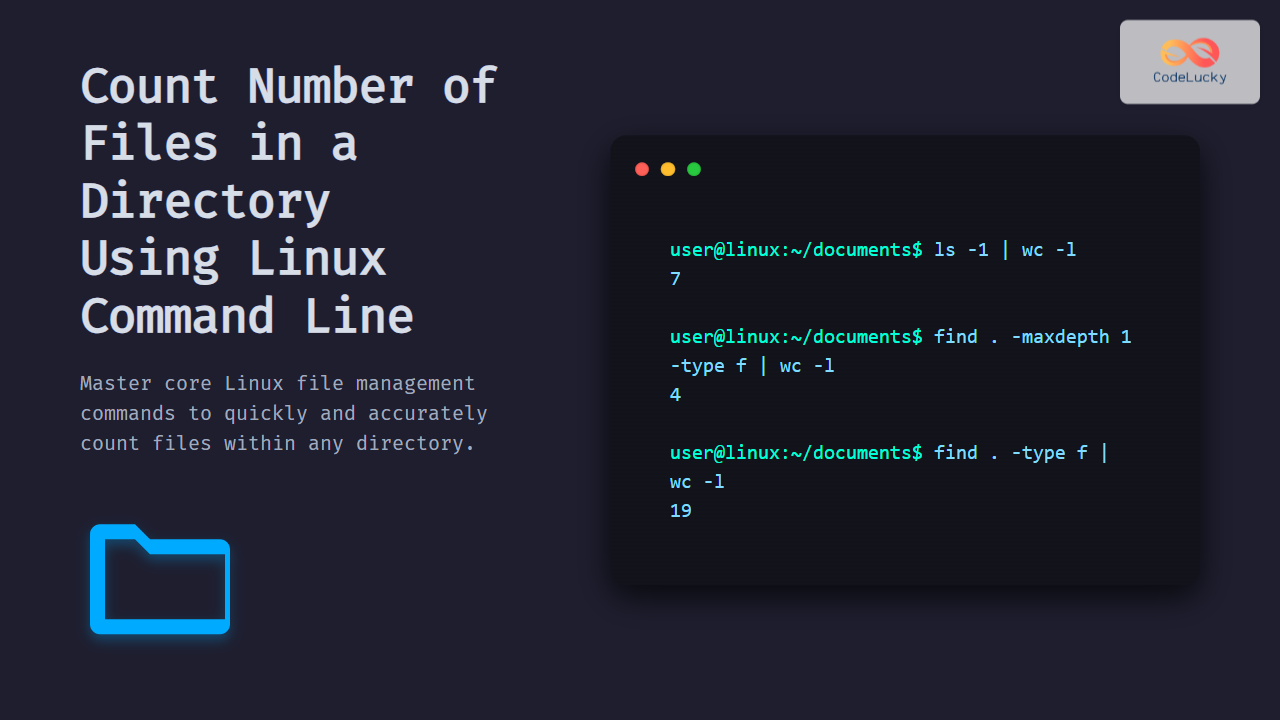
ls -1 | wc -lBreakdown:
ls -1: Lists one file per line.wc -l: Counts the number of lines (files listed).
Example Output:
7This means there are 7 entries in the directory.
Limitations
- This method counts all items shown by
lsincluding directories. - Hidden files (starting with
.) are excluded unlessls -1ais used.
Counting Only Regular Files with find
For more precise counting of only regular files (excluding directories, links, etc.), use find:
find . -maxdepth 1 -type f | wc -lDetails:
.: Current directory-maxdepth 1: Limits search to current directory only-type f: Finds only fileswc -l: Counts the number of results
Example Output:
4This means there are 4 regular files in the directory.
Including Hidden Files
This method includes hidden files by default since find scans all files.
Counting Files Recursively in Subdirectories
To count all files inside the current directory and all its subdirectories, remove the -maxdepth option:
find . -type f | wc -lThis counts every file recursively throughout the directory tree rooted at the current directory.

Using tree Command for Counting
The tree command provides a directory structure overview and shows a file count summary:
tree -i --noreport | wc -lThe -i flag disables indentation, --noreport prevents summary at the end, and wc -l counts the lines, equating to number of files and directories.
Alternatively, to get just the file count including subdirectories:
tree -a | tail -1This returns a summary including total files and folders.
Using Shell Scripting for Customized Counts
Sometimes you want to count files matching specific patterns or exclude types, which you can achieve using shell scripting and find.
Example: Count all .txt files recursively:
find . -type f -name "*.txt" | wc -lExample: Count files larger than 1MB in the current directory:
find . -maxdepth 1 -type f -size +1M | wc -lVisual Explanation of Counting Methods
Tips and Best Practices
- Be explicit with
findoptions to avoid counting unwanted file types. - Check permissions to ensure the command has rights to read directory contents.
- For large directories, prefer
findas it is more efficient and flexible. - Consider combining commands with
sortorgrepfor advanced filtering.
Summary Table: Commands to Count Files in Linux
| Command | Description | Counts | Includes Hidden Files? |
|---|---|---|---|
ls -1 | wc -l |
List directory files, count lines | Files & directories | No |
ls -1a | wc -l |
List all including hidden, count lines | Files & directories | Yes |
find . -maxdepth 1 -type f | wc -l |
Find only files in directory | Regular files only | Yes |
find . -type f | wc -l |
Count all files recursively | All regular files | Yes |
tree -a | tail -1 |
Show tree summary with counts | Files & directories | Yes |
Conclusion
Counting files within directories using the Linux command line can be done efficiently with commands like ls, find, and tree. Each method serves different needs depending on whether including hidden files, counting recursively, or filtering specific file types. Leveraging these commands with clear understanding and examples empowers users to manage files, automate tasks, and analyze directory contents effectively in Linux environments.
Explore these methods and incorporate them into daily workflows for streamlined file management on Linux systems.





