
Copying directories in Unix/Linux is a fundamental task for system administrators, developers, and everyday users managing files. Whether it’s backing up important data or duplicating project folders, understanding how to effectively create a copy of a directory is crucial. This guide covers multiple commands and options, with clear examples and visual aids, to help you master directory copying on Unix/Linux systems.
Understanding Directory Copying in Unix/Linux
Unlike copying single files, directories often contain multiple files and nested subdirectories. Thus, a command to copy directories must handle the entire directory tree recursively. The most common tool for this is the cp command with specific flags, but there are other utilities like rsync and even graphical tools depending on your environment.

Using cp Command to Copy a Directory
The cp command is the traditional way to copy files and directories. To copy directories successfully, the -r or -R (recursive) option is necessary.
Basic Recursive Copy
cp -r source_directory/ destination_directory/This command copies the source_directory and all its contents to destination_directory. If destination_directory does not exist, it will be created with the source directory name.
Preserving Attributes with -a (Archive) Option
The -a option is a superset of recursive copy and preserves symbolic links, file permissions, timestamps, and more.
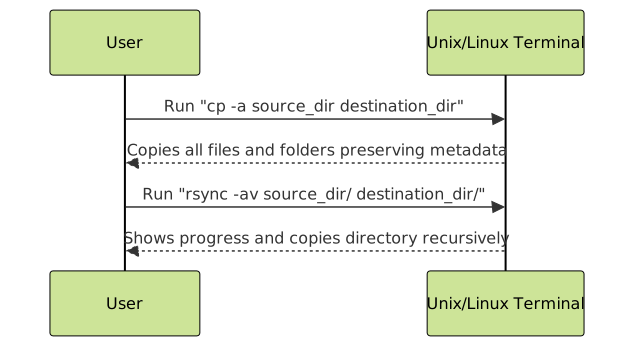
cp -a source_directory/ destination_directory/This is typically the preferred way to copy directories when preserving metadata is important.
Example with Visual Output
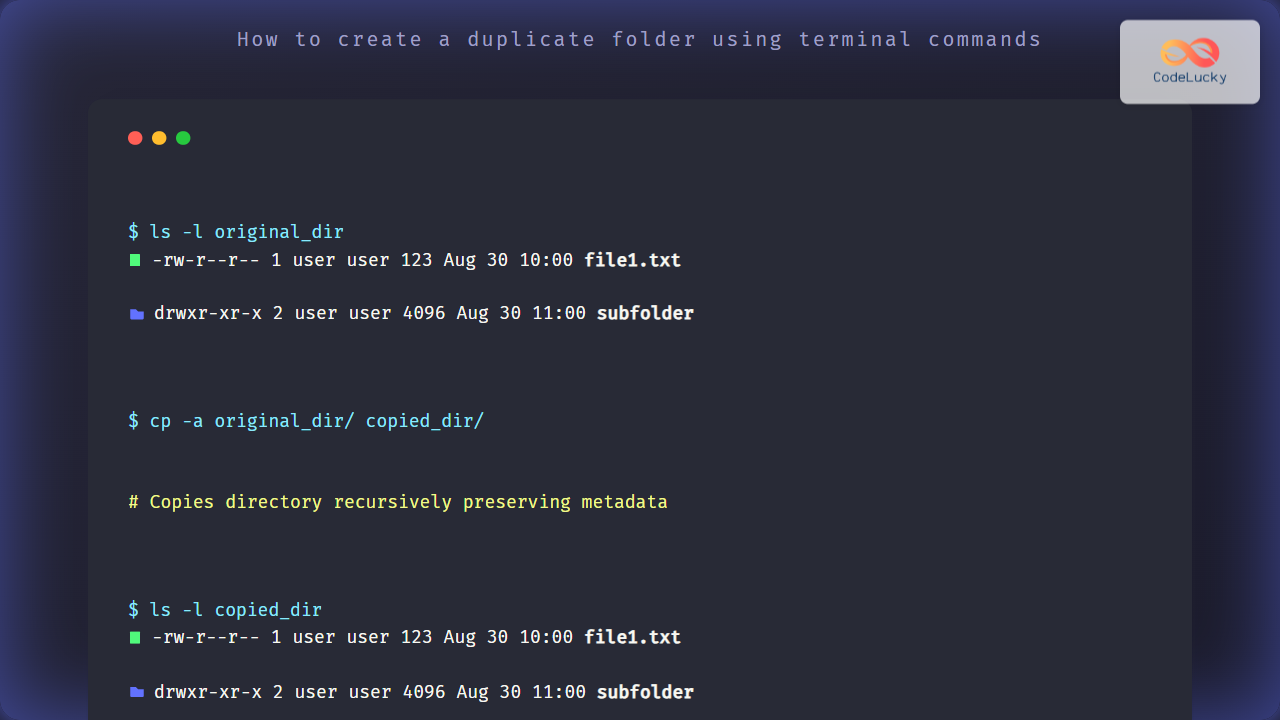
$ ls -l original_dir
total 4
-rw-r--r-- 1 user user 123 Aug 30 10:00 file1.txt
drwxr-xr-x 2 user user 4096 Aug 30 11:00 subfolder

$ cp -a original_dir/ copied_dir/

$ ls -l copied_dir
total 4
-rw-r--r-- 1 user user 123 Aug 30 10:00 file1.txt
drwxr-xr-x 2 user user 4096 Aug 30 11:00 subfolder
Copying Directories with rsync
rsync is a powerful tool primarily used for synchronizing files but is excellent for copying directories locally or remotely.
rsync -av source_directory/ destination_directory/-ais archive mode, preserving attributes-vis verbose output
Unlike cp, rsync provides progress and can resume interrupted copies.
Example:
$ rsync -av original_dir/ copied_dir/
sending incremental file list
file1.txt
subfolder/
subfolder/file2.txt

sent 234 bytes  received 78 bytes  624.00 bytes/sec
total size is 1.03K  speedup is 3.12
Additional Options and Tips
cp -r --backup=numbered source destinationto create backups of overwritten files.rsync -a --delete source destinationto synchronize and delete extraneous files from the destination.- Always double-check your command with
--dry-runoption inrsyncto preview changes.
Summary of Commands
| Command | Purpose | Preserves Metadata | Use Case |
|---|---|---|---|
cp -r |
Copy directory recursively | No | Simple directory copy |
cp -a |
Copy directory recursively with metadata | Yes | Full directory duplication |
rsync -av |
Copy directory with synchronization | Yes | Reliable copy with resume support |
Interactive Practice
Try these commands in your terminal (replace source_directory and destination_directory with your folder names):
cp -r source_directory/ destination_directory/cp -a source_directory/ destination_directory/rsync -av source_directory/ destination_directory/
Use ls -l destination_directory to verify the copied contents visually.

Mastering directory copying in Unix/Linux is straightforward with the right commands and options. The cp and rsync commands serve most needs, providing flexibility and control whether you’re duplicating small folders or entire directory trees.





