
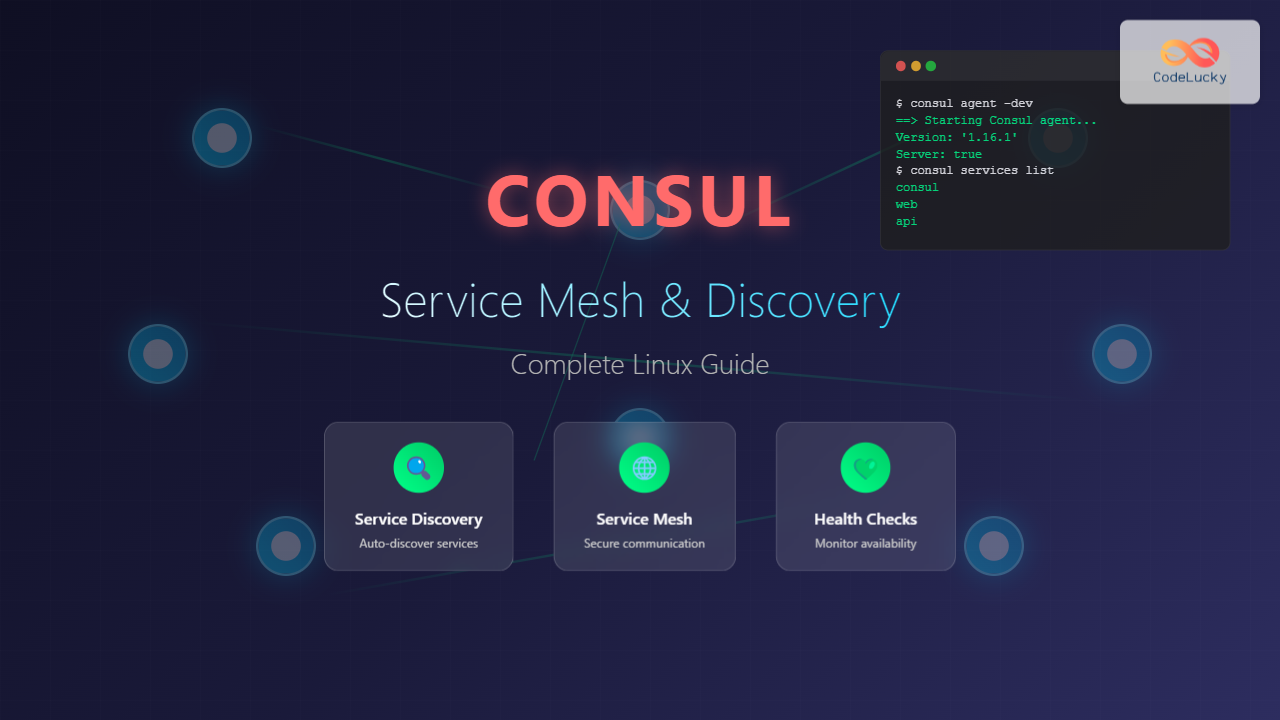
Consul is a powerful service mesh and service discovery tool developed by HashiCorp that enables organizations to connect, secure, and configure services across any runtime platform and public or private cloud. In this comprehensive guide, we’ll explore how to effectively use Consul on Linux systems for service mesh implementation and service discovery.
What is Consul?
Consul is a distributed, highly available system that provides several key features:
- Service Discovery: Automatically discover and connect services
- Health Checking: Monitor service health and availability
- Key-Value Store: Distributed configuration management
- Service Mesh: Secure service-to-service communication
- Multi-Datacenter Support: Scale across multiple datacenters
Installing Consul on Linux
Method 1: Binary Installation
Download and install Consul directly from HashiCorp:
# Download Consul (replace with latest version)
wget https://releases.hashicorp.com/consul/1.16.1/consul_1.16.1_linux_amd64.zip

# Install unzip if not available
sudo apt update && sudo apt install unzip -y

# Extract and install
unzip consul_1.16.1_linux_amd64.zip
sudo mv consul /usr/local/bin/

# Verify installation
consul version
Expected Output:
Consul v1.16.1
Revision 69567451
Build Date 2023-07-17T13:52:46Z
Protocol 2 spoken by default, understands 2 to 3 (agent will automatically use protocol >2 when speaking to compatible agents)
Method 2: Package Manager Installation
For Ubuntu/Debian systems:
# Add HashiCorp GPG key
curl -fsSL https://apt.releases.hashicorp.com/gpg | sudo apt-key add -

# Add HashiCorp repository
sudo apt-add-repository "deb [arch=amd64] https://apt.releases.hashicorp.com $(lsb_release -cs) main"

# Install Consul
sudo apt update && sudo apt install consul
For RHEL/CentOS systems:
# Add HashiCorp repository
sudo yum install -y yum-utils
sudo yum-config-manager --add-repo https://rpm.releases.hashicorp.com/RHEL/hashicorp.repo

# Install Consul
sudo yum install consul
Basic Consul Configuration
Creating Configuration Directory
# Create Consul directories
sudo mkdir -p /etc/consul.d
sudo mkdir -p /var/lib/consul
sudo mkdir -p /var/log/consul

# Create consul user
sudo useradd --system --home /etc/consul.d --shell /bin/false consul
sudo chown consul:consul /var/lib/consul /var/log/consul
Basic Configuration File
Create a basic configuration file at /etc/consul.d/consul.hcl:
datacenter = "dc1"
data_dir = "/var/lib/consul"
log_level = "INFO"
server = true
bootstrap_expect = 1
bind_addr = "0.0.0.0"
client_addr = "0.0.0.0"

ui_config {
  enabled = true
}

connect {
  enabled = true
}
Starting Consul Service
Development Mode
For development and testing, start Consul in development mode:
# Start Consul in development mode
consul agent -dev -client=0.0.0.0
Expected Output:
==> Starting Consul agent...
           Version: '1.16.1'
        Build Date: '2023-07-17T13:52:46Z'
           Node ID: '4c8d2d3e-7b1a-4c5f-9e2d-8f3a1b4c5d6e'
         Node name: 'hostname'
        Datacenter: 'dc1' (Segment: '')
            Server: true (Bootstrap: false)
       Client Addr: [0.0.0.0] (HTTP: 8500, HTTPS: -1, gRPC: 8502, DNS: 8600)
      Cluster Addr: 127.0.0.1 (LAN: 8301, WAN: 8302)
Production Mode with Systemd
Create a systemd service file at /etc/systemd/system/consul.service:
[Unit]
Description=Consul
Documentation=https://www.consul.io/
Requires=network-online.target
After=network-online.target
ConditionFileNotEmpty=/etc/consul.d/consul.hcl

[Service]
Type=notify
User=consul
Group=consul
ExecStart=/usr/local/bin/consul agent -config-dir=/etc/consul.d/
ExecReload=/bin/kill -HUP $MAINPID
KillMode=process
Restart=on-failure
LimitNOFILE=65536

[Install]
WantedBy=multi-user.target
Start and enable the service:
# Reload systemd and start Consul
sudo systemctl daemon-reload
sudo systemctl enable consul
sudo systemctl start consul

# Check service status
sudo systemctl status consul
Service Discovery Implementation
Registering Services
Create a service definition file /etc/consul.d/web-service.json:
{
  "service": {
    "name": "web",
    "tags": ["nginx", "frontend"],
    "port": 80,
    "check": {
      "http": "http://localhost:80/health",
      "interval": "10s"
    }
  }
}
Register the service:
# Reload Consul configuration
sudo systemctl reload consul

# Verify service registration
consul services list
Expected Output:
consul
web
Service Discovery via DNS
Query services using DNS:
# Query service via DNS
dig @127.0.0.1 -p 8600 web.service.consul

# Get service with health check
dig @127.0.0.1 -p 8600 web.service.consul SRV
Expected Output:
;; ANSWER SECTION:
web.service.consul.	0	IN	A	127.0.0.1

;; ADDITIONAL SECTION:
web.service.consul.	0	IN	SRV	1 1 80 hostname.node.dc1.consul.
Service Discovery via HTTP API
Use the HTTP API to discover services:
# List all services
curl http://localhost:8500/v1/catalog/services

# Get specific service details
curl http://localhost:8500/v1/catalog/service/web

# Health check for service
curl http://localhost:8500/v1/health/service/web
Implementing Service Mesh with Consul Connect
Enabling Connect
Ensure Connect is enabled in your configuration:
connect {
  enabled = true
}

ports {
  grpc = 8502
}
Service Mesh Configuration
Create a Connect-enabled service definition /etc/consul.d/api-service.json:
{
  "service": {
    "name": "api",
    "port": 8080,
    "connect": {
      "sidecar_service": {
        "proxy": {
          "upstreams": [
            {
              "destination_name": "database",
              "local_bind_port": 5432
            }
          ]
        }
      }
    }
  }
}
Starting Connect Proxy
Start the Connect sidecar proxy:
# Start the sidecar proxy for the API service
consul connect proxy -sidecar-for api &

# Verify proxy is running
ps aux | grep consul
Health Checking and Monitoring
Configuring Health Checks
Add comprehensive health checks to your service definition:
{
  "service": {
    "name": "webapp",
    "port": 3000,
    "checks": [
      {
        "http": "http://localhost:3000/health",
        "interval": "10s",
        "timeout": "3s"
      },
      {
        "tcp": "localhost:3000",
        "interval": "10s",
        "timeout": "3s"
      },
      {
        "script": "/usr/local/bin/check-webapp.sh",
        "interval": "30s"
      }
    ]
  }
}
Monitoring Health Status
Check service health using various methods:
# Check all services health
consul catalog services

# Check specific service health
consul health service web

# Get health status via API
curl http://localhost:8500/v1/health/checks/web
Key-Value Store Operations
Storing Configuration Data
# Store configuration values
consul kv put config/database/host "db.example.com"
consul kv put config/database/port "5432"
consul kv put config/app/debug "false"

# Store JSON configuration
consul kv put config/app/settings '{"timeout": 30, "retries": 3}'
Retrieving Configuration Data
# Get specific key
consul kv get config/database/host

# Get all keys with prefix
consul kv get -recurse config/database/

# Export configuration to file
consul kv export config/ > app-config.json
Expected Output:
db.example.com

config/database/host:db.example.com
config/database/port:5432
Advanced Consul Features
Access Control Lists (ACLs)
Enable ACLs in your configuration:
acl = {
  enabled = true
  default_policy = "deny"
  enable_token_persistence = true
}
Bootstrap ACL system:
# Bootstrap ACL system
consul acl bootstrap

# Create a policy
consul acl policy create \
  -name "read-only" \
  -description "Read only policy" \
  -rules 'service_prefix "" { policy = "read" }'

# Create a token
consul acl token create \
  -description "Read only token" \
  -policy-name "read-only"
Consul Template Integration
Install Consul Template:
# Download and install consul-template
wget https://releases.hashicorp.com/consul-template/0.32.0/consul-template_0.32.0_linux_amd64.zip
unzip consul-template_0.32.0_linux_amd64.zip
sudo mv consul-template /usr/local/bin/
Create a template file /etc/consul-template/nginx.conf.tpl:
upstream backend {
{{range service "web"}}
  server {{.Address}}:{{.Port}};
{{end}}
}

server {
  listen 80;
  location / {
    proxy_pass http://backend;
  }
}
Run consul-template:
consul-template \
  -template="/etc/consul-template/nginx.conf.tpl:/etc/nginx/conf.d/backend.conf:nginx -s reload"
Multi-Datacenter Setup
Configuring WAN Federation
For datacenter 1:
datacenter = "dc1"
retry_join_wan = ["dc2-consul-server.example.com"]
For datacenter 2:
datacenter = "dc2"
retry_join_wan = ["dc1-consul-server.example.com"]
Cross-Datacenter Service Discovery
# Query services in remote datacenter
dig @127.0.0.1 -p 8600 web.service.dc2.consul

# API query for remote datacenter
curl http://localhost:8500/v1/catalog/service/web?dc=dc2
Security Best Practices
TLS Encryption
Generate certificates and enable TLS:
# Generate CA certificate
consul tls ca create

# Generate server certificates
consul tls cert create -server -dc dc1

# Update configuration for TLS
cat >> /etc/consul.d/consul.hcl << EOF
ca_file = "/etc/consul.d/consul-agent-ca.pem"
cert_file = "/etc/consul.d/dc1-server-consul-0.pem"
key_file = "/etc/consul.d/dc1-server-consul-0-key.pem"
verify_incoming = true
verify_outgoing = true
verify_server_hostname = true
ports {
  https = 8501
}
EOF
Troubleshooting Common Issues
Service Registration Problems
# Check Consul logs
journalctl -u consul -f

# Validate configuration
consul validate /etc/consul.d/

# Check service health
consul health service web -detailed
Network Connectivity Issues
# Test Consul ports
netstat -tlnp | grep consul

# Check cluster members
consul members

# Test service connectivity
curl http://localhost:8500/v1/status/leader
Performance Optimization
Tuning Consul Performance
# Optimize performance settings
performance {
  raft_multiplier = 1
}

limits {
  http_max_conns_per_client = 200
}

# Monitor performance metrics
curl http://localhost:8500/v1/agent/metrics?format=prometheus
Conclusion
Consul provides a robust foundation for service mesh and service discovery in modern distributed systems. By implementing proper configuration, health checking, and security measures, you can create a resilient and scalable service infrastructure on Linux systems. Regular monitoring and maintenance ensure optimal performance and reliability of your Consul deployment.
Remember to always test configurations in a development environment before deploying to production, and keep your Consul installation updated with the latest security patches and features.
Related Posts

serf Linux: Complete Guide to Decentralized Cluster Membership and Service Discovery
Serf is a powerful decentralized solution for cluster membership, failure detection, and orchestration that runs on Linux systems. Unlike traditional...

Zookeeper Linux: Complete Guide to Centralized Service Configuration Management
Apache Zookeeper is a centralized service for maintaining configuration information, naming, providing distributed synchronization, and providing group services in distributed...
ganglia Linux: Complete Guide to Distributed Monitoring System
Ganglia is a powerful, open-source distributed monitoring system designed specifically for high-performance computing clusters, grids, and cloud infrastructures. Originally developed...

Marathon Linux: Complete Guide to Container Orchestration Platform
Marathon is a powerful container orchestration platform built on top of Apache Mesos that enables you to deploy, manage, and...
Sensu Linux: Complete Monitoring Framework Guide for System Administrators
Sensu is a powerful, open-source monitoring framework designed to monitor servers, services, application health, and business KPIs. Built with modern...

Kubernetes Linux: Complete Guide to Container Orchestration Platform
Kubernetes has revolutionized how we deploy, manage, and scale containerized applications on Linux systems. As the leading container orchestration platform,...

nomad Linux: Complete Guide to HashiCorp’s Workload Orchestrator
What is HashiCorp Nomad? HashiCorp Nomad is a simple yet powerful workload orchestrator that enables organizations to deploy and manage...

SaltStack Linux: Complete Guide to Intelligent IT Automation and Configuration Management
SaltStack has revolutionized the way system administrators and DevOps engineers manage infrastructure at scale. As a powerful configuration management and...

Zenoss Linux: Complete Guide to IT Infrastructure Monitoring and Management
What is Zenoss and Why Use it on Linux? Zenoss is a powerful, open-source IT infrastructure monitoring platform that provides...

mesos Linux: Complete Guide to Distributed Systems Kernel and Cluster Management
Apache Mesos is a powerful distributed systems kernel that abstracts CPU, memory, storage, and other compute resources across machines, enabling...
Groundwork Linux: Complete Guide to IT Infrastructure Monitoring and System Health Management
What is Groundwork Linux? Groundwork Linux is a comprehensive open-source IT infrastructure monitoring platform built specifically for Linux environments. It...
Prometheus Linux: Complete Monitoring and Alerting Toolkit Guide
Prometheus has revolutionized the way we monitor and alert on modern infrastructure. As an open-source monitoring toolkit originally built at...





