
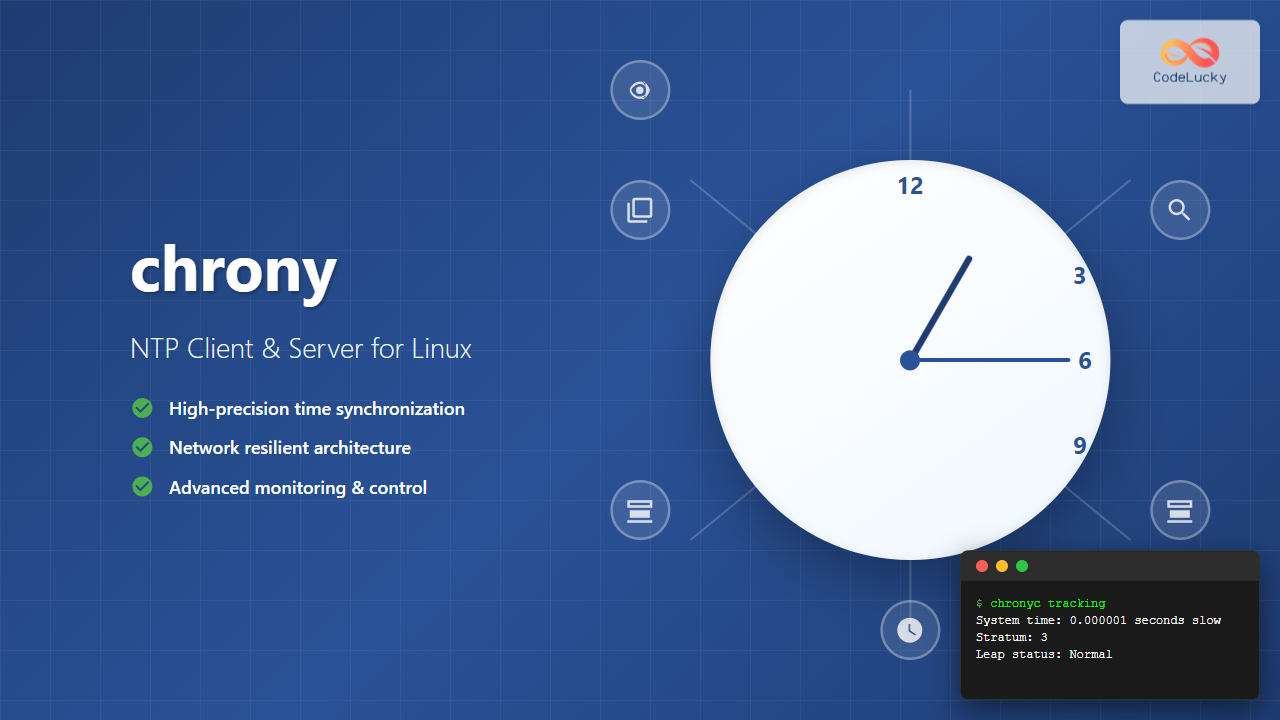
Network Time Protocol (NTP) synchronization is crucial for maintaining accurate time across Linux systems. chrony is a modern, versatile NTP implementation that serves as both client and server, offering superior performance and reliability compared to traditional ntpd. This comprehensive guide covers everything you need to know about configuring and managing chrony on Linux systems.
What is chrony?
chrony is a lightweight, secure NTP client and server designed for systems that are frequently disconnected from the network or experience variable network latency. It consists of two main components:
- chronyd – The daemon that synchronizes system time
- chronyc – The command-line interface for monitoring and controlling chronyd
Installing chrony
Most modern Linux distributions include chrony in their repositories. Here’s how to install it on different systems:
Ubuntu/Debian
sudo apt update
sudo apt install chrony
CentOS/RHEL/Fedora
# For CentOS/RHEL 8+ and Fedora
sudo dnf install chrony

# For older CentOS/RHEL versions
sudo yum install chrony
Arch Linux
sudo pacman -S chronyBasic chrony Configuration
The main configuration file for chrony is typically located at /etc/chrony.conf or /etc/chrony/chrony.conf. Let’s examine a basic configuration:
# Use public NTP servers from pool.ntp.org
server 0.pool.ntp.org iburst
server 1.pool.ntp.org iburst
server 2.pool.ntp.org iburst
server 3.pool.ntp.org iburst

# Record the rate at which the system clock gains/loses time
driftfile /var/lib/chrony/drift

# Allow the system clock to be stepped in the first three updates
makestep 1.0 3

# Enable RTC syncing on UTC time
rtcsync

# Enable hardware timestamping on all interfaces that support it
#hwtimestamp *

# Specify file containing keys for NTP authentication
keyfile /etc/chrony.keys

# Specify directory for log files
logdir /var/log/chrony

# Log measurements, statistics, and tracking data
#log measurements statistics tracking
Starting and Enabling chrony Service
After installation and configuration, start and enable the chrony service:
# Start the chronyd service
sudo systemctl start chronyd

# Enable chronyd to start at boot
sudo systemctl enable chronyd

# Check service status
sudo systemctl status chronyd
Expected output:
● chronyd.service - NTP client/server
   Loaded: loaded (/lib/systemd/system/chronyd.service; enabled; vendor preset: enabled)
   Active: active (running) since Tue 2025-08-26 10:15:23 UTC; 2min 15s ago
     Docs: man:chronyd(8)
           man:chrony.conf(5)
 Main PID: 1234 (chronyd)
   Status: "Using 4 sources"
    Tasks: 1 (limit: 4915)
   Memory: 1.2M
   CGroup: /system.slice/chronyd.service
           └─1234 /usr/sbin/chronyd
Using chronyc: The Control Interface
chronyc is the command-line tool for interacting with chronyd. Here are essential commands:
Checking Time Synchronization Status
chronyc trackingSample output:
Reference ID    : CB00710F (foo.example.net)
Stratum         : 3
Ref time (UTC)  : Tue Aug 26 10:17:45 2025
System time     : 0.000123456 seconds slow of NTP time
Last offset     : -0.000234567 seconds
RMS offset      : 0.000345678 seconds
Frequency       : 22.156 ppm slow
Residual freq   : +0.002 ppm
Skew            : 0.145 ppm
Root delay      : 0.034567890 seconds
Root dispersion : 0.001234567 seconds
Update interval : 64.2 seconds
Leap status     : Normal
Viewing Time Sources
chronyc sourcesOutput explanation:
210 Number of sources = 4
MS Name/IP address         Stratum Poll Reach LastRx Last sample
===============================================================================
^+ ntp1.example.com              2   6   377    45    +1234us[+1456us] +/-   45ms
^* ntp2.example.com              2   6   377    46    -2345us[-2123us] +/-   38ms
^+ ntp3.example.com              3   6   377    47    +3456us[+3678us] +/-   52ms
^- ntp4.example.com              3   6   377    48    +4567us[+4789us] +/-   67ms
Symbol meanings:
- ^* – Currently selected synchronization source
- ^+ – Acceptable source (combined with others)
- ^- – Acceptable source but not currently used
- ^? – Source connectivity lost or packet not valid
Detailed Source Information
chronyc sourcestatsThis shows statistics about each configured source:
210 Number of sources = 4
Name/IP Address            NP  NR  Span  Frequency  Freq Skew  Offset  Std Dev
===============================================================================
ntp1.example.com           18  10   34m     +0.123      2.345   +123us   456us
ntp2.example.com           16   8   31m     -0.234      1.456   -234us   567us
ntp3.example.com           14   7   28m     +0.345      3.678   +345us   678us
ntp4.example.com           12   6   25m     -0.456      4.789   -456us   789us
Configuring chrony as NTP Server
To configure chrony as an NTP server, modify the configuration file to allow client connections:
# Allow NTP client access from local network
allow 192.168.1.0/24

# Allow NTP client access from specific subnet
allow 10.0.0.0/8

# Serve time even if not synchronized to upstream server
local stratum 10

# Set the NTP port (default is 123)
port 123

# Log client accesses
log measurements statistics tracking
Advanced Server Configuration
# Specify which interfaces to bind to
bindaddress 192.168.1.100
bindaddress ::1

# Rate limiting for client requests
ratelimit interval 3 burst 8

# Client logging
clientloglimit 100000

# Enable command port for chronyc access
cmdallow 127.0.0.1
cmdallow 192.168.1.0/24
Security Configuration
Implementing security measures is crucial for NTP servers:
NTP Authentication
Create authentication keys in /etc/chrony.keys:
# Key ID  Hash    Key
1        SHA1    HEX:1234567890ABCDEF1234567890ABCDEF12345678
2        SHA256  HEX:1234567890ABCDEF1234567890ABCDEF1234567890ABCDEF1234567890ABCDEF
Configure authentication in chrony.conf:
# Specify keyfile location
keyfile /etc/chrony.keys

# Server with authentication
server ntp.example.com key 1

# Require authentication for specific sources
authselectmode require
Firewall Configuration
Configure firewall to allow NTP traffic:
# For UFW (Ubuntu)
sudo ufw allow 123/udp

# For firewalld (CentOS/RHEL/Fedora)
sudo firewall-cmd --add-service=ntp --permanent
sudo firewall-cmd --reload

# For iptables
sudo iptables -A INPUT -p udp --dport 123 -j ACCEPT
Monitoring and Troubleshooting
Real-time Monitoring
Monitor chrony in real-time:
# Watch tracking information
watch -n 1 chronyc tracking

# Monitor sources continuously
watch -n 5 chronyc sources
Checking Log Files
chrony logs provide valuable troubleshooting information:
# View system logs
sudo journalctl -u chronyd -f

# Check measurements log (if configured)
sudo tail -f /var/log/chrony/measurements.log

# Check statistics log
sudo tail -f /var/log/chrony/statistics.log
Common Troubleshooting Commands
# Check if chronyd is reaching sources
chronyc activity

# Display current system time and synchronization status
chronyc tracking

# Show detailed source information
chronyc sources -v

# Check for any warnings or errors
chronyc serverstats
Sample activity output:
200 OK
4 sources online
0 sources offline
0 sources doing burst (return to online)
0 sources doing burst (return to offline)
0 sources with unknown address
Performance Optimization
Hardware Timestamping
For high-precision applications, enable hardware timestamping:
# Check if network interface supports hardware timestamping
ethtool -T eth0

# Enable hardware timestamping in chrony.conf
hwtimestamp eth0

# Or enable on all supported interfaces
hwtimestamp *
Polling Optimization
# Configure polling intervals
server ntp.example.com minpoll 4 maxpoll 9 iburst

# Explanation:
# minpoll 4 = minimum interval 2^4 = 16 seconds
# maxpoll 9 = maximum interval 2^9 = 512 seconds
# iburst = send burst of packets at startup
Advanced Configuration Examples
Isolated Network Configuration
For systems without internet access:
# Use local time source
local stratum 8

# Manual time input
manual

# Allow manual time adjustments
makestep 1000 1
GPS Reference Clock
Configure GPS as reference clock:
# GPS reference clock via serial port
refclock PPS /dev/pps0 lock NMEA refid GPS
refclock SHM 0 offset 0.5 delay 0.2 refid NMEA noselect

# GPS-specific settings
maxchange 1000 1 2
Migration from ntpd
When migrating from ntpd to chrony:
- Stop ntpd service:
sudo systemctl stop ntpd sudo systemctl disable ntpd - Convert ntp.conf to chrony.conf:
# ntpd: server pool.ntp.org iburst # chrony: server pool.ntp.org iburst # ntpd: restrict default kod nomodify notrap nopeer noquery # chrony: deny all (default behavior, can be customized with allow) - Start chrony:
sudo systemctl start chronyd
sudo systemctl enable chronyd
Best Practices
- Use multiple time sources: Configure at least 4 NTP servers for redundancy
- Choose appropriate servers: Use geographically close NTP servers
- Monitor regularly: Set up monitoring for time synchronization status
- Log configuration: Enable logging for troubleshooting purposes
- Security first: Implement proper firewall rules and authentication
- Test configuration: Always test changes in non-production environments
Conclusion
chrony provides a robust, modern solution for NTP client and server functionality on Linux systems. Its superior handling of intermittent network connections, advanced security features, and precise time synchronization capabilities make it an excellent choice for both desktop and server environments. By following the configurations and best practices outlined in this guide, you can ensure accurate time synchronization across your Linux infrastructure.
Regular monitoring using chronyc commands and proper log analysis will help maintain optimal time synchronization performance. Whether you’re setting up a simple NTP client or a complex time server infrastructure, chrony’s flexibility and reliability make it an invaluable tool for system administrators.
Related Posts
ntpd Command Linux: Complete Guide to Network Time Protocol Daemon Management
The ntpd (Network Time Protocol daemon) is a crucial system service in Linux that maintains accurate system time by synchronizing...
systemd-timesyncd Linux: Complete Guide to Network Time Synchronization
Time synchronization is a critical aspect of system administration that ensures your Linux servers maintain accurate time across distributed networks....
ntpdate Command Linux: Complete Guide to Network Time Synchronization (Deprecated Tool)
The ntpdate command was once a cornerstone tool for Linux system administrators to synchronize system time with Network Time Protocol...
timedatectl Advanced Linux: Complete Time and Date Management Guide
The timedatectl command is a powerful Linux utility that provides comprehensive control over system time and date settings. As part...
timedatectl Command Linux: Complete Guide to System Time and Date Management
The timedatectl command is a powerful utility in modern Linux distributions that provides a unified interface for managing system time,...
hwclock Command Linux: Complete Hardware Clock Management Guide
The hwclock command is a powerful Linux utility for managing your system's hardware clock, also known as the Real-Time Clock...
heartbeat Linux: Complete Guide to System Uptime Monitoring and High Availability
The heartbeat service in Linux is a critical component for maintaining high availability and monitoring system uptime. Originally developed as...

C++ Date and Time: Working with <chrono> and <ctime>
In the world of C++ programming, handling dates and times is a crucial skill that every developer should master. Whether...
lynis Command Linux: Complete Security Auditing Tool Guide
The lynis command is a powerful, open-source security auditing tool designed specifically for Unix-based systems including Linux, macOS, and BSD....
uptime Command Linux: Complete Guide to System Uptime and Load Average Monitoring
The uptime command is one of the most fundamental system monitoring tools in Linux, providing essential information about how long...

whatsup Linux: Complete Network Monitoring and System Administration Guide
whatsup is a powerful network monitoring and system administration tool for Linux that provides real-time insights into network connectivity, system...

C Time Functions: Date and Time Operations with <time.h>
Time is an essential concept in programming, and C provides a robust set of functions for working with dates and...





