
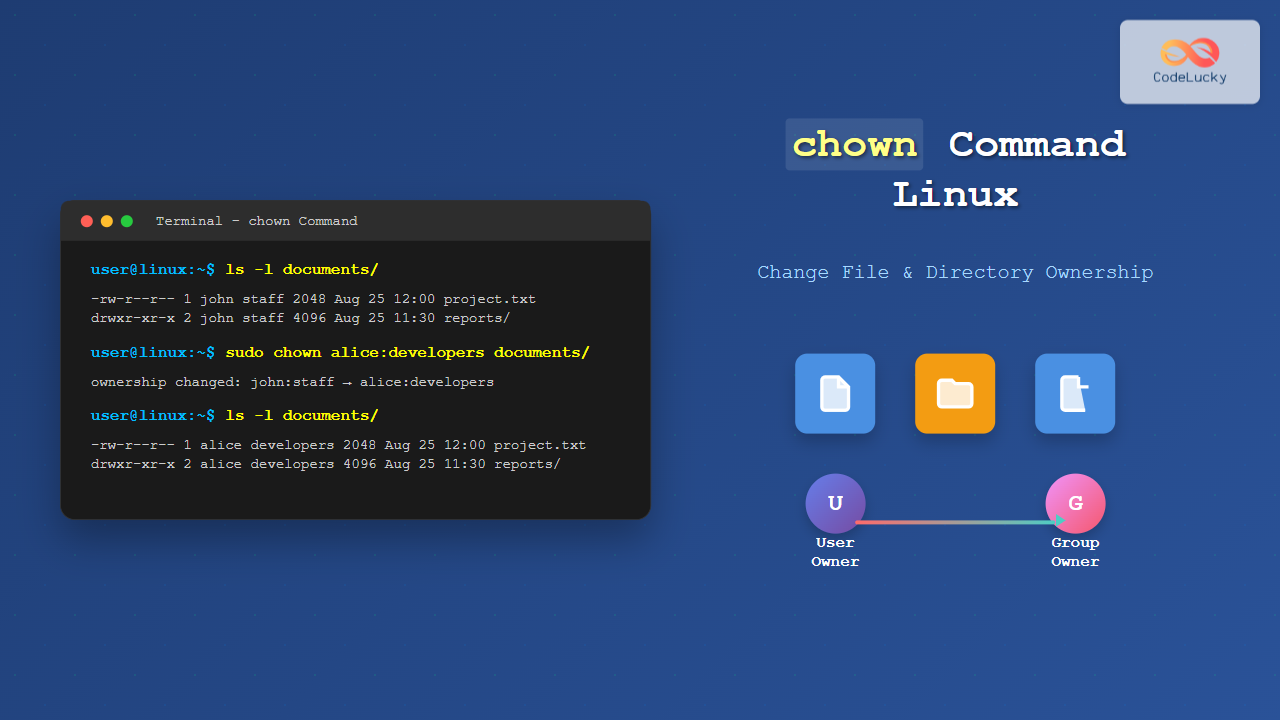
The chown command is one of the most fundamental tools in Linux system administration, allowing users to change file and directory ownership. Understanding how to properly use chown is essential for managing permissions, security, and system maintenance tasks.
What is the chown Command?
The chown command stands for “change owner” and is used to modify the ownership of files and directories in Linux systems. Every file and directory has an owner (user) and a group associated with it, which determines who can access and modify the content.
Basic Syntax
The basic syntax of the chown command follows this pattern:
chown [OPTIONS] [OWNER][:[GROUP]] FILE(s)Where:
- OPTIONS: Command flags that modify behavior
- OWNER: The new user owner
- GROUP: The new group owner (optional)
- FILE(s): Target files or directories
Common chown Command Options
| Option | Description |
|---|---|
-R or --recursive |
Apply changes recursively to directories and their contents |
-v or --verbose |
Display detailed output of operations performed |
-c or --changes |
Show only files where ownership actually changed |
--reference=RFILE |
Use ownership of RFILE as reference |
-f or --silent |
Suppress error messages |
Understanding File Ownership
Before diving into examples, let’s examine how to check current file ownership using the ls -l command:
$ ls -l sample.txt
-rw-r--r-- 1 john developers 1024 Aug 25 10:30 sample.txt
This output shows:
- Owner: john
- Group: developers
- Size: 1024 bytes
Basic chown Examples
Change File Owner Only
To change only the owner of a file:
$ sudo chown alice sample.txt
$ ls -l sample.txt
-rw-r--r-- 1 alice developers 1024 Aug 25 10:30 sample.txt
The owner changed from “john” to “alice” while the group remained “developers”.
Change Both Owner and Group
To change both owner and group simultaneously:
$ sudo chown alice:admins sample.txt
$ ls -l sample.txt
-rw-r--r-- 1 alice admins 1024 Aug 25 10:30 sample.txt
Change Group Only
To change only the group while keeping the current owner:
$ sudo chown :staff sample.txt
$ ls -l sample.txt
-rw-r--r-- 1 alice staff 1024 Aug 25 10:30 sample.txt
Working with Directories
Change Directory Ownership
For directories, the syntax remains the same:
$ sudo chown bob:users /home/project
$ ls -ld /home/project
drwxr-xr-x 2 bob users 4096 Aug 25 11:15 /home/project
Recursive Ownership Changes
The -R option applies changes to all files and subdirectories:
$ sudo chown -R alice:developers /home/project/
$ ls -la /home/project/
drwxr-xr-x 3 alice developers 4096 Aug 25 11:15 .
drwxr-xr-x 3 root  root       4096 Aug 25 10:00 ..
-rw-r--r-- 1 alice developers  256 Aug 25 11:10 config.txt
drwxr-xr-x 2 alice developers 4096 Aug 25 11:15 logs
Advanced chown Techniques
Using Numeric User IDs
You can specify owners using numeric user IDs (UID) and group IDs (GID):
$ sudo chown 1001:1002 important.txt
$ ls -l important.txt
-rw-r--r-- 1 alice staff 2048 Aug 25 12:00 important.txt
Verbose Output
The -v option provides detailed feedback:
$ sudo chown -v alice:developers *.txt
ownership of 'file1.txt' retained as alice:developers
changed ownership of 'file2.txt' from bob:users to alice:developers
changed ownership of 'file3.txt' from carol:admins to alice:developers
Reference-Based Ownership
Copy ownership from another file using the --reference option:
$ sudo chown --reference=template.txt newfile.txt
$ ls -l template.txt newfile.txt
-rw-r--r-- 1 alice developers 1024 Aug 25 10:30 template.txt
-rw-r--r-- 1 alice developers 2048 Aug 25 12:30 newfile.txt
Practical Use Cases
Web Server Files
Setting proper ownership for web server files:
$ sudo chown -R www-data:www-data /var/www/html/
$ sudo chown -R nginx:nginx /usr/share/nginx/html/
Log File Management
Ensuring log files have correct ownership:
$ sudo chown syslog:adm /var/log/custom.log
$ sudo chown -R apache:apache /var/log/httpd/
Database Files
Setting ownership for database directories:
$ sudo chown -R mysql:mysql /var/lib/mysql/
$ sudo chown -R postgres:postgres /var/lib/postgresql/
Security Considerations
Root Privileges Required
Most chown operations require root privileges. Regular users can only change ownership of files they own to groups they belong to:
$ chown alice:users myfile.txt
chown: changing ownership of 'myfile.txt': Operation not permitted

$ sudo chown alice:users myfile.txt
# Success with sudo
Avoiding Common Mistakes
Be careful with recursive operations:
# Dangerous - changes system files
$ sudo chown -R user:group /

# Better - specific directory
$ sudo chown -R user:group /home/user/project/
Combining chown with Other Commands
Using find with chown
Change ownership of specific file types:
$ sudo find /var/www/ -name "*.php" -exec chown www-data:www-data {} \;Batch Operations
Process multiple files with different patterns:
$ sudo chown alice:developers *.txt *.md *.confTroubleshooting Common Issues
Permission Denied Errors
If you encounter permission denied errors:
$ chown newowner file.txt
chown: changing ownership of 'file.txt': Operation not permitted
Solutions:
- Use
sudofor system files - Check if you’re the current owner
- Verify user and group names exist
Invalid User or Group
When specifying non-existent users:
$ sudo chown invaliduser file.txt
chown: invalid user: 'invaliduser'
Verify users and groups with:
$ id username
$ getent group groupname
Best Practices
Planning Ownership Changes
- Test first: Use
-voption to see what will change - Backup important files before mass ownership changes
- Document changes for system maintenance records
- Use specific paths instead of wildcards when possible
Security Guidelines
- Avoid changing ownership of system directories unless necessary
- Use principle of least privilege – don’t make everything owned by root
- Regular audit of file ownership in critical directories
- Use groups effectively to manage access without individual ownership changes
chown vs Related Commands
| Command | Purpose | Example |
|---|---|---|
chown |
Change file/directory ownership | chown alice:staff file.txt |
chmod |
Change file permissions | chmod 755 script.sh |
chgrp |
Change group ownership only | chgrp developers file.txt |
Interactive Examples
Let’s walk through a complete scenario of setting up a shared project directory:
# Create a project directory
$ sudo mkdir /opt/teamproject

# Set initial ownership
$ sudo chown root:root /opt/teamproject
$ ls -ld /opt/teamproject
drwxr-xr-x 2 root root 4096 Aug 25 14:00 /opt/teamproject

# Change to project team ownership
$ sudo chown :projectteam /opt/teamproject
$ ls -ld /opt/teamproject
drwxr-xr-x 2 root projectteam 4096 Aug 25 14:00 /opt/teamproject

# Create some files as different users
$ sudo -u alice touch /opt/teamproject/alice_file.txt
$ sudo -u bob touch /opt/teamproject/bob_file.txt

# Check current ownership
$ ls -l /opt/teamproject/
-rw-r--r-- 1 alice alice 0 Aug 25 14:05 alice_file.txt
-rw-r--r-- 1 bob   bob   0 Aug 25 14:05 bob_file.txt

# Standardize ownership for the entire project
$ sudo chown -R alice:projectteam /opt/teamproject/
$ ls -l /opt/teamproject/
-rw-r--r-- 1 alice projectteam 0 Aug 25 14:05 alice_file.txt
-rw-r--r-- 1 alice projectteam 0 Aug 25 14:05 bob_file.txt
Conclusion
The chown command is an essential tool for Linux system administration, providing precise control over file and directory ownership. By understanding its syntax, options, and practical applications, you can effectively manage permissions and maintain system security.
Remember to always use chown responsibly, especially with recursive operations, and maintain proper documentation of ownership changes for critical system files. Regular practice with these commands will make you more proficient in Linux system management.
Whether you’re setting up web servers, managing user directories, or maintaining system files, mastering chown will significantly improve your efficiency as a Linux administrator.
Related Posts
chgrp Command in Linux: Complete Guide to Change Group Ownership
The chgrp command is an essential Linux utility that allows you to change the group ownership of files and directories....
chmod Command in Linux: Complete File Permissions Tutorial with Examples
The chmod command is one of the most essential Linux commands for managing file and directory permissions. Whether you're a...
usermod Command Linux: Complete Guide to Modify User Account Properties
The usermod command is a powerful Linux utility that allows system administrators to modify existing user account properties without deleting...
umask Command Linux: Set Default File Permissions with Examples
The umask command is a fundamental Linux utility that controls the default permissions assigned to newly created files and directories....
File Permissions in Operating System: Complete Guide to Access Control Lists (ACLs)
Introduction to File Permissions and Access Control File permissions form the backbone of operating system security, controlling who can access,...
setfacl Command Linux: Complete Guide to File Access Control Lists Management
The setfacl command is a powerful Linux utility that allows you to set and modify File Access Control Lists (ACLs)...

ls Command in Linux: Complete Guide to List Files and Directories with Examples
The ls command is one of the most fundamental and frequently used commands in Linux and Unix-like operating systems. It...
chattr Command Linux: Complete Guide to Change File Attributes with Examples
The chattr command in Linux is a powerful utility that allows system administrators and users to change file attributes on...
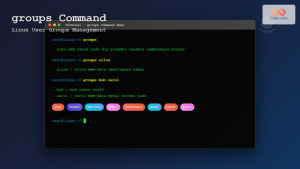
groups Command Linux: Complete Guide to Display User Group Memberships
The groups command is a fundamental Linux utility that displays the group memberships of users on your system. Understanding how...
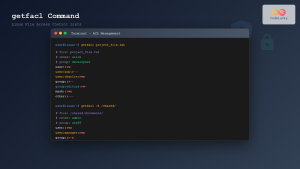
getfacl Command Linux: Complete Guide to File Access Control Lists Management
The getfacl command in Linux is a powerful utility that allows system administrators and users to view Access Control Lists...
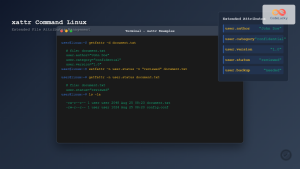
xattr Command Linux: Complete Guide to Extended File Attributes Management
Extended file attributes in Linux provide a powerful mechanism to store additional metadata beyond traditional file permissions and ownership. The...
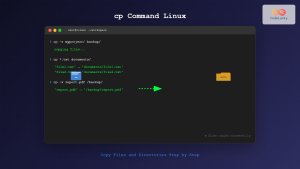
cp Command Linux: Copy Files and Directories with Examples and Best Practices
The cp command is one of the most fundamental and frequently used commands in Linux systems. It allows you to...





