
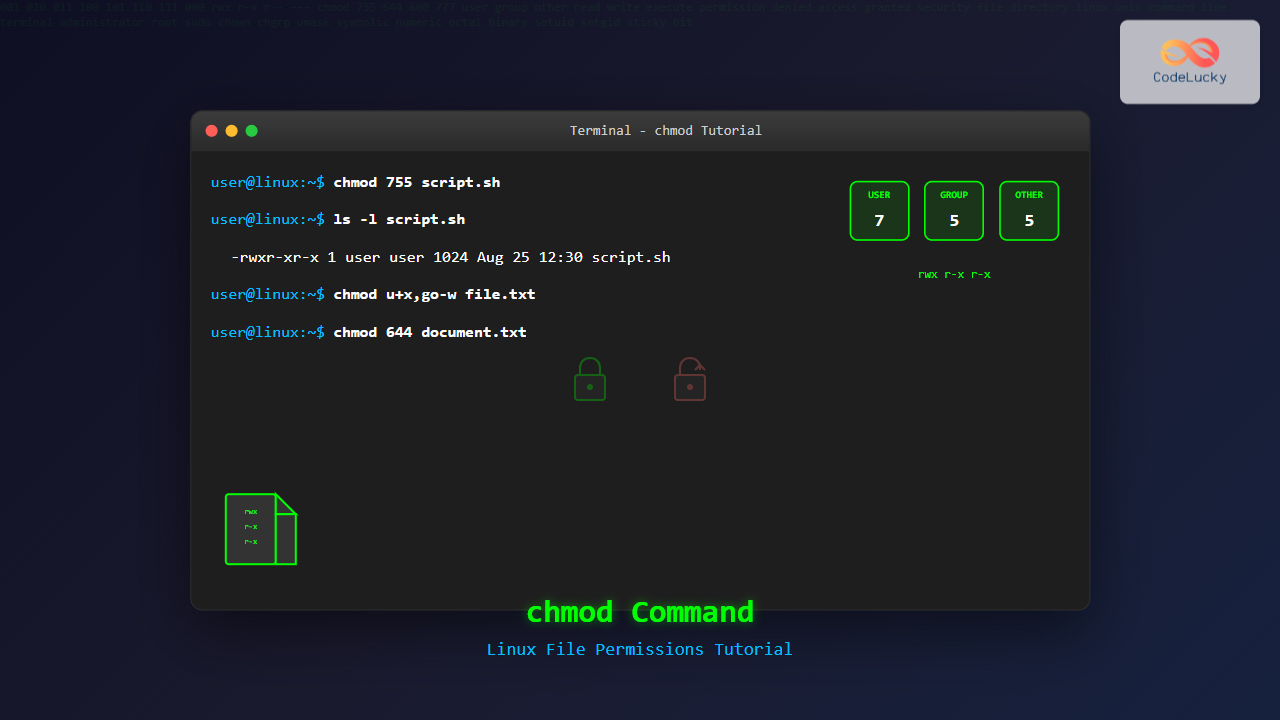
The chmod command is one of the most essential Linux commands for managing file and directory permissions. Whether you’re a system administrator, developer, or Linux enthusiast, understanding how to properly use chmod is crucial for maintaining security and controlling access to your files and directories.
What is the chmod Command?
The chmod (change mode) command allows you to modify file and directory permissions in Linux and Unix-like operating systems. It controls who can read, write, or execute files, making it a fundamental tool for system security and file management.
Understanding Linux File Permissions
Before diving into chmod usage, it’s essential to understand how Linux file permissions work. Every file and directory has three types of permissions for three categories of users:
Permission Types
- Read (r) – Permission to view file contents or list directory contents
- Write (w) – Permission to modify file contents or create/delete files in a directory
- Execute (x) – Permission to run a file as a program or access a directory
User Categories
- Owner (u) – The user who owns the file
- Group (g) – Users belonging to the file’s group
- Others (o) – All other users on the system
Viewing Current Permissions
Use the ls -l command to view current file permissions:
$ ls -l myfile.txt
-rw-r--r-- 1 user user 1024 Aug 25 12:30 myfile.txt
The permission string -rw-r--r-- breaks down as:
- First character: File type (
-for regular file,dfor directory) - Characters 2-4: Owner permissions (
rw-= read and write, no execute) - Characters 5-7: Group permissions (
r--= read only) - Characters 8-10: Others permissions (
r--= read only)
chmod Command Syntax
The basic syntax for the chmod command is:
chmod [options] permissions file(s)There are two main ways to specify permissions:
- Symbolic notation – Using letters and symbols
- Numeric (octal) notation – Using numbers
Symbolic Notation
Symbolic notation uses letters to represent users and permissions, along with operators to modify them.
Symbolic Notation Components
| Component | Symbol | Description |
|---|---|---|
| Users | u, g, o, a | Owner, Group, Others, All |
| Operators | +, -, = | Add, Remove, Set exactly |
| Permissions | r, w, x | Read, Write, Execute |
Symbolic Notation Examples
# Give execute permission to owner
$ chmod u+x script.sh

# Remove write permission from group and others
$ chmod go-w document.txt

# Set read and write for owner, read-only for group and others
$ chmod u=rw,go=r file.txt

# Add execute permission for all users
$ chmod a+x program

# Remove all permissions for others
$ chmod o-rwx private.txt
Numeric (Octal) Notation
Numeric notation uses a three-digit octal number where each digit represents permissions for owner, group, and others respectively.
Permission Values
| Permission | Binary | Octal |
|---|---|---|
| — (no permissions) | 000 | 0 |
| –x (execute only) | 001 | 1 |
| -w- (write only) | 010 | 2 |
| -wx (write + execute) | 011 | 3 |
| r– (read only) | 100 | 4 |
| r-x (read + execute) | 101 | 5 |
| rw- (read + write) | 110 | 6 |
| rwx (all permissions) | 111 | 7 |
Common Numeric Permissions
| Mode | Permissions | Description |
|---|---|---|
| 755 | rwxr-xr-x | Owner: all, Group/Others: read + execute |
| 644 | rw-r–r– | Owner: read + write, Group/Others: read only |
| 600 | rw——- | Owner: read + write, Group/Others: no permissions |
| 777 | rwxrwxrwx | All permissions for everyone (use with caution) |
| 700 | rwx—— | Owner: all permissions, Group/Others: no permissions |
Numeric Notation Examples
# Set read/write for owner, read-only for group and others
$ chmod 644 document.txt

# Set full permissions for owner, read/execute for group and others
$ chmod 755 script.sh

# Set read/write/execute for owner only
$ chmod 700 private_script.sh

# Set read/write for owner and group, read-only for others
$ chmod 664 shared_file.txt
Practical chmod Examples
Making Files Executable
# Make a script executable for the owner
$ chmod u+x myscript.sh
$ chmod 755 myscript.sh

# Make a file executable for everyone
$ chmod a+x program
$ chmod 755 program
Securing Files
# Make a file readable/writable by owner only
$ chmod 600 sensitive_data.txt
$ chmod u=rw,go= sensitive_data.txt

# Remove write permissions from group and others
$ chmod go-w important_file.txt
Working with Directories
# Set directory permissions to allow access
$ chmod 755 my_directory/

# Make directory accessible to owner only
$ chmod 700 private_directory/

# Set permissions recursively
$ chmod -R 755 website_files/
chmod Options and Flags
Common Options
| Option | Description |
|---|---|
| -R, –recursive | Apply permissions recursively to directories and their contents |
| -v, –verbose | Display detailed output for each file processed |
| -c, –changes | Show output only when changes are made |
| –reference=FILE | Use permissions from reference file |
Option Examples
# Apply permissions recursively
$ chmod -R 755 /var/www/html/

# Verbose output
$ chmod -v 644 *.txt
mode of 'file1.txt' changed from 0600 (rw-------) to 0644 (rw-r--r--)
mode of 'file2.txt' retained as 0644 (rw-r--r--)

# Use reference file permissions
$ chmod --reference=template.txt newfile.txt
Advanced chmod Techniques
Special Permissions
Linux supports special permission bits beyond the basic read, write, and execute permissions:
- Setuid (4) – Run with owner’s privileges
- Setgid (2) – Run with group’s privileges
- Sticky bit (1) – Prevent deletion by non-owners
# Set setuid bit (4755)
$ chmod u+s executable

# Set setgid bit (2755)
$ chmod g+s shared_program

# Set sticky bit on directory (1755)
$ chmod +t shared_directory/
Using chmod with Find
Combine chmod with find for powerful batch operations:
# Set permissions for all files
$ find /path/to/files -type f -exec chmod 644 {} \;

# Set permissions for all directories
$ find /path/to/files -type d -exec chmod 755 {} \;

# Make all .sh files executable
$ find . -name "*.sh" -exec chmod +x {} \;
Best Practices and Security
Security Guidelines
- Principle of least privilege – Grant only necessary permissions
- Avoid 777 permissions – Rarely needed and creates security risks
- Secure executable files – Be cautious with execute permissions
- Protect sensitive files – Use 600 or 700 for private files
Common Security Mistakes
# DON'T: Make everything accessible to everyone
$ chmod 777 -R /important/directory  # Dangerous!

# DO: Use appropriate permissions
$ chmod 755 -R /var/www/html  # Web directories
$ chmod 644 /var/www/html/*.html  # Web files
Troubleshooting chmod Issues
Permission Denied Errors
If you encounter “Permission denied” errors:
# Check current permissions
$ ls -l filename

# Ensure you have appropriate permissions to modify the file
$ sudo chmod 644 filename  # Use sudo if necessary
Common Error Messages
- “Operation not permitted” – You don’t own the file or lack sudo privileges
- “Invalid mode” – Check your permission syntax
- “No such file or directory” – Verify the file path
chmod vs Other Permission Commands
Related Commands
| Command | Purpose |
|---|---|
| chown | Change file ownership |
| chgrp | Change group ownership |
| umask | Set default permissions for new files |
| ls -l | View current permissions |
Complete Example
# Create a new file
$ touch example.txt

# Check initial permissions
$ ls -l example.txt
-rw-r--r-- 1 user user 0 Aug 25 12:30 example.txt

# Change to owner read/write only
$ chmod 600 example.txt

# Verify changes
$ ls -l example.txt
-rw------- 1 user user 0 Aug 25 12:30 example.txt

# Make it executable
$ chmod u+x example.txt

# Final result
$ ls -l example.txt
-rwx------ 1 user user 0 Aug 25 12:30 example.txt
Conclusion
The chmod command is an indispensable tool for Linux file management and security. By mastering both symbolic and numeric notation, understanding permission types, and following security best practices, you can effectively control access to your files and directories.
Remember to always use the principle of least privilege, regularly audit your file permissions, and be particularly careful with execute permissions and recursive operations. With practice, chmod will become second nature in your Linux administration toolkit.
Whether you’re securing sensitive data, making scripts executable, or setting up web server permissions, chmod provides the flexibility and control needed for robust file system management in Linux environments.
Related Posts
chgrp Command in Linux: Complete Guide to Change Group Ownership
The chgrp command is an essential Linux utility that allows you to change the group ownership of files and directories....

chown Command Linux: Master File and Directory Ownership Management
The chown command is one of the most fundamental tools in Linux system administration, allowing users to change file and...

File Permissions in Operating System: Complete Guide to Access Control Lists (ACLs)
Introduction to File Permissions and Access Control File permissions form the backbone of operating system security, controlling who can access,...
umask Command Linux: Set Default File Permissions with Examples
The umask command is a fundamental Linux utility that controls the default permissions assigned to newly created files and directories....
setfacl Command Linux: Complete Guide to File Access Control Lists Management
The setfacl command is a powerful Linux utility that allows you to set and modify File Access Control Lists (ACLs)...
getfacl Command Linux: Complete Guide to File Access Control Lists Management
The getfacl command in Linux is a powerful utility that allows system administrators and users to view Access Control Lists...
chattr Command Linux: Complete Guide to Change File Attributes with Examples
The chattr command in Linux is a powerful utility that allows system administrators and users to change file attributes on...
usermod Command Linux: Complete Guide to Modify User Account Properties
The usermod command is a powerful Linux utility that allows system administrators to modify existing user account properties without deleting...

ls Command in Linux: Complete Guide to List Files and Directories with Examples
The ls command is one of the most fundamental and frequently used commands in Linux and Unix-like operating systems. It...
Access Control Matrix: Comprehensive Guide to Permission Management Systems
Introduction to Access Control Matrix An Access Control Matrix (ACM) is a fundamental security model used in operating systems to...
groups Command Linux: Complete Guide to Display User Group Memberships
The groups command is a fundamental Linux utility that displays the group memberships of users on your system. Understanding how...

stat Command Linux: Complete Guide to Display File and Filesystem Status Information
The stat command is a powerful Linux utility that displays detailed information about files and filesystems. Unlike basic commands like...





