
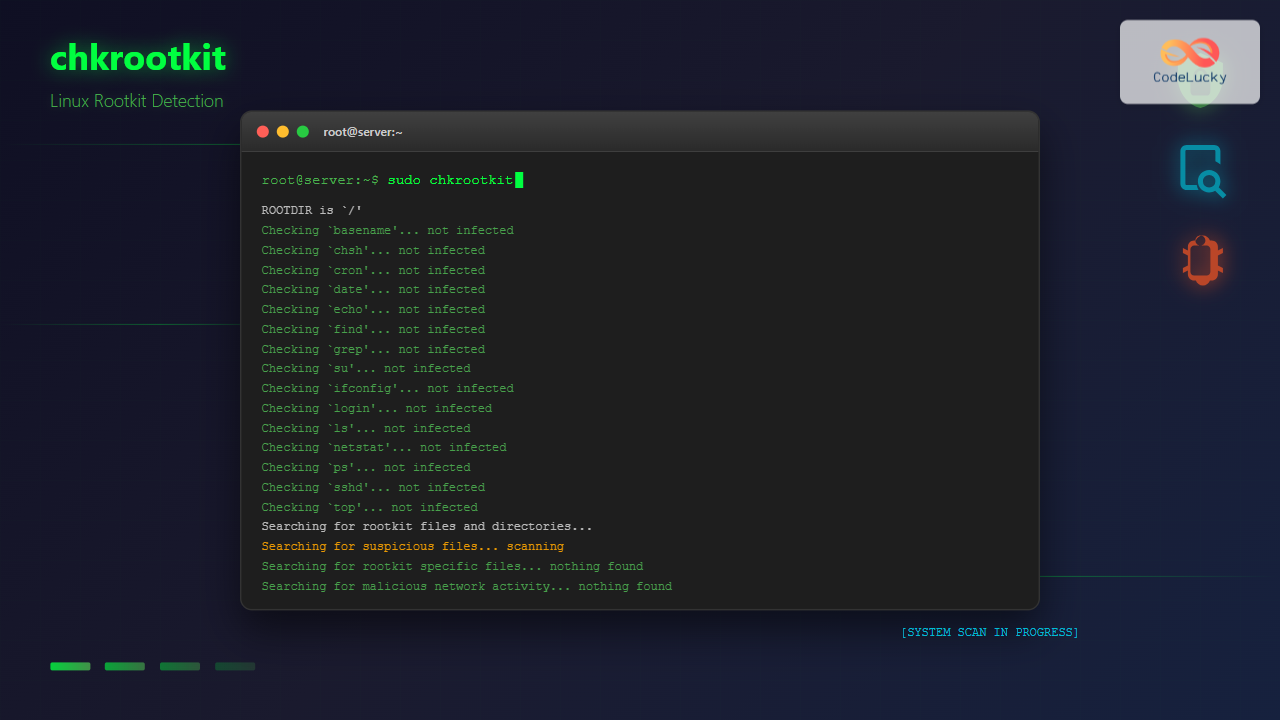
System security is paramount in Linux administration, and rootkits pose one of the most serious threats to system integrity. The chkrootkit command is a powerful security tool designed to detect rootkits, backdoors, and local exploits on Linux systems. This comprehensive guide will walk you through everything you need to know about using chkrootkit effectively.
What is chkrootkit?
chkrootkit (Check Rootkit) is a security scanner that checks for signs of rootkits on Unix-like systems. Developed by Nelson Murilo and Klaus Steding-Jessen, this tool examines system binaries, log files, and network interfaces to identify potential security compromises.
Key Features of chkrootkit:
- Detects over 70 different rootkits and backdoors
- Checks system binaries for modifications
- Examines network interfaces for promiscuous mode
- Analyzes log files for suspicious entries
- Lightweight and fast scanning
- Open-source and actively maintained
Installing chkrootkit
The installation process varies depending on your Linux distribution:
Ubuntu/Debian Systems:
sudo apt update
sudo apt install chkrootkit
CentOS/RHEL/Fedora Systems:
# For CentOS/RHEL 7/8
sudo yum install chkrootkit

# For Fedora
sudo dnf install chkrootkit
From Source Code:
wget ftp://ftp.pangeia.com.br/pub/seg/pac/chkrootkit.tar.gz
tar -xzf chkrootkit.tar.gz
cd chkrootkit-*
make sense
sudo ./chkrootkit
Basic chkrootkit Usage
Running chkrootkit is straightforward. The basic syntax is:
chkrootkit [options] [test ...]Simple Scan Example:
sudo chkrootkitSample Output:
ROOTDIR is `/'
Checking `amd'... not found
Checking `basename'... not infected
Checking `biff'... not found
Checking `chfn'... not infected
Checking `chsh'... not infected
Checking `cron'... not infected
Checking `crontab'... not infected
Checking `date'... not infected
Checking `du'... not infected
Checking `dirname'... not infected
Checking `echo'... not infected
Checking `egrep'... not infected
Checking `env'... not infected
Checking `find'... not infected
Checking `fingerd'... not found
Checking `gpm'... not found
Checking `grep'... not infected
Checking `hdparm'... not infected
Checking `su'... not infected
Checking `ifconfig'... not infected
Checking `inetd'... not infected
Checking `inetdconf'... not infected
Checking `identd'... not found
Checking `init'... not infected
Checking `killall'... not infected
Checking `ldsopreload'... not infected
Checking `login'... not infected
Checking `ls'... not infected
Checking `lsof'... not infected
Checking `mail'... not found
Checking `mingetty'... not infected
Checking `netstat'... not infected
Checking `named'... not found
Checking `passwd'... not infected
Checking `pidof'... not infected
Checking `pop2'... not found
Checking `pop3'... not found
Checking `ps'... not infected
Checking `pstree'... not infected
Checking `rpcinfo'... not found
Checking `rlogind'... not found
Checking `rshd'... not found
Checking `slogin'... not infected
Checking `sendmail'... not found
Checking `sshd'... not infected
Checking `syslogd'... not infected
Checking `tar'... not infected
Checking `tcpd'... not infected
Checking `tcpdump'... not infected
Checking `top'... not infected
Checking `telnetd'... not found
Checking `timed'... not found
Checking `traceroute'... not infected
Checking `vdir'... not infected
Checking `w'... not infected
Checking `write'... not infected
Checking `aliens'... no suspect files
Checking `asp'... not infected
Checking `bindshell'... not infected
Checking `lkm'... chkproc: nothing detected
chkdirs: nothing detected
chklastlog: nothing detected
chkwtmp: nothing detected
chkproc: nothing detected
chkdirs: nothing detected
Checking `rexedcs'... not found
Checking `sniffer'... eth0: not promisc and no packet sniffer sockets
Checking `w55808'... not infected
Checking `wted'... chklastlog: nothing detected
chkwtmp: nothing detected
Checking `scalper'... not infected
Checking `slapper'... not infected
Checking `z2'... chklastlog: nothing detected
chkwtmp: nothing detected
Checking `chkutmp'... chkutmp: nothing deleted
Checking `OSX_RSPLUG'... not infected
Command Line Options
chkrootkit offers various options to customize your scans:
Common Options:
-q– Quiet mode (only show infected files)-x– Expert mode (show more information)-r [dir]– Use specified directory as root-p [dir1:dir2:...]– Specify additional paths-n– Skip NFS mounted filesystems-l– Show available tests
Quiet Mode Example:
sudo chkrootkit -qThis command only displays results if infections are found, making it ideal for automated scripts.
Expert Mode Example:
sudo chkrootkit -xExpert Mode Output (partial):
### Checking for LKM rootkits...
### Checking for LKMPROCFS...
### Checking for LKMKBD...
### Checking for LKMADDR...
### Checking for LKMHIDE...
### Checking for LKMTIME...
### Checking for LKMIPADDR...
Checking `lkm'... chkproc: nothing detected
chkdirs: nothing detected
chklastlog: nothing detected
chkwtmp: nothing detected
Available Tests
To see all available tests, use the -l option:
chkrootkit -lAvailable Tests Output:
aliens asp bindshell lkm rexedcs sniffer w55808 wted scalper slapper z2 chkutmp OSX_RSPLUG amd basename biff chfn chsh cron crontab date du dirname echo egrep env find fingerd gpm grep hdparm su ifconfig inetd inetdconf identd init killall ldsopreload login ls lsof mail mingetty netstat named passwd pidof pop2 pop3 ps pstree rpcinfo rlogind rshd slogin sendmail sshd syslogd tar tcpd tcpdump top telnetd timed traceroute vdir w writeRunning Specific Tests:
# Check only for specific rootkits
sudo chkrootkit lkm
sudo chkrootkit sniffer
sudo chkrootkit bindshell
Understanding chkrootkit Output
chkrootkit output uses specific terminology to indicate the status of each check:
Status Indicators:
- not infected – No signs of infection found
- not found – Program/service not present on system
- INFECTED – Potential rootkit detected (requires investigation)
- Vulnerable but disabled – Service has vulnerabilities but is disabled
- nothing detected – No suspicious activity found
Example of Suspicious Activity:
Checking `ps'... INFECTED
The `ps' command has been modified
/usr/bin/ps
Automating chkrootkit Scans
Regular automated scanning is crucial for maintaining system security. Here’s how to set up automated scans:
Creating a Scan Script:
#!/bin/bash
# chkrootkit-scan.sh

LOG_FILE="/var/log/chkrootkit.log"
EMAIL="[email protected]"

# Run chkrootkit and log results
/usr/sbin/chkrootkit > $LOG_FILE 2>&1

# Check for infections
if grep -q "INFECTED" $LOG_FILE; then
    echo "ALERT: Potential rootkit detected!" | mail -s "chkrootkit Alert" $EMAIL
    cat $LOG_FILE | mail -s "chkrootkit Scan Results" $EMAIL
fi
Setting up Cron Job:
# Edit crontab
sudo crontab -e

# Add entry for daily scan at 3 AM
0 3 * * * /usr/local/bin/chkrootkit-scan.sh
Advanced Usage and Best Practices
Scanning Mounted Filesystems:
# Scan a specific directory
sudo chkrootkit -r /mnt/suspicious-drive

# Skip NFS mounts (recommended for network filesystems)
sudo chkrootkit -n
Custom Path Scanning:
# Add custom paths to scan
sudo chkrootkit -p /opt:/usr/local/custom
Interpreting and Acting on Results
False Positives:
chkrootkit may sometimes report false positives. Common causes include:
- Modified system binaries from legitimate updates
- Custom compiled software
- Virtualization environments
- Non-standard system configurations
Verification Steps:
# Check file integrity with package manager
sudo rpm -V coreutils  # For RPM-based systems
sudo dpkg -V coreutils # For Debian-based systems

# Compare checksums
sudo sha256sum /bin/ps
Integration with Other Security Tools
chkrootkit works well alongside other security tools:
With rkhunter:
# Install rkhunter for additional coverage
sudo apt install rkhunter

# Run both tools for comprehensive scanning
sudo chkrootkit -q
sudo rkhunter --check --skip-keypress
With ClamAV:
# Combine with antivirus scanning
sudo chkrootkit -q
sudo clamscan -r /home --infected
Troubleshooting Common Issues
Permission Denied Errors:
Always run chkrootkit with root privileges:
sudo chkrootkitMissing Dependencies:
Some checks require specific tools. Install missing dependencies:
# For network checks
sudo apt install net-tools

# For process checks
sudo apt install procps
Security Considerations
Keeping chkrootkit Updated:
# Update package repositories and chkrootkit
sudo apt update && sudo apt upgrade chkrootkit
Secure Storage of Results:
- Store scan results in protected directories
- Use encrypted storage for sensitive logs
- Implement proper log rotation
- Monitor access to scan results
Performance Optimization
Efficient Scanning Strategies:
# Quick daily scans
sudo chkrootkit -q sniffer bindshell lkm

# Comprehensive weekly scans
sudo chkrootkit -x > /var/log/weekly-rootkit-scan.log
Conclusion
chkrootkit is an essential tool in the Linux administrator’s security arsenal. Regular use of chkrootkit, combined with proper system maintenance and other security tools, helps maintain system integrity and detect potential compromises early. Remember to:
- Run scans regularly (preferably automated)
- Keep the tool updated
- Investigate any suspicious findings thoroughly
- Use multiple security tools for comprehensive protection
- Maintain proper system backups and recovery procedures
By following the practices outlined in this guide, you’ll be well-equipped to use chkrootkit effectively and maintain robust security for your Linux systems.
Related Posts
rkhunter Command Linux: Complete Guide to Rootkit Detection and System Security
The rkhunter (Rootkit Hunter) is a powerful Unix-based security scanner designed to detect rootkits, backdoors, and local exploits on Linux...
samhain Linux: Complete Guide to Host-based Intrusion Detection System
Samhain is a powerful host-based intrusion detection system (HIDS) designed specifically for Linux and Unix-like systems. This comprehensive security tool...
tiger Command Linux: Complete Security Audit and Intrusion Detection Guide
The tiger command is a powerful security auditing tool designed specifically for Unix-like systems, including Linux distributions. This comprehensive security...
lynis Command Linux: Complete Security Auditing Tool Guide
The lynis command is a powerful, open-source security auditing tool designed specifically for Unix-based systems including Linux, macOS, and BSD....
aide Command Linux: Complete Guide to Advanced Intrusion Detection Environment
The AIDE (Advanced Intrusion Detection Environment) command is a powerful security tool for Linux systems that monitors file and directory...
OSSEC Linux: Complete Guide to Host-based Intrusion Detection System for Enterprise Security
What is OSSEC Linux? OSSEC (Open Source Security Event Correlator) is a powerful, open-source Host-based Intrusion Detection System (HIDS) that...
tripwire Linux: Complete Guide to File Integrity Monitoring and Security
Tripwire is a powerful file integrity monitoring (FIM) tool that helps system administrators detect unauthorized changes to critical system files,...
Intrusion Detection System: Complete Guide to OS-Level Security Monitoring
Understanding Intrusion Detection Systems An Intrusion Detection System (IDS) is a critical security tool that monitors network traffic and system...
strace Advanced Linux: Complete Guide to System Call Tracing and Debugging
strace is one of the most powerful debugging and diagnostic tools available in Linux systems. It allows you to trace...
ClamAV Command Linux: Complete Antivirus Scanner Guide for System Security
ClamAV (Clam AntiVirus) is a powerful, open-source antivirus engine designed specifically for Unix-like systems, including Linux. As one of the...
ltrace Command Linux: Complete Guide to Trace Library Calls and Debug Programs
The ltrace command is a powerful debugging and analysis tool in Linux that allows you to trace library calls made...
chkconfig Command Linux: Complete Guide to System Service Management
The chkconfig command is a powerful system administration tool in Red Hat-based Linux distributions that allows you to configure system...





