
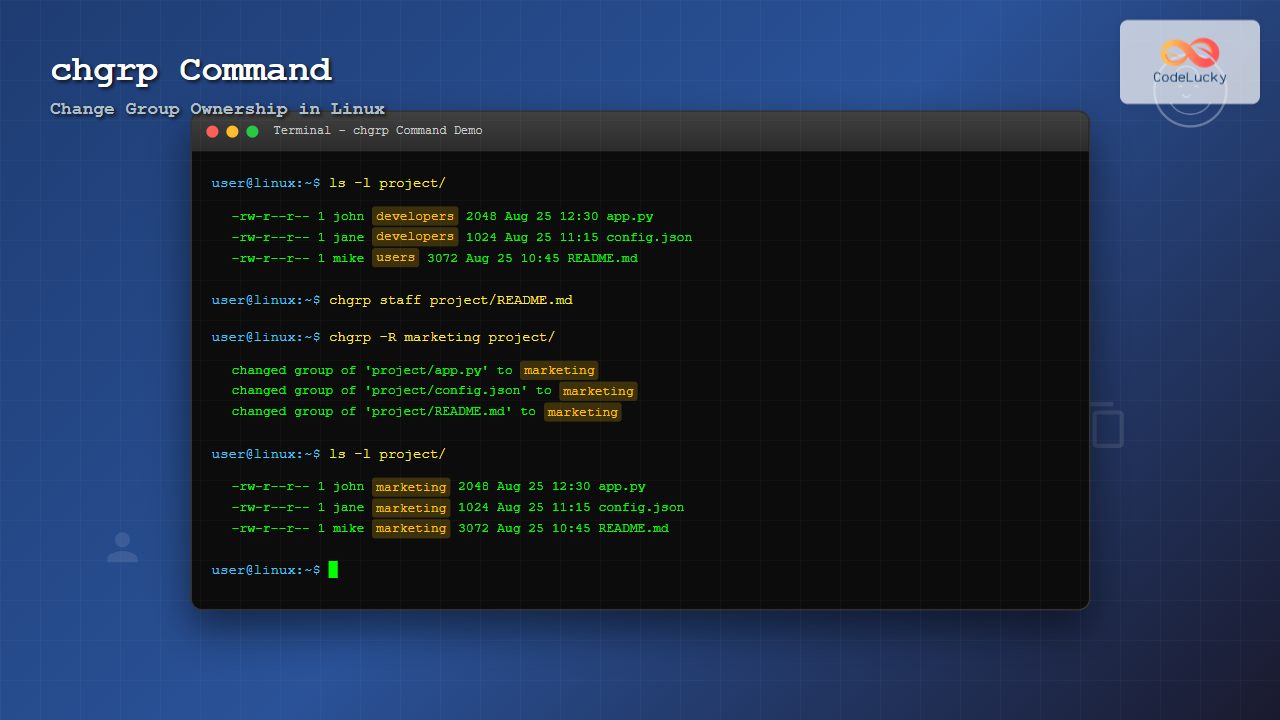
The chgrp command is an essential Linux utility that allows you to change the group ownership of files and directories. Whether you’re a system administrator managing user permissions or a developer working with file access control, understanding chgrp is crucial for effective Linux file management.
What is the chgrp Command?
chgrp stands for “change group” and is used to modify the group ownership of files and directories in Linux and Unix-like operating systems. This command works alongside file permissions to control who can access, modify, or execute specific files.
Basic Syntax
The basic syntax of the chgrp command follows this pattern:
chgrp [OPTIONS] GROUP FILE(s)Where:
- OPTIONS: Various flags to modify command behavior
- GROUP: The target group name or Group ID (GID)
- FILE(s): One or more files or directories to modify
Understanding File Ownership
Before diving into examples, it’s important to understand Linux file ownership structure:
- User (Owner): The individual who owns the file
- Group: A collection of users who share certain permissions
- Others: All other users on the system
You can view current ownership using the ls -l command:
$ ls -l example.txt
-rw-r--r-- 1 john developers 1024 Aug 25 12:00 example.txt
In this output, john is the owner and developers is the group.
Basic Examples
Changing Group Ownership of a Single File
To change the group ownership of a file named document.txt to the staff group:
$ chgrp staff document.txtVerify the change:
$ ls -l document.txt
-rw-r--r-- 1 john staff 2048 Aug 25 12:30 document.txt
Changing Group Ownership of Multiple Files
You can change the group ownership of multiple files simultaneously:
$ chgrp marketing file1.txt file2.txt file3.txtOr use wildcards:
$ chgrp marketing *.txtCommand Options and Flags
Recursive Operation (-R)
The -R option applies changes recursively to directories and their contents:
$ chgrp -R developers /home/project/This changes the group ownership of the project directory and all files and subdirectories within it.
Verbose Output (-v)
Use -v to see detailed output of what the command is doing:
$ chgrp -v staff report.pdf
changed group of 'report.pdf' from developers to staff
Preserve Root Directory (–preserve-root)
This option prevents accidental changes to the root directory:
$ chgrp --preserve-root -R staff /Reference File (–reference)
Change group ownership to match another file’s group:
$ chgrp --reference=template.txt newfile.txtNo Dereference (-h)
When working with symbolic links, -h changes the link itself rather than the target:
$ chgrp -h marketing symlink.txtUsing Group ID (GID)
Instead of group names, you can use numeric Group IDs:
$ chgrp 1001 important.txtTo find a group’s GID, use the getent command:
$ getent group developers
developers:x:1002:john,alice,bob
Advanced Examples
Combining with Find Command
Change group ownership of all .log files in a directory tree:
$ find /var/log -name "*.log" -exec chgrp syslog {} \;Conditional Group Change
Change group only if the current group matches a specific condition:
$ find /home/user -group oldgroup -exec chgrp newgroup {} \;Batch Processing with xargs
Process multiple files efficiently:
$ find /data -type f -name "*.dat" | xargs chgrp analystsError Handling and Troubleshooting
Permission Denied
If you encounter permission denied errors, you might need elevated privileges:
$ sudo chgrp staff /etc/sensitive.confInvalid Group Name
Verify the group exists before using it:
$ getent group groupnameFile Not Found
Always verify file paths and use absolute paths when necessary:
$ chgrp marketing /full/path/to/file.txtBest Practices
Security Considerations
- Always verify group membership before changing ownership
- Use the principle of least privilege
- Test changes on non-critical files first
- Keep logs of ownership changes for auditing
Efficiency Tips
- Use wildcards and find commands for bulk operations
- Combine with other commands using pipes and xargs
- Use the
-vflag during testing to monitor changes
Practical Use Cases
Web Server Configuration
Setting appropriate group ownership for web files:
$ sudo chgrp -R www-data /var/www/html/Shared Project Directory
Creating a shared workspace for a development team:
$ sudo chgrp -R developers /opt/projects/
$ chmod -R g+w /opt/projects/
Log File Management
Ensuring log files have proper group ownership:
$ sudo chgrp -R syslog /var/log/application/Common Mistakes to Avoid
- Not verifying group existence: Always check if the target group exists
- Forgetting recursive flag: Use
-Rfor directories when needed - Ignoring symbolic links: Be aware of how links are handled
- Not backing up: Consider backing up important files before mass changes
Related Commands
The chgrp command works well with these related utilities:
chown: Change both user and group ownershipchmod: Change file permissionsls -l: View current ownership and permissionsgroups: Display user group membershipid: Show user and group IDs
Conclusion
The chgrp command is a powerful tool for managing group ownership in Linux systems. By understanding its syntax, options, and practical applications, you can effectively control file access and maintain proper security in your Linux environment. Remember to always test changes carefully and follow security best practices when modifying file ownership.
Whether you’re managing a web server, setting up shared directories, or maintaining system files, mastering chgrp will enhance your Linux administration skills and help you maintain organized, secure file systems.
Related Posts

chown Command Linux: Master File and Directory Ownership Management
The chown command is one of the most fundamental tools in Linux system administration, allowing users to change file and...
chmod Command in Linux: Complete File Permissions Tutorial with Examples
The chmod command is one of the most essential Linux commands for managing file and directory permissions. Whether you're a...
usermod Command Linux: Complete Guide to Modify User Account Properties
The usermod command is a powerful Linux utility that allows system administrators to modify existing user account properties without deleting...
setfacl Command Linux: Complete Guide to File Access Control Lists Management
The setfacl command is a powerful Linux utility that allows you to set and modify File Access Control Lists (ACLs)...

File Permissions in Operating System: Complete Guide to Access Control Lists (ACLs)
Introduction to File Permissions and Access Control File permissions form the backbone of operating system security, controlling who can access,...

groups Command Linux: Complete Guide to Display User Group Memberships
The groups command is a fundamental Linux utility that displays the group memberships of users on your system. Understanding how...
chattr Command Linux: Complete Guide to Change File Attributes with Examples
The chattr command in Linux is a powerful utility that allows system administrators and users to change file attributes on...
getfacl Command Linux: Complete Guide to File Access Control Lists Management
The getfacl command in Linux is a powerful utility that allows system administrators and users to view Access Control Lists...
umask Command Linux: Set Default File Permissions with Examples
The umask command is a fundamental Linux utility that controls the default permissions assigned to newly created files and directories....
id Command Linux: Complete Guide to Display User and Group IDs
The id command is a fundamental Linux utility that displays user and group identification information for the current user or...

ls Command in Linux: Complete Guide to List Files and Directories with Examples
The ls command is one of the most fundamental and frequently used commands in Linux and Unix-like operating systems. It...
cp Command Linux: Copy Files and Directories with Examples and Best Practices
The cp command is one of the most fundamental and frequently used commands in Linux systems. It allows you to...





