
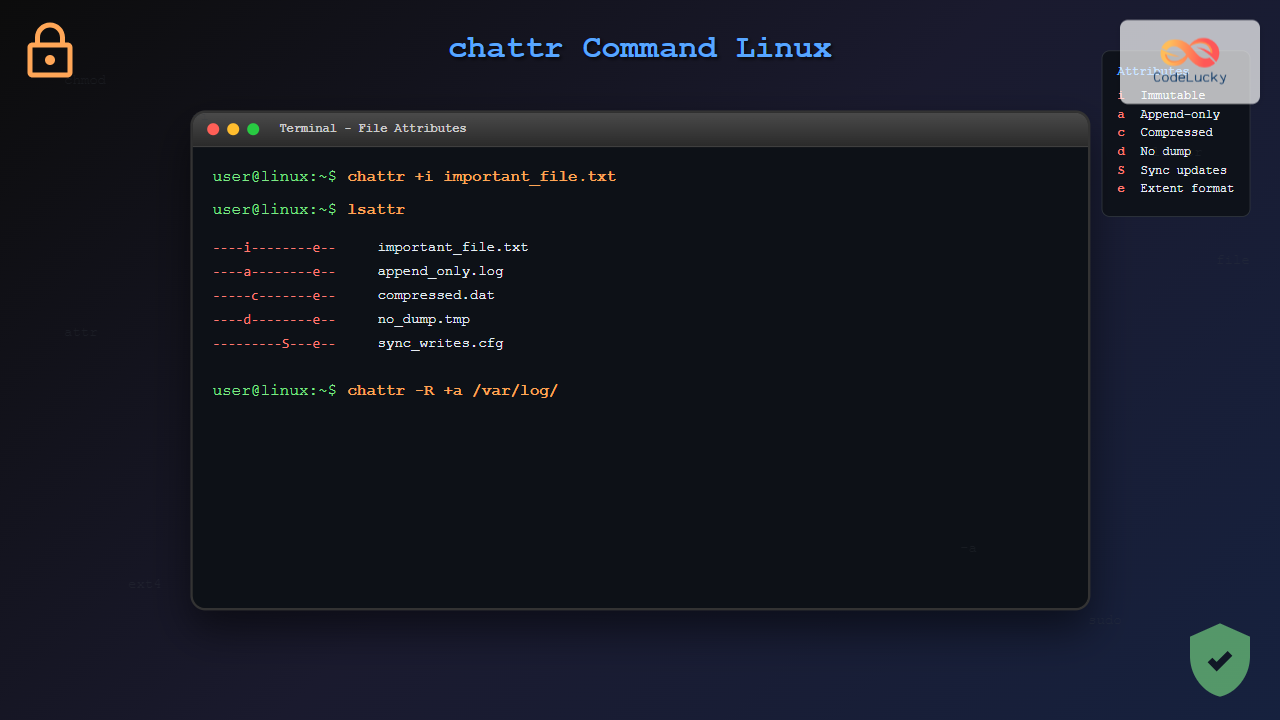
The chattr command in Linux is a powerful utility that allows system administrators and users to change file attributes on ext2, ext3, ext4, and other supported file systems. Unlike traditional file permissions, these attributes provide additional layers of security and control over how files can be accessed and modified.
What is the chattr Command?
The chattr command stands for “change attributes” and is used to modify file attributes that are independent of the standard Unix file permissions. These attributes can make files immutable, append-only, or apply other special behaviors that enhance system security and data integrity.
Basic Syntax
chattr [options] [+-=mode] filesWhere:
- +: Adds the specified attributes
- –: Removes the specified attributes
- =: Sets the attributes exactly as specified
- mode: The attribute letters
- files: Target files or directories
Common File Attributes
Immutable Attribute (i)
The immutable attribute makes a file completely unchangeable. Once set, the file cannot be modified, deleted, renamed, or linked to, even by the root user.
# Make a file immutable
sudo chattr +i important_file.txt

# Try to modify the file (this will fail)
echo "new content" > important_file.txt
# Output: bash: important_file.txt: Operation not permitted

# Remove immutable attribute
sudo chattr -i important_file.txt
Append-only Attribute (a)
The append-only attribute allows data to be added to a file but prevents modification or deletion of existing content. This is particularly useful for log files.
# Set append-only attribute
sudo chattr +a logfile.txt

# This works - appending data
echo "New log entry" >> logfile.txt

# This fails - overwriting content
echo "Replace content" > logfile.txt
# Output: bash: logfile.txt: Operation not permitted

# Remove append-only attribute
sudo chattr -a logfile.txt
No Dump Attribute (d)
Files with the no-dump attribute are ignored by the dump backup program.
# Set no-dump attribute
chattr +d temporary_file.txt

# Check the attribute
lsattr temporary_file.txt
# Output: ----d--------e-- temporary_file.txt
Compression Attribute (c)
The compression attribute enables automatic compression for the file (if supported by the file system).
# Enable compression
chattr +c large_file.txt

# Check attributes
lsattr large_file.txt
# Output: -----c-------e-- large_file.txt
Viewing File Attributes with lsattr
To view current file attributes, use the lsattr command:
# View attributes of a single file
lsattr filename.txt
# Output: -------------e-- filename.txt

# View attributes of all files in directory
lsattr
# Output:
# -------------e-- file1.txt
# ----i--------e-- file2.txt
# ----a--------e-- file3.txt

# View attributes recursively
lsattr -R /path/to/directory

# View attributes with directory names
lsattr -d /path/to/directory
Complete List of Attributes
| Attribute | Letter | Description |
|---|---|---|
| Append-only | a | File can only be opened for appending |
| Compressed | c | File is compressed automatically |
| No dump | d | File is ignored by dump backup |
| Extent format | e | File uses extents for mapping blocks |
| Immutable | i | File cannot be modified, deleted, or renamed |
| Data journaling | j | File data is journaled before writing |
| Secure deletion | s | File blocks are zeroed when deleted |
| Synchronous updates | S | Changes are written synchronously |
| No tail-merging | t | File tail is not merged with other files |
| Undeletable | u | File contents are saved when deleted |
Practical Examples
Example 1: Protecting System Configuration Files
# Protect important configuration files
sudo chattr +i /etc/passwd
sudo chattr +i /etc/shadow
sudo chattr +i /etc/hosts

# Verify the protection
lsattr /etc/passwd /etc/shadow /etc/hosts
# Output:
# ----i--------e-- /etc/passwd
# ----i--------e-- /etc/shadow
# ----i--------e-- /etc/hosts

# Try to modify (this will fail)
sudo echo "malicious entry" >> /etc/passwd
# Output: bash: /etc/passwd: Operation not permitted
Example 2: Creating Secure Log Files
# Create a log file with append-only attribute
touch secure.log
sudo chattr +a secure.log

# Normal logging works
echo "$(date): System started" >> secure.log
echo "$(date): User login" >> secure.log

# View the log
cat secure.log
# Output:
# Mon Aug 25 06:42:15 IST 2025: System started
# Mon Aug 25 06:42:16 IST 2025: User login

# Attempt to clear the log (this will fail)
> secure.log
# Output: bash: secure.log: Operation not permitted
Example 3: Working with Multiple Attributes
# Set multiple attributes at once
chattr +aS important_log.txt

# Check the attributes
lsattr important_log.txt
# Output: ----a----S---e-- important_log.txt

# Remove specific attribute while keeping others
chattr -S important_log.txt

# Check again
lsattr important_log.txt
# Output: ----a--------e-- important_log.txt
Command Options
Recursive Operations
# Apply attributes recursively to directory contents
chattr -R +i /important/directory/

# Remove attributes recursively
chattr -R -i /important/directory/
Version Option
# Set file version (ext2/ext3 only)
chattr -v 1 filename.txt

# Check version with lsattr
lsattr -v filename.txt
# Output: 1 -------------e-- filename.txt
File System Compatibility
Not all attributes are supported by every file system:
- ext2/ext3/ext4: Full support for most attributes
- XFS: Limited support (mainly immutable and append-only)
- Btrfs: Partial support
- ReiserFS: Limited support
# Check file system type
df -T /path/to/file
# Output: Filesystem Type 1K-blocks Used Available Use% Mounted on
# /dev/sda1 ext4 20642428 5123456 14567890 26% /
Security Considerations
Best Practices
- Always use
sudowhen setting attributes on system files - Document which files have special attributes for maintenance purposes
- Test attribute changes on non-critical files first
- Be cautious with the immutable attribute on directories
Common Mistakes to Avoid
# Don't set immutable on directories you need to modify
# This will prevent adding/removing files
sudo chattr +i /var/log/  # Be careful with this!

# Remember to remove attributes before system updates
sudo chattr -i /etc/hosts  # Before modifying system files
Troubleshooting
Permission Denied Errors
# If you get permission denied, check if file has immutable attribute
lsattr problematic_file.txt

# Remove immutable attribute if present
sudo chattr -i problematic_file.txt
Unsupported Attributes
# Some attributes may not be supported
chattr +j filename.txt
# Output: chattr: Inappropriate ioctl for device while reading flags on filename.txt
Advanced Usage
Combining with Find Command
# Find all immutable files in a directory
find /path/to/search -exec lsattr {} \; | grep "i"

# Make all .txt files append-only
find . -name "*.txt" -exec chattr +a {} \;
Scripting with chattr
#!/bin/bash
# Script to protect configuration files

config_files=("/etc/passwd" "/etc/shadow" "/etc/hosts")

for file in "${config_files[@]}"; do
    if [ -f "$file" ]; then
        chattr +i "$file"
        echo "Protected: $file"
    else
        echo "File not found: $file"
    fi
done
Conclusion
The chattr command is an essential tool for Linux system administrators who need fine-grained control over file behavior. By understanding and properly implementing file attributes, you can significantly enhance system security, prevent accidental data loss, and ensure critical files remain protected even from privileged users.
Remember to always use lsattr to verify attribute changes and document any special attributes applied to important files. With practice, chattr becomes an invaluable part of your Linux administration toolkit.
Related Posts

lsattr Command Linux: Complete Guide to List and Manage File Attributes
The lsattr command is a powerful Linux utility that displays the extended attributes of files and directories on ext2, ext3,...
xattr Command Linux: Complete Guide to Extended File Attributes Management
Extended file attributes in Linux provide a powerful mechanism to store additional metadata beyond traditional file permissions and ownership. The...
chmod Command in Linux: Complete File Permissions Tutorial with Examples
The chmod command is one of the most essential Linux commands for managing file and directory permissions. Whether you're a...
usermod Command Linux: Complete Guide to Modify User Account Properties
The usermod command is a powerful Linux utility that allows system administrators to modify existing user account properties without deleting...
chgrp Command in Linux: Complete Guide to Change Group Ownership
The chgrp command is an essential Linux utility that allows you to change the group ownership of files and directories....

chown Command Linux: Master File and Directory Ownership Management
The chown command is one of the most fundamental tools in Linux system administration, allowing users to change file and...

File Permissions in Operating System: Complete Guide to Access Control Lists (ACLs)
Introduction to File Permissions and Access Control File permissions form the backbone of operating system security, controlling who can access,...
setfacl Command Linux: Complete Guide to File Access Control Lists Management
The setfacl command is a powerful Linux utility that allows you to set and modify File Access Control Lists (ACLs)...

stat Command Linux: Complete Guide to Display File and Filesystem Status Information
The stat command is a powerful Linux utility that displays detailed information about files and filesystems. Unlike basic commands like...

file Command Advanced Linux: Master Detailed File Type Analysis and Detection
The file command is one of the most powerful and underutilized utilities in Linux for determining file types and analyzing...
File System in Operating System: Complete Guide to Structure and Organization
Introduction to File Systems A file system is a fundamental component of any operating system that provides a structured way...

tune2fs Command Linux: Complete Guide to Ext2/3/4 Filesystem Tuning
The tune2fs command is a powerful Linux utility that allows system administrators to modify and tune various parameters of ext2,...





