
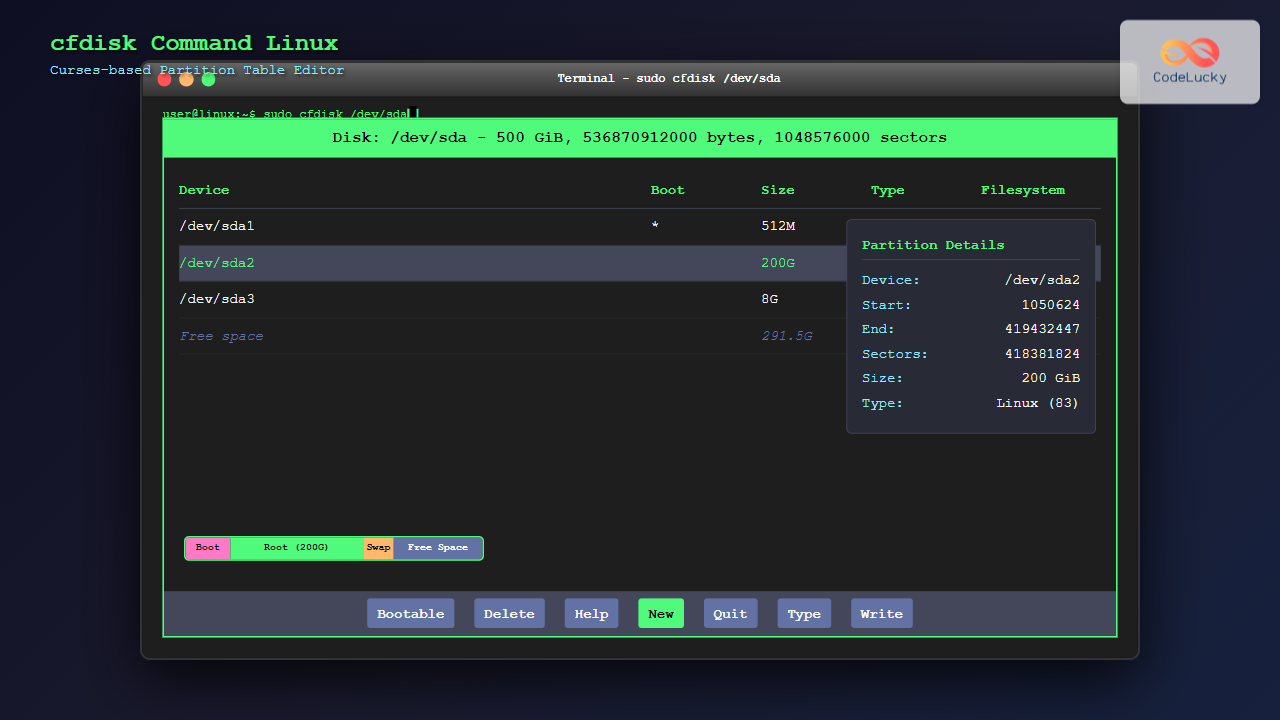
The cfdisk command is a powerful, user-friendly partition table editor for Linux systems that provides a curses-based interface for managing disk partitions. Unlike the traditional fdisk command, cfdisk offers an intuitive menu-driven approach that makes partition management more accessible for both beginners and experienced users.
What is cfdisk Command?
The cfdisk utility is a curses-based disk partition table manipulator that allows users to create, delete, and modify partitions on storage devices. It’s part of the util-linux package and provides a more visual and interactive alternative to command-line partition tools.
Key Features of cfdisk
- Interactive Interface: Menu-driven operation with arrow key navigation
- Visual Partition Display: Clear representation of partition layout
- Real-time Updates: Immediate visualization of changes
- Multiple Partition Types: Support for various partition types and file systems
- Safety Features: Changes aren’t written until explicitly confirmed
cfdisk Command Syntax
The basic syntax for the cfdisk command is:
cfdisk [options] [device]Common Options
-h, --help: Display help information-V, --version: Show version information-L, --color[=when]: Colorize output (auto, always, never)-z, --zero: Start with zeroed partition table
Installing cfdisk
On most Linux distributions, cfdisk is pre-installed as part of the util-linux package. If it’s not available, you can install it:
Ubuntu/Debian
sudo apt update
sudo apt install util-linux
CentOS/RHEL/Fedora
sudo yum install util-linux-ng
# or for newer versions
sudo dnf install util-linux
Basic cfdisk Usage
Launching cfdisk
To start cfdisk on a specific device:
sudo cfdisk /dev/sdbImportant: Always use sudo when running cfdisk as it requires administrative privileges to modify partition tables.
Understanding the cfdisk Interface
When you launch cfdisk, you’ll see a screen divided into several sections:
- Partition List: Shows existing partitions with details
- Menu Options: Available actions at the bottom
- Device Information: Disk size and model information
- Free Space: Unallocated areas on the disk
Creating Partitions with cfdisk
Step-by-Step Partition Creation
- Launch cfdisk:
sudo cfdisk /dev/sdb - Select Free Space: Use arrow keys to highlight free space
- Create New Partition: Press ‘N’ or select “New” from the menu
- Choose Partition Type:
- Primary (for bootable partitions)
- Extended (container for logical partitions)
- Logical (within extended partition)
- Specify Size: Enter the desired partition size (e.g., 10G, 500M)
Example: Creating a 10GB Primary Partition
# Launch cfdisk
sudo cfdisk /dev/sdb

# Navigate to free space and press 'N'
# Select "primary" when prompted
# Enter size: 10G
# Press Enter to confirm
Modifying Partition Types
Changing Partition Type
To modify a partition’s type:
- Select the partition using arrow keys
- Press ‘T’ or select “Type” from the menu
- Choose from available partition types:
- Linux filesystem (83)
- Linux swap (82)
- Linux LVM (8e)
- NTFS (7)
- FAT32 (b)
Common Partition Types
| Type Code | Description | Use Case |
|---|---|---|
| 83 | Linux | Standard Linux file systems (ext4, xfs) |
| 82 | Linux swap | Swap space for virtual memory |
| 8e | Linux LVM | Logical Volume Management |
| fd | Linux RAID | Software RAID arrays |
Deleting Partitions
To remove a partition:
- Select the partition to delete
- Press ‘D’ or select “Delete” from the menu
- Confirm the deletion
Warning: Deleting a partition removes all data stored on it. Always backup important data before deletion.
Managing Partition Flags
Setting Bootable Flag
To make a partition bootable:
- Select the desired partition
- Press ‘B’ or select “Bootable” from the menu
- The partition will be marked with an asterisk (*)
Other Available Flags
- Boot: Makes partition bootable
- Required: Marks partition as required by the system
- LBA: Uses Logical Block Addressing
Working with Different Partition Table Types
MBR (Master Boot Record)
MBR is the traditional partition table format with these characteristics:
- Maximum 4 primary partitions
- Disk size limit of 2TB
- One extended partition can contain multiple logical partitions
GPT (GUID Partition Table)
GPT is the modern partition table format offering:
- Support for disks larger than 2TB
- Up to 128 partitions by default
- Better data integrity with redundant headers
- Required for UEFI boot
Converting Between Partition Table Types
To create a GPT partition table:
# Start cfdisk and select "gpt" when prompted
sudo cfdisk /dev/sdb

# Or specify GPT explicitly
sudo cfdisk -t gpt /dev/sdb
Practical Examples
Example 1: Setting up a Basic Linux System
Creating partitions for a typical Linux installation:
- Boot Partition (500MB):
sudo cfdisk /dev/sda # Create 500M primary partition # Set type to Linux (83) # Make bootable - Root Partition (20GB):
# Create 20G primary partition # Set type to Linux (83) - Swap Partition (4GB):
# Create 4G partition # Set type to Linux swap (82) - Home Partition (remaining space):
# Create partition with remaining space
# Set type to Linux (83)
Example 2: Creating a Data Storage Setup
Setting up a disk for data storage with multiple partitions:
sudo cfdisk /dev/sdb

# Create multiple data partitions:
# 1. Documents: 50GB (Linux type)
# 2. Media: 100GB (Linux type)
# 3. Backup: Remaining space (Linux type)
Saving Changes
Writing Changes to Disk
After making all desired changes:
- Press ‘W’ or select “Write” from the menu
- Type “yes” to confirm writing changes
- Press ‘Q’ or select “Quit” to exit cfdisk
Important: Changes are not permanent until you write them to disk. You can quit without writing to discard all changes.
Advanced cfdisk Features
Resizing Partitions
While cfdisk doesn’t directly support resizing, you can:
- Delete the partition
- Create a new partition in the same location with different size
- Use resize2fs or similar tools afterward to resize the filesystem
Viewing Partition Information
To view detailed partition information:
- Use arrow keys to select a partition
- Partition details appear in the information area
- Size, type, and flags are displayed
Troubleshooting Common Issues
Permission Denied Errors
If you encounter permission errors:
# Ensure you're using sudo
sudo cfdisk /dev/sdb

# Check device permissions
ls -l /dev/sdb
Device Busy Errors
If the device is busy:
# Check mounted partitions
mount | grep /dev/sdb

# Unmount if necessary
sudo umount /dev/sdb1

# Check for swap usage
swapon --show
Partition Table Corruption
For corrupted partition tables:
# Backup existing partition table
sudo sfdisk -d /dev/sdb > partition_backup.txt

# Create new partition table
sudo cfdisk -z /dev/sdb
Best Practices for Using cfdisk
Safety Guidelines
- Always backup data before modifying partitions
- Double-check device names to avoid accidental data loss
- Use test environments when learning partition management
- Document partition layouts for future reference
Planning Partition Layout
- Determine required partition types and sizes
- Consider future expansion needs
- Plan for system requirements (boot, swap, root)
- Leave some unallocated space for flexibility
Alternatives to cfdisk
Command-line Tools
- fdisk: Traditional command-line partition editor
- parted: GNU partition editor with scripting support
- sfdisk: Script-oriented partition table manipulator
Graphical Tools
- GParted: GNOME partition editor
- KDE Partition Manager: KDE’s partition management tool
- GNOME Disks: Simple disk management utility
Conclusion
The cfdisk command provides an excellent balance between functionality and ease of use for Linux partition management. Its curses-based interface makes it more approachable than traditional command-line tools while still offering powerful partition manipulation capabilities.
Whether you’re setting up a new Linux system, managing storage devices, or reorganizing disk layouts, cfdisk offers the tools needed to accomplish these tasks safely and efficiently. Remember to always backup important data and carefully plan your partition layout before making changes.
By mastering cfdisk, you’ll have a valuable tool in your Linux administration toolkit that can handle most partition management tasks with confidence and precision.
Related Posts
cgdisk Command Linux: Complete Guide to Curses-Based GPT Partition Management
The cgdisk command is a powerful curses-based GPT (GUID Partition Table) partition editor for Linux systems. Unlike traditional command-line tools,...
sfdisk Command Linux: Complete Guide to Scriptable Partition Table Editor
The sfdisk command is a powerful and scriptable partition table editor in Linux that provides advanced functionality for managing disk...
fdisk Command Linux: Complete Guide to Disk Partition Management
The fdisk command is one of the most powerful and essential tools for disk partition management in Linux systems. Whether...
sgdisk Command Linux: Complete Guide to Script-Friendly GPT Partition Management
The sgdisk command is a powerful script-friendly alternative to the interactive gdisk utility for managing GPT (GUID Partition Table) partitions...
gparted Command Linux: Complete Guide to Graphical Partition Management
The gparted command in Linux provides access to one of the most powerful and user-friendly graphical partition editors available for...
parted Command Linux: Complete Guide to Disk Partition Management
The parted command is a powerful disk partition manipulation program in Linux that allows you to create, resize, move, and...
mkfs Command Linux: Complete Guide to Creating Filesystems on Partitions
The mkfs command in Linux is a fundamental tool for creating filesystems on disk partitions. Whether you're setting up a...
kpartx Command Linux: Create and Manage Partition Maps with Complete Examples
The kpartx command is a powerful Linux utility that creates device maps from partition tables, enabling you to access partitions...
gdisk Command Linux: Complete Guide to GPT Partition Table Management
The gdisk command is a powerful GPT (GUID Partition Table) partition editor for Linux systems that provides advanced capabilities for...
lvcreate Command Linux: Complete Guide to Creating Logical Volumes with Examples
The lvcreate command is a fundamental tool in Linux Logical Volume Management (LVM) that allows you to create logical volumes...
vgdisplay Command Linux: Complete Guide to Display Volume Group Information
The vgdisplay command is an essential tool in Linux systems for displaying detailed information about Volume Groups (VGs) in Logical...

Storage Virtualization: Complete Guide to Logical Volume Management in Linux
Storage virtualization through Logical Volume Management (LVM) represents one of the most powerful features in modern Linux systems, providing administrators...





