
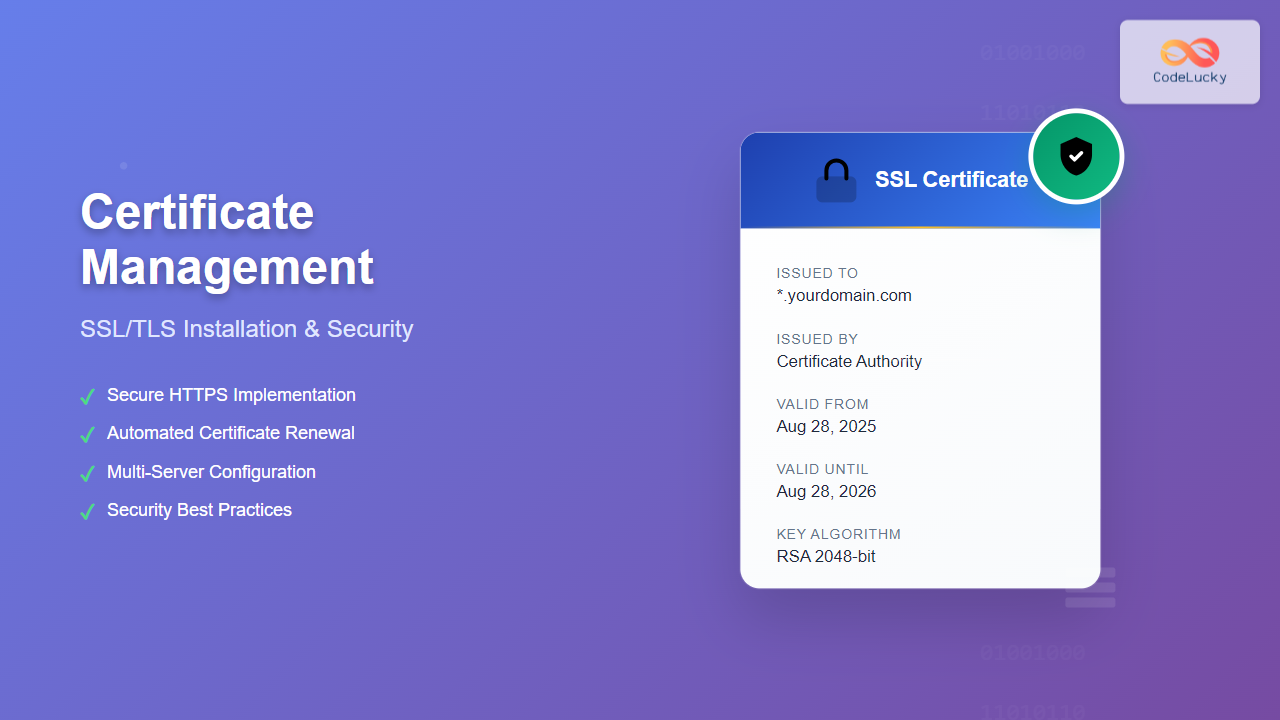
Understanding SSL/TLS Certificate Management
SSL/TLS certificate management is a critical aspect of modern web security, ensuring encrypted communication between clients and servers. Proper certificate installation and management protects sensitive data, builds user trust, and maintains compliance with security standards.

Types of SSL/TLS Certificates
Domain Validation (DV) Certificates
Domain Validation certificates provide basic encryption with minimal verification requirements. The Certificate Authority (CA) only verifies domain ownership through email validation or DNS record verification.
- Quick issuance (minutes to hours)
- Lowest cost option
- Suitable for personal websites and blogs
- Basic browser trust indicators
Organization Validation (OV) Certificates
Organization Validation certificates require verification of the organization’s identity in addition to domain ownership. The CA validates business registration and legitimacy.
- Enhanced trust indicators
- Business identity verification
- Suitable for commercial websites
- Issuance time: 1-3 business days
Extended Validation (EV) Certificates
Extended Validation certificates provide the highest level of authentication, requiring rigorous verification of the organization’s legal, physical, and operational existence.
- Green address bar in browsers
- Company name displayed in certificate
- Highest user trust
- Suitable for e-commerce and financial sites
Certificate Installation Process
Generating Certificate Signing Request (CSR)
Before obtaining a certificate, you must generate a Certificate Signing Request (CSR) containing your public key and identifying information.
Using OpenSSL
# Generate private key
openssl genrsa -out private.key 2048

# Generate CSR
openssl req -new -key private.key -out certificate.csr

# You'll be prompted for:
# Country Name (2 letter code): US
# State or Province Name: California
# Locality Name: San Francisco
# Organization Name: Your Company
# Organizational Unit Name: IT Department
# Common Name: yourdomain.com
# Email Address: [email protected]
Verifying CSR Content
# View CSR details
openssl req -in certificate.csr -text -noout

# Expected output format:
Certificate Request:
    Data:
        Version: 1 (0x0)
        Subject: C=US, ST=California, L=San Francisco, O=Your Company, CN=yourdomain.com
        Subject Public Key Info:
            Public Key Algorithm: rsaEncryption
                RSA Public-Key: (2048 bit)

Apache HTTP Server Installation
Prerequisites
Ensure mod_ssl is enabled and SSL configuration is properly set up:
# Enable SSL module (Ubuntu/Debian)
sudo a2enmod ssl
sudo systemctl restart apache2

# Enable SSL module (CentOS/RHEL)
sudo yum install mod_ssl
sudo systemctl restart httpd
Certificate File Placement
Place certificate files in a secure directory with appropriate permissions:
# Create certificate directory
sudo mkdir -p /etc/ssl/certs/yourdomain.com
sudo mkdir -p /etc/ssl/private/yourdomain.com

# Copy certificate files
sudo cp yourdomain.com.crt /etc/ssl/certs/yourdomain.com/
sudo cp yourdomain.com.key /etc/ssl/private/yourdomain.com/
sudo cp intermediate.crt /etc/ssl/certs/yourdomain.com/

# Set proper permissions
sudo chmod 644 /etc/ssl/certs/yourdomain.com/*
sudo chmod 600 /etc/ssl/private/yourdomain.com/*
sudo chown root:root /etc/ssl/certs/yourdomain.com/*
sudo chown root:root /etc/ssl/private/yourdomain.com/*
Virtual Host Configuration
Configure the SSL virtual host in Apache:
# /etc/apache2/sites-available/yourdomain-ssl.conf
<IfModule mod_ssl.c>
<VirtualHost *:443>
    ServerName yourdomain.com
    ServerAlias www.yourdomain.com
    DocumentRoot /var/www/yourdomain.com

    # SSL Configuration
    SSLEngine on
    SSLCertificateFile /etc/ssl/certs/yourdomain.com/yourdomain.com.crt
    SSLCertificateKeyFile /etc/ssl/private/yourdomain.com/yourdomain.com.key
    SSLCertificateChainFile /etc/ssl/certs/yourdomain.com/intermediate.crt

    # Security Headers
    Header always set Strict-Transport-Security "max-age=31536000; includeSubDomains"
    Header always set X-Content-Type-Options nosniff
    Header always set X-Frame-Options DENY

    # SSL Protocol Configuration
    SSLProtocol all -SSLv2 -SSLv3 -TLSv1 -TLSv1.1
    SSLCipherSuite ECDHE+AESGCM:ECDHE+AES256:ECDHE+AES128:!aNULL:!MD5:!DSS
    SSLHonorCipherOrder on

    # Logging
    ErrorLog ${APACHE_LOG_DIR}/yourdomain_ssl_error.log
    CustomLog ${APACHE_LOG_DIR}/yourdomain_ssl_access.log combined
</VirtualHost>
</IfModule>
Enable Site and Test Configuration
# Enable SSL site
sudo a2ensite yourdomain-ssl.conf

# Test configuration
sudo apache2ctl configtest

# Expected output:
Syntax OK

# Restart Apache
sudo systemctl restart apache2

# Verify SSL is working
sudo systemctl status apache2
openssl s_client -connect yourdomain.com:443 -servername yourdomain.com
Nginx Installation
Certificate Preparation
Nginx requires the certificate and intermediate certificates to be concatenated into a single file:
# Combine certificate and intermediate
cat yourdomain.com.crt intermediate.crt > /etc/ssl/certs/yourdomain.com_bundle.crt

# Secure the private key
cp yourdomain.com.key /etc/ssl/private/yourdomain.com.key
chmod 600 /etc/ssl/private/yourdomain.com.key
Server Block Configuration
# /etc/nginx/sites-available/yourdomain.com
server {
    listen 80;
    server_name yourdomain.com www.yourdomain.com;
    return 301 https://$server_name$request_uri;
}

server {
    listen 443 ssl http2;
    server_name yourdomain.com www.yourdomain.com;

    root /var/www/yourdomain.com;
    index index.html index.php;

    # SSL Configuration
    ssl_certificate /etc/ssl/certs/yourdomain.com_bundle.crt;
    ssl_certificate_key /etc/ssl/private/yourdomain.com.key;

    # SSL Security Settings
    ssl_protocols TLSv1.2 TLSv1.3;
    ssl_ciphers ECDHE-RSA-AES256-GCM-SHA512:DHE-RSA-AES256-GCM-SHA512:ECDHE-RSA-AES256-GCM-SHA384;
    ssl_prefer_server_ciphers off;
    ssl_session_cache shared:SSL:10m;
    ssl_session_timeout 10m;

    # Security Headers
    add_header Strict-Transport-Security "max-age=31536000; includeSubDomains" always;
    add_header X-Content-Type-Options nosniff always;
    add_header X-Frame-Options DENY always;

    # OCSP Stapling
    ssl_stapling on;
    ssl_stapling_verify on;
    ssl_trusted_certificate /etc/ssl/certs/yourdomain.com_bundle.crt;
    resolver 8.8.8.8 8.8.4.4 valid=300s;

    location / {
        try_files $uri $uri/ =404;
    }
}
Testing Nginx Configuration
# Test configuration syntax
sudo nginx -t

# Expected output:
nginx: the configuration file /etc/nginx/nginx.conf syntax is ok
nginx: configuration file /etc/nginx/nginx.conf test is successful

# Enable site and reload
sudo ln -s /etc/nginx/sites-available/yourdomain.com /etc/nginx/sites-enabled/
sudo systemctl reload nginx

# Verify SSL functionality
curl -I https://yourdomain.com
IIS (Windows) Installation
Using IIS Manager GUI
For Windows servers running Internet Information Services (IIS):
- Open IIS Manager as Administrator
- Select your server in the connections panel
- Double-click “Server Certificates” in the IIS section
- Click “Import…” in the Actions panel
- Browse to your certificate file (.pfx format)
- Enter the certificate password
- Select the certificate store (usually “Personal”)
Binding SSL Certificate to Site
- Select your website in IIS Manager
- Click “Bindings…” in the Actions panel
- Click “Add…” to create new binding
- Set Type to “https”
- Set Port to “443”
- Select your SSL certificate from dropdown
- Check “Require Server Name Indication” if using multiple SSL sites
PowerShell Installation Method
# Import certificate to store
$certPath = "C:\certificates\yourdomain.com.pfx"
$certPassword = ConvertTo-SecureString -String "your_password" -Force -AsPlainText
$cert = Import-PfxCertificate -FilePath $certPath -CertStoreLocation Cert:\LocalMachine\My -Password $certPassword

# Create HTTPS binding
Import-Module WebAdministration
New-WebBinding -Name "Your Website" -Protocol https -Port 443 -HostHeader "yourdomain.com"

# Assign certificate to binding
$binding = Get-WebBinding -Name "Your Website" -Protocol https
$binding.AddSslCertificate($cert.Thumbprint, "my")

Certificate Validation and Testing
Command Line Testing
Verify certificate installation using various command-line tools:
# Test SSL connection
openssl s_client -connect yourdomain.com:443 -servername yourdomain.com

# Check certificate expiration
echo | openssl s_client -connect yourdomain.com:443 -servername yourdomain.com 2>/dev/null | openssl x509 -noout -dates

# Expected output:
notBefore=Aug 15 00:00:00 2025 GMT
notAfter=Aug 15 23:59:59 2026 GMT

# Verify certificate chain
openssl s_client -connect yourdomain.com:443 -servername yourdomain.com -showcerts

# Test specific TLS versions
openssl s_client -connect yourdomain.com:443 -tls1_2
openssl s_client -connect yourdomain.com:443 -tls1_3
Browser Verification
Check certificate details in web browsers:
- Chrome/Edge: Click padlock icon → Certificate → Details tab
- Firefox: Click padlock icon → Connection secure → More information
- Safari: Click padlock icon → Show Certificate
Online SSL Testing Tools
Use external validation services for comprehensive testing:
- SSL Labs Test: Provides detailed security analysis and grade
- SSL Checker: Validates certificate chain and configuration
- Security Headers: Tests HTTP security headers implementation
Automated Certificate Management
Let’s Encrypt with Certbot
Let’s Encrypt provides free SSL certificates with automated renewal capabilities:
# Install Certbot (Ubuntu/Debian)
sudo apt update
sudo apt install certbot python3-certbot-apache

# Install Certbot (CentOS/RHEL)
sudo yum install epel-release
sudo yum install certbot python3-certbot-apache

# Obtain and install certificate for Apache
sudo certbot --apache -d yourdomain.com -d www.yourdomain.com

# For Nginx
sudo certbot --nginx -d yourdomain.com -d www.yourdomain.com

# Manual certificate generation
sudo certbot certonly --standalone -d yourdomain.com
Automatic Renewal Setup
# Test automatic renewal
sudo certbot renew --dry-run

# Expected output:
Saving debug log to /var/log/letsencrypt/letsencrypt.log
Processing /etc/letsencrypt/renewal/yourdomain.com.conf
Cert not due for renewal, but simulating renewal for dry run
Congratulations, all renewals succeeded

# Set up automatic renewal crontab
sudo crontab -e

# Add this line for twice-daily renewal checks
0 0,12 * * * /usr/bin/certbot renew --quiet
Certificate Monitoring Script
#!/bin/bash
# certificate-monitor.sh
DAYS_THRESHOLD=30
DOMAIN="yourdomain.com"

# Get certificate expiration date
EXPIRY_DATE=$(echo | openssl s_client -connect $DOMAIN:443 -servername $DOMAIN 2>/dev/null | openssl x509 -noout -enddate | cut -d= -f2)

# Convert to timestamp
EXPIRY_TIMESTAMP=$(date -d "$EXPIRY_DATE" +%s)
CURRENT_TIMESTAMP=$(date +%s)

# Calculate days until expiration
DAYS_UNTIL_EXPIRY=$(( ($EXPIRY_TIMESTAMP - $CURRENT_TIMESTAMP) / 86400 ))

if [ $DAYS_UNTIL_EXPIRY -lt $DAYS_THRESHOLD ]; then
    echo "WARNING: Certificate for $DOMAIN expires in $DAYS_UNTIL_EXPIRY days"
    # Send alert email or notification
    mail -s "SSL Certificate Expiry Warning" [email protected] << EOF
The SSL certificate for $DOMAIN will expire in $DAYS_UNTIL_EXPIRY days.
Please renew the certificate before expiration.
EOF
else
    echo "Certificate for $DOMAIN is valid for $DAYS_UNTIL_EXPIRY more days"
fi

Security Best Practices
Private Key Protection
Secure private key management is crucial for certificate security:
- File Permissions: Set private key files to 600 (readable only by owner)
- Storage Location: Store in secure directories with restricted access
- Backup Security: Encrypt private keys in backups
- Key Rotation: Generate new key pairs for certificate renewals
TLS Configuration Hardening
# Apache SSL hardening
SSLProtocol all -SSLv2 -SSLv3 -TLSv1 -TLSv1.1
SSLCipherSuite ECDHE+AESGCM:ECDHE+AES256:ECDHE+AES128:!aNULL:!MD5:!DSS
SSLHonorCipherOrder on
SSLCompression off
SSLSessionTickets off

# Enable OCSP Stapling
SSLUseStapling on
SSLStaplingCache shmcb:/var/run/ocsp(128000)
HTTP Security Headers
Implement additional security headers to enhance protection:
# Apache security headers
Header always set Strict-Transport-Security "max-age=31536000; includeSubDomains; preload"
Header always set X-Content-Type-Options nosniff
Header always set X-Frame-Options DENY
Header always set X-XSS-Protection "1; mode=block"
Header always set Referrer-Policy "strict-origin-when-cross-origin"
Header always set Content-Security-Policy "default-src 'self'"
Troubleshooting Common Issues
Certificate Chain Problems
Incomplete certificate chains are a common cause of SSL errors:
# Verify certificate chain
openssl verify -CApath /etc/ssl/certs yourdomain.com.crt

# Fix incomplete chain by concatenating intermediate certificates
cat yourdomain.com.crt intermediate.crt root.crt > complete_chain.crt

# Test chain validity
openssl s_client -connect yourdomain.com:443 -servername yourdomain.com -verify_return_error
Mixed Content Issues
Resolve mixed content warnings when migrating from HTTP to HTTPS:
- Update internal links: Change http:// to https:// in HTML
- Protocol-relative URLs: Use // instead of http:// for external resources
- Content Security Policy: Implement CSP headers to block mixed content
- HSTS Headers: Force HTTPS connections for all future requests
Certificate Mismatch Errors
Address common certificate validation errors:
- Wrong Common Name: Ensure certificate CN matches the domain
- Missing SAN entries: Include all domain variations in Subject Alternative Names
- Wildcard limitations: Understand that *.domain.com doesn’t cover domain.com
- Case sensitivity: Verify domain name case matches certificate

Certificate Lifecycle Management
Renewal Planning
Establish a systematic approach to certificate renewals:
- Inventory Management: Maintain a database of all certificates and expiration dates
- Renewal Timeline: Plan renewals 30-60 days before expiration
- Testing Environment: Test certificate updates in staging environments first
- Rollback Procedures: Prepare rollback plans for failed certificate updates
Multi-Domain Certificate Management
Manage certificates efficiently across multiple domains:
# Generate multi-domain CSR
openssl req -new -key private.key -out multi-domain.csr -config <(
cat <
Certificate Revocation
Handle certificate revocation when necessary:
- Revocation Reasons: Key compromise, CA compromise, or change of affiliation
- CRL Distribution: Ensure Certificate Revocation Lists are accessible
- OCSP Response: Configure Online Certificate Status Protocol for real-time validation
- Replacement Process: Have new certificates ready before revoking old ones
Performance Optimization
SSL Session Management
Optimize SSL performance through efficient session handling:
# Nginx SSL optimization
ssl_session_cache shared:SSL:10m;
ssl_session_timeout 10m;
ssl_session_tickets off;

# Enable OCSP Stapling for faster certificate validation
ssl_stapling on;
ssl_stapling_verify on;
ssl_trusted_certificate /path/to/ca-bundle.crt;

# HTTP/2 support for improved performance
listen 443 ssl http2;
Certificate Compression
Reduce handshake overhead with optimized certificate configurations:
- Certificate Size: Use RSA 2048-bit or ECDSA P-256 for optimal size/security balance
- Chain Optimization: Include only necessary intermediate certificates
- OCSP Stapling: Reduce client-side OCSP lookups
- Session Resumption: Enable session caching for repeat visitors
Proper SSL/TLS certificate management ensures secure, trusted communications while maintaining optimal performance. Regular monitoring, automated renewals, and adherence to security best practices create a robust certificate management strategy that protects both your organization and your users’ data.





