
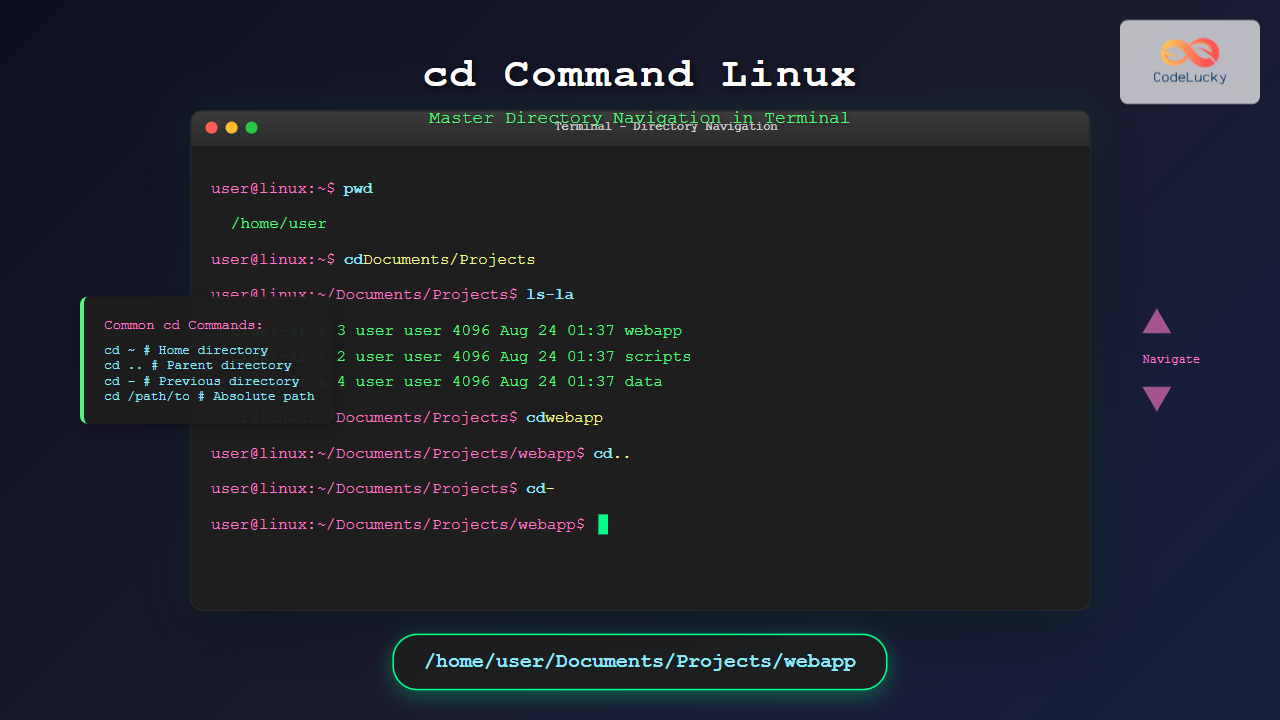
The cd command is one of the most fundamental and frequently used commands in Linux and Unix-like operating systems. Standing for “change directory,” this essential command allows users to navigate through the file system efficiently from the command line interface. Whether you’re a beginner just starting with Linux or an experienced user looking to master advanced navigation techniques, understanding the cd command is crucial for effective terminal usage.
What is the cd Command?
The cd command is a built-in shell command that changes the current working directory to a specified directory. It’s actually a shell builtin rather than an external program, which means it’s integrated directly into the shell for optimal performance. This command is available in all Unix-like systems, including Linux distributions, macOS, and various Unix variants.
Basic Syntax
cd [directory_path]The basic syntax is straightforward: type cd followed by the path to the directory you want to navigate to. If no directory is specified, cd will take you to your home directory by default.
Understanding Directory Paths
Before diving into cd command examples, it’s essential to understand the two types of directory paths in Linux:
Absolute Paths
Absolute paths start from the root directory (/) and provide the complete path to a directory. They always begin with a forward slash and remain the same regardless of your current location in the file system.
/home/username/Documents
/var/log
/etc/apache2
Relative Paths
Relative paths are relative to your current working directory. They don’t start with a forward slash and change meaning depending on where you are in the file system.
Documents/projects
../parent_directory
./current_directory
Basic cd Command Examples
Navigating to Home Directory
The simplest use of the cd command is to return to your home directory:
$ pwd
/var/log
$ cd
$ pwd
/home/username
You can also explicitly specify the home directory using the tilde (~) symbol:
$ cd ~
$ pwd
/home/username
Changing to a Specific Directory
To navigate to a specific directory, provide the path as an argument:
$ cd /var/log
$ pwd
/var/log

$ cd ~/Documents
$ pwd
/home/username/Documents
Using Relative Paths
Navigate using relative paths based on your current location:
$ pwd
/home/username
$ cd Documents
$ pwd
/home/username/Documents

$ cd projects
$ pwd
/home/username/Documents/projects
Advanced cd Command Techniques
Parent Directory Navigation
Use .. to move up one directory level:
$ pwd
/home/username/Documents/projects/myapp
$ cd ..
$ pwd
/home/username/Documents/projects

$ cd ../..
$ pwd
/home/username
Previous Directory Navigation
The cd - command switches between the current directory and the previous directory:
$ pwd
/home/username/Documents
$ cd /var/log
$ pwd
/var/log
$ cd -
$ pwd
/home/username/Documents
$ cd -
$ pwd
/var/log
Current Directory Reference
The single dot (.) represents the current directory:
$ cd .
$ pwd
/home/username/Documents
While cd . doesn’t change your location, the dot is useful in other contexts and commands.
Working with Spaces and Special Characters
When directory names contain spaces or special characters, you need to handle them properly:
Using Quotes
$ cd "My Documents"
$ cd 'Project Files'
Using Backslash Escaping
$ cd My\ Documents
$ cd Project\ Files
Tab Completion
Most shells support tab completion, which automatically escapes special characters:
$ cd My[TAB]
$ cd My\ Documents/
Environment Variables and cd
CDPATH Variable
The CDPATH environment variable defines search paths for the cd command:
$ export CDPATH="/home/username:/var:/etc"
$ cd log
$ pwd
/var/log
With CDPATH set, you can navigate to directories without specifying the full path, as long as they exist in one of the specified search paths.
HOME Variable
The HOME environment variable defines your home directory:
$ echo $HOME
/home/username
$ cd $HOME
$ pwd
/home/username
cd Command Options and Flags
While the cd command doesn’t have many options compared to other Linux commands, some shells provide additional functionality:
Bash cd Options
-L: Follow symbolic links (default behavior)-P: Use physical directory structure, ignore symbolic links
$ cd -P /var/mail
$ cd -L ~/Desktop
Practical Examples and Use Cases
Project Development Workflow
# Navigate to project directory
$ cd ~/projects/webdev/mysite

# Check current location
$ pwd
/home/username/projects/webdev/mysite

# Go to parent project directory
$ cd ..
$ pwd
/home/username/projects/webdev

# Return to specific project
$ cd mysite
$ pwd
/home/username/projects/webdev/mysite
System Administration Tasks
# Navigate to log directory
$ cd /var/log
$ pwd
/var/log

# Check Apache logs
$ cd apache2
$ pwd
/var/log/apache2

# Return to main log directory
$ cd ..
$ pwd
/var/log

# Go to system configuration
$ cd /etc
$ pwd
/etc
Quick Directory Switching
# Start in home directory
$ pwd
/home/username

# Go to a deep directory
$ cd /var/log/apache2/sites
$ pwd
/var/log/apache2/sites

# Quickly return home
$ cd
$ pwd
/home/username

# Return to previous location
$ cd -
$ pwd
/var/log/apache2/sites
Common cd Command Errors and Troubleshooting
Permission Denied
$ cd /root
bash: cd: /root: Permission denied
Solution: This error occurs when you don’t have permission to access the directory. Use sudo if necessary, or check directory permissions with ls -ld.
No Such File or Directory
$ cd /nonexistent
bash: cd: /nonexistent: No such file or directory
Solution: Verify the directory path exists using ls command or check for typos in the path.
Not a Directory
$ cd /etc/passwd
bash: cd: /etc/passwd: Not a directory
Solution: This error occurs when you try to cd into a file instead of a directory. Use ls -l to verify file types.
Advanced Tips and Tricks
Creating Aliases for Frequent Directories
Create aliases in your .bashrc or .zshrc file for frequently accessed directories:
alias cdlog='cd /var/log'
alias cdproj='cd ~/projects'
alias cdconf='cd /etc'
Using pushd and popd
While not part of cd, pushd and popd commands work alongside cd for directory stack management:
$ pushd /var/log
/var/log ~
$ pushd /etc
/etc /var/log ~
$ popd
/var/log ~
$ popd
~
Combining cd with Other Commands
You can combine cd with other commands using command chaining:
$ cd /var/log && ls -la
$ cd ~/projects && find . -name "*.py"
Shell-Specific cd Features
Zsh Enhancements
Zsh provides additional features for the cd command:
- Auto-correction: Zsh can automatically correct minor typos in directory names
- Directory stack: Enhanced directory stack management
- Globbing: Advanced pattern matching for directory navigation
Fish Shell Features
Fish shell offers unique cd enhancements:
- Autosuggestions: Real-time suggestions based on history
- Tab completion: Enhanced tab completion with descriptions
Best Practices for Using cd Command
Use Tab Completion
Always use tab completion to avoid typos and speed up navigation:
$ cd /var/l[TAB]
$ cd /var/log/
Verify Your Location
Use pwd to confirm your current directory after navigation:
$ cd /complex/path/to/directory
$ pwd
/complex/path/to/directory
Use Meaningful Directory Names
When creating directories, use clear, descriptive names that are easy to navigate to:
$ mkdir -p ~/projects/web-development/e-commerce-site
$ cd ~/projects/web-development/e-commerce-site
Organize Your File System
Maintain a logical directory structure to make navigation more intuitive:
~/projects/
├── web-development/
├── python-scripts/
├── data-analysis/
└── personal/
Integration with Other Commands
Using cd with find
$ cd $(find /home -name "Documents" -type d 2>/dev/null | head -1)Using cd with grep
$ cd /var/log && grep -r "error" .Script Integration
In shell scripts, always check if directory changes are successful:
#!/bin/bash
if cd /target/directory; then
    echo "Successfully changed to target directory"
    # Perform operations
else
    echo "Failed to change directory"
    exit 1
fi
Performance Considerations
The cd command is extremely fast since it’s a shell builtin, but here are some performance tips:
- Use absolute paths when possible to avoid path resolution overhead
- Avoid deeply nested directories when designing your file system structure
- Use CDPATH wisely – too many paths can slow down directory resolution
Security Considerations
Path Traversal Prevention
Be cautious with user input in scripts to prevent path traversal attacks:
# Bad practice - vulnerable to path traversal
cd "$user_input"

# Better practice - validate input
if [[ "$user_input" =~ ^[a-zA-Z0-9_/-]+$ ]]; then
    cd "$user_input"
else
    echo "Invalid directory name"
fi
Permission Awareness
Always be aware of directory permissions and avoid using sudo unnecessarily with cd:
$ ls -ld /sensitive/directory
drwx------ 2 root root 4096 Aug 24 01:36 /sensitive/directory
$ cd /sensitive/directory  # This will fail without proper permissions
Conclusion
The cd command is an essential tool for Linux users, providing the foundation for efficient file system navigation. From basic directory changes to advanced techniques using environment variables and shell features, mastering the cd command significantly improves your command-line productivity.
Key takeaways include understanding the difference between absolute and relative paths, leveraging shortcuts like ~, .., and -, and utilizing shell-specific enhancements. Whether you’re performing system administration tasks, developing software, or simply organizing files, the cd command remains one of the most important commands in your Linux toolkit.
Practice these examples and techniques regularly to build muscle memory and become more efficient in your terminal navigation. As you become more comfortable with the cd command, you’ll find that moving around the Linux file system becomes second nature, allowing you to focus on more complex tasks and workflows.
Related Posts
pwd Command in Linux: Complete Guide to Display Current Working Directory Path
The pwd command is one of the fundamental Linux commands that every user should master. Standing for "Print Working Directory,"...
which Command Linux: Complete Guide to Locating Executable Commands in PATH
The which command is a fundamental Linux utility that helps you locate executable files in your system's PATH environment variable....

Linux Commands Tutorial: Complete Beginner’s Guide to Terminal Basics
The Linux terminal is a powerful command-line interface that gives you direct control over your operating system. While it might...
which Command Linux: Complete Guide to Finding Executable File Locations
The which command is one of the most fundamental utilities in Linux and Unix-like systems, designed to help users locate...
mkdir Command Linux: Complete Guide to Creating Directories and Subdirectories
The mkdir command is one of the most fundamental and frequently used commands in Linux for creating directories. Whether you're...
type Command Linux: Complete Guide to Display Command Type and Location
The type command is an essential Linux utility that helps you identify the nature and location of commands in your...

ls Command in Linux: Complete Guide to List Files and Directories with Examples
The ls command is one of the most fundamental and frequently used commands in Linux and Unix-like operating systems. It...
ls Command Advanced Linux: Complete Guide to File Listing Mastery
The ls command is one of the most fundamental and frequently used commands in Linux and Unix-like operating systems. While...

bash Command Linux: Start New Shell Sessions and Execute Scripts Efficiently
The bash command is one of the most fundamental tools in Linux systems, serving as both a command-line interpreter and...
mv Command in Linux: Complete Guide to Moving and Renaming Files
The mv command is one of the most fundamental and frequently used commands in Linux systems. Whether you're a system...
cp Command Linux: Copy Files and Directories with Examples and Best Practices
The cp command is one of the most fundamental and frequently used commands in Linux systems. It allows you to...
mount Command Linux: Complete Guide to Mount Filesystems and Drives
The mount command is one of the most fundamental tools in Linux system administration, allowing you to attach filesystems from...





