
The cat command is one of the most fundamental and frequently used commands in Linux and Unix-like operating systems. Short for “concatenate,” this versatile command allows you to display file contents, combine multiple files, and perform various text manipulation tasks directly from the terminal.
What is the cat Command?
The cat command reads files sequentially and writes their content to standard output (usually your terminal screen). Originally designed to concatenate files, it has evolved into a multi-purpose tool for file viewing and manipulation.
Basic Syntax
cat [OPTION]... [FILE]...Basic Usage Examples
Displaying File Contents
The most common use of cat is to display the contents of a file:
cat filename.txtExample Output:
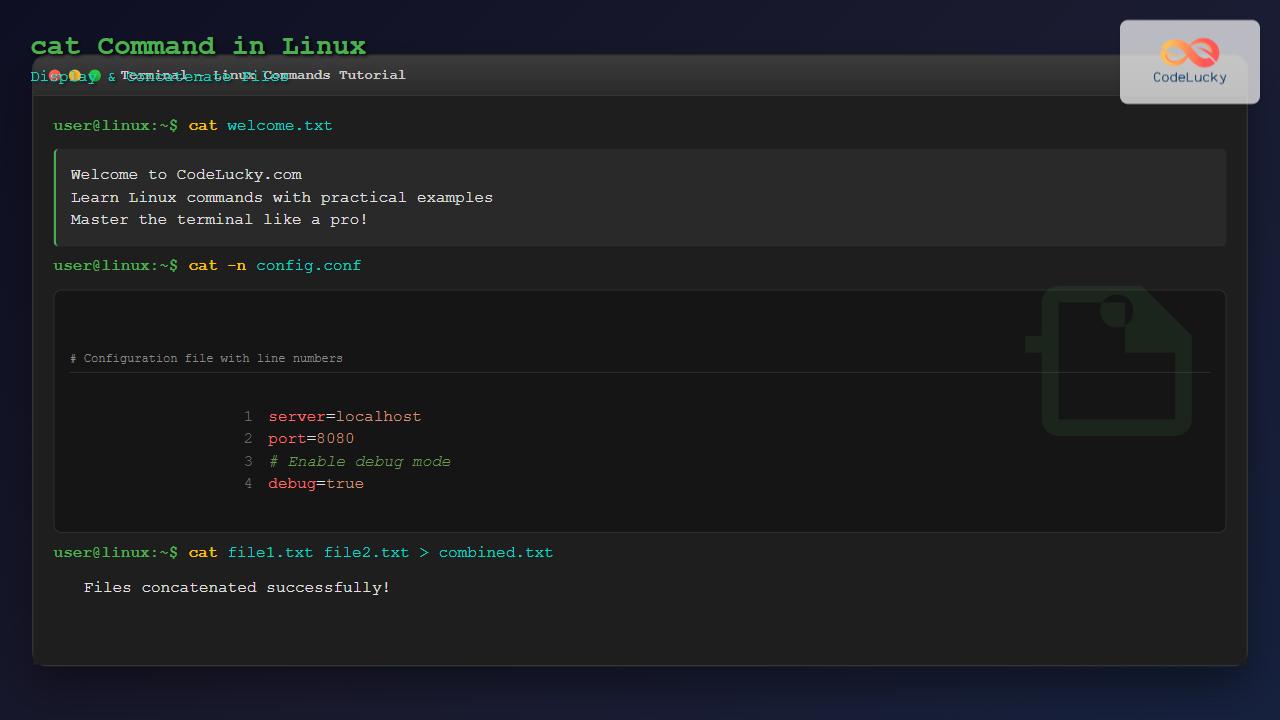
$ cat welcome.txt
Welcome to CodeLucky.com
Learn Linux commands with practical examples
Happy coding!
Displaying Multiple Files
You can display multiple files consecutively by listing them as arguments:
cat file1.txt file2.txt file3.txtExample Output:
$ cat header.txt content.txt footer.txt
=== HEADER ===
This is the main content of our document.
It contains important information.
=== FOOTER ===
File Concatenation
Combining Files into a New File
To concatenate multiple files and save the result to a new file:
cat file1.txt file2.txt > combined.txtExample:
$ cat part1.txt part2.txt > complete_document.txt
$ cat complete_document.txt
Chapter 1: Introduction
This is the first part of our document.

Chapter 2: Implementation
This is the second part with detailed steps.
Appending Files
Use the append operator >> to add content to an existing file:
cat additional.txt >> existing_file.txtEssential cat Command Options
-n (Number Lines)
Display line numbers for all lines:
cat -n filename.txtExample Output:
$ cat -n sample.txt
     1	First line of the file
     2	Second line with content
     3	Third line here
     4	Last line of the file
-b (Number Non-Empty Lines)
Number only non-empty lines:
cat -b filename.txtExample Output:
$ cat -b sample.txt
     1	First line of the file

     2	Third line after empty line
     3	Last line of the file
-s (Squeeze Blank Lines)
Suppress multiple consecutive empty lines:
cat -s filename.txtExample Output:
$ cat -s document.txt
Line 1

Line 2 (multiple empty lines above squeezed to one)

Final line
-A (Show All Characters)
Display all characters including non-printing characters:
cat -A filename.txtExample Output:
$ cat -A sample.txt
Line with tab^Icharacter$
Line with spaces    $
Line with newline$
-T (Show Tabs)
Display tab characters as ^I:
cat -T filename.txt-E (Show Line Ends)
Display $ at the end of each line:
cat -E filename.txtAdvanced Use Cases
Creating Files with cat
Create a new file using cat with input redirection:
cat > newfile.txt
Type your content here
Press Ctrl+D to save and exit
Example:
$ cat > config.txt
server=localhost
port=8080
debug=true
^D
$ cat config.txt
server=localhost
port=8080
debug=true
Using cat with Here Documents
Create multi-line content using here documents:
cat << EOF > script.sh
#!/bin/bash
echo "Hello, World!"
date
EOF
Reading from Standard Input
Use cat without arguments to read from standard input:
$ cat
Hello, this is input
Hello, this is input
Press Ctrl+D to exit
Press Ctrl+D to exit
Practical Examples and Workflows
Log File Analysis
Combine multiple log files for analysis:
cat /var/log/app1.log /var/log/app2.log > combined_logs.txtConfiguration File Backup
Create backups by concatenating with timestamp:
cat config.conf > "config.conf.backup.$(date +%Y%m%d)"Quick File Comparison
View files side by side for comparison:
cat file1.txt && echo "--- SEPARATOR ---" && cat file2.txtPerformance Considerations
Large File Handling
For large files, consider using alternatives:
lessormorefor paginationheadto view first few linestailto view last few lines
# View first 20 lines
head -20 largefile.txt

# View last 20 lines
tail -20 largefile.txt

# Interactive viewing
less largefile.txt
Memory Usage
The cat command loads the entire file content into memory, which may not be suitable for very large files (several GBs).
Common Pitfalls and Solutions
Binary Files
Avoid using cat on binary files as it can corrupt your terminal display:
# Check file type first
file suspicious_file.bin

# Use hexdump for binary files
hexdump -C binary_file.bin | head
Overwriting Files
Be careful with output redirection to avoid accidentally overwriting files:
# Wrong: This will create an empty file
cat important_file.txt > important_file.txt

# Correct: Use a different output file
cat important_file.txt > important_file_copy.txt
Combining cat with Other Commands
Using Pipes
Combine cat with other commands using pipes:
# Count lines in multiple files
cat file1.txt file2.txt | wc -l

# Search in multiple files
cat *.log | grep "ERROR"

# Sort combined content
cat data1.txt data2.txt | sort > sorted_data.txt
Text Processing Pipeline
# Complex text processing
cat access.log | grep "404" | awk '{print $1}' | sort | uniq -c | sort -nr
Alternative Commands
While cat is versatile, other commands might be more appropriate for specific tasks:
| Command | Use Case | Example |
|---|---|---|
less |
Interactive file viewing | less largefile.txt |
head |
View file beginning | head -10 file.txt |
tail |
View file end | tail -f logfile.log |
tac |
Reverse line order | tac file.txt |
Security Considerations
File Permissions
Ensure you have read permissions for files you want to display:
ls -la filename.txt
-rw-r--r-- 1 user group 1024 Aug 24 23:30 filename.txt
Sensitive Data
Be cautious when using cat on files containing sensitive information, especially in shared environments or when your terminal session might be logged.
Conclusion
The cat command is an essential tool in any Linux user’s toolkit. From simple file viewing to complex file concatenation tasks, mastering cat and its various options will significantly improve your command-line productivity. Remember to choose the appropriate tool for each task and consider performance implications when working with large files.
Practice these examples in your own Linux environment to become proficient with the cat command. As you become more comfortable, you’ll find countless creative ways to integrate cat into your daily Linux workflows.
Related Posts
paste Command Linux: Complete Guide to Merging Lines from Multiple Files
The paste command in Linux is a powerful text processing utility that allows you to merge lines from multiple files...

echo Command in Linux: Complete Guide to Print Text and Variables in Terminal
The echo command is one of the most fundamental and frequently used commands in Linux and Unix-like operating systems. It...
pipe Command Linux: Complete Guide to Connecting Commands with Pipes
The pipe command in Linux is one of the most powerful and fundamental concepts that allows you to connect multiple...
head Command in Linux: Display First Lines of Files Efficiently
The head command is one of the most fundamental and frequently used utilities in Linux and Unix-like operating systems. It...
sed Advanced Linux: Stream Editor Advanced Techniques for Text Processing
The sed (Stream Editor) command stands as one of the most powerful text processing tools in Linux systems. While basic...
sed Command Linux: Complete Guide to Stream Editor for Text Manipulation
The sed (Stream Editor) command is one of the most powerful text processing utilities in Linux and Unix systems. It...
redirect Command Linux: Complete Input Output Redirection Guide
Linux redirection is a powerful feature that allows you to control where command input comes from and where output goes....
more Command Linux: Complete Guide to Paginated File Viewing
The more command is one of the most essential Linux utilities for viewing file contents in a controlled, paginated manner....
tee Command Linux: Write Output to Multiple Destinations Simultaneously
The tee command in Linux is a powerful utility that reads from standard input and writes the output to both...
file Command in Linux: Complete Guide to Determine File Types and Formats
The file command is one of the most essential utilities in Linux for determining file types and formats. Unlike relying...
hexdump Command Linux: Complete Guide to Display File Contents in Hexadecimal Format
The hexdump command is a powerful Linux utility that displays the contents of files in hexadecimal format, making it an...

file Command Advanced Linux: Master Detailed File Type Analysis and Detection
The file command is one of the most powerful and underutilized utilities in Linux for determining file types and analyzing...





