
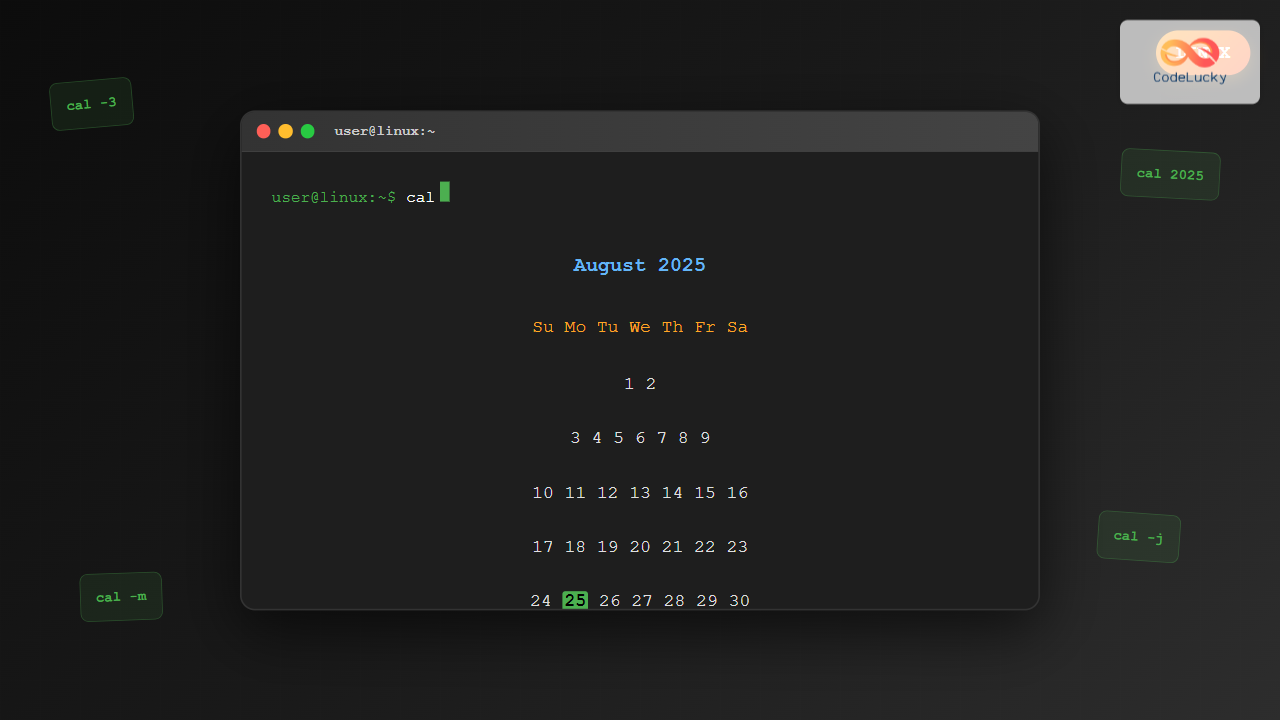
The cal command is one of Linux’s most straightforward yet powerful utilities for displaying calendar information directly in your terminal. Whether you’re a system administrator scheduling tasks, a developer planning releases, or simply need to check dates quickly, the cal command provides an efficient way to view calendar data without leaving your command-line environment.
What is the cal Command?
The cal command (short for calendar) is a built-in Linux utility that displays a formatted calendar in the terminal. It can show calendars for specific months, years, or the current date, making it an essential tool for date-related operations and quick reference.
By default, cal displays the current month’s calendar with the current date highlighted, providing immediate temporal context for your work.
Basic Syntax and Usage
The basic syntax of the cal command follows this pattern:
cal [options] [month] [year]Let’s start with the most basic usage:
calOutput:
    August 2025
Su Mo Tu We Th Fr Sa
                1  2
 3  4  5  6  7  8  9
10 11 12 13 14 15 16
17 18 19 20 21 22 23
24 25 26 27 28 29 30
31
The current date (25th in this example) would typically be highlighted or marked in some way depending on your terminal’s capabilities.
Displaying Specific Months and Years
Current Year, Different Month
To display a specific month of the current year:
cal 12Output:
   December 2025
Su Mo Tu We Th Fr Sa
    1  2  3  4  5  6
 7  8  9 10 11 12 13
14 15 16 17 18 19 20
21 22 23 24 25 26 27
28 29 30 31
Specific Month and Year
To display a calendar for a specific month and year:
cal 6 2024Output:
     June 2024
Su Mo Tu We Th Fr Sa
                   1
 2  3  4  5  6  7  8
 9 10 11 12 13 14 15
16 17 18 19 20 21 22
23 24 25 26 27 28 29
30
Entire Year Display
To view an entire year’s calendar:
cal 2025This command displays all 12 months of 2025 in a neatly formatted grid, perfect for annual planning and overview.
Advanced Options and Flags
Monday as First Day (-m)
By default, cal displays Sunday as the first day of the week. To start with Monday:
cal -mOutput:
    August 2025
Mo Tu We Th Fr Sa Su
             1  2  3
 4  5  6  7  8  9 10
11 12 13 14 15 16 17
18 19 20 21 22 23 24
25 26 27 28 29 30 31
Three Month Display (-3)
Display the previous, current, and next month:
cal -3This shows a three-month view centered on the current month, excellent for short-term planning.
Julian Day Numbers (-j)
Display Julian day numbers (day of year):
cal -jOutput:
        August 2025
Sun Mon Tue Wed Thu Fri Sat
                214 215
216 217 218 219 220 221 222
223 224 225 226 227 228 229
230 231 232 233 234 235 236
237 238 239 240 241 242 243
Year Display (-y)
Display the entire current year:
cal -yThis is equivalent to cal $(date +%Y) and shows all months of the current year.
Practical Examples and Use Cases
Planning and Scheduling
Check what day of the week a specific date falls on:
cal 12 2025This helps when planning events or checking historical dates.
Quick Date Verification
Verify the number of days in February for leap years:
cal 2 2024  # Leap year
cal 2 2025  # Regular year
Historical Date Research
Check historical dates:
cal 7 1969  # Month of moon landing
cal 12 1999 # Y2K preparation month
Integration with Other Commands
Combining with Date Command
Get the current month with highlighted today:
cal $(date +%m) $(date +%Y)Piping and Formatting
Save calendar output to a file:
cal 2025 > calendar_2025.txtUsing in Scripts
Create a script to show upcoming months:
#!/bin/bash
echo "Current and next two months:"
cal -3
Troubleshooting Common Issues
Invalid Date Ranges
The cal command has limitations on date ranges. Most systems support years from 1 to 9999:
cal 1 1     # January of year 1
cal 12 9999 # December of year 9999
Locale and Language Settings
Calendar display depends on your system’s locale. To check different locales:
LANG=en_US cal     # English
LANG=es_ES cal     # Spanish (if available)
Terminal Width Issues
If your terminal is too narrow, the year view might not display properly. Ensure your terminal is at least 80 characters wide for optimal viewing.
Alternative Calendar Tools
While cal is the standard tool, you might also encounter:
- ncal: An alternative calendar program with different formatting
- gcal: GNU calendar with more features
- calendar: BSD calendar program with reminder capabilities
Tips for Efficient Usage
Creating Aliases
Add useful aliases to your shell configuration:
# In .bashrc or .zshrc
alias cal3='cal -3'
alias caly='cal -y'
alias calm='cal -m'
Quick Reference Functions
Create functions for common tasks:
function whatday() {
    cal $2 $1 | grep -E "(^|[^0-9])$3([^0-9]|$)"
}
Best Practices
- Use -m flag if you prefer Monday-first calendars for business planning
- Combine with other commands for automated date processing
- Redirect output when creating documentation or reports
- Consider terminal width when using in scripts or automated environments
Conclusion
The cal command is a simple yet versatile tool that every Linux user should master. From quick date checks to historical research and planning, it provides immediate access to calendar information without the need for external applications or internet connectivity.
Whether you’re scheduling cron jobs, planning project timelines, or simply checking when the weekend starts, the cal command offers a reliable, fast, and always-available solution. Its simplicity makes it perfect for both interactive use and scripting applications, making it an indispensable part of the Linux command-line toolkit.
Practice with different options and integrate cal into your daily workflow to maximize productivity and maintain better temporal awareness in your Linux environment.
Related Posts
date Command Linux: Complete Guide to Display and Set System Date
The date command is one of the most fundamental utilities in Linux systems, allowing users to display and manipulate system...
locale Command Linux: Complete Guide to Display System Locale Information
The locale command is an essential Linux utility that displays and manages locale-specific information on your system. Locales define how...

Excel DATE Function: Complete Guide to Date Creation and Formatting
The Excel DATE function is one of the most fundamental and powerful tools for working with dates in spreadsheets. Whether...

Java Date: Working with Dates and Times
Java provides robust support for working with dates and times, offering developers powerful tools to handle various temporal operations. Whether...

JavaScript Date getMonth() Method: Getting Month
JavaScript Date getMonth() Method: Extracting the Month The getMonth() method in JavaScript is a fundamental part of the Date object,...
Excel MONTH Function: Complete Guide to Extract Month Numbers from Dates
The Excel MONTH function is a powerful date function that extracts the month number from any given date value. Whether...

Excel EDATE Function: Add or Subtract Months from Dates Easily
The EDATE function in Microsoft Excel is a powerful date manipulation tool that allows you to add or subtract months...

JavaScript Date getFullYear() Method: Getting Full Year
JavaScript Date getFullYear() Method: Getting the Full Year The getFullYear() method in JavaScript is a fundamental function for extracting the...
MySQL CURDATE Function: Get Today’s Date
The CURDATE() function in MySQL is your go-to tool for quickly retrieving the current date. Whether you're logging transactions, creating...

Python Dates: Mastering Time and Date Operations
In the world of programming, handling dates and times is a crucial skill. Whether you're building a scheduling application, analyzing...
MySQL DATE_FORMAT Function: Mastering Date Output
The DATE_FORMAT function in MySQL is your go-to tool for displaying dates and times in the precise format you need....
JavaScript Date toDateString() Method: Date String
JavaScript Date toDateString() Method: Formatting Dates The toDateString() method in JavaScript is used to convert a Date object into a...





