
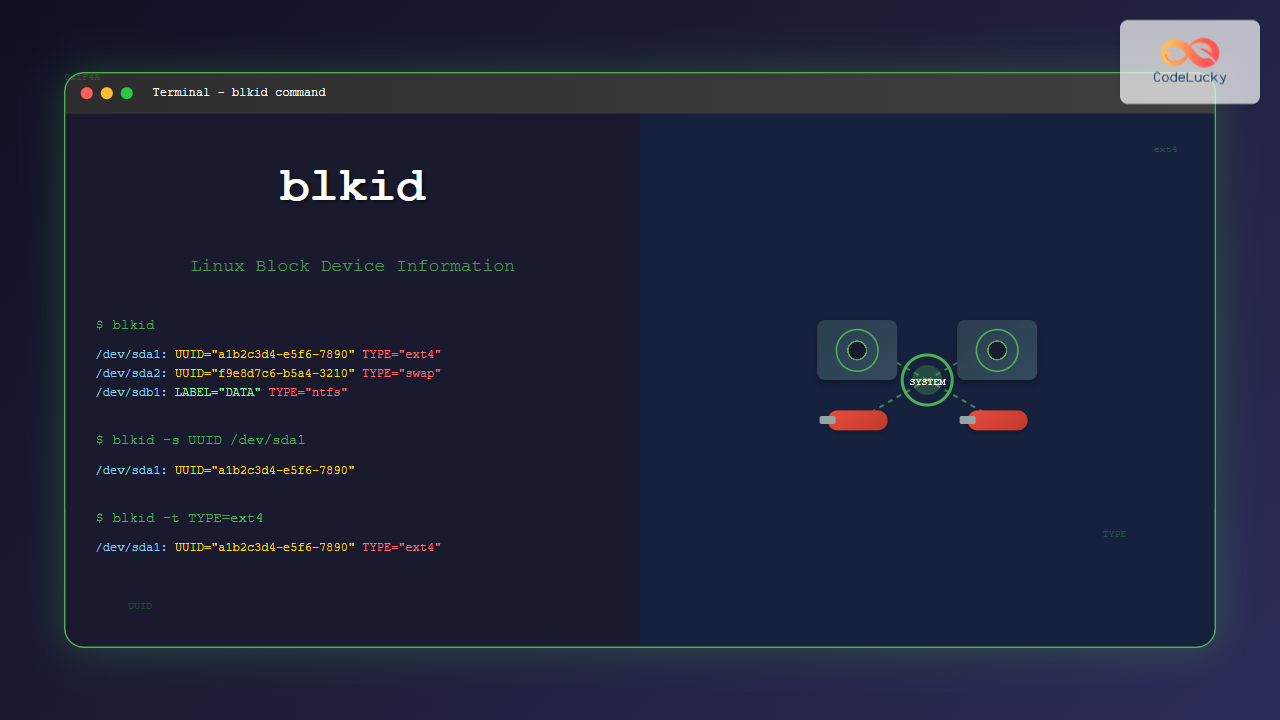
The blkid command is an essential Linux utility that displays information about block devices, including file system types, UUIDs, labels, and other metadata. Whether you’re a system administrator managing multiple storage devices or a developer working with file systems, understanding blkid is crucial for effective Linux system management.
What is the blkid Command?
The blkid (block identifier) command is a command-line utility that locates and prints block device attributes. It can identify file system types, retrieve UUIDs (Universally Unique Identifiers), display volume labels, and show various other properties of storage devices and partitions.
This command is particularly useful for:
- Identifying file system types on partitions
- Retrieving UUIDs for mounting devices
- Displaying volume labels and metadata
- Troubleshooting storage-related issues
- Creating automated scripts for system administration
Basic Syntax and Installation
The basic syntax of the blkid command is:
blkid [options] [device...]The blkid command is typically pre-installed on most Linux distributions as part of the util-linux package. If it’s not available, you can install it using your distribution’s package manager:
# Ubuntu/Debian
sudo apt-get install util-linux

# CentOS/RHEL/Fedora
sudo yum install util-linux
# or
sudo dnf install util-linux
Basic Usage Examples
Display All Block Devices
To display information about all available block devices, simply run blkid without any arguments:
$ blkidExample output:
/dev/sda1: UUID="a1b2c3d4-e5f6-7890-abcd-ef1234567890" TYPE="ext4" PARTUUID="12345678-01"
/dev/sda2: UUID="f9e8d7c6-b5a4-3210-9876-543210fedcba" TYPE="swap" PARTUUID="12345678-02"
/dev/sdb1: LABEL="DATA" UUID="11223344-5566-7788-99aa-bbccddeeff00" TYPE="ntfs" PARTUUID="87654321-01"
/dev/sr0: UUID="2023-08-15-14-30-00-00" LABEL="Ubuntu 22.04 LTS amd64" TYPE="iso9660"
Display Information for Specific Device
To get information about a specific device, specify the device path:
$ blkid /dev/sda1Example output:
/dev/sda1: UUID="a1b2c3d4-e5f6-7890-abcd-ef1234567890" TYPE="ext4" PARTUUID="12345678-01"Important Command Options
Show Specific Attributes (-s option)
Use the -s option to display only specific attributes:
# Show only UUID
$ blkid -s UUID /dev/sda1
/dev/sda1: UUID="a1b2c3d4-e5f6-7890-abcd-ef1234567890"

# Show only file system type
$ blkid -s TYPE /dev/sda1
/dev/sda1: TYPE="ext4"

# Show only label
$ blkid -s LABEL /dev/sdb1
/dev/sdb1: LABEL="DATA"
Output Only Values (-o option)
The -o option controls the output format:
# Output only the value (useful for scripting)
$ blkid -s UUID -o value /dev/sda1
a1b2c3d4-e5f6-7890-abcd-ef1234567890

# Output in key=value format
$ blkid -o export /dev/sda1
DEVNAME=/dev/sda1
UUID=a1b2c3d4-e5f6-7890-abcd-ef1234567890
TYPE=ext4
PARTUUID=12345678-01
List All Devices (-l option)
Use the -l option to list all devices with a specific attribute:
# List all ext4 file systems
$ blkid -l -t TYPE=ext4
/dev/sda1: UUID="a1b2c3d4-e5f6-7890-abcd-ef1234567890" TYPE="ext4" PARTUUID="12345678-01"

# List all devices with a specific UUID
$ blkid -l -t UUID="a1b2c3d4-e5f6-7890-abcd-ef1234567890"
/dev/sda1: UUID="a1b2c3d4-e5f6-7890-abcd-ef1234567890" TYPE="ext4" PARTUUID="12345678-01"
Advanced Usage Examples
Finding Devices by Label
You can search for devices using their labels:
# Find device with specific label
$ blkid -L "DATA"
/dev/sdb1

# List all devices with labels
$ blkid -s LABEL -o device
Finding Devices by UUID
Locate devices using their UUID:
# Find device with specific UUID
$ blkid -U "a1b2c3d4-e5f6-7890-abcd-ef1234567890"
/dev/sda1
Probe Specific File System
Use the -p option for low-level probing:
$ blkid -p /dev/sda1Example output:
/dev/sda1: UUID="a1b2c3d4-e5f6-7890-abcd-ef1234567890" VERSION="1.0" TYPE="ext4" MINIMUM_IO_SIZE="512" PHYSICAL_SECTOR_SIZE="512" LOGICAL_SECTOR_SIZE="512"Working with Different File Systems
Common File System Types
The blkid command can identify various file system types:
| File System | TYPE Value | Description |
|---|---|---|
| ext2/ext3/ext4 | ext2, ext3, ext4 | Linux native file systems |
| XFS | xfs | High-performance file system |
| Btrfs | btrfs | Copy-on-write file system |
| NTFS | ntfs | Windows file system |
| FAT32 | vfat | DOS/Windows file system |
| Swap | swap | Linux swap partition |
Example: Identifying USB Drive
When you connect a USB drive, you can identify its file system:
$ blkid /dev/sdc1
/dev/sdc1: LABEL="USB_DRIVE" UUID="1234-5678" TYPE="vfat" PARTUUID="abcdef12-01"
Practical Use Cases
1. Creating fstab Entries
Use blkid to get UUIDs for /etc/fstab entries:
# Get UUID for fstab
$ blkid -s UUID -o value /dev/sda1
a1b2c3d4-e5f6-7890-abcd-ef1234567890

# Use in fstab
UUID=a1b2c3d4-e5f6-7890-abcd-ef1234567890 / ext4 defaults 0 1
2. Scripting Example
Here’s a bash script that checks if a specific file system type exists:
#!/bin/bash

# Check if any ext4 partitions exist
if blkid -t TYPE=ext4 &>/dev/null; then
    echo "ext4 partitions found:"
    blkid -t TYPE=ext4
else
    echo "No ext4 partitions found"
fi
3. System Information Gathering
Create a comprehensive storage report:
#!/bin/bash

echo "=== Storage Device Information ==="
echo
echo "All block devices:"
blkid
echo
echo "File system summary:"
blkid -s TYPE -o device,value | sort -k2
Troubleshooting Common Issues
Permission Denied Errors
If you encounter permission errors, run the command with sudo:
$ sudo blkid /dev/sda1Device Not Found
If a device is not found, verify it exists:
# List all block devices
$ lsblk

# Check if device exists
$ ls -l /dev/sda1
No Output for New Devices
For newly created file systems, you might need to force a probe:
$ sudo blkid -p /dev/sda1Security Considerations
When using blkid in scripts or automation:
- Always validate device paths before using them
- Use UUIDs instead of device names for mounting (more reliable)
- Be cautious when parsing output in scripts
- Consider using the
-o exportformat for reliable parsing
Integration with Other Commands
Combining with lsblk
# Show block devices with file system info
$ lsblk -f
Combining with mount
# Mount by UUID
$ sudo mount UUID="a1b2c3d4-e5f6-7890-abcd-ef1234567890" /mnt/data
Combining with findmnt
# Show mounted file systems with UUIDs
$ findmnt -D
Best Practices
- Use UUIDs for mounting: UUIDs remain constant even if device names change
- Script-friendly output: Use
-o valuewhen you need only the value in scripts - Regular monitoring: Include
blkidin system monitoring scripts - Backup important data: Always backup data before manipulating block devices
- Verify changes: Use
blkidto verify file system changes after formatting
Conclusion
The blkid command is an indispensable tool for Linux system administrators and users who need to work with block devices and file systems. From identifying file system types to retrieving UUIDs for reliable mounting, blkid provides essential functionality for storage management tasks.
By mastering the various options and use cases covered in this guide, you’ll be well-equipped to handle storage-related tasks efficiently and reliably. Remember to always verify device information before making changes, and consider using UUIDs for persistent device identification in your scripts and configuration files.
Whether you’re setting up automated backups, configuring system mounts, or troubleshooting storage issues, the blkid command will prove to be an invaluable addition to your Linux command-line toolkit.
Related Posts
lsblk Command Linux: Complete Guide to List and Manage Block Devices
The lsblk command is an essential Linux utility that displays information about block devices in a tree-like format. Whether you're...
dumpe2fs Command Linux: Complete Guide to Display Ext2/3/4 Filesystem Information
The dumpe2fs command is a powerful Linux utility that displays detailed information about ext2, ext3, and ext4 filesystems. This essential...

kpartx Command Linux: Create and Manage Partition Maps with Complete Examples
The kpartx command is a powerful Linux utility that creates device maps from partition tables, enabling you to access partitions...

stat Command Linux: Complete Guide to Display File and Filesystem Status Information
The stat command is a powerful Linux utility that displays detailed information about files and filesystems. Unlike basic commands like...
xfs_info Command Linux: Complete Guide to Display XFS Filesystem Information
The xfs_info command is a powerful utility in Linux systems that provides comprehensive information about XFS filesystems. This command is...
loop Command Linux: Complete Guide to Loop Device Management and Block Device Control
The loop command in Linux is a powerful utility for managing loop devices, which are virtual block devices that allow...
pvcreate Command Linux: Complete Guide to Creating Physical Volumes for LVM
The pvcreate command is a fundamental tool in Linux Logical Volume Management (LVM) that initializes storage devices as physical volumes....
btrfs Command Linux: Complete Guide to Advanced Filesystem Management
The btrfs command is a powerful utility for managing the B-tree filesystem (Btrfs) in Linux, offering advanced features like snapshots,...
devfs Linux: Complete Guide to Device Filesystem Management
The Device Filesystem (devfs) represents a revolutionary approach to device management in Linux systems, providing dynamic creation and removal of...
pvdisplay Command Linux: Complete Guide to Physical Volume Information Display
The pvdisplay command is an essential tool in Linux for displaying detailed information about Physical Volumes (PVs) in Logical Volume...
udev Command Linux: Complete Guide to Dynamic Device Management
The udev (userspace device manager) is a crucial component of modern Linux systems that handles dynamic device management. Unlike traditional...
mkfs Command Linux: Complete Guide to Creating Filesystems on Partitions
The mkfs command in Linux is a fundamental tool for creating filesystems on disk partitions. Whether you're setting up a...





